TL;DR:
We analyzed WPCode and created a detailed review. WPCode lets you add PHP, HTML, CSS, and JS to WordPress without touching a theme file. Free tier covers real work, Safe Mode auto-deactivates broken code, basic conditional logic and the 3,000-plus snippet library skips a lot of typing. Paid plans add advanced conditional logic and AI generation, and the WPCode Bundle folds in Search and Replace Everything plus Image Optimizer.
A client once asked for one line of tracking code in the header.
We pasted it straight into functions.php. One missing semicolon later, the site was a white screen, and the client was calling.
That’s the actual risk custom code carries on WordPress: no undo button, no sandbox, just a live site and a typo away from downtime.
That risk is also why so many small, single-purpose plugins exist.
Need to disable XML-RPC? There’s a plugin for that. Add a tracking pixel? Another plugin. Remove your WordPress version number from the page source? Yet another.
Each one is small, but they add up, and every plugin you install is one more thing that can break with the next update.
WPCode exists to remove both problems at once.
It’s grown into a reliable code snippet plugin with over 3 million sites now using it to add PHP, HTML, CSS, and JS without touching a theme file, and without installing a separate plugin for every small task.
We’ve spent real time in the dashboard for this review: installing fresh, building snippets, testing conditional logic, digging into the Bundle addons, and reading through what other users actually complain about.
Here’s the honest version, gaps included.
Key Takeaways:
- WPCode is free to use for basic snippet management and conditional logic, with any paid plan (Basic and up) required for advanced conditional logic, and Pro required for AI generation and location targeting
- Over 3 million active installs and a 4.9-star rating from 1,800+ WP.org reviews
- Snippets live outside your theme, so they survive theme changes and updates
- The Bundle plan ($349/yr) adds Search and Replace Everything and the Bundle-exclusive Image Optimizer on top of everything in Pro
Overview: What Is WPCode?
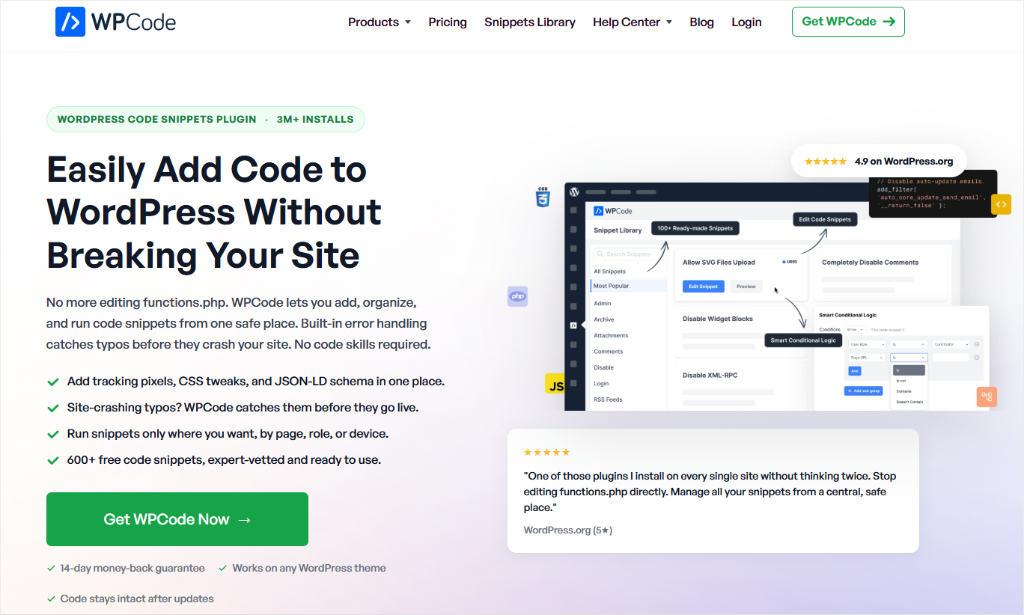
As a top code snippet plugin, WPCode ensures you don’t need to hire a developer for a one-line code change, or install five small plugins for five small tasks.
Add a tracking script, tweak your CSS, or build a custom feature yourself, and a bad snippet won’t take the whole site down while you’re at it.
As you can see, it was not built for just one function. Instead, it can help you fix design issues, add tracking & schema, manage team & snippets, and extend & automate content.
This makes it the most complete, beginner-friendly code snippet manager.
Here is a detailed post on what you can do with WPCode.
The Story Behind WPCode
WPCode didn’t start as a code snippets manager. It launched in 2011 as Insert Headers and Footers.
A plugin built by Mircea Sandu and the Awesome Motive team to solve one specific, common problem: adding a tracking script or verification tag to a WordPress site without editing theme files by hand.
That single-purpose tool stayed useful for a decade.
But after listening to the user base, the founders decided to give the plugin more power than just headers and footers code insertion.
WordPress users wanted the same safe, no-editing approach for CSS tweaks, PHP functions, and full custom code, not just scripts. In 2022, the plugin was rebranded to WPCode to reflect what it had actually become.
Feature growth since then has followed the same idea:
- Conditional logic so a snippet only runs where you want it.
- A snippet library so most tasks don’t require writing PHP from scratch.
- Snippet Packs to deploy several related snippets at once
- An AI generator for anyone who knows the outcome they want but not the code to get there.
Plus, the Bundle plan folds in two more tools, Search & Replace Everything and Image Optimizer, on the same bet: the “safe code without a developer” idea holds up past snippets alone.
WPCode Review: The Full Breakdown
Now that you understand more about WPCode, let’s get into the review. We have broken this post into sections so that it is easier for you to navigate.
Use the table of contents below to skip to the section you want to read.
With that out of the way, let’s dive in.
Installation and Set Up
Getting WPCode running takes less time than reading this section.
From your dashboard, head to Plugins » Add New Plugin, search “WPCode,” click Install Now, then Activate. No account, no license key, nothing to configure before the plugin is technically live.
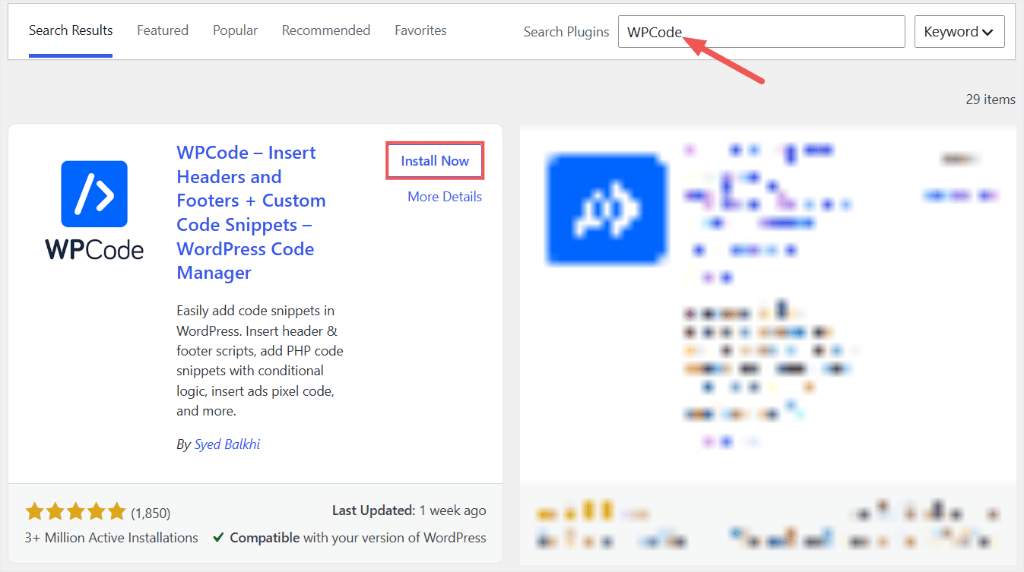
Activation drops a new “Code Snippets” menu into your sidebar. That’s it.
If you’re running Pro or Bundle, the process is slightly different.
You will need to log into your WPCode account and download the plugin file. Copy the “License Key” as well while on this page.
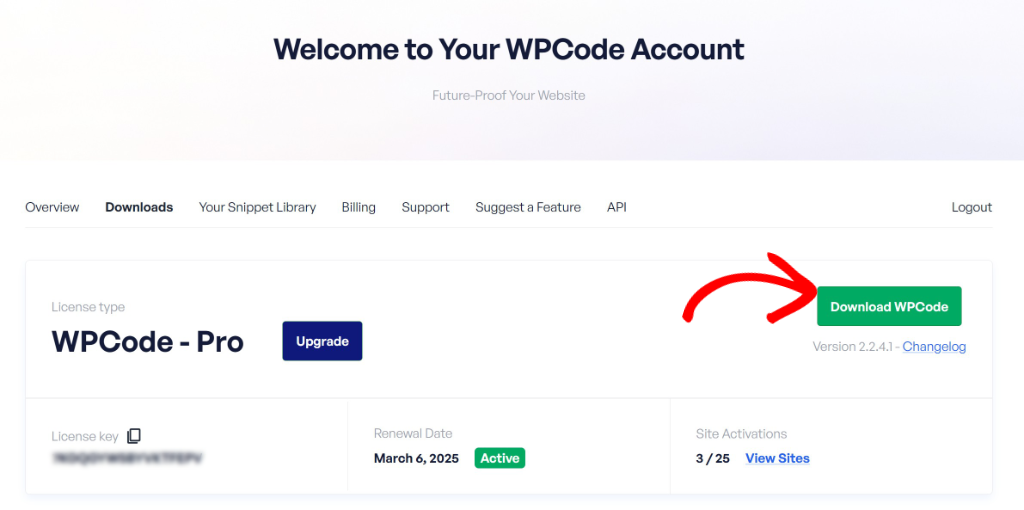
After that, head to your WordPress dashboard and install it like you would any other plugin.
The license activation happens under Code Snippets » Settings » General Settings, where you paste the key from your WPCode account. It takes one save click and confirms instantly, no page reload gymnastics.
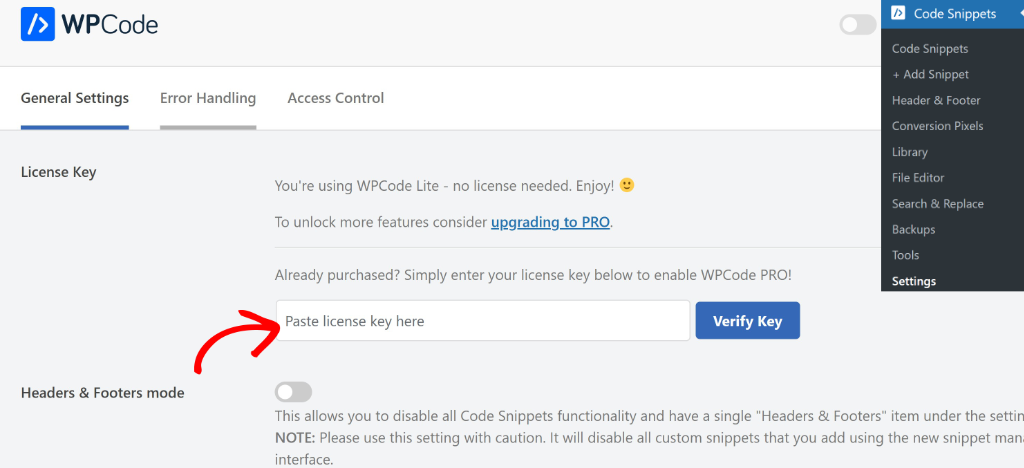
Check out this post if you need help installing and setting up WPCode.
Connect WPCode Library
The WPCode Library connection is one setup decision worth making early.
A fresh install has zero connection by default. Skip it, and features such as Snippet Packs show only a “Connect to Library” prompt instead of the actual browse grid.
All you have to do is go to Code Snippets » Settings » General Settings. Then, scroll down the page and select the “Connect to WPCode Library” button.
Thirty seconds of work, but it’s easy to miss if you’re not looking for it, and we missed it ourselves the first time through on a fresh test install.
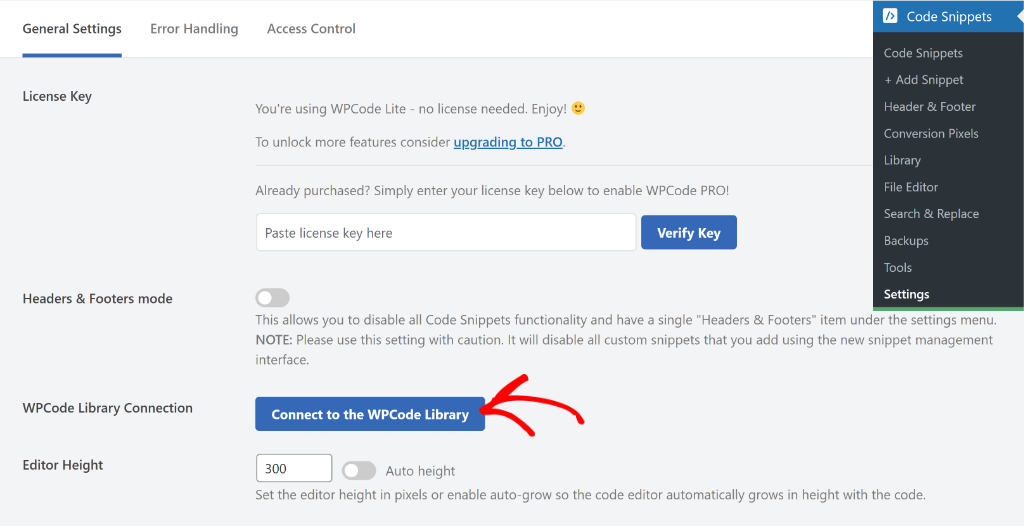
Most plugins this capable make you sit through a multi-step wizard before you can do anything. WPCode gets out of your way.
Switching from Another Code Snippet?
Switching from another code snippet plugin is just as simple.
Navigate to Code Snippets » Tools » Import. You will see a list of one-click imports from competitors like Code Snippets, Woody Code Snippets, Code Snippets Pro, and more.
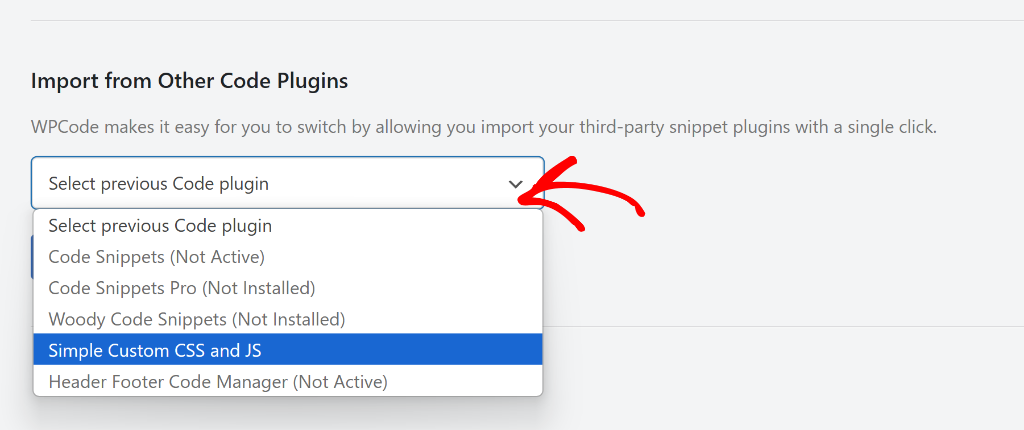
WPCode recognizes whichever of those you already have installed rather than making you rebuild everything by hand.
Check out this post if you want to migrate from another code snippet plugin to WPCode.
That covers how to install WPCode Lite, the paid version, and how to migrate from other options. Next, let us look at the customization options WPCode offers you.
Customization
WPCode supports four code types out of the box: PHP, HTML, CSS, and JavaScript.
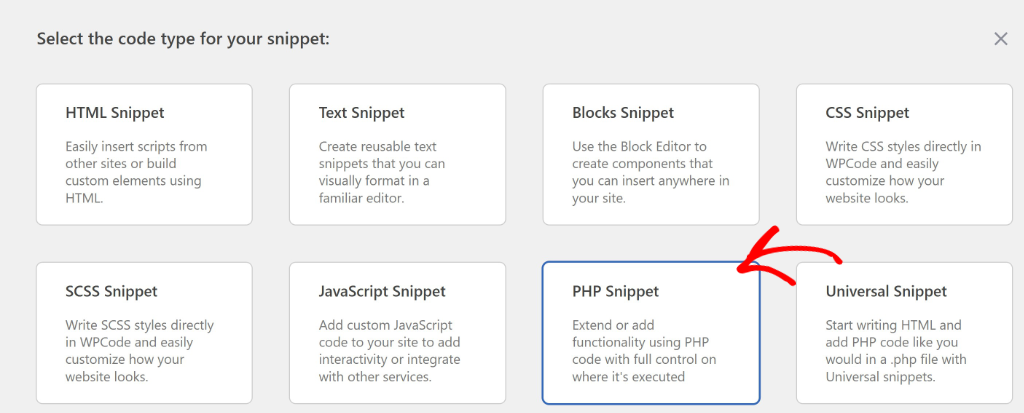
Pick a type when you create a snippet, and the editor adjusts its syntax highlighting to match. There is no separate add-on for each language, or guessing which plugin handles which format.
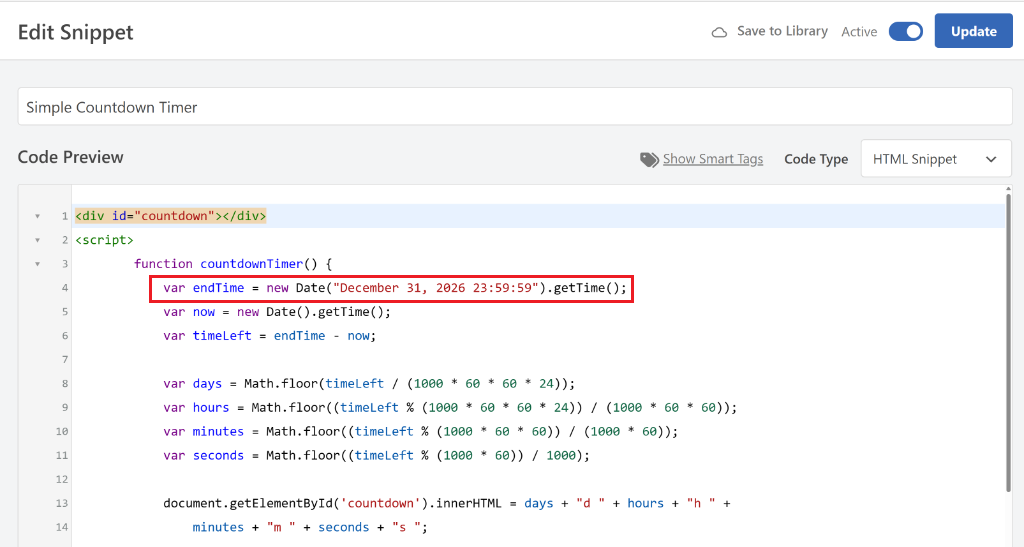
Every snippet needs somewhere to run.
Automatic Snippet Insertion
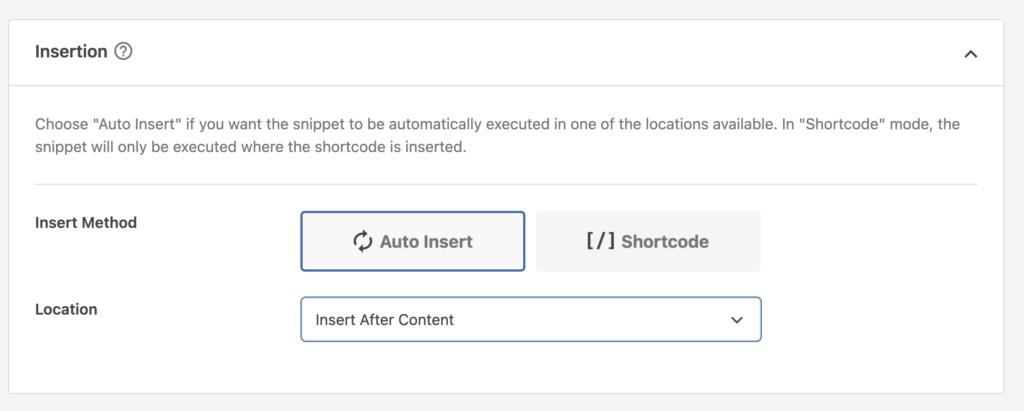
The auto-insert location dropdown covers the obvious spots (header, footer, before or after post content) plus specific WordPress hooks for anyone who wants finer control.
Priority is set from the same dashboard: a number that decides when your snippet fires relative to everything else hooked into the same location.
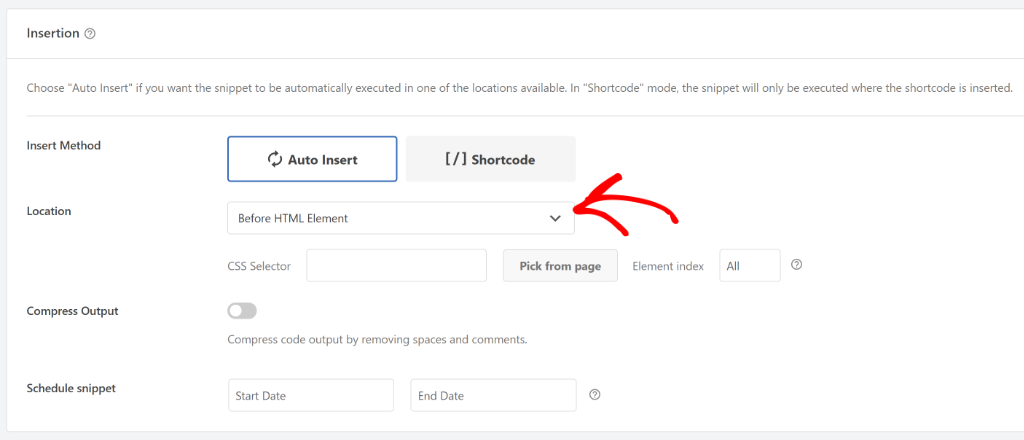
That priority field matters more than it looks.
For example, lots of WordPress users use AI to generate their code snippets today. But often hardcode a priority number directly into the code.
Setting priority from the WPCode dashboard instead keeps it visible and adjustable without touching a single line.
Code Snippet Conditional Logic
Smart Conditional Logic is where customization gets genuinely useful and available on the free version.
You can target a snippet by page URL, post type, user role, and several other conditions, all through WPCode Lite. For advanced conditions like an exact post/page picker, page template, author, device, and location targeting, you need the Pro version.
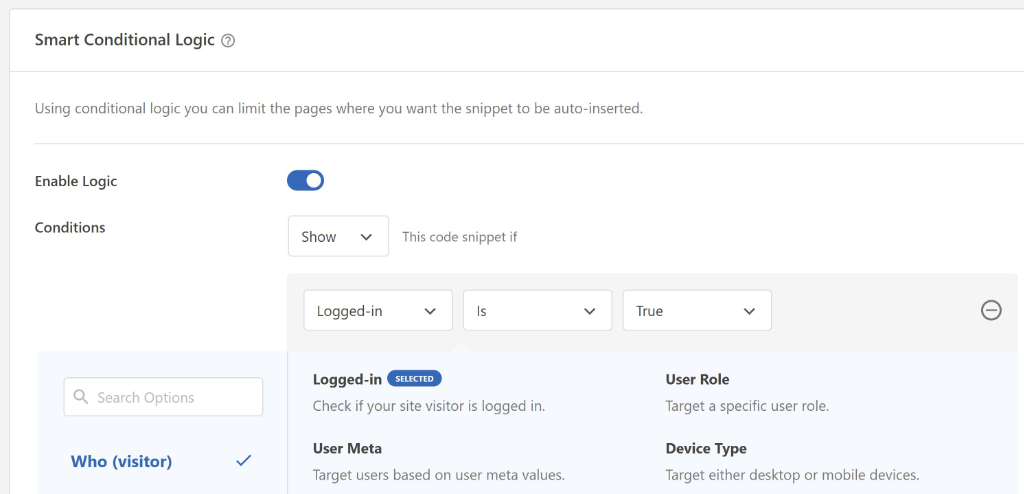
Compare that to an AI-generated snippet with the targeting logic baked into the code itself, and the difference is real.
WPCode’s version stays reusable and easy to read, because the targeting lives in settings, not in code you’d have to rewrite for the next page.
Code Targeting by Location
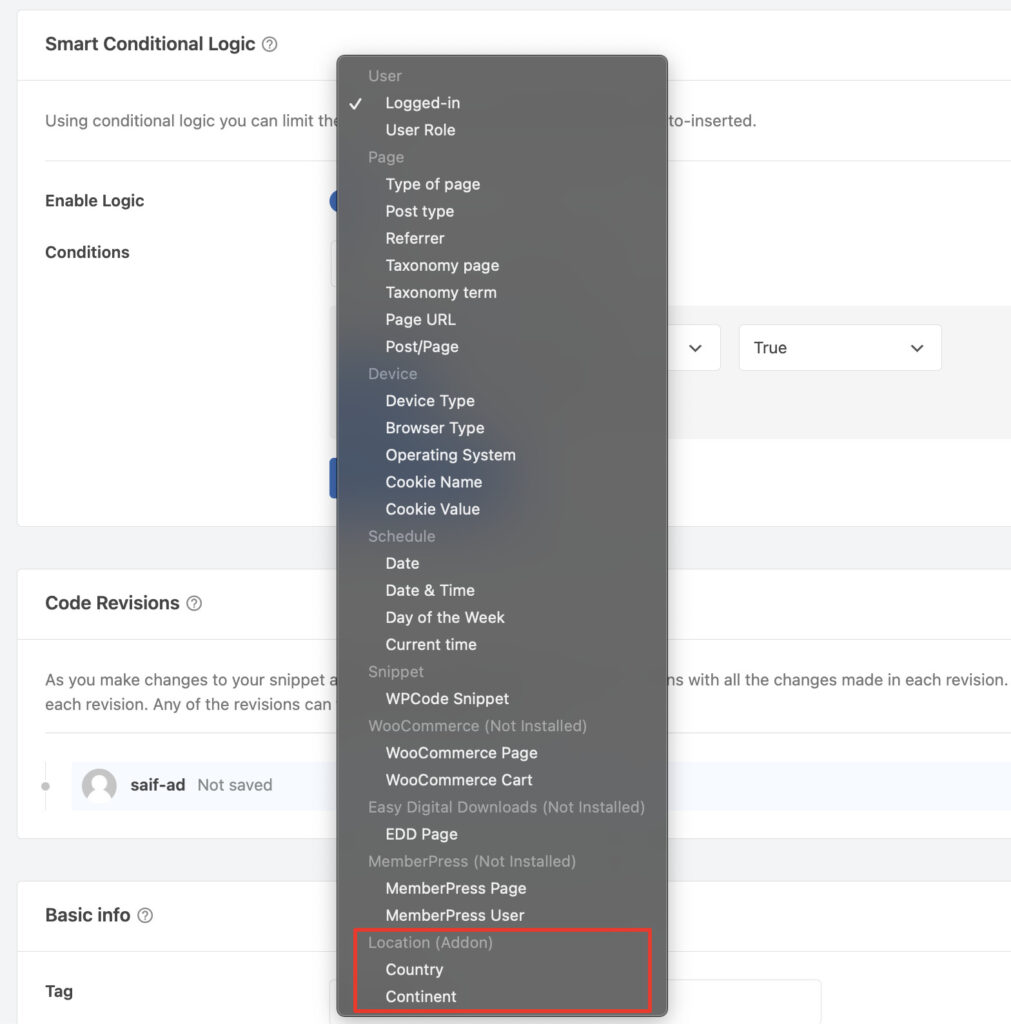
Pro also unlocks location-based targeting by country or continent.
Useful for anyone running region-specific pixels or messaging. It’s a narrower use case, but it’s there if you need it.
Flexible Snippet Insertion
The auto-insert dropdown isn’t the only way to place a snippet, either.
A Gutenberg block and an Elementor widget both let you drop a saved snippet directly into a specific page or post while you’re building it.
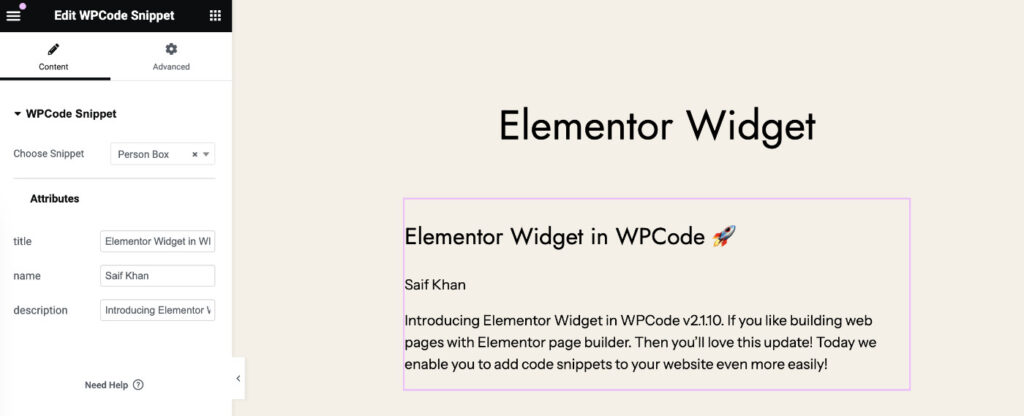
This is faster than setting a page-level condition when you only need the snippet in one spot.
Snippet Live Preview
The Live Preview is for CSS and SCSS snippets because these types of code snippets affect how your site looks. For example, changing the font of your site.
Once you add a CSS snippet, click the Live Preview button, and changes appear in a preview pane next to the code editor as you type.
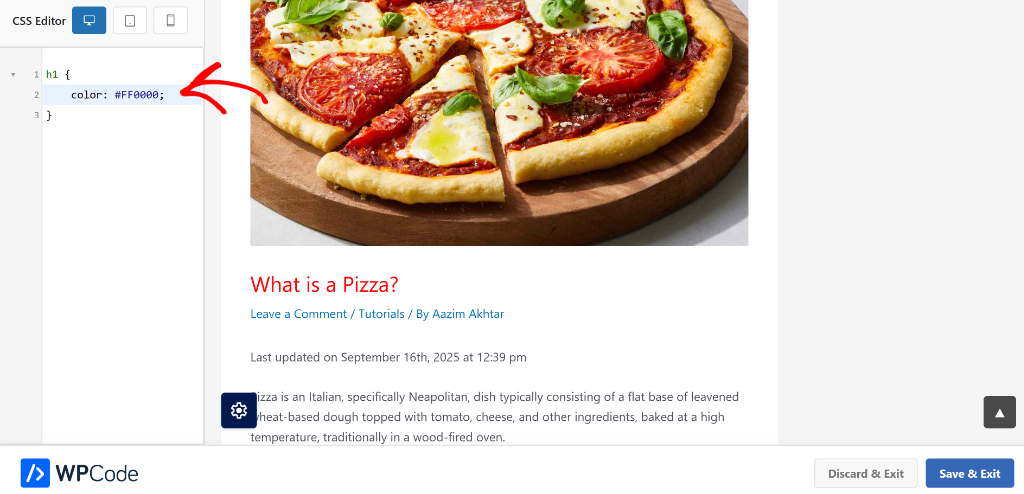
There is no saving, no tab-switching to check the result. Just click Save & Exit when it looks right.
Here is a post on how to add CSS code on your WordPress site to get you started.
Organize your Snippets
Snippet organization is easy to overlook until you have thirty snippets and can’t remember what half of them do.
WPCode gives every snippet a description field, one sentence explaining why it exists, visible right in the snippet list.
Tags let you filter by purpose: Security, Performance, SEO, Tracking. Small features.
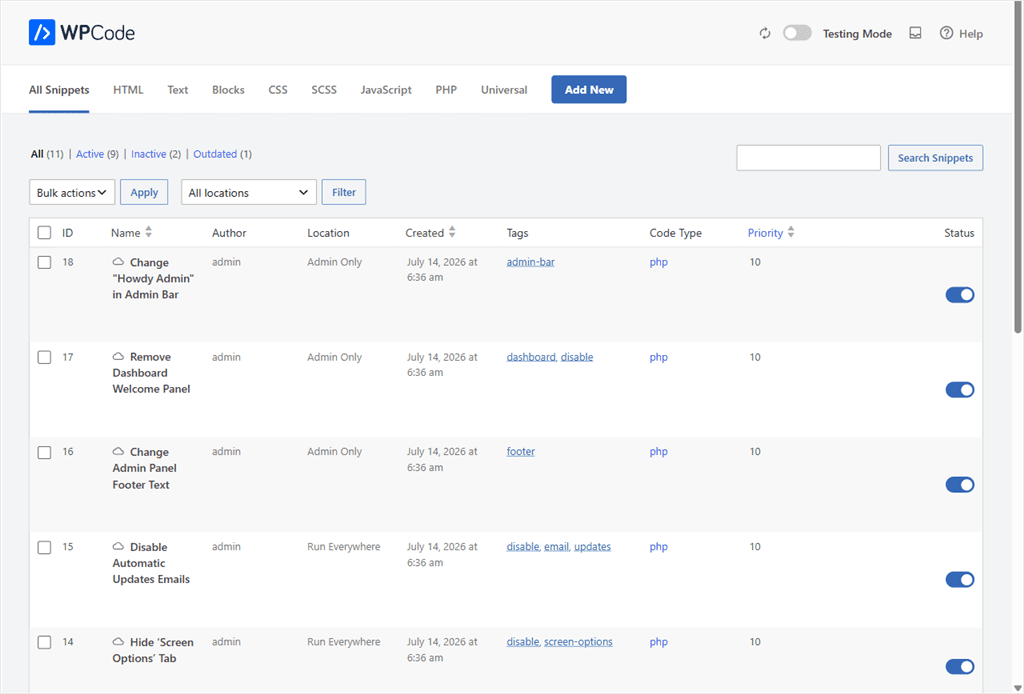
In this section, we covered how you can make WPCode your own through its customization options. But how easy is it to use? We find out next.
Ease of Use
First impressions matter here, and WPCode’s first run is as close to friction-free as possible.
The snippet list is the only thing you see. No dashboard widgets, no walkthrough tour you have to click through five times.
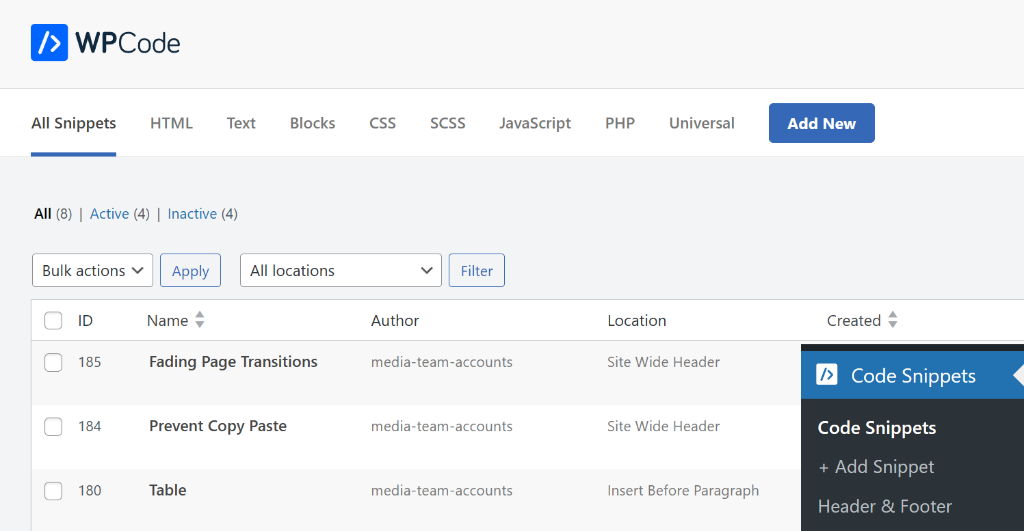
Building your first snippet takes under a minute if you already know what you want to paste.
Name it, pick the code type, paste the code, choose where it runs, activate. That’s genuinely the whole flow for a static header or footer snippet.
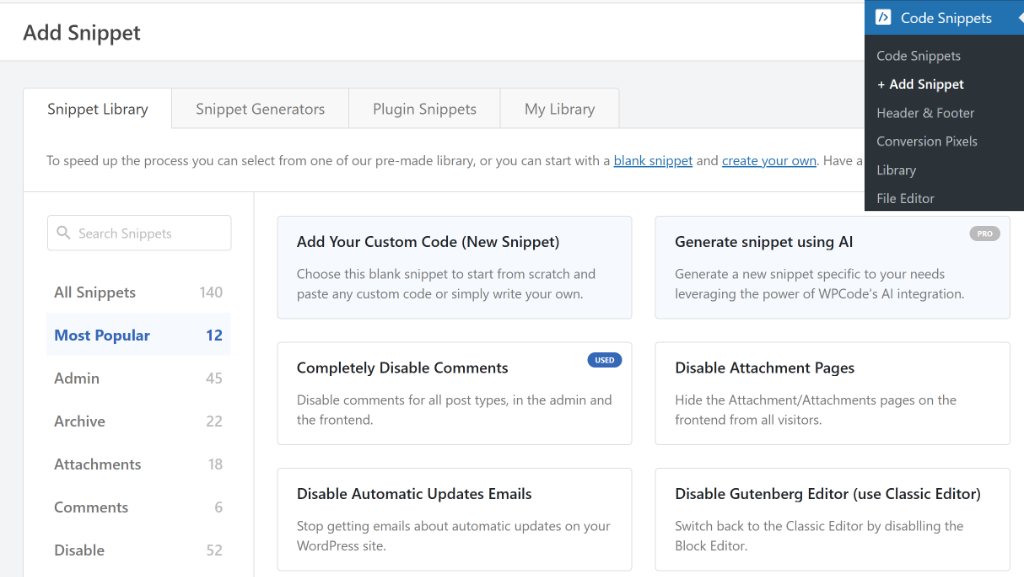
How We Tested WPCode’s Ease of Use
We ran two real tests, not a guess at what “easy” might mean. One was the kind of thing a beginner asks for. The other was the kind of thing that exposes where “no-code” actually ends.
Test 1: Add a countdown timer to a page.
This is the kind of task that usually means installing a whole new plugin for a feature you’ll use twice a year.
From Code Snippets » Add Snippet, we searched the library for “Simple Countdown Timer.” Since this is a common WPCode use, you will find a template prebuilt for you.
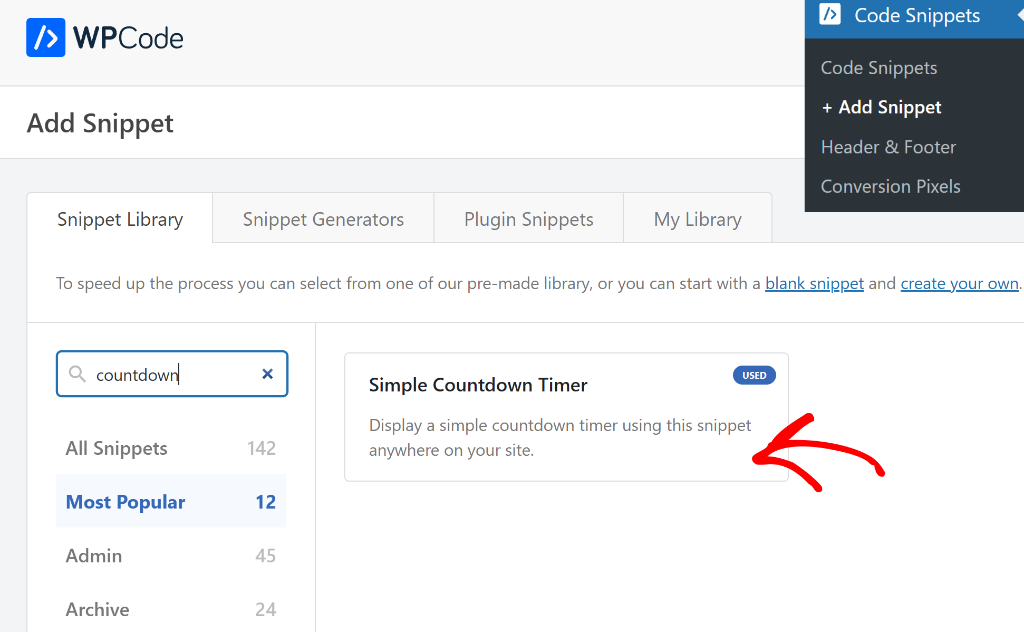
Set the end date, and left the insertion method on its default, Shortcode.
Copy the shortcode, paste it into a Shortcode block on the page, and publish. The timer was live in under two minutes, no separate countdown plugin installed.

For the full click-by-click version, see how to add a countdown timer in WordPress, the whole thing without installing another plugin.
If you just want the timer to appear in one spot, the shortcode above is all you need.
Want it to show only on specific pages instead? That’s where Smart Conditional Logic comes in.
Running a store, for example, you can set the countdown timer to appear only on your WooCommerce checkout or product pages, not site-wide.
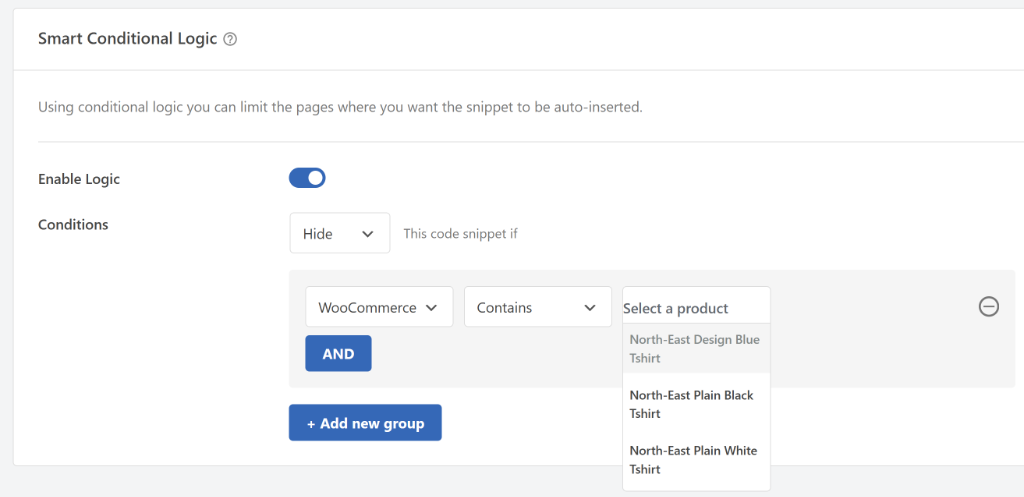
We have used the countdown snippet in this case, but this applies to all snippets you create.
Test 2: Using WPCode Generators
You’ve seen how prebuilt templates work, and how to build a snippet from scratch. Next: WPCode’s Generator tool, and whether it’s actually as easy to use as the name suggests.
For this test, we ran the FAQ schema generator we tested.
This is another feature that you would otherwise need an SEO plugin to do.
From Code Snippets » Generator, we picked FAQ Schema from the list of types, then filled in the same question-and-answer pairs already written into the article we were testing on.
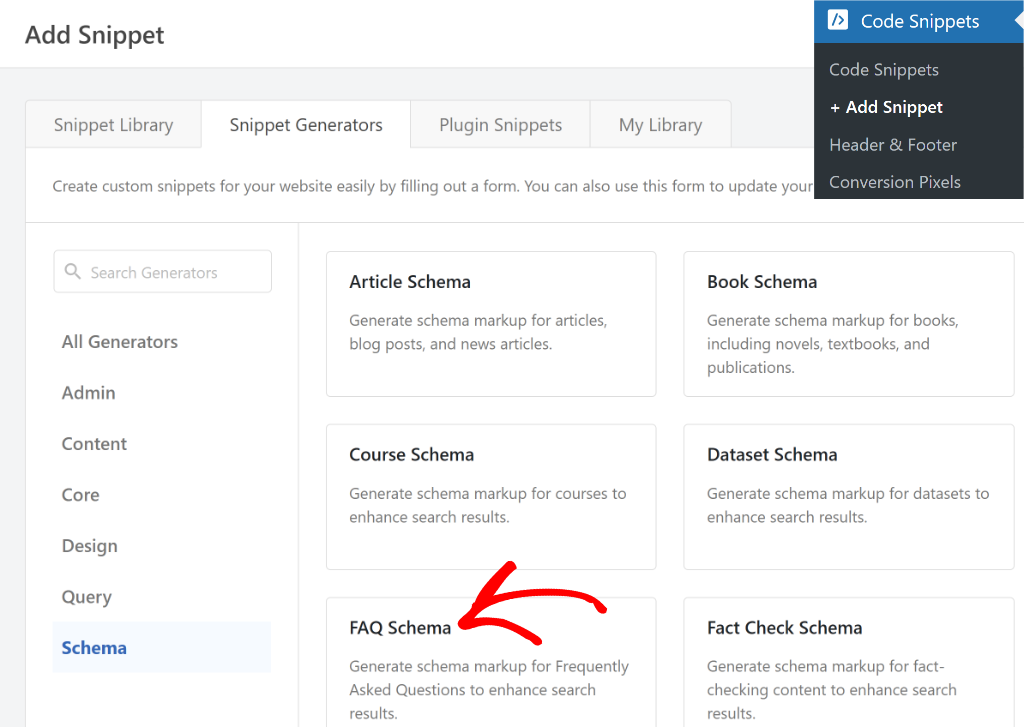
The FAQ Schema Generator turned that into a ready-to-activate snippet in under a minute, no JSON-LD written by hand. That part lived up to the name.
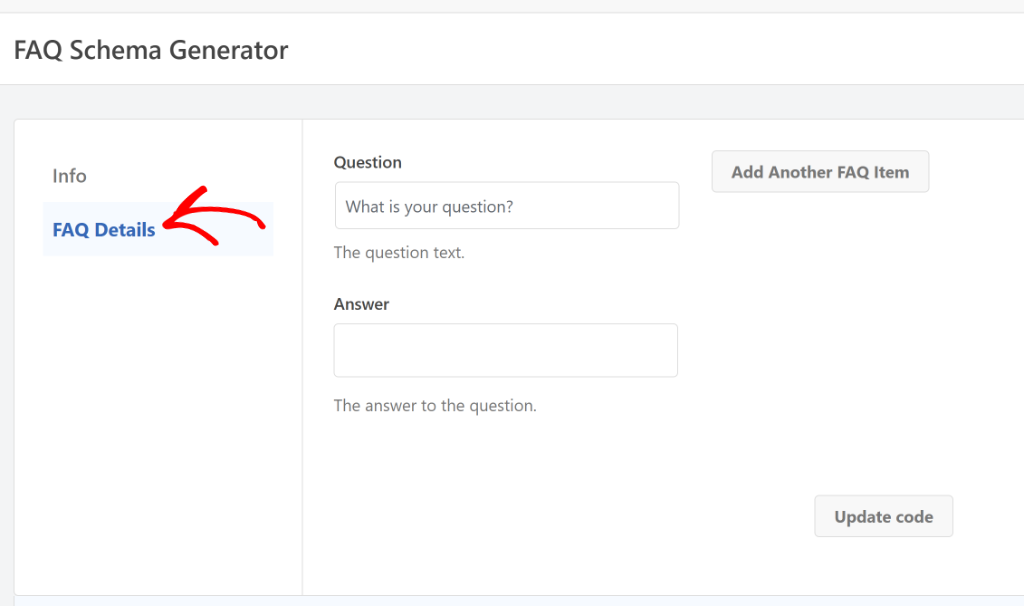
For the full click-by-click version, see how to add FAQ schema in WordPress.
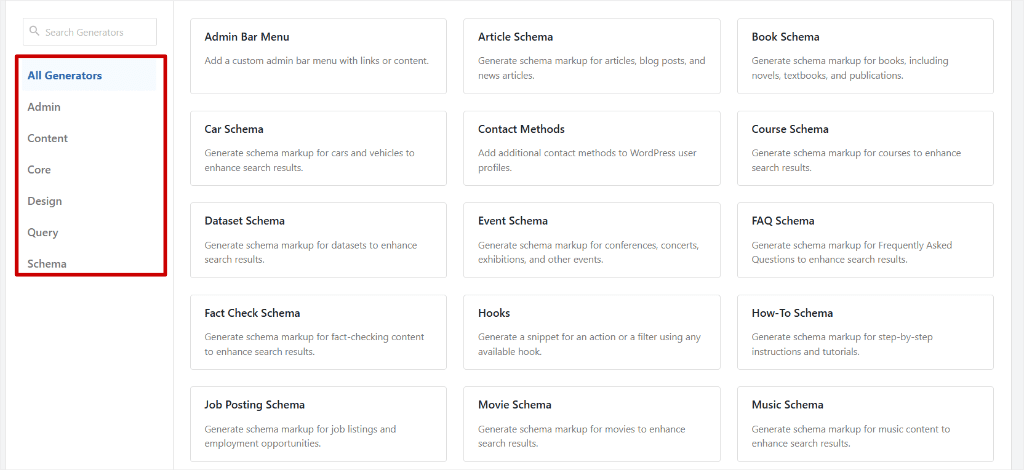
Apart from FAQ schema, WPCode’s Schema Generator also covers HowTo, Product, and Recipe schema.
Plus, additional generators geared at helping your work easier in WordPress. These include generators around tasks for admin, content, core, design, and queries.
Is WPCode Safe?
As you can see, WPCode is genuinely easy to use.
A lot of people hear that about a code snippet plugin and assume the opposite of safe, and it’s worth understanding where that instinct comes from.
Custom code is powerful by nature.
A snippet runs on every page load with the same permissions as your theme and plugins, which is exactly why it can do so much.
And exactly why attackers target code snippets.
That’s true of anything that executes custom code on a WordPress site, whether it’s your theme’s functions file or a snippet manager. So the thing worth protecting isn’t the plugin, it’s access to it.
In practice, that means treating snippet access the way you’d treat any admin-level permission.
Keep admin accounts on strong passwords and two-factor, use WPCode’s access control settings to decide who can add or edit snippets rather than leaving it open to every admin.
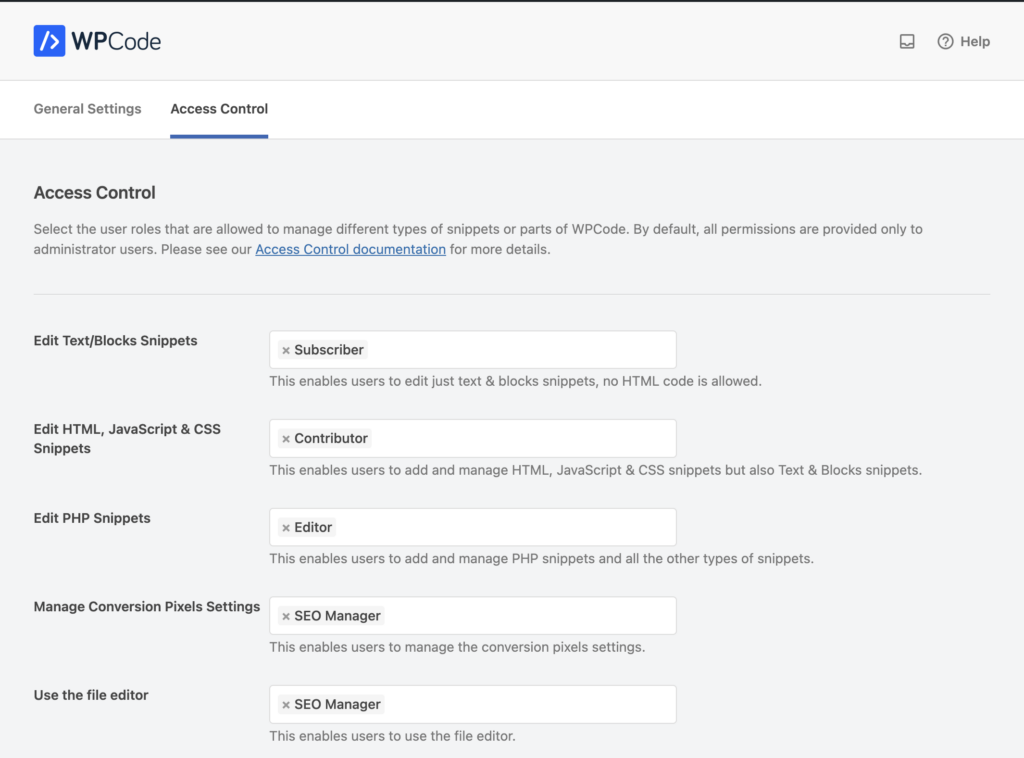
Most importantly, know what’s in your snippet list.
If you ever spot a snippet you don’t recognize, that’s a signal to review who has access to your site, not a reason to distrust the tool it showed up in.
Features: Ranked as a Tier List
WPCode’s feature list is long enough that a spec sheet would bury the point. So instead of listing it flat, here’s how it actually breaks down.
Ranked by how much you’ll actually use them, from everyday to occasionally-you’ll-need-it.
| Tier | Features |
|---|---|
| Tier 1: Every Site Uses These | Code snippet types, Safe Mode & Auto-deactivate, Testing Mode, Smart Tags, Import/export |
| Tier 2: Once Your Site Grows | Snippet Packs & Cloud Library, 1-Click Updates, Custom Shortcodes, Snippet Scheduling, Private Library & Access Control |
| Tier 3: Code-Level, Power User | AI Snippet Generation, The Generator Tool, Snippet Revisions, Load Snippets as a File |
| Tier 4: Situational | Conversion Pixels, eCommerce Auto-Detection |
Let’s discuss each tier one by one.
Tier 1: Every Site Uses These
Different code snippet options.
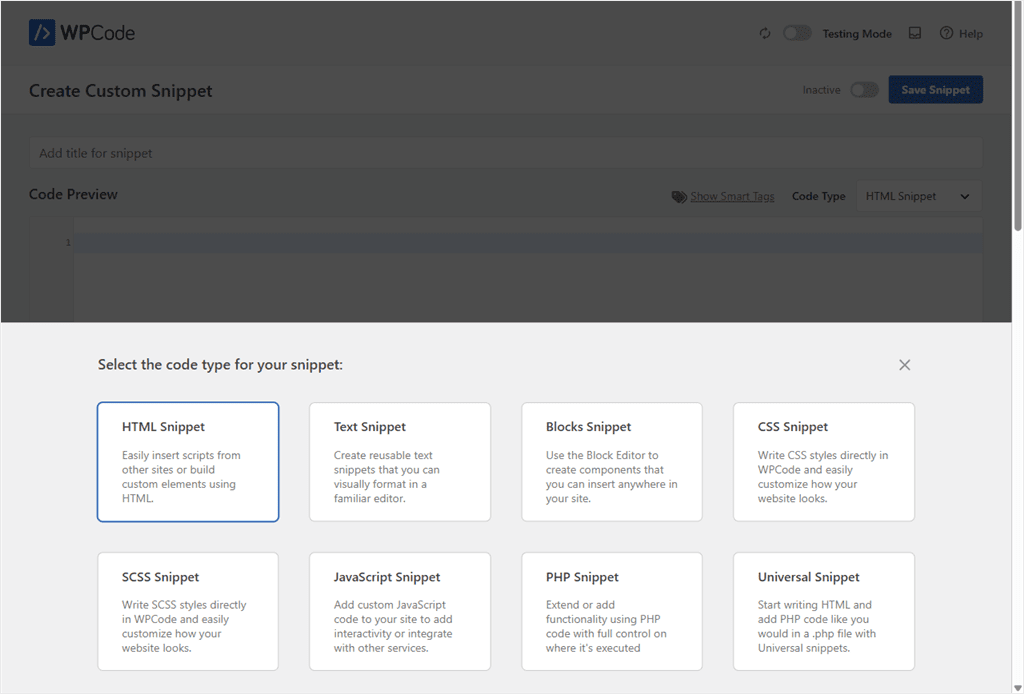
WPCode gives you eight snippet types, and picking the right one does most of the work for you.
- HTML for pasting in a tracking script
- CSS for a styling tweak
- JavaScript for behavior
- PHP for adding real functionality
- Text for content with shortcodes or media
Universal is the interesting one: it runs PHP but lets you mix HTML in alongside it, the way you would in a theme template file, so a snippet that needs logic and markup together stays as one snippet instead of two.
Safe Mode & Auto-deactivate.
If a PHP snippet throws an error, WPCode auto-deactivates it and highlights the exact failing line in red inside the code editor.
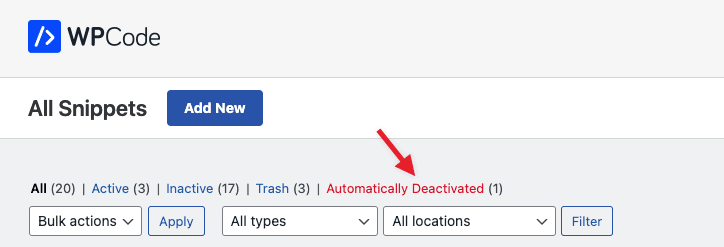
On top of that, when viewing the list of snippets, automatically-disabled snippets will have an icon next to their status toggle indicating that the snippet requires attention.
Locked out completely?
Adding ?wpcode-safe-mode=1 to your wp-admin URL disables every snippet instantly, no code access required. This is another way to secure your site from hackers apart from the ones mentioned above.
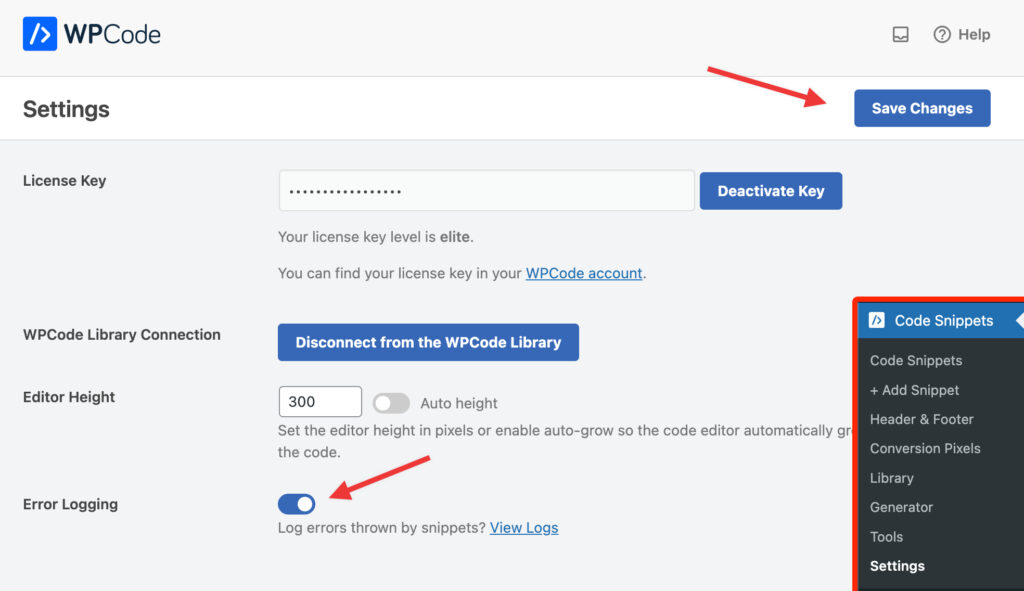
One catch: error logging isn’t on by default. A fresh install’s Settings » General Settings screen says plainly, “No logs found,” until you flip a separate toggle in Error Handling settings.
Testing Mode.
Preview a snippet in your own session before it goes live to visitors using Testing Mode. A one-click toggle, and the closest thing to a staging site without building one.

Smart Tags and import/export.
Drop in a placeholder instead of hardcoding a value: a visitor’s first name, a WooCommerce order total, and WPCode swaps in the real value at render time.
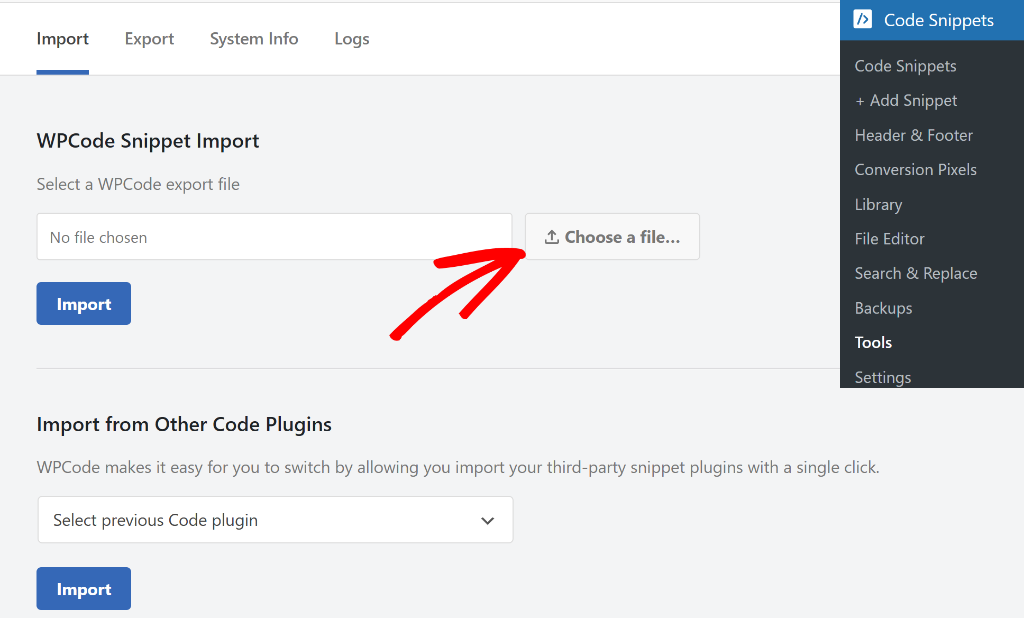
Every snippet also exports as a JSON file with its settings intact, so moving one between sites without a shared library connection still works.
Tier 2: Once Your Site Grows
Snippet Packs and the Cloud library.
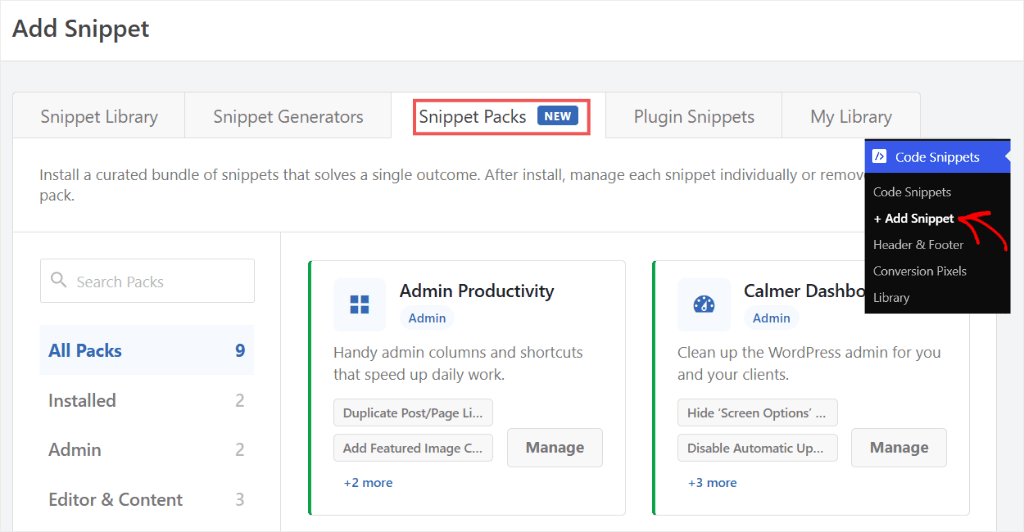
Rather than writing code from scratch, we have also seen in this review that WPCode’s library holds 3,000-plus snippets, both community-submitted and team-built.
On the other hand, Snippet Packs bundle several related snippets into one install, deployed together in about two seconds.
1-Click Snippet Updates.
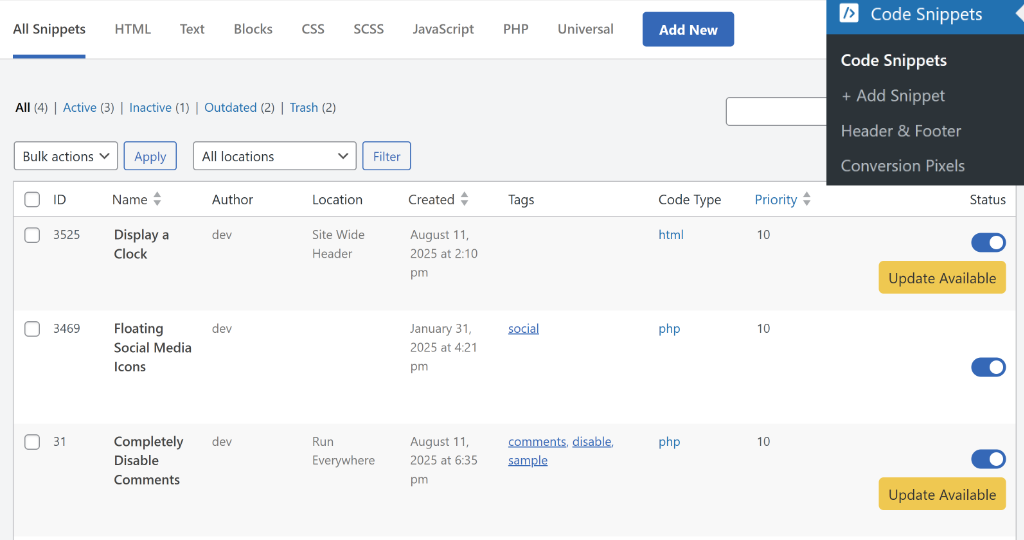
When a library snippet you’ve installed gets updated by its author, an “Update Available” button appears automatically in your dashboard.
Click it, review what changed, confirm, done. WPCode tells you when something needs attention instead of expecting you to remember to check.
Custom Shortcodes and Snippet Scheduling.
Turn a snippet into a reusable shortcode instead of duplicating code across pages.
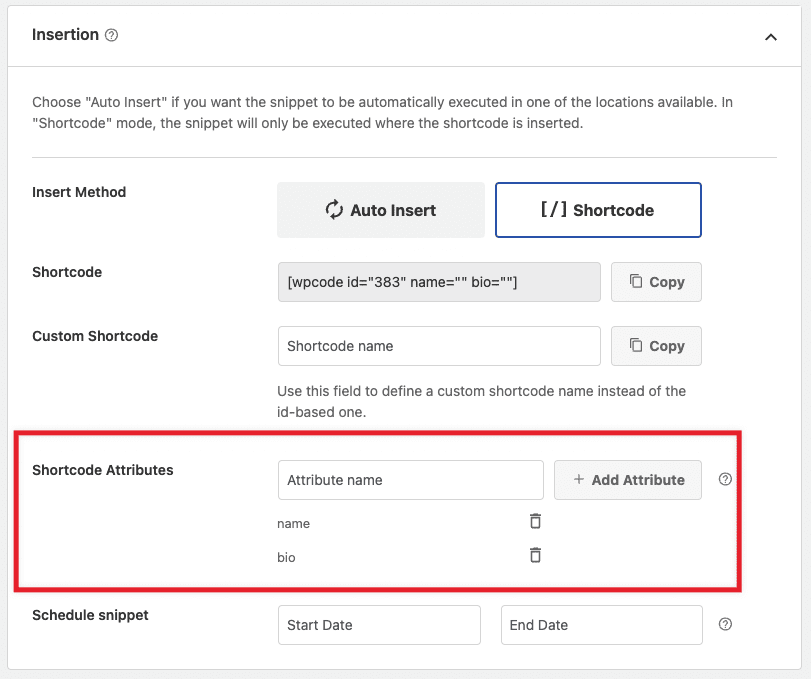
Or set any snippet to activate and expire on specific dates instead of staying live indefinitely, useful for a holiday banner or a limited-time pixel.
Private Snippet Library and Access Control (Pro).
Teams and agencies can build a shared library that team members deploy from with one click. This means you do not need to look for snippets you often use every time.
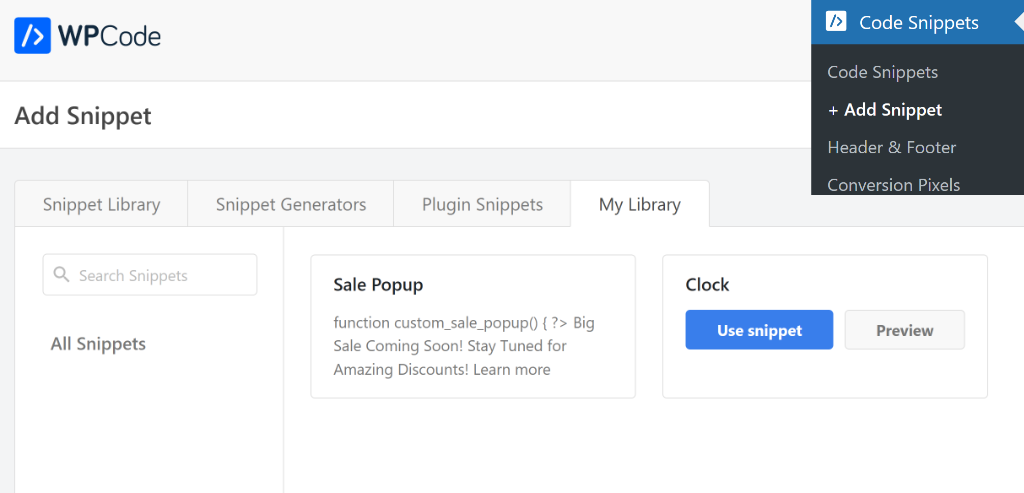
Access control goes further, letting a client flip a snippet on or off without giving them the ability to edit the code inside it.
Tier 3: Code-Level, Power User
AI PHP Snippet Generation (Pro).
Describe what you want in plain language, and WPCode generates the PHP for it.
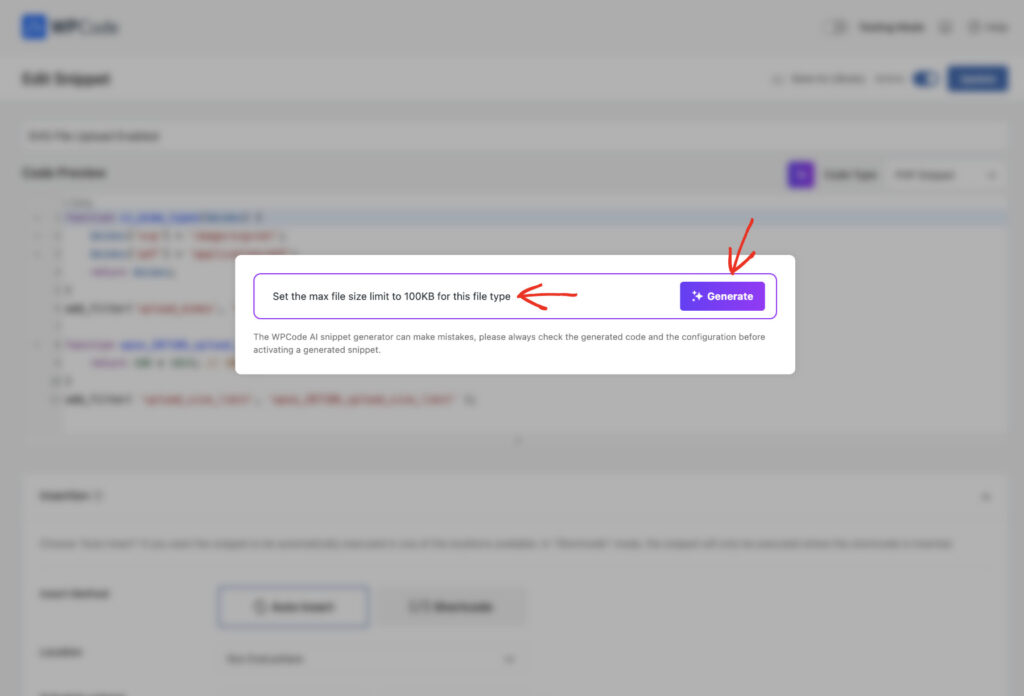
Treat it like code from any other source: read what it wrote before you activate it, and set the insert location, priority, and conditional targeting from the dashboard instead of whatever the AI hardcoded in.
The Generator tool.
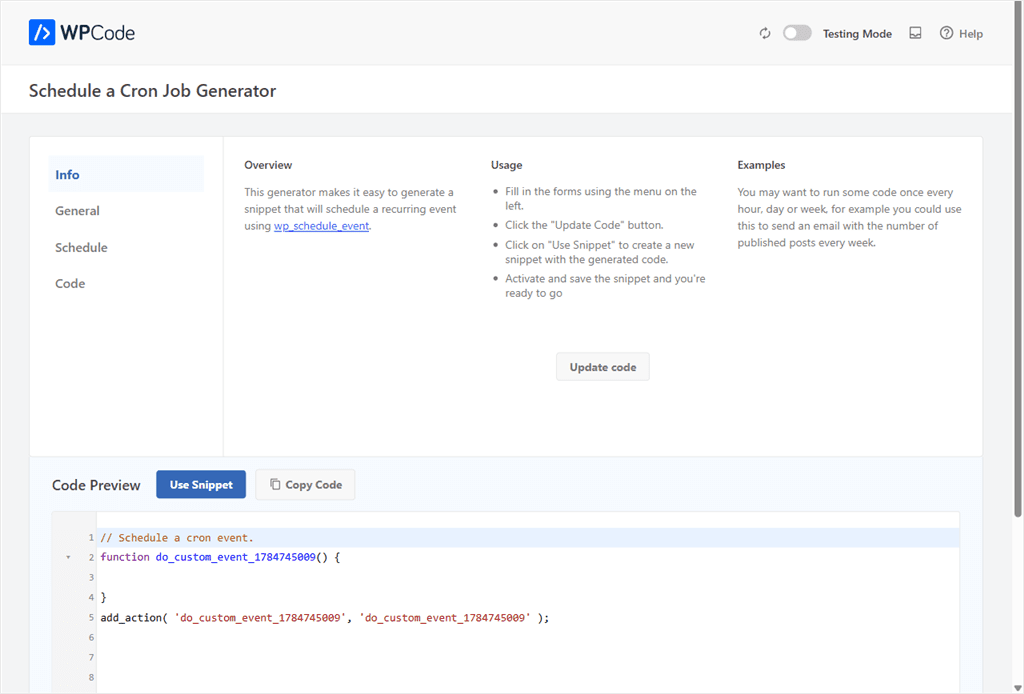
A dedicated page for building things that normally need their own plugin: structured data schema, custom post types, taxonomies, widgets, nav menus, cron jobs. Fill in a form, and WPCode outputs the ready-to-activate snippet.
⚖️ Good to know
Generator doesn’t check for overlap with plugins you already run. If your SEO plugin already outputs schema for the same content, adding a WPCode schema snippet on top risks a duplicate block, not an upgrade. Check first, add second.
Snippet Revisions (Pro).
Every saved change keeps a version history, so a bad edit is a rollback, not a rebuild.
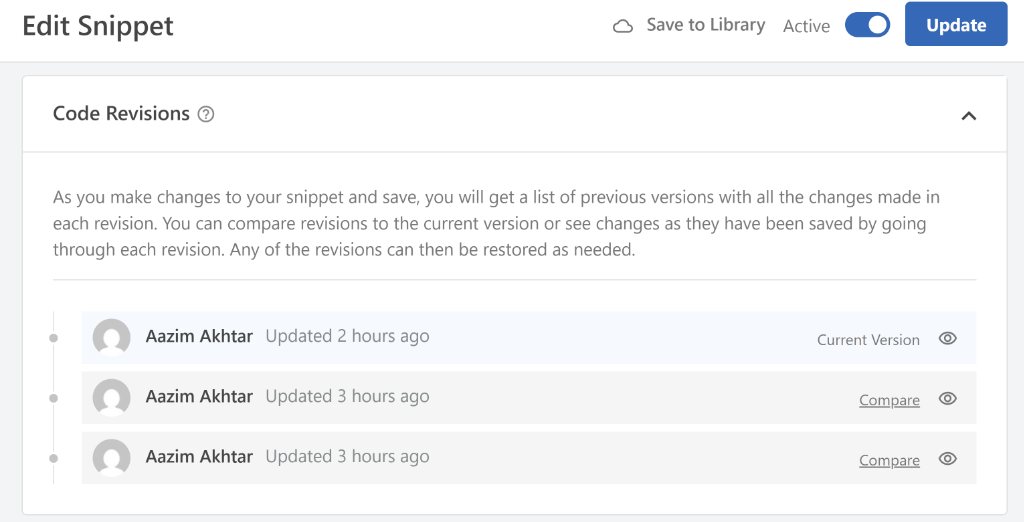
WPCode revisions look similar to WordPress post history. This ensures no learning curve.
Check out this post to see how to use WPCode snippet revisions.
Load Snippets as a File (Pro).
By default, WPCode stores every snippet as a database record, checked on each page load.
This Pro option stores them as physical files on the server instead.
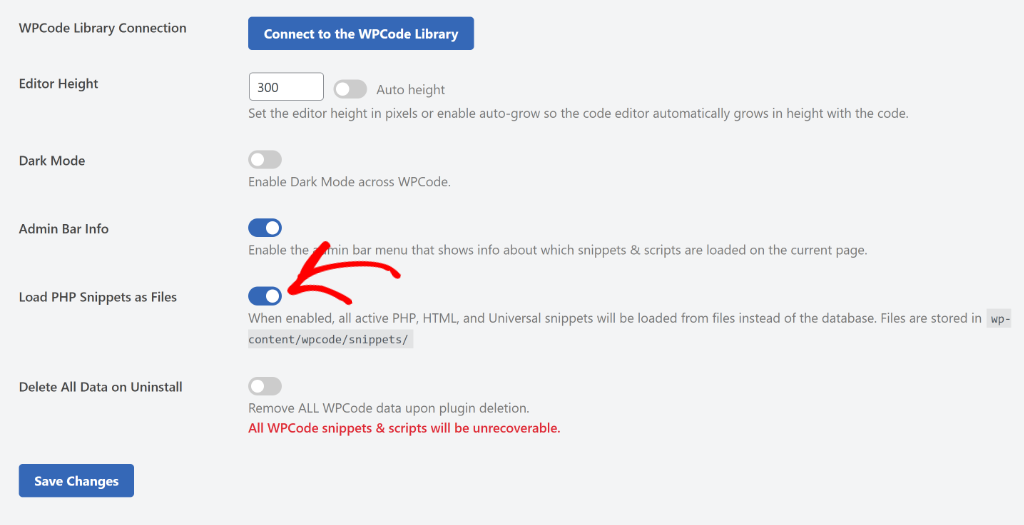
WPCode’s own testing puts the load-time improvement at up to 17 percent.
It’s the real fix for the roughly 5-millisecond database check covered earlier in this review, and it makes version control with Git realistic for snippets in a way database storage never was.
Tier 4: Situational
Conversion Pixels.
WPCode’s Conversion Pixels addon handles Facebook, Google, TikTok, Snapchat, Pinterest, and OpenAI ad platforms, with conditional logic controlling exactly when each one fires.

Plus and higher tiers add automatic eCommerce integration for WooCommerce, Easy Digital Downloads, and MemberPress, so purchase events fire without manual event-code wiring.
Check out these guides on setting up the WPCode conversion pixel across different platforms.
💡 WPCode Tip
Already running Conversion Pixels? WPConsent, WPCode’s sister product from the same team, handles the cookie consent side of running ad pixels compliantly, worth a look if you haven’t thought about consent yet.
What WPCode actually replaces.
The feature list above matters because it helps you skip buying several plugins. For example:
- Disabling XML-RPC
- Allowing SVG uploads
- Removing your WordPress version number from the page source
- Redirecting broken attachment pages
- Adding Local Business schema for Google’s Knowledge Panel
Each of these is typically a dedicated, single-purpose plugin. We’ve built each of these as a single WPCode snippet on real sites.
One redirect snippet, for instance, needs two lines instead of one. A single filter line tells WordPress to stand down before the real redirect runs.
The WPCode Bundle
Pro covers a single site’s needs well. The Bundle plan is a different proposition.
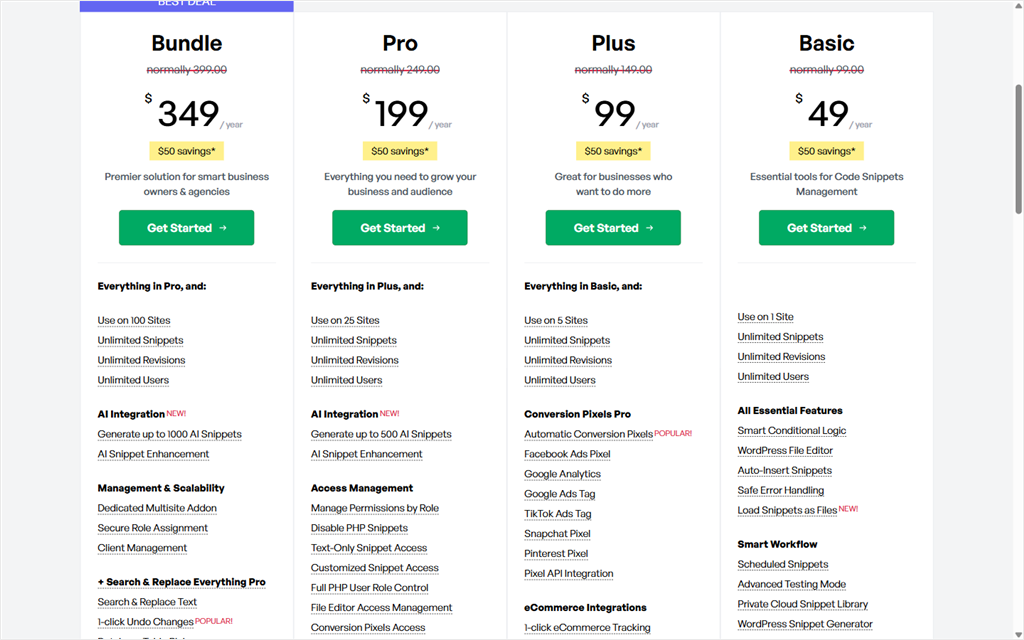
One $349/year license covering up to 100 sites, with everything Pro offers plus two additional plugins folded in at no extra cost.
Search & Replace Everything
This is a standalone WPCode plugin that finds and replaces content, image URLs, and database values across your entire WordPress site, the kind of task that otherwise means a risky manual database edit.
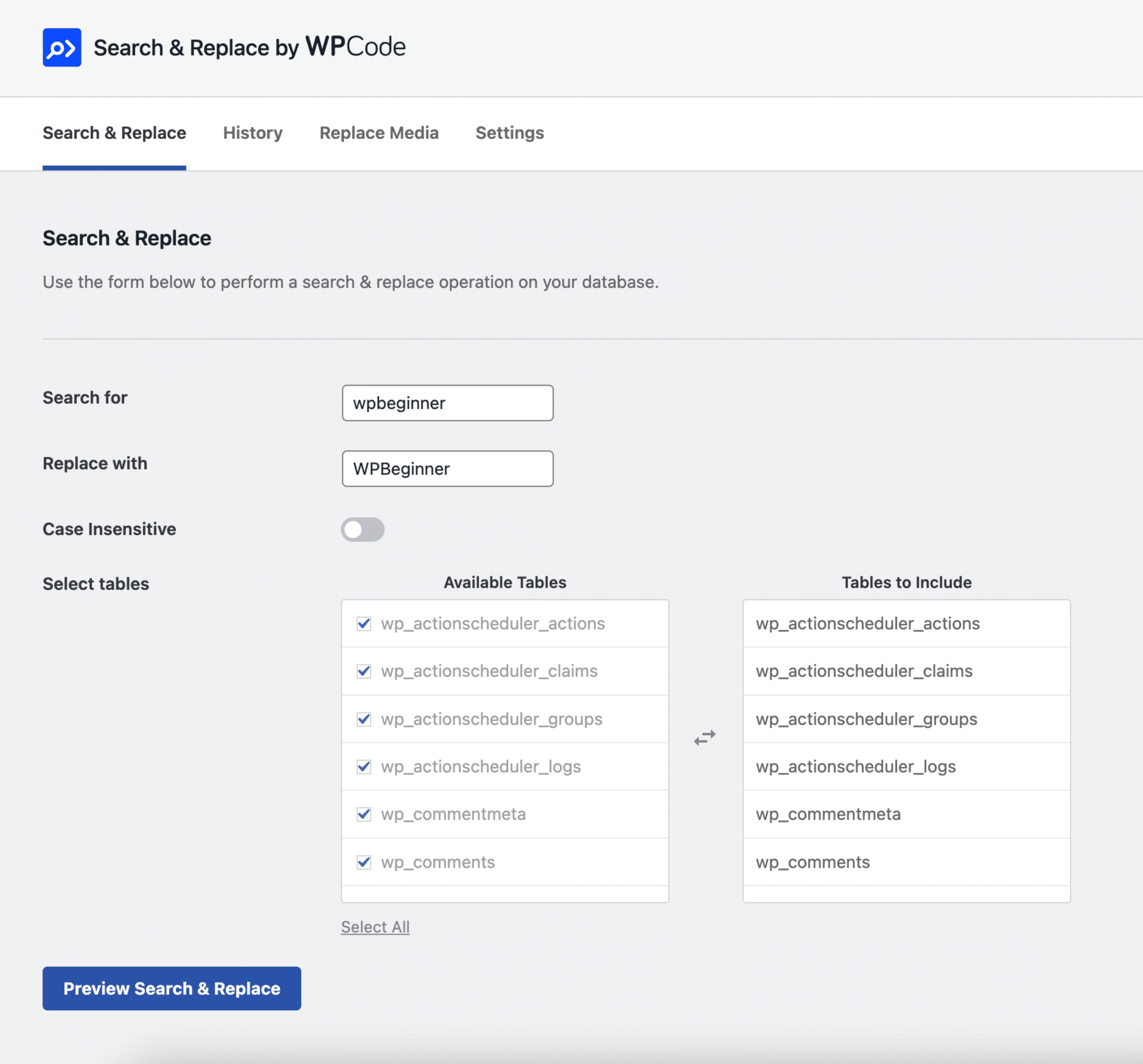
It’s sold separately, but the Bundle includes the full Pro version, a $199 value, as part of the plan.
Image Optimizer by WPCode
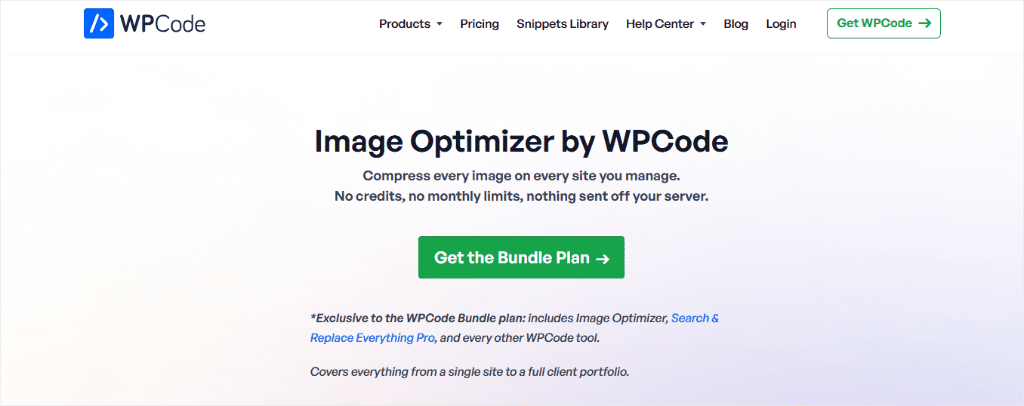
This is a Bundle-exclusive feature.
There’s no lite version or standalone purchase path.
We ran a full Image Optimizer speed test on a live production site and a shared-hosting copy of the same site. The PageSpeed mobile score went from 93 to 97, and LCP dropped from 1.4s to 1.2s
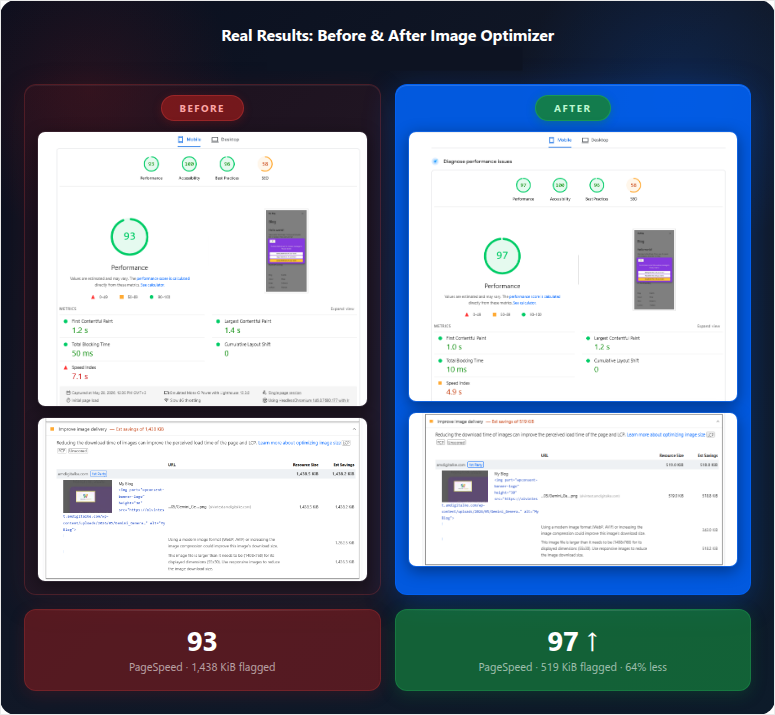
Using the exact same compression settings as the VPS copy that barely moved. Same optimization, very different payoff, depending entirely on where the site was hosted.
Check out our Image Optimizer by WPCode case study to learn more.
Bundle also adds a Multisite Addon for network-wide snippet management and a Client Management dashboard.
This is useful if you’re an agency handing sites off to clients and want a single place to see what’s deployed where without logging into each install separately.
Documentation & Support
WPCode’s documentation covers the basics to more advanced WPCode capabilities. You get documentation ranging from install guides, feature explainers, and troubleshooting articles for common errors.
Each doc has a left column where you can see related articles, and a search option to help you find information quicker.
WPCode Support tiers are gated by plan. Basic and Plus get standard support; Pro and Bundle get priority support.
WPCode’s WordPress.org support forum is worth checking too, separate from the priority ticket system paid users get.
It’s public, searchable, and often already has an answer to whatever question you’re about to ask. For a plugin with 1,800-plus WP.org reviews, there’s a real chance someone else already hit your exact problem.
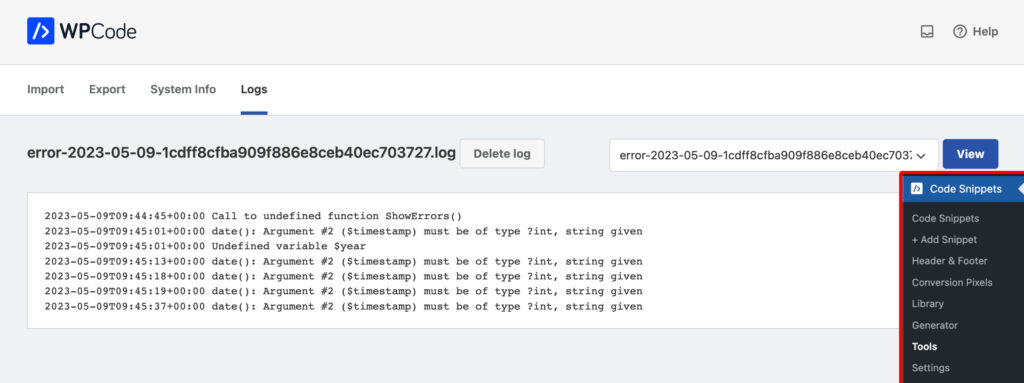
The log screen (Code Snippets » Tools » Logs) deserves a specific mention, since it doubles as a support tool.
Once it’s on, it’s a genuinely useful, self-serve way to diagnose a broken snippet without opening a support ticket at all.
Pricing
The free version, available on WordPress.org as Insert Headers and Footers.
It covers all four code types, auto-insert locations and priority, Testing Mode, Safe Mode and PHP error handling, and free Snippet Packs.
For anyone adding static header or footer code, tracking snippets, or simple CSS tweaks, the free tier alone does the job.
Plus, there’s no cap on how many snippets or how many sites you run it on.
On the other hand, the advanced side of Smart Conditional Logic (an exact page picker, device, and location targeting), AI generation, and eCommerce pixel integrations all require a paid plan.
Basic conditional logic, by page URL, post type, or user role, is free.
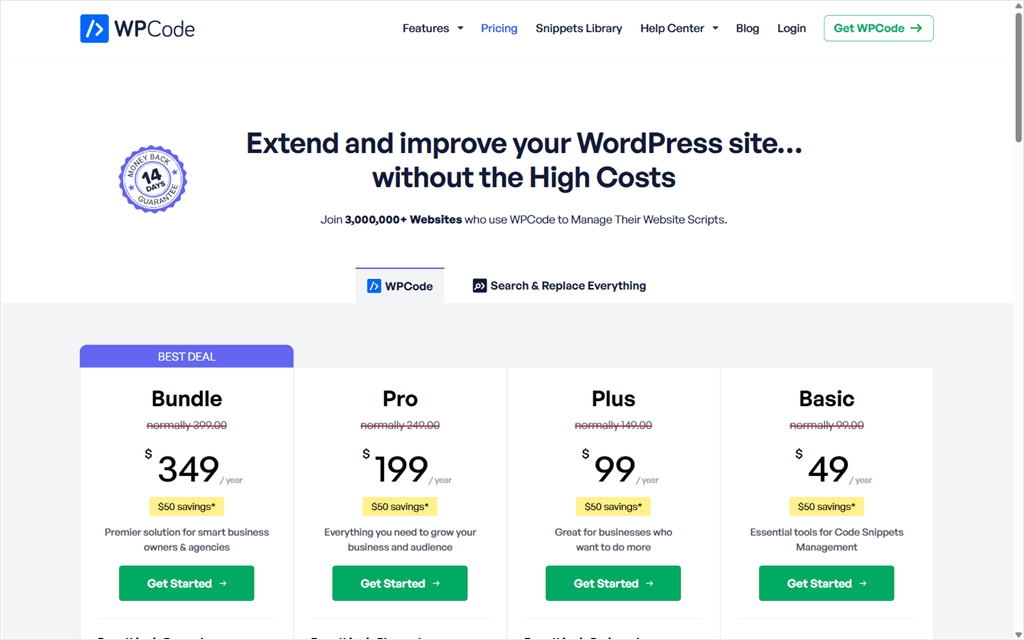
Here is what each WPCode tier offers at a glance.
| Plan | Price | Sites | Adds |
|---|---|---|---|
| Free | $0 | Unlimited | Core snippet manager, Testing Mode, Safe Mode, free Snippet Packs |
| Basic | $49/yr | 1 | Private library, manual Conversion Pixels |
| Plus | $99/yr | 5 | Conversion Pixels Pro, eCommerce integrations |
| Pro | $199/yr | 25 | AI Snippet Generation, location targeting, priority support |
| Bundle | $349/yr | 100 | Search & Replace Everything Pro, Image Optimizer, Multisite Addon |
All paid tiers shown at Introductory pricing. 14-day money-back guarantee on all plans.
Zooming into specific features makes the tier decision clearer than the price table alone:
| Capability | Free | Basic/Plus | Pro | Bundle |
|---|---|---|---|---|
| 4 code types (PHP/HTML/CSS/JS) | Yes | Yes | Yes | Yes |
| Safe Mode + error handling | Yes | Yes | Yes | Yes |
| Free Snippet Packs | Yes | Yes | Yes | Yes |
| Smart Conditional Logic | Yes* | Yes* | Yes | Yes |
| Conversion Pixels Pro + eCommerce | No | Plus only | Yes | Yes |
| AI Snippet Generation | No | No | Yes (500/mo) | Yes (1,000/mo) |
| Location-based targeting | No | No | Yes | Yes |
| Priority support | No | No | Yes | Yes |
| Search & Replace Everything Pro | No | No | No | Yes |
| Image Optimizer by WPCode | No | No | No | Yes (only way to get it) |
*Smart Conditional Logic’s basic conditions, page URL, post type, user role, type of page, referrer, and taxonomy page, are free on every plan including Free. Only the exact post/page picker, page template, author, device, and location targeting require Pro.
Pros & Cons
🟢► Pros
- Free tier is genuinely usable: most of the plugin’s core value, four code types, safe error handling, testing mode, works without paying anything.
- Snippets survive theme changes: code lives in the database, not the theme, so a redesign or update doesn’t wipe out custom functionality.
- Safe Mode is a real safety net: a broken PHP snippet gets auto-deactivated instead of crashing the site, and a URL parameter can disable everything if you’re ever locked out.
- The library turns “I don’t know how to code this” into a search box: 3,000-plus community and team-built snippets mean most common tasks don’t require writing PHP from scratch at all.
🔴► Cons
- Advanced Conditional Logic (exact page picker, device, location) and AI generation require a paid plan. The free tier covers page URL, post type, and user role targeting, but anything beyond that hits the upgrade wall
That’s it for our WPCode review. If anything is unclear, check out the commonly asked questions below.
FAQs: WPCode Review
Is WPCode free to use?
Yes. The free version handles the four code types, auto-insert locations, Testing Mode, Safe Mode, and conditional logic by page, post type, or user role. A paid plan is only required for advanced targeting, AI generation, and pixel integrations
Is WPCode safe? Will it slow down my site?
Snippets are stored in the database, adding roughly 5ms of query overhead per page load, per independent research. Safe Mode auto-deactivates any snippet that throws a PHP error before it can crash your site.
WPCode vs Code Snippets: which is better?
Depends on your use case. WPCode wins on library size, AI generation, and pixel integrations. Code Snippets wins on price for agencies running unlimited sites, and its Safe Mode plus standalone plugin export are strong for developers who want that specific workflow. Both plugins are well-maintained and highly rated. It comes down to whether you value a curated snippet library and pixel management, or a lower price ceiling for a large multi-site agency.
Can I use WPCode on a multisite network?
Yes. Universal snippets and the Multisite Addon (Bundle plan) are built specifically for network installs, letting you deploy a snippet once and push it network-wide instead of activating it on every individual site manually.
What’s the difference between Pro and the Bundle?
Pro covers up to 25 sites with AI generation, conditional targeting, and priority support. Bundle covers up to 100 sites and adds two more plugins, Search & Replace Everything Pro and the Bundle-exclusive Image Optimizer, at no extra cost.
Do I need to know how to code to use WPCode?
For the free tier’s core use, pasting a ready-made snippet, no. The Snippet Library and Snippet Packs are built for exactly that: find a working snippet, deploy it, done. Writing your own PHP from scratch is a different skill, and that’s where the AI generator or the library helps most.
Does WPCode work with my theme or page builder?
WPCode isn’t theme-dependent by design, it hooks into WordPress itself rather than a specific theme’s template files, so it works alongside any theme or builder. Individual snippets, like CSS targeting a specific theme’s class names, are only as portable as the code you write into them.
What happens if a snippet breaks my site?
Safe Mode catches PHP errors and auto-deactivates the offending snippet before it takes the whole site down, then highlights the exact failing line in the editor. If you’re ever fully locked out, adding ?wpcode-safe-mode=1 to your wp-admin URL disables every active snippet at once, no code access needed.
Is the WPCode Bundle worth it over Pro?
Yes, if you’re managing more than one site or already paying separately for a search-and-replace tool or an image optimizer. Bundle’s $349/yr covers up to 100 sites and folds in two extra plugins; Pro’s $199/yr covers 25 sites without them. A single-site owner has no real reason to pay the difference.
Will WPCode conflict with plugins I already have?
It can, if two tools try to do the same job. We’ve hit this ourselves with schema markup, where an SEO plugin was already generating the same output a WPCode snippet was about to add. Before building a snippet for something like schema, redirects, or tracking, check whether an existing plugin already covers it. WPCode won’t warn you about the overlap on its own.
Can WPCode add schema markup for SEO?
Yes, through the Generator tool. It builds structured data, Article, FAQ, HowTo, Product, Recipe, JobPosting, and more, through a form rather than hand-written JSON-LD. Check first whether your SEO plugin already outputs schema for the same content. Running both risks a duplicate block.
Can I add a snippet directly from the block editor?
Yes. A Gutenberg block and an Elementor widget both let you insert a saved snippet into a specific page or post while you’re building it, faster than setting a page-level condition for a one-off placement.
Final Verdict: Should You Use WPCode?
WPCode earns its market-leader position honestly.
The free tier does real work, Safe Mode makes custom code meaningfully less risky, and the library plus Snippet Packs turn “I don’t know how to code this” into a search box instead of a dead end.
The Bundle plan is a genuinely good deal for anyone already managing multiple sites.
For most WordPress site owners who want to add custom code without editing theme files or gambling on a typo taking the site down, WPCode is one of the best options available.
Download WPCode Free →
Compare Pro & Bundle Plans →
Additional Resources
Get more out of WPCode with these next reads.
- What Is a Code Snippet? (Plain English Guide for WordPress Users): the concepts this review assumes, explained from zero
- 9 Tips to Easily Manage Code Snippets in WordPress: keeping a growing snippet library organized once you’re past the first few
- How to Add Custom CSS to Your WordPress Site (4 Ways): a closer look at the Live Preview workflow covered in Customization
- Best HTML Snippets for WordPress Beginners: 11 Useful Examples: If you are looking for a good starting point, try HTML snippets. They are easier to set up and manage.