TL;DR:
WPCode is the best code snippet plugin for WordPress in 2026. It packs a 3,000+ snippet library, Smart Conditional Logic, and Safe Mode error protection into a completely free plugin. Features other tools charge extra for or skip entirely.
Code Snippets and FluentSnippets are the strongest runner-ups, depending on whether you value track record or raw performance.
Every WordPress site owner eventually needs to add custom code. A tracking script, a small PHP tweak, a bit of CSS to fix a layout that won’t cooperate.
The default advice is to paste it into your theme’s functions.php file. That’s also the riskiest option on the table.
One typo and your whole site goes white. One theme update and the code you added is gone, and you’re rewriting it from scratch.
We spent weeks testing every major code snippet plugin on the market.
We focused on what actually matters: built-in safety, how each one handles the code types you throw at it, and whether the free version is enough or you’re pushed straight to Pro.
Here’s how the six best code snippet plugins for WordPress compare in 2026, including where each one falls short.
Key Takeaways
- A code snippet plugin adds custom PHP, CSS, JS, or HTML without touching functions.php or risking a white screen on a live site.
- Safety matters more than snippet count. Look for automatic error deactivation and a way to disable everything if you get locked out.
- Free versions of the top plugins here cover most site owners. Paid tiers mainly add cloud sync across sites and AI snippet generation.
- Conditional logic, showing a snippet on one page but not another, used to require PHP. The best plugins now do it with a dashboard toggle.
- Not every plugin here does the same job. Some are full snippet managers. Others are built only for header and footer scripts.
How We Test Code Snippet Plugins
🔍 Click to see how we evaluated these plugins
Here’s what we look for in a code snippet plugin:
- Safety: what happens when we intentionally trigger a fatal error in a snippet
- Setup ease for someone who has never written a snippet before
- Conditional targeting: can it show a snippet on one page without touching code
- Pricing transparency: what’s actually free versus what needs a paid plan
- Track record: install count and review volume on WordPress.org
Where we get our data:
- WordPress.org plugin repository: install counts and star ratings, pulled directly, not from a third-party roundup
- Official pricing pages: checked live, since third-party comparison sites are often out of date
- A test WordPress site: for hands-on setup and the experience notes below
Quick Comparison
| Product | Best For | Free Version | Unique Feature | Starting Price |
|---|---|---|---|---|
| 🥇 WPCode | Most site owners | ✅ Full-featured | Safe Mode + 3,000+ snippet library | $49/yr |
| 🥈 Code Snippets | PHP-first workflows | ✅ PHP-focused | Native wp-admin styling | $39/yr |
| 🥉 FluentSnippets | High-traffic sites | ✅ 100% free | File-based, zero database queries | Free |
| 4. Woody Code Snippets | Ad and affiliate blocks | ✅ Lite version | Dedicated ad-snippet type | $39/yr |
| 5. WPCodeBox | Developers and agencies | ❌ No | Monaco (VS Code) editor | $39/yr |
| 6. Header Footer Code Manager | Tracking scripts only | ✅ Unlimited | Purpose-built for header/footer only | $35/yr |
Best Code Snippet Plugins for WordPress
Now that you’ve seen how they stack up side by side, here’s a closer look at each plugin, starting with our top pick. Use the table of contents below to skip to the snippet plugin you want to read.
- 1. WPCode ⭐⭐⭐⭐⭐
- 2. Code Snippets ⭐⭐⭐⭐
- 3. FluentSnippets ⭐⭐⭐⭐
- 4. Woody Code Snippets ⭐⭐⭐⭐
- 5. WPCodeBox ⭐⭐⭐
- 6. Header Footer Code Manager ⭐⭐⭐
- How to Choose the Right Code Snippet Plugin
- Code Snippet Plugin vs Editing functions.php
- FAQs: Best WordPress Code Snippets Plugins
- Get the Safer Way to Customize WordPress
With that out of the way, let’s dive in.
1. WPCode ⭐⭐⭐⭐⭐
Best for: WordPress Beginners Replaces Multiple Plugins
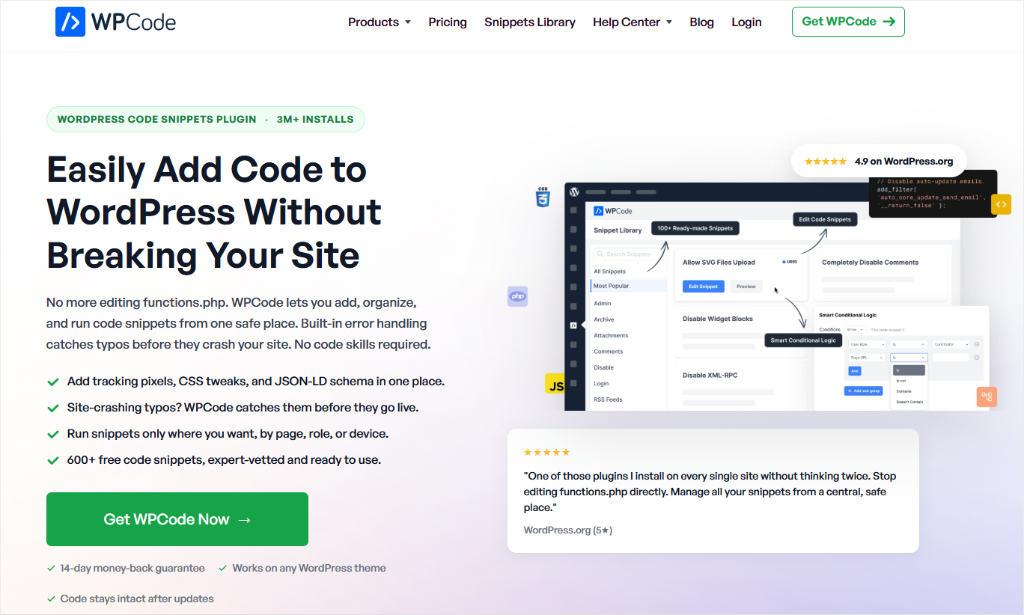
WPCode runs on 3 million+ WordPress sites and holds a 4.9 out of 5 rating from nearly 1,800 reviews. That’s the largest install base and highest rating of any plugin on this list, and it’s earned mostly by what’s included for free.
Setting up a snippet doesn’t feel like coding at all.
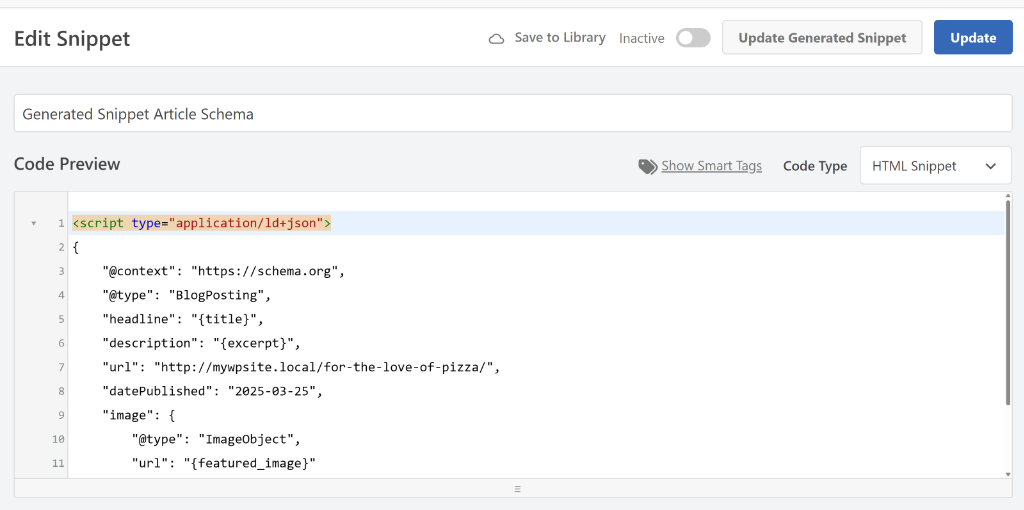
The editor opens in a clean, syntax-highlighted panel. You can select the language from a dropdown or from a screen listing all of them.
Plus every insertion point (header, footer, before/after content) laid out as a simple dropdown instead of a settings menu you have to dig through.
Why Is WPCode One of the Best Code Snippet Plugins?
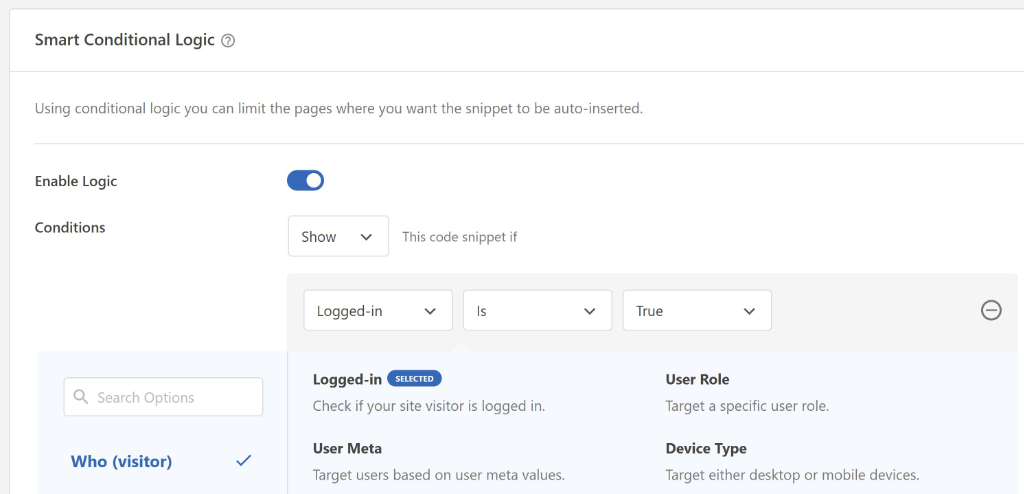
The Smart Conditional Logic feature is the standout.
You pick a page, post type, user role, device, or URL from a dropdown, and the snippet only fires there. No PHP if statements. No editing the code itself to change where it runs. Every other tool on this list either charges extra for this or doesn’t offer it at all.
Safety is the other half of the story.
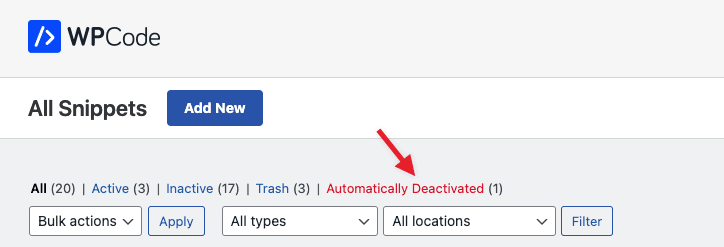
If a PHP snippet throws an error, WPCode’s safe mode deactivates it automatically and highlights the exact line in red. Locked out of your dashboard entirely? Add ?wpcode-safe-mode=1 to your wp-admin URL and every snippet switches off instantly.
Our Experience with WPCode
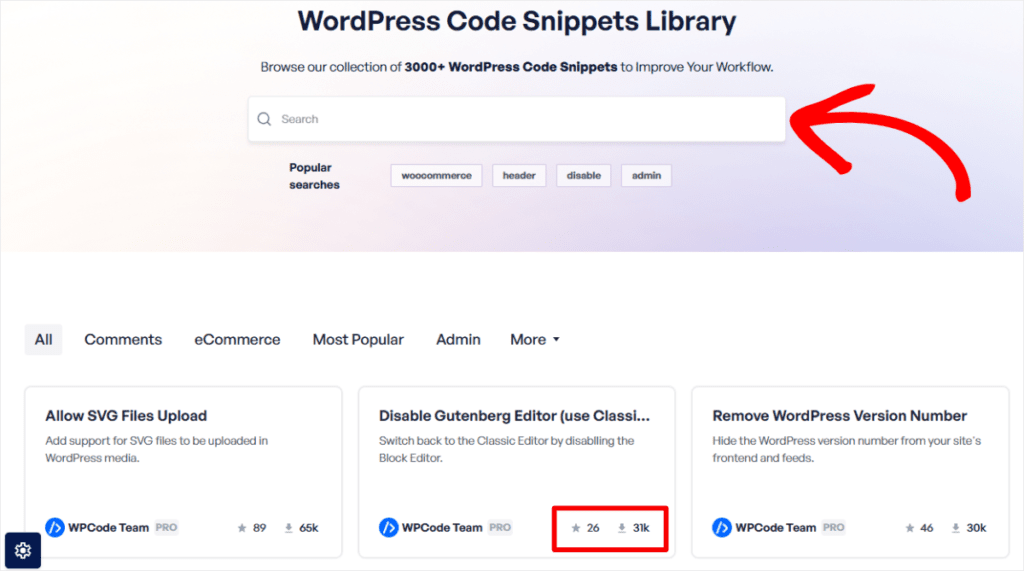
We installed WPCode on a test site and went straight to the snippet library instead of writing code from scratch. Searching by category surfaced a ready-made snippet in seconds, and one click installed it with the auto-insert location already set.
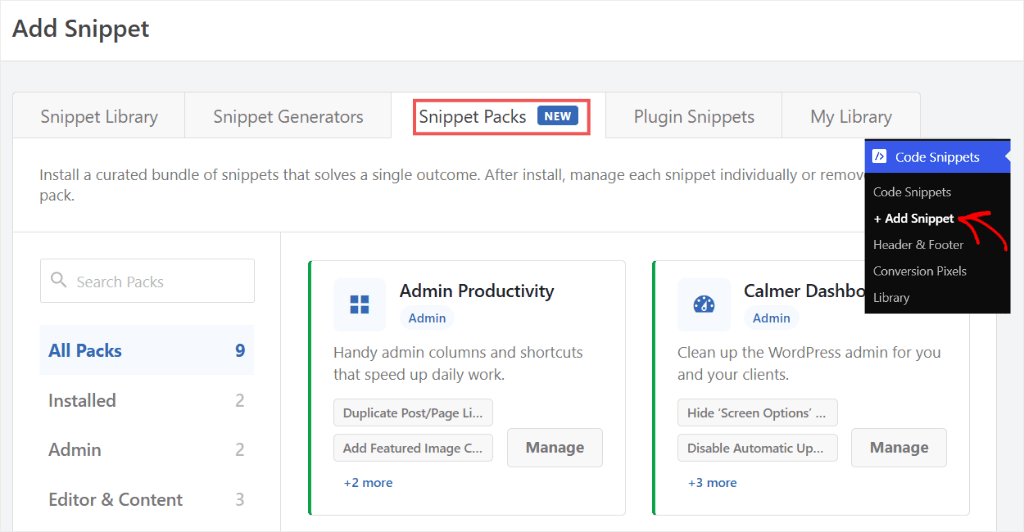
You can also install Snippet Packs. This helps you set up a combination of snippets to help you tackle something instead of working on them separately one at a time.
You can monitor your code snippets in case anything goes wrong; under error logging. Error logs will point you to the reason for the error, allowing you to fix the issue more effectively.
🟢► Pros
- Free tier does the heavy lifting: Smart Conditional Logic, Safe Mode, and the full snippet library all work without paying anything.
- Largest snippet library: over 3,000 pre-built snippets, most installable in one click.
- Safe Mode is a real lifeline: one URL parameter disables everything when a snippet locks you out.
- Auto-deactivation on errors: a broken PHP snippet turns itself off instead of taking your site down.
- Testing Mode: preview a snippet on your own session before it goes live to visitors.
- Handles every code type: PHP, CSS, JS, HTML, and plain text from one dashboard.
🔴► Cons
- Error logging is off by default: you have to enable it yourself in Tools → Logs before it starts recording anything.
- AI snippet generation is a Pro-only feature: the free plugin covers most needs, but the AI assist is a paid feature.
Click to see WPCode’s full feature set 🔽
Key Features of WPCode Lite (Free)
- Expert-vetted snippet library: pull from a library checked by the WPCode team, so you’re not installing a single-purpose plugin for something you can paste in instead.
- Automatic insertion locations: set where a snippet loads, down to firing it after a specific word count inside a post, not just before or after the content block.
- Smart Conditional Logic: layer rules like user role, page type, or taxonomy term on top of insertion locations, so a snippet only fires exactly where you want it.
- Rich snippet support: write PHP, HTML, JavaScript, CSS, or plain text, and insert any of them with a shortcode or automatically.
- Error handling and logging: Safe Mode keeps your dashboard reachable no matter what a snippet throws, and the error log lets you trace exactly what broke.
WPCode Premium Features For When You Grow
- Page-Specific Scripts: Custom scripts enhance your website’s functionality, but inserting them site-wide can raise unnecessary issues and degrade performance. WPCode helps you eliminate that by directly adding snippets in the post/page editor to load them exclusively where needed.
- Easy Conversion Pixel Configuration: You can add advertising pixels with WPCode using the dedicated Conversion Pixel addon that allows you to insert pixels into your website automatically.
- It supports Google Ads, TikTok, Pinterest, Snapchat, OpenAI, and Facebook Pixel. You need only 5 minutes to configure the setup, and the addon will add all future pixels automatically.
- Private Snippet Library: WPCode lets you create a snippet once and reuse it across multiple sites using your Private Library. Store your snippets safely in your private WPCode Library and access them at any time.
- Code Revisions: Adding code to your site is delicate, and minor changes can lead to significant errors. WPCode has a version control system in place to allow you to roll back any changes so that you can restore your website to a previous working version even if you break it.
- Testing Mode: You need a staging site to ensure the code you’re adding works as expected. However, WPCode provides a testing mode that eliminates the need for a staging site. It enables you to see the changes privately while the visitors see the regular version of your site, allowing you to decide when and what to publish.
- Multisite Control: The Elite package provides a Multisite Addon that enables you to write snippets once and run them on multiple sites within the network. It’s extremely efficient and provides centralized management for organizing code snippets from different sites.
Pricing: Free forever on WordPress.org. Paid plans start at $49/yr for cross-site cloud library sync and priority support.
Note: The WPCode Bundle plan ships with Search & Replace Everything and Image Optimizer by WPCode.
2. Code Snippets ⭐⭐⭐⭐
Best for: PHP-First Users Long Track Record
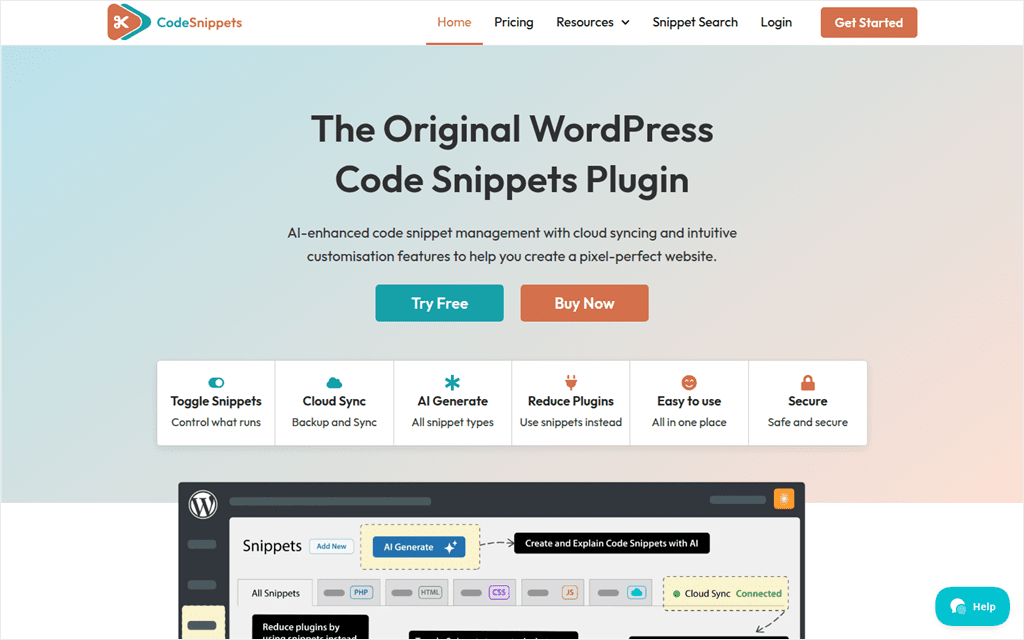
Code Snippets has been around long enough to earn 1 million+ installs and a 4.7 rating from 500+ reviews.
The interface mirrors native wp-admin styling closely enough that it barely feels like a third-party plugin, which is part of why it’s held on to loyal users for years.
Why Is Code Snippets One of the Best Code Snippet Plugins?
The free version handles PHP snippet management with a Safe Mode-style error catch built in, so a bad snippet won’t take your whole site down. It’s a straightforward, database-driven approach without much decoration.
On Code Snippets Pro, you get unlimited private cloud storage, cross-site sync, AI-assisted snippet writing, and conditional logic through a REST API.
Our Experience with Code Snippets
I tested the Pro tier for cross-site sync. It worked exactly as described. Connect a second site, and your snippet library shows up there too.
When writing code with this snippet plugin, you’ll notice a unique code highlighter that provides a pleasant coding experience.
You can choose from various themes and customize them according to your preference. You’ll also be able to manually upgrade the database table and reset the cache when necessary.
🟢► Pros
- Long track record: over a decade of updates and 500+ reviews at a 4.7 rating.
- Native wp-admin feel: the interface looks and behaves like a built-in WordPress screen.
- Safe Mode-style error catching: included in the free version, not locked behind Pro.
- Cross-site cloud sync (Pro): manage snippets across every site from one account.
- AI snippet generation (Pro): describe what you need and get a starting point.
- REST API access (Pro): useful if you’re already automating other parts of your site.
🔴► Cons
- Free tier is PHP-first: CSS, JS, and HTML support feels secondary to the plugin’s PHP roots.
- Many features locked in Pro: Features like REST API, AI snippet generation, and cross-site cloud sync are all in the Pro version.
Click to see Code Snippets’ full feature set 🔽
Key Features of Code Snippets (Free)
- Multi-type snippet management: write PHP, CSS, JavaScript, and HTML snippets from one dashboard, and toggle any of them on or off like a light switch.
- Native code editor: a safe, syntax-aware editor built to look and feel like a stock wp-admin screen.
- Community library: search community-submitted snippets from the cloud instead of writing every snippet from scratch.
Code Snippets Pro Features For When You Grow
- Cloud Sync: back up, sync, and collaborate on snippets across every site you manage.
- AI code generation: describe what you need and get a starting snippet from a premium AI model.
- Snippet Conditions: build reusable conditions that control exactly when and where a snippet runs.
- Bundle organization: group related snippets into bundles instead of scrolling one long list.
- Team collaboration: work on shared snippets with teammates instead of passing code back and forth.
Pricing: Free on WordPress.org. Pro starts at $39/yr for one site, or $137 as a one-time lifetime license.
👉 Get started with Code Snippets
3. FluentSnippets ⭐⭐⭐⭐
Best for: High-Traffic Sites Zero Database Overhead
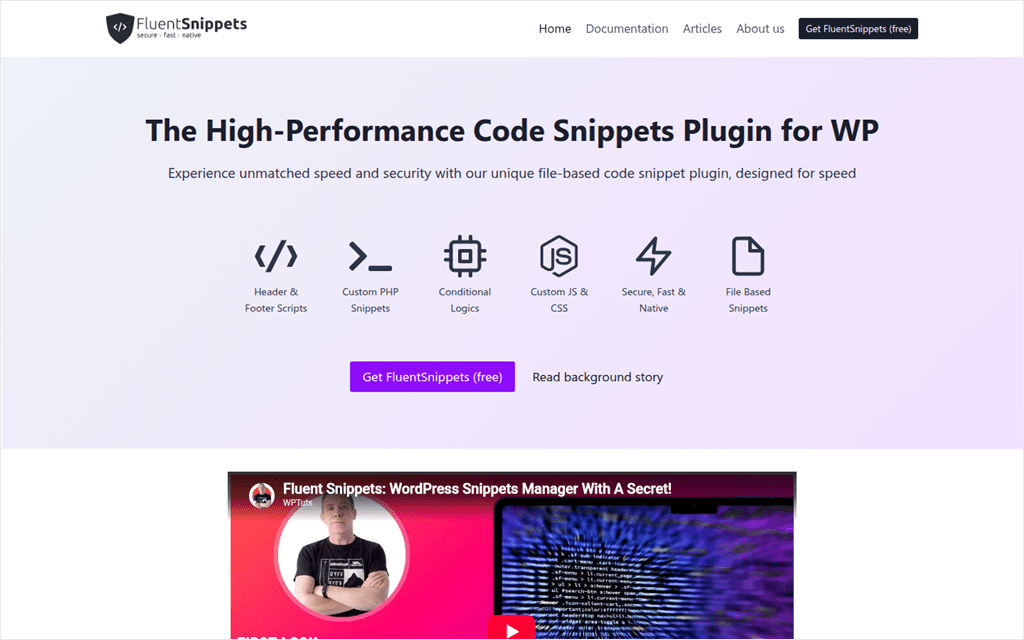
FluentSnippets takes a different approach than everything else on this list. Instead of storing snippets in your database, it writes them to flat files. That means loading a snippet doesn’t cost a single database query.
On a high-traffic site, that adds up.
Why Is FluentSnippets One of the Best Code Snippet Plugins?
Database queries are one of the more common performance bottlenecks. Removing them for every custom code snippet is a real technical advantage.
The code snippet plugin is also completely free and open source. No premium tier, upsells, or features held back. you get conditional logic by post type, date, URL, and user type is included from the start, along with automatic error handling.
Our Experience with FluentSnippets
We added a handful of CSS and PHP snippets and compared load behavior against a database-stored equivalent. The difference was small on our lightly trafficked test site, exactly what I expected. The real payoff shows up at scale, not on day one.
⚠️ We went looking for a snippet library to browse and didn’t find one. FluentSnippets doesn’t offer that. Every snippet starts from a blank editor.
🟢► Pros
- 100% free, no upsells: every feature ships in the free version, forever.
- File-based loading: snippets run without touching the database, which helps on high-traffic sites.
- Conditional logic included free: target by post type, date, URL, or user type at no extra cost.
- Automatic error handling: built to prevent a bad snippet from breaking your site.
🔴► Cons
- No curated snippet library: you write every snippet yourself, with no 1-click installs to lean on.
- Thin track record: 50,000+ installs and only 54 WordPress.org reviews, a fraction of the older tools here.
Click to see FluentSnippets’ full feature set 🔽
Key Features of FluentSnippets (Free Forever, No Paid Tier)
- Header and footer scripts: drop tracking or embed code into your header or footer without a second plugin.
- Custom PHP, JS, CSS, and HTML snippets: write and manage every code type from the same Vue3-based interface.
- Conditional logic: run a snippet only under conditions you set, like post type, date, URL, or user type.
- File-based storage: snippets load from files instead of the database, so nothing here costs you a query.
- Automatic error handling: a built-in handler catches common snippet errors before they take your site down.
Pricing: Free forever. No paid tier exists.
👉 Get started with FluentSnippets
4. Woody Code Snippets ⭐⭐⭐⭐
Best for: Ad/Affiliate Publishers Built-In Ad Blocks
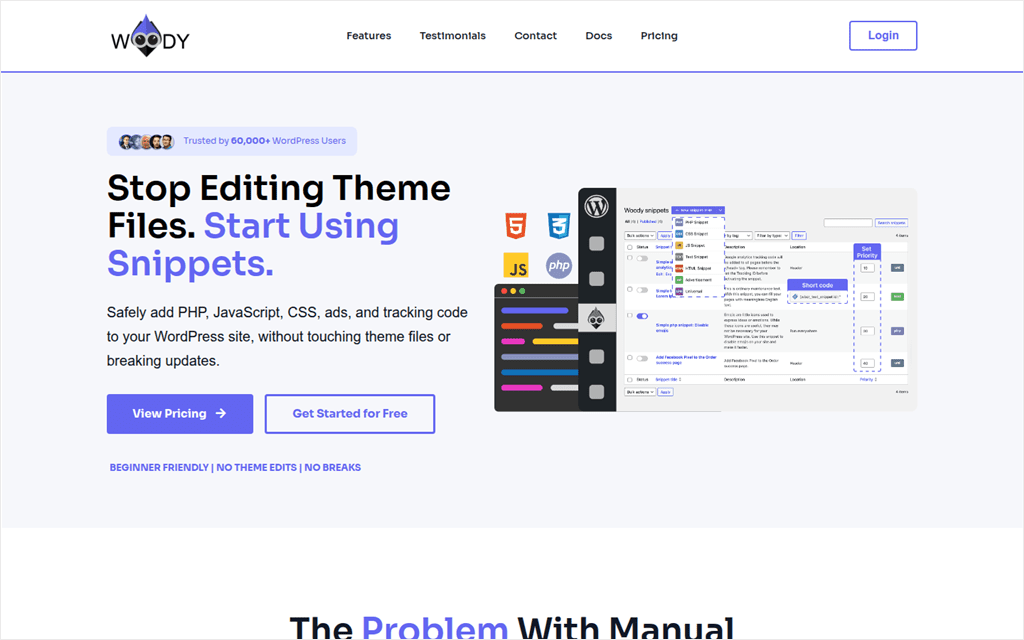
Woody Code Snippets manages PHP, CSS, JS, HTML, and header/footer scripts from one dashboard, much like the others on this list. What sets it apart is a dedicated “Ad” snippet type, built specifically for AdSense and affiliate code blocks.
That’s a small detail with a real use case behind it.
Why Is Woody Code Snippets One of the Best Code Snippet Plugins?
Site owners running ads or affiliate campaigns swap that code often, and having a snippet type built for exactly that job beats treating every ad block like generic HTML.
Revision history with rollback and email error notifications round out the feature set. At 4.5 out of 5 from a smaller review pool than WPCode or Code Snippets, it’s a dependable, if less battle-tested, option.
Our Experience with Woody Code Snippets
We tested the Ad snippet type by rotating three affiliate banners over a week.
Switching which one was live took one click, no code editing required. Outside of that specific use case, the general snippet management felt close to Code Snippets, without a standout reason to choose it over the free options above.
🟢► Pros
- Dedicated Ad snippet type: built specifically for AdSense and affiliate code, not repurposed HTML.
- Revision history with rollback: undo a bad edit without rewriting the snippet.
- Email error notifications: get alerted the moment a snippet breaks, without checking manually.
- Execution priority control: decide which snippets load first when several target the same location.
🔴► Cons
- Thin differentiation outside ads: general PHP/CSS/JS management doesn’t stand out from Code Snippets or FluentSnippets.
- Smaller install base: 60,000–80,000 installs is the lowest of the general-purpose tools here.
Click to see Woody Code Snippets’ full feature set 🔽
Key Features of Woody Code Snippets Lite (Free)
- Dedicated Ad snippet type: manage AdSense and affiliate code blocks separately from generic HTML.
- Universal and text snippets: combine multiple code types in one snippet, or save reusable text blocks for content you paste often.
- Multiple insertion locations: place a snippet in the header, footer, before or after content, or in specific WooCommerce placements.
- Priority control and email error notifications: decide which snippet loads first when several target the same spot, and get alerted the moment one breaks.
Woody Code Snippets Premium Features For When You Grow
- Code revisions and history: compare versions and roll back a snippet to a previous state with one click.
- Snippet library and templates: save a snippet as a template and reuse it across other sites.
- Import and export: move snippets between WordPress sites without rebuilding them.
- Advanced conditions and targeting: combine user role, page type, URL, and device rules with AND/OR logic.
Pricing: Free lite version. Premium starts at $39/yr.
👉 Get started with Woody Code Snippets
5. WPCodeBox ⭐⭐⭐
Best for: Developers & Agencies Daily Snippet Workflow
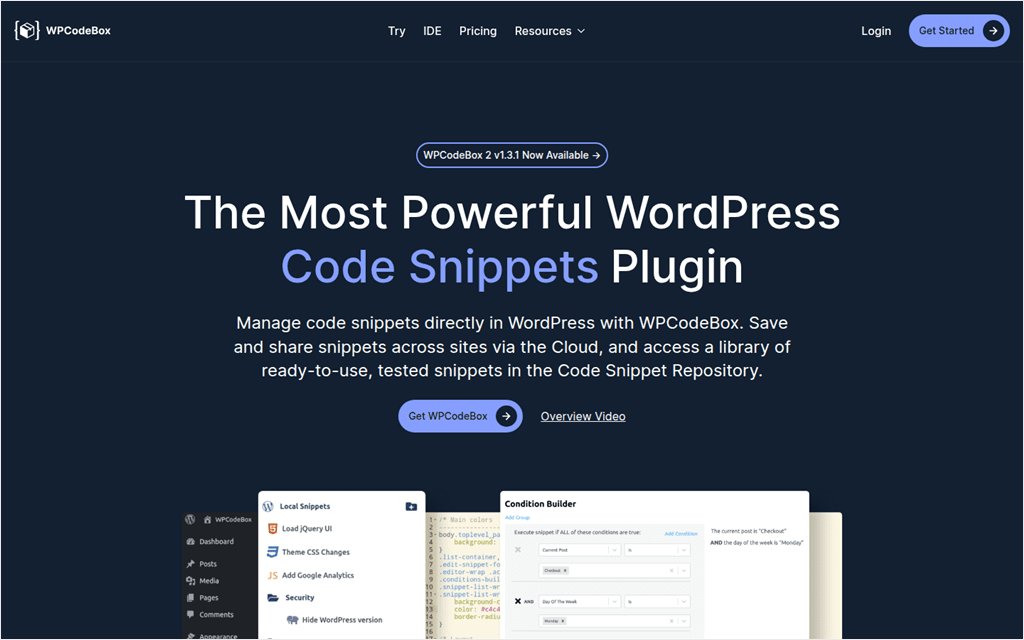
WPCodeBox is built for more advanced WordPress users. Instead of a simple text box, it runs the Monaco editor, the same engine behind Visual Studio Code, with autocomplete for WordPress hooks and functions as you type.
Why Is WPCodeBox One of the Best Code Snippet Plugins?
A visual Condition Builder handles targeting by page, post type, taxonomy, user state, or device, plus custom PHP conditions for advanced cases.
SCSS and LESS compile automatically, and finished snippet sets can export as a standalone plugin, useful when handing a site off to a client.
There’s no lite version to try before buying, unlike every other code snippet plugin on this list.
Our Experience with WPCodeBox
We tested the Monaco editor against a plain textarea for writing a longer PHP snippet.
The autocomplete for WordPress functions genuinely sped things up. It caught a typo mid-line that would have otherwise slipped through until the snippet ran. That said, the interface assumes you already know what a hook is.
🟢► Pros
- Monaco editor: the same code editor that powers VS Code, with real syntax intelligence.
- WordPress hook autocomplete: suggests actions and functions as you type, catching mistakes early.
- SCSS and LESS support: write in either and get compiled, minified CSS automatically.
- Standalone plugin export: package finished snippets into their own plugin for client handoff.
🔴► Cons
- No free version at all: every other plugin here has a way to try it for free.
- Built for developers: the hook autocomplete and Monaco editor assume coding knowledge most WordPress site owners don’t have.
Click to see WPCodeBox’s full feature set 🔽
Key Features of WPCodeBox
- Monaco editor with WordPress autocomplete: get suggestions for hooks and functions as you type, the same editor engine behind VS Code.
- Code Snippet Repository: pull from a library of ready-made, tested snippets instead of writing every one yourself.
- SCSS and LESS support: write in either and get compiled, minified CSS automatically.
- Condition builder: control exactly when and where a snippet executes without touching PHP.
- Standalone plugin export: package finished snippets into their own plugin for a client handoff.
- Error detection: a problematic snippet disables itself automatically instead of taking the site down.
- Cloud storage and sync: save snippets to the cloud and reuse them across every site you manage.
Pricing: From $39/yr for a single site, and $199 one-time for an unlimited lifetime license.
6. Header Footer Code Manager ⭐⭐⭐
Best for: Tracking Script Users Simple Header/Footer Only
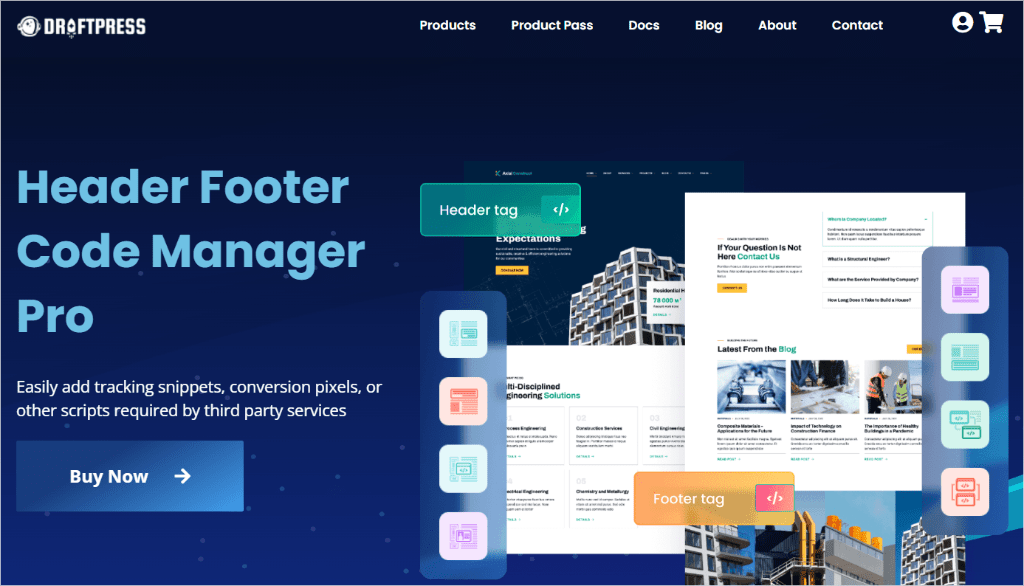
Header Footer Code Manager (HFCM) does one job and does it well: getting HTML, CSS, or JavaScript into your site’s header, footer, or body without touching a theme file.
With 600,000+ installs and a 4.9 rating, it’s one of the most trusted plugins on this list by review score.
Why Is Header Footer Code Manager One of the Best Code Snippet Plugins?
For its actual job, dropping in a Google Analytics tag, a Facebook pixel, or a third-party embed, that narrower scope works in your favor. There’s no PHP editor to learn and no conditional logic tree to build. You pick a placement, paste the code, and it’s live.
That focus shows up in the details, too. HFCM logs which user added or last edited every snippet, and when. A small thing, but it’s the kind of accountability trail full snippet managers rarely bother with for a single script block.
With such a high rating on WordPress.org why is it so low on this list?
It’s not a full snippet manager in the way the others are. There’s no PHP snippet support, and conditional logic in the free version. It is limited to device targeting, not the page-by-page or role-by-role control WPCode and FluentSnippets offer.
Our Experience with Header Footer Code Manager
We used Header Footer Code Manager to add a tracking pixel to a handful of pages and left the rest of the site untouched. The setup took under a minute, and the device-targeting toggle worked exactly as expected on a mobile test.
🟢► Pros
- Highest-rated plugin on this list: 4.9 out of 5 from 300+ reviews.
- Genuinely simple interface: built for one job, without extra settings to learn.
- Unlimited script blocks free: no artificial cap on how many you can add.
- Device-based targeting: show or hide a script on mobile versus desktop.
🔴► Cons
- No PHP snippet support: it’s for scripts and embeds, not custom functionality.
- Limited conditional logic: device targeting only in the free version, no page or role targeting like the others here.
Click to see Header Footer Code Manager’s full feature set 🔽
Key Features of HFCM (Free)
- Unlimited code injection: add scripts or styles to any post or page, with no cap on how many blocks you create.
- Placement control: load a snippet in the head, footer, or before/after the content, wherever the script needs to sit.
- Device targeting: show or hide a script on desktop versus mobile.
- Audit logging: see which user added or last edited a snippet, and when.
HFCM Pro Features For When You Grow
- PHP snippet support: insert PHP with built-in validation that disables a snippet before it can crash your site.
- Duplicate and clone snippets: copy a working snippet and edit the copy instead of rebuilding it.
- Body section insertion: place code right after the opening body tag, a placement the free version doesn’t offer.
- Logged-in and private page targeting: show a snippet only to logged-in users, logged-out visitors, or specific private posts and pages.
- Snippet priority and organization: control load order and group snippets for easier management.
Pricing: Free, unlimited script blocks. Pro adds audit logging and rollback for around $35/yr.
👉 Get started with Header Footer Code Manager
That’s it for our list of the best WordPress code snippet plugins. Now this is a long list, to help you narrow it down check out the section below.
How to Choose the Right Code Snippet Plugin
Six plugins is a lot to hold in your head at once, so here’s the short version. Find yourself in the table below and go straight to that pick.
| If you are… | Best Choice | Why |
|---|---|---|
| A beginner | WPCode | Largest snippet library, Safe Mode, easiest interface |
| A developer | WPCodeBox | VS Code editor, hook autocomplete, SCSS/LESS |
| Managing many client sites | Code Snippets Pro | Cloud sync and team features |
| Running a high-traffic site | FluentSnippets | File-based architecture avoids database queries |
| Managing affiliate or ad snippets | Woody Code Snippets | Dedicated ad snippet type |
| Just adding tracking scripts | Header Footer Code Manager | Lightweight and purpose-built |
Which Plugin Wins Where?
If you’re weighing two or three of these against each other feature by feature, here’s how the top four actually stack up.
| Feature | WPCode | Code Snippets | FluentSnippets | WPCodeBox |
|---|---|---|---|---|
| Best for beginners | 🏆 | ✓ | ✗ | ✗ |
| Best free version | 🏆 | ✓ | ✓* | ✗ |
| Smart Conditional Logic | 🏆 | Pro | ✓ | ✓ |
| Built-in snippet library | 🏆 | Community | ✗ | ✓ |
| Error recovery | 🏆 | ✓ | ✓ | ✓ |
| Developer experience | ✓ | ✓ | ✓ | 🏆 |
*Free forever, but with fewer built-in features than WPCode’s free tier: no snippet library, no conditional logic beyond basic targeting.
⚠️ Heads Up: A code snippet plugin protects you from a fatal error when you’re editing code. It doesn’t back up your site or scan for malware. Pair whichever one you choose with a real backup plugin, since a bad snippet is recoverable, a hack or a server failure isn’t, without one.
💡 That’s part of why we recommend WPCode: Safe Mode and automatic error deactivation cover the snippet side of that risk for free, but you’ll still want a real backup plugin for everything else.
The one question that simplifies everything: are you writing custom code regularly, or do you just need to paste one script?
If it’s regular custom code, start with WPCode. If it’s one script, Header Footer Code Manager (HFCM) is all you need.
Code Snippet Plugin vs Editing functions.php
Every WordPress theme ships with a functions.php file, and most tutorials treat it as the default place to paste custom code. That habit is where most of the risk in this comparison comes from.
Edit functions.php directly and one missing semicolon can crash your whole site immediately.
No preview, no undo, no warning first. Add the same code through a snippet plugin instead, and a broken snippet gets caught before it ever reaches a visitor.
Theme updates are the other problem. Anything you add to functions.php disappears the moment you update or switch your theme, unless you’re maintaining a child theme just to protect a few lines of code.
A snippet lives in the plugin’s own database table, so it survives every theme change untouched.
The tradeoff nobody mentions: functions.php runs your code with nothing standing between you and a fatal error. A snippet plugin adds a small layer in exchange for that protection, things like automatic error handling and Safe Mode.
For anyone who isn’t shipping code changes daily, that trade is worth making.
| functions.php | Code Snippet Plugin | |
|---|---|---|
| One bad edit | White screen, site down immediately | Auto-deactivates, site stays up |
| Theme update | Custom code is wiped out | Snippet survives untouched |
| Locked out? | FTP or hosting file manager only | Safe Mode via a URL parameter |
| Where code runs | Site-wide by default | Targeted by page, role, or device |
That’s it from us. You now have a detailed list of the best WordPress code snippet plugins, and how to select the right one for your needs. If anything is unclear, check out the commonly asked questions below.
FAQs: Best WordPress Code Snippets Plugins
What’s the best free code snippet plugin for WordPress?
WPCode. The free version includes Smart Conditional Logic, Safe Mode, and a 3,000+ snippet library. Features some competitors charge for.
Is WPCode better than Code Snippets?
For most site owners, yes. WPCode’s free tier includes conditional logic and a larger snippet library. Code Snippets is a solid alternative if you specifically want its native wp-admin styling and don’t need those extras.
Do I actually need a code snippet plugin?
If you’ve ever been told to edit functions.php, yes. A snippet plugin protects your site from a fatal error and keeps your changes intact through theme updates.
Are code snippet plugins safe to use?
The ones on this list are. Look for automatic error deactivation and a way to disable snippets if your dashboard becomes inaccessible. WPCode’s Safe Mode is the clearest example of this done well.
What do code snippet plugins do?
Code snippet plugins let you add, edit, and manage code snippets on your website. They provide a clean, organized way to execute small pieces of code, eliminating the need to edit theme files directly and reducing the risk of site downtime.
Why use a code snippet plugin?
A code snippets plugin like WPCode organizes your customizations and keeps your site’s performance and security in check. It avoids the risks associated with direct theme file edits, making your updates and changes safer and more manageable.
How can I add code snippets to my WordPress site?
You can add code snippets by simply installing a plugin like WPCode. Its intuitive interface lets you effortlessly insert, organize, and deploy various code snippets across your site. With auto insertion and smart conditional logic, you can add code snippets to any location on your WordPress site.
Do I need technical expertise to use Code Snippets plugins?
While you can definitely start using a code snippets plugin without knowing how to code, it’s good to have a general understanding of a WordPress website’s structure. WPCode gives you the advantages of using code snippets without knowing all the technical details.
What is the best way to add custom code to a WordPress site?
The best way to add custom code safely and efficiently is through a code snippets plugin. WPCode, for instance, provides a secure and organized platform for adding various types of custom code, including CSS, JavaScript, PHP, and HTML, ensuring your site’s integrity and performance are maintained.
How does a WordPress code snippet library work?
A code snippet library is a collection of code snippets that help you improve your website’s functionality and performance. These snippets are a few lines of code that significantly enhance your website’s functionalities. The WPCode plugin has a commendable WordPress code snippet library where you’ll find code snippets from expert WordPress developers.
Get the Safer Way to Customize WordPress
You’ve seen how these six plugins compare on safety, features, and price. For most site owners, the decision comes down to one question: why pay for conditional logic and error protection when WPCode includes both for free?
Install it, connect the snippet library, and the next tracking pixel or custom function you need is a search away, not a theme-file edit.
Get WPCode for free →
See WPCode pricing →
Additional Resources
Ready to put a plugin to work? These guides help you go from installed to organized.
- How to Create a Private Code Snippet Library in WordPress: share snippets across a team without giving everyone code access.
- PHP Error Handling & Safe Mode: see exactly how WPCode’s auto-deactivation and Safe Mode work under the hood.
- 9 Tips to Easily Manage Code Snippets in WordPress: keep your snippet library organized as it grows.
- Best HTML Snippets for WordPress Beginners.11 Useful Examples: If you are new to custom codes, HTML snippets are a great start. This article lists the best case uses.