
TL;DR:
To search and replace text in your WordPress database, use a plugin like Search & Replace Everything by WPCode. It previews every change and handles serialized data automatically, before anything runs. Avoid raw SQL or phpMyAdmin’s manual find-and-replace unless you understand serialization, since it can corrupt settings, widgets, and page-builder data without any error message.
You need to change text across your WordPress site.
Maybe you rebranded, a sponsor changed their slogan, or maybe you just found a typo sitting in dozens of old posts.
Sounds easy, right? Find the old text, replace it with the new text, and move on.
We’ve had to make changes like these ourselves, and there’s one thing we’ve learned. Searching and replacing text is easy until it changes something you didn’t mean to touch.
A widget can disappear, a setting can break, or part of a page can stop working without any obvious error.
That’s because WordPress doesn’t store everything as simple text. Some settings and page-builder data are stored in a format that needs to be handled carefully when text changes.
In this guide, we’ll show you three ways to search and replace text in your WordPress database, including the method we’d recommend for most sites.
Key Takeaways
- Serialized data (used in settings, widgets, and page builders) has a built-in character count. Swap the text without updating that count, and the value breaks silently.
- Search & Replace Everything previews every match and recalculates serialized-data length automatically, before anything runs.
- WP-CLI’s
search-replace --dry-runis a free, serialization-safe alternative for anyone comfortable in a terminal. - phpMyAdmin’s manual find-and-replace has no preview and no undo. It’s where most real database damage happens.
- Back up before any method, even the safest one.
When Would You Need to Search and Replace Your WordPress Database?
There are a few common situations where searching and replacing text across your WordPress database can save you hours of manual editing.
- Business name or branding change: your company renamed, rebranded, or updated its slogan, and the old text is scattered across posts, pages, and settings.
- Domain migration: moving from a staging URL to a live domain, or switching domains entirely, leaves old URLs baked into content and settings.
- Fixing broken internal links: a page moved or got a new slug, and every link pointing to the old URL now leads nowhere.
- Correcting a repeated typo: the same misspelling or wrong phrase made it into dozens of posts before anyone caught it.
- Switching from HTTP to HTTPS: hardcoded
http://links need to becomehttps://sitewide. - Syncing content after a staging-to-live move: content built and tested on a staging URL needs its links pointed at the live site before launch.
Search and Replace Methods at a Glance
There are three ways to search and replace text in WordPress. The right choice depends on how much control you need and how comfortable you are working with your database.
| Method | Best For | Preview First | Handles Serialized Data | Undo |
|---|---|---|---|---|
| Search & Replace Everything | Most WordPress users | Yes | Yes, automatic | Yes. Pro only |
| WP-CLI | Developers with terminal access | Yes, --dry-run |
Yes, automatic | No, restore from backup |
| phpMyAdmin / SQL | One-off manual edits by advanced users | No | No, manual only | No, restore from backup |
Why Database Search and Replace Can Be Risky
Serialized data is a way WordPress stores certain settings and information in the database. It includes extra information, such as the length of stored text, that needs to stay correct when you make changes.
Let’s use the example from this tutorial to show you what that means:
- WordPress might store text like
s:24:"Whisk & Flour Baking Co.";. - The
24tells PHP how many characters to expect. If you change the text without updating that number, PHP may no longer be able to read the data. - This matters because plugin settings, widgets, and page-builder layouts often use serialized data.
- That’s why a simple database search and replace can sometimes break something without showing an obvious error.
A tool that understands serialized data can update it correctly for you.
What This Looks Like in Practice
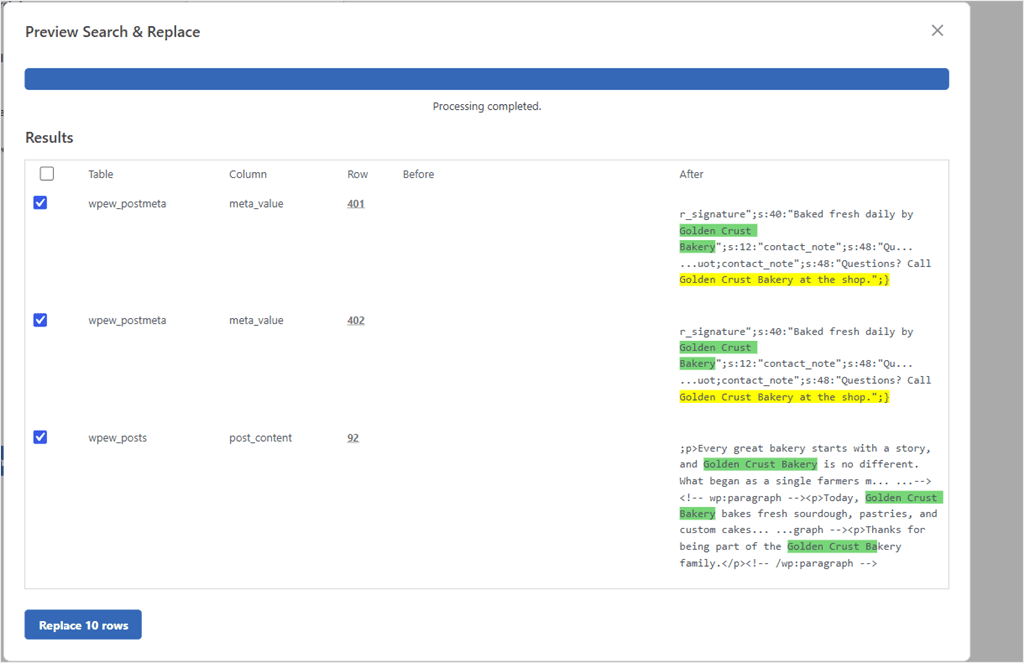
Remember the character count we just talked about? Here’s what it looks like when a tool handles it correctly.
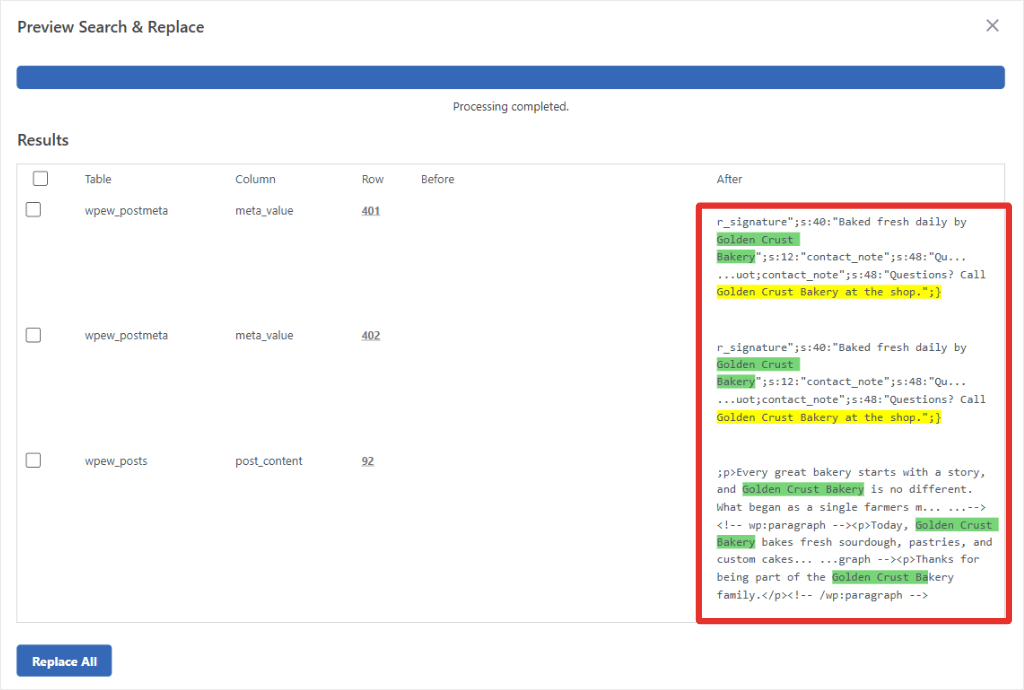
We tested this with a business name stored inside a serialized plugin setting:
- The original value was
s:45:"Baked fresh daily by Whisk & Flour Baking Co.";. - We replaced it with
Baked fresh daily by Golden Crust Bakery. - Search & Replace Everything updated the length automatically.
- The new value became
s:40:"Baked fresh daily by Golden Crust Bakery";. - The preview showed the updated value before we ran the replacement.
Check out the screenshot below to see this change in action.
Before You Start
⚠️ Back Up First
Back up your database before any search and replace, no matter which method you use. Most hosts include one-click backups. If yours doesn’t, a plugin like Duplicator works too, and if you ever need to restore something a bad edit deleted, that’s covered separately.
If you have a staging site, test there first.
Regardless of where you run the search and replace, check your actual table prefix before following any tutorial.
How to find your WordPress database prefix.
Many WordPress sites use something other than the default wp_ prefix for security.
To find it, open wp-config.php in your site’s root folder and look for $table_prefix = 'wp_';. The text in quotes is your prefix.
If you don’t have file access, log into phpMyAdmin instead and check the table names in the left sidebar. They all share the same prefix, like wp7x_options or wp7x_posts.
We show you how to do this in detail in our guide: how to search and replace URLs after WordPress migration.
What Is Serialized Data?
Serialized data is a way WordPress stores certain settings and information in the database. It includes extra information, such as the length of stored text, that needs to stay correct when you make changes.
How to Search and Replace in Your WordPress Database
Ready to make the change? Below, we’ll walk you through each method step by step, so you can choose the one that works best for your site. Use the table of contents below to navigate to the method you want.
Method 1: Using Search & Replace Everything by WPCode (Recommended)
Search & Replace Everything is a WPCode plugin built specifically for this job. It scans your whole database, checks serialized data automatically, and shows you the results before touching anything.
Step 1: Get the Plugin
Search & Replace Everything is free to install directly from the WordPress plugin directory, and it’s what we’ll use for this tutorial.
Out of the box, it handles the full workflow, matching, serialized-data safety, and a review step at no cost.
If you run search and replace often or manage a large site, the Pro version adds a History log with one-click Undo and a Remove Unused Media scanner. It’s also included in the WPCode Bundle, alongside Image Optimizer by WPCode.
Check the WPCode review to see what it can fully do.
Step 2: Enter Your Search and Replace Terms
Once it’s installed and active, go to Tools » WP Search & Replace in your dashboard. Then, select the “Search & Replace” tab.
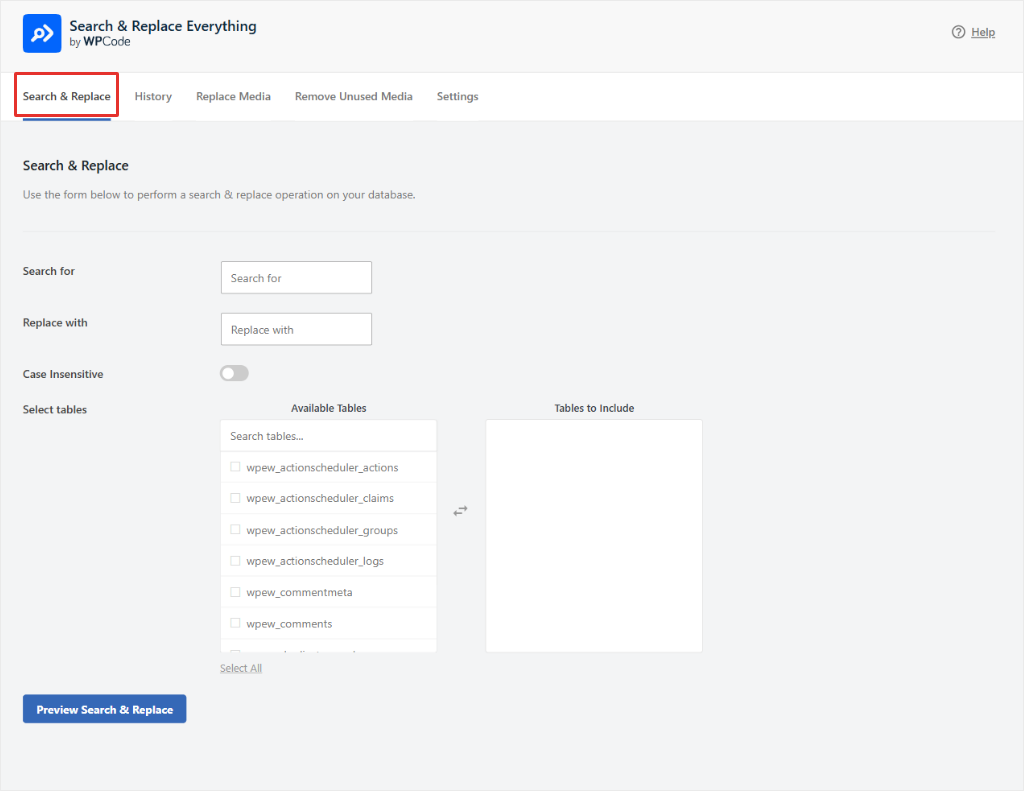
Next, type the text you’re replacing into Search for, and the new text into Replace with. Turn on Case Insensitive if you want the match not to ignore capitalization. It is off by default.
Then scroll to Select tables.
You don’t have to select every table, just the ones you need. Selecting all of them feels safer, but it isn’t. From experience, a broad list means your replace can match text in places you never meant to touch.
Search “Available Tables” and click what you actually need. They move into “Tables to Include” on the right. For a text change like a business name, that’s usually just posts and postmeta.
If another plugin caches content separately, add that table too. Otherwise, the old text can still show up in cached output after posts and postmeta are already updated.
Step 3: Preview Before Anything Runs
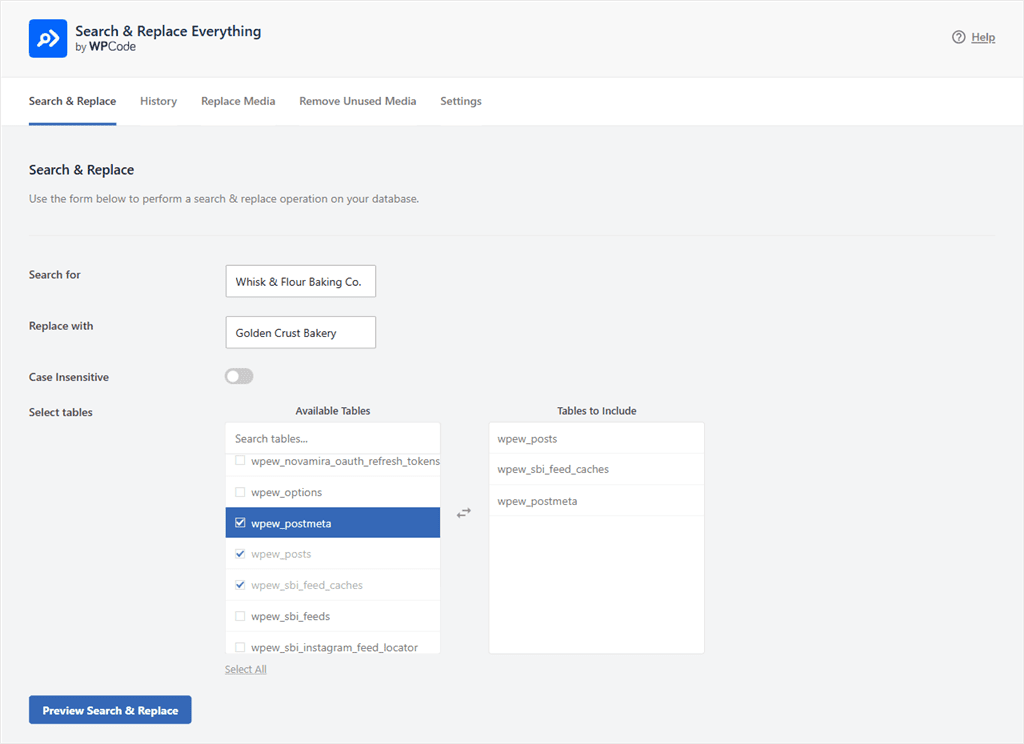
Click Preview Search & Replace to do a dry run.
The initial scan checks your selected tables and shows the results in a table. You’ll see the table, column, row, and the matched text highlighted in green, so you know exactly what will change.
This gives you a chance to spot anything you don’t want to change. In serialized data, you’ll also see that the length prefix has been updated automatically.
For our example, the scan found matches in wpew_posts. Each row highlights the matched text in green, so “Whisk & Flour Baking Co.” becomes “Golden Crust Bakery” at a glance.
Step 4: Choose Exactly What to Replace
Every row in the preview has its own checkbox. Uncheck anything you don’t want touched, maybe a match is a coincidence, or belongs to content you’re not ready to change yet.
Watch the button at the bottom: it relabels itself live, from “Preview Search & Replace” to the number of rows you select. Something like “Replace 10 rows” in our example, counting exactly what’s checked. Or “Replace All” if you want to replace them all.
That number confirms you’ve scoped this correctly before committing to anything.
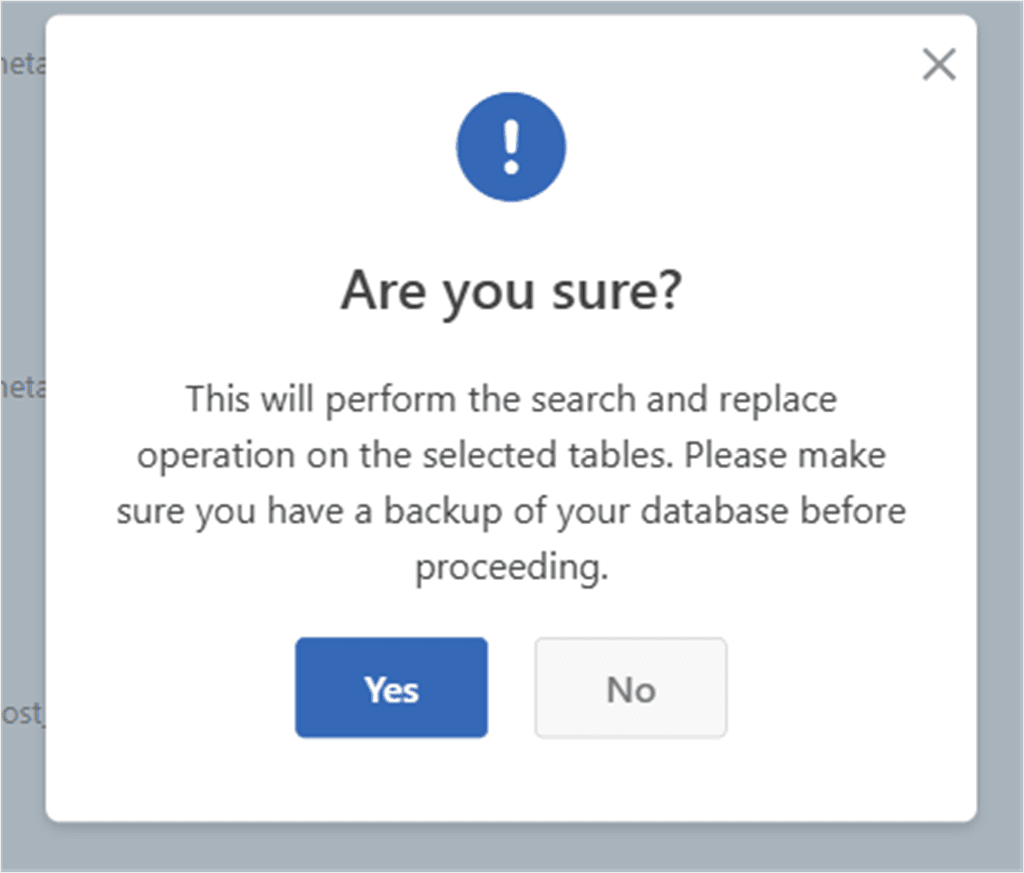
Click the replace button. You’ll get an “Are you sure?” dialog reminding you to have a backup before proceeding.
Click Yes, and the operation runs. The same results table updates to show it’s complete.
Step 5: Confirm It Worked
That’s it. That’s the whole operation.
The replace runs, and the results table updates to show it’s complete. Spot-check a few of the pages or settings you just changed to confirm everything looks right.
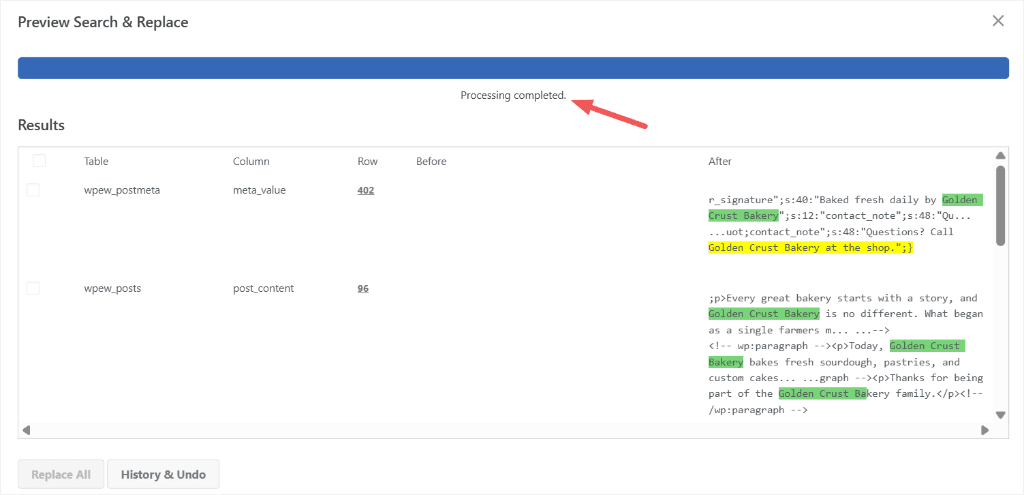
In the paid version, on the last screen of the process, you have the option to view history or undo changes.
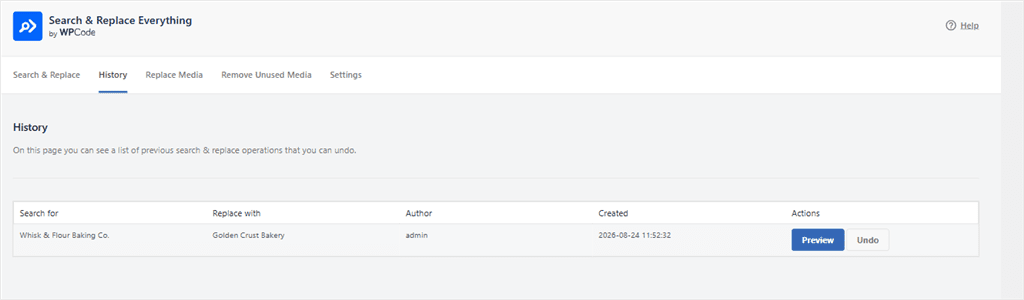
You also get a History tab that logs every operation, including the search term, replace term, who ran it, and when. You can Preview and Undo with one click the changes you made.
💡 WPCode Tip
Search & Replace Everything’s free version also lets you replace media files by swapping images directly. Removing unused media still needs the Pro version.
Method 2: Using WP-CLI (Advanced)
If you have command-line access to your site, WP-CLI’s search-replace command does the same safe, serialization-aware replace as the plugin, just faster, and without a UI.
Start by typing the command below in your terminal.
<pre class="wp-block-code"><code class="language-bash">wp search-replace 'Whisk & Flour Baking Co.' 'Golden Crust Bakery' --dry-run</code></pre>
The --dry-run flag shows you how many replacements it would make without touching anything. Think of it as the command-line version of the plugin’s preview step. Drop the flag once the count looks right, and it runs for real:
<pre class="wp-block-code"><code class="language-bash">wp search-replace 'Whisk & Flour Baking Co.' 'Golden Crust Bakery'</code></pre>
WP-CLI handles serialized data correctly by default, the same way the plugin does. It’s a solid choice if you’re comfortable with a terminal and want to script the change or run it across multiple sites.
Method 3: Using phpMyAdmin (Advanced, Riskier)
This is the manual method, and it’s where the serialization problem actually bites people. phpMyAdmin doesn’t know your data is serialized. It just replaces text.
⚠️ No Preview, No Undo
This method has no built-in preview and no one-click undo. Back up your site with a plugin like Duplicator, a free plugin, before you touch anything here.
For this, open phpMyAdmin from your hosting control panel, select your WordPress database, then a specific table. Click the Search tab, enter your search term, and pick which column to target.
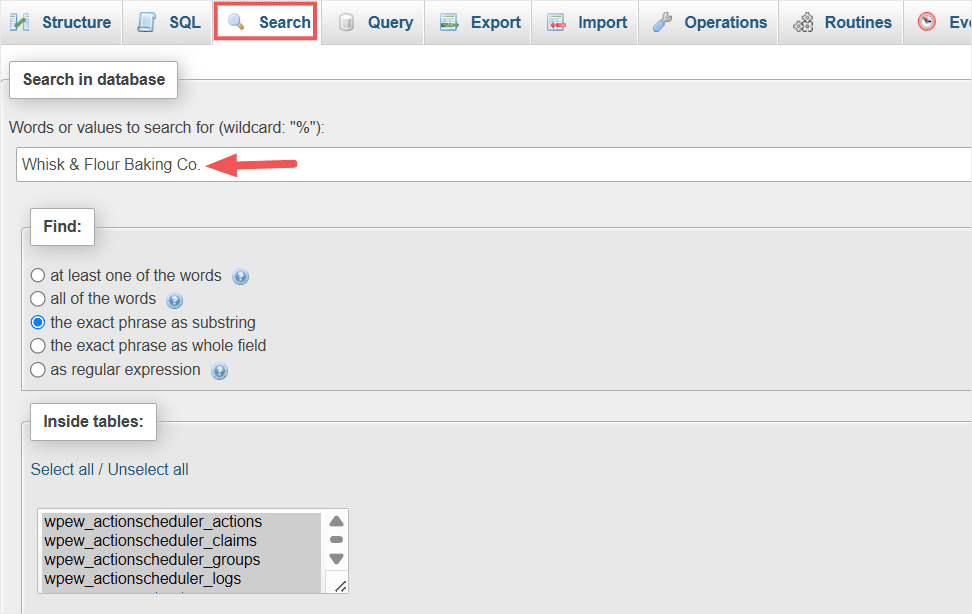
After the run, click on Find and Replace and replace terms.
For a plain-text field like post content, this works fine.
For a serialized field, a widget setting, a page-builder option, or a theme customizer value, the text swaps, but the length prefix doesn’t.
The value stops being readable by PHP. Depending on what broke, that can mean a blank widget, a reset setting, or a section of a page that quietly stops rendering.
If you’re going to edit the database by hand anyway, a targeted SQL query at least limits the damage to one column. You’re deciding exactly what’s touched instead of letting a GUI search sweep across every field it matches. That’s containment, not safety:
<pre class="wp-block-code"><code class="language-sql">UPDATE wp_posts SET post_content = REPLACE(post_content, 'old text', 'new text');</code></pre>
But this still doesn’t touch serialized data correctly.
That limitation doesn’t go away just because the query is more precise. If you’re not sure whether a field is serialized, that uncertainty is the reason Method 1 exists.
Common Mistakes and How to Fix Them
Search and replace can sometimes cause unexpected results, especially when you’re working with a large database. Here are some common problems you might run into and what to do about them.
Nothing matched, but I know the text is there.
Check case sensitivity; your search might need Case Insensitive turned on, or the stored text might have different capitalization than you expect.
My search term is matching more than I expected.
A short or common term can hit unrelated words. Replacing “cat” can also catch “category” or “concatenate.” Preview the results and uncheck any row that’s a false match before you commit.
A setting or widget looks broken after a manual replace.
This is the serialization problem in action. If you run the change through phpMyAdmin or a raw query, restore from your backup and redo the change through a plugin or WP-CLI instead.
I ran the replace, but nothing changed.
Double-check that you selected the right tables; a match in postmeta won’t be touched if only the posts table was selected. Then confirm the search term matches the stored text exactly, including any surrounding punctuation.
I’m not sure which tables to select.
When in doubt, search your posts and postmeta tables first. That covers the majority of content-level text. Plugin settings usually live in the options table, under a specific option name tied to that plugin.
My URLs still don’t match after replacing.
Check for a format mismatch: http:// vs https://, www. vs no www., or a trailing slash on one side and not the other. Search and replace terms need to match the stored format exactly.
Well done. You can now search and replace text in your WordPress site. If anything is unclear, check out the commonly asked questions below.
FAQs: WordPress Database Search and Replace Text
Is Search & Replace Everything free?
Yes. The free version handles the full search and replace workflow, including serialized data and the preview step, at no cost. You can also replace media files directly. The paid version adds a History log with one-click Undo and a Remove Unused Media scanner.
Can a search and replace break my site?
Yes, mainly through serialized data. A naive text swap on a serialized field corrupts its length count, and WordPress can no longer read that value. Plain text fields are much lower risk.
What is serialized data, and why does it matter?
It’s the format WordPress uses to store values with their own character count. See the example above for how a text swap can break that count without an error.
Can I undo a search and replace in WordPress?
With Search & Replace Everything’s paid version, yes, every operation is logged with a one-click Undo. The free version, WP-CLI, and phpMyAdmin or a raw SQL query don’t offer this. Restoring from a backup taken beforehand is your only way back with those.
Do I need to back up before running a search and replace?
Always. Even the safest method benefits from a backup, and it’s the only real undo option for the manual methods.
Make Your Next Search and Replace Safer
You’ve seen how easy it is to make a site-wide change. More importantly, how quickly things can go wrong if you edit the wrong data.
Search & Replace Everything by WPCode lets you preview your changes before they run, so you can check each match and make sure you’re changing only what you intended.
If you want to follow the same process we used in this guide, you can get started with the free version of Search & Replace Everything.
Get Search & Replace Everything free →
Need more tools for managing your database?
See Search & Replace Everything Pro pricing →
Additional Resources
Here’s where to go next, depending on what you’re trying to fix.
- WPCode Review: Is It Still the Best WordPress Code Snippets Plugin? See what’s included at every WPCode plan, including where Search & Replace Everything’s paid tier fits in
- Search & Replace WordPress URLs After Migration: If you’re changing domains rather than text, this covers URL-specific replacement
- Search & Replace Everything features: The full feature rundown, including media replacement and unused-media cleanup