
TL;DR:
WPCode’s Code Revisions feature saves a new version of your snippet every time you edit and save it. Open the snippet, click Code Revisions, then compare any old version against the current one. Click Restore and WPCode rolls back instantly, no manual copy-pasting required. It’s included on WPCode Basic and every paid plan above it.
You paste a code snippet into WordPress, hit save, and your site goes white. Or checkout suddenly stops working. You made a small edit ten minutes ago.
Was it that one?
Unlike posts and pages, WordPress doesn’t keep a revision history for custom code snippets.
If you aren’t tracking your changes, you’re left guessing which edit caused the problem or restoring an entire site backup just to undo a few lines of code.
That’s where WPCode comes in.
Its Advanced Code Revisions feature automatically saves every version of your snippets, lets you compare changes side by side, and restores a working version in one click. Here’s how to use it.
Key Takeaways
- Code Revisions saves a new version automatically every time you edit and save a snippet, no setup beyond having the feature on your plan
- Restoring an old version is one click and takes effect immediately, with no second save step
- Safe Mode and automatic error deactivation are free on every WPCode plan, including Lite, and work even if you can’t get into wp-admin normally
- Code Revisions itself needs the Basic plan ($49/year) or higher
Which Fix Do You Actually Need?
WPCode gives you four different ways to recover from, or avoid, a bad code change. Find your situation in the table below, then jump straight to that section using the links in the “Use this” column.
| Your situation | Use this | What happens |
|---|---|---|
| I know which snippet broke it | Code Revisions | Compare and restore the last working version, one click |
| I’m not sure which snippet is the problem | Safe Mode | Disable every snippet instantly, even from the login page |
| I didn’t do anything, the site just broke | Nothing, check first | WPCode may have already auto-deactivated the snippet that errored |
| I want to try a change before it’s live | Testing Mode | Preview privately, nothing visitors see until you publish |
Prerequisites
You’ll need WPCode installed and active.
While WPCode offers a free version, Code Revisions itself is a paid feature.
It is included starting on the Basic plan ($49/year) and every plan above it. The free Lite version doesn’t keep a revision history. If you’re on Lite, this is the one feature worth upgrading for, the first time something breaks.
If you’re upgrading now, grab your license key and download the plugin file from your WPCode account after purchase.
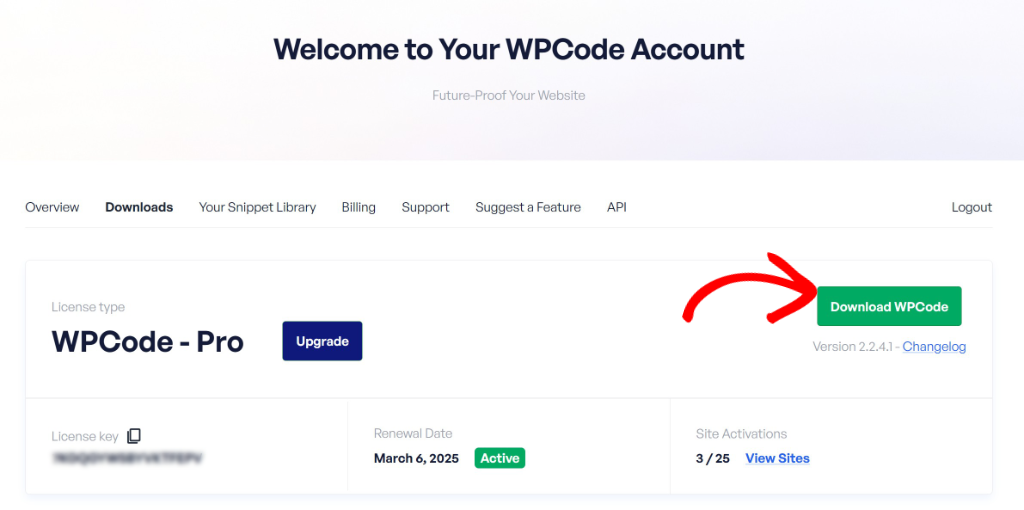
Then, in your WordPress dashboard, install WPCode like any plugin and activate it.
Then, go to Code Snippets » Settings and paste your “License Key.”
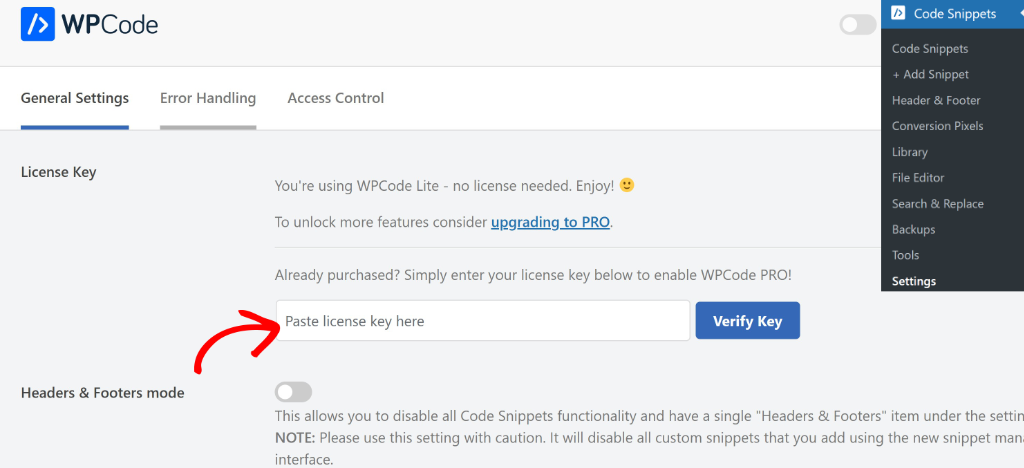
Check out this tutorial to see how to install WPCode if you face any challenges.
Check out this detailed WPCode review to see everything this code snippet management plugin can do.
Use the table of contents below to skip to the step you want to read.
With that out of the way, let’s dive in.
How to Track and Safely Undo WordPress Code Changes (Without Breaking Your Site)
Once you have the premium version of WPCode set up, you are ready to use Code Revisions. We detail every step below so that you can easily follow.
Step 1: Add a Custom Code Snippet (If New to WPCode)
This step only applies if this is your first time using WPCode.You need to add your first code snippet before you can undo or track changes.
Simply head to Code Snippets » Add New from your WordPress dashboard.
Here, you can pick a snippet from WPCode’s pre-built library.
For example, you can add a snippet to show a back to top button, enable maintenance mode, add social share buttons, disable comments, and more.
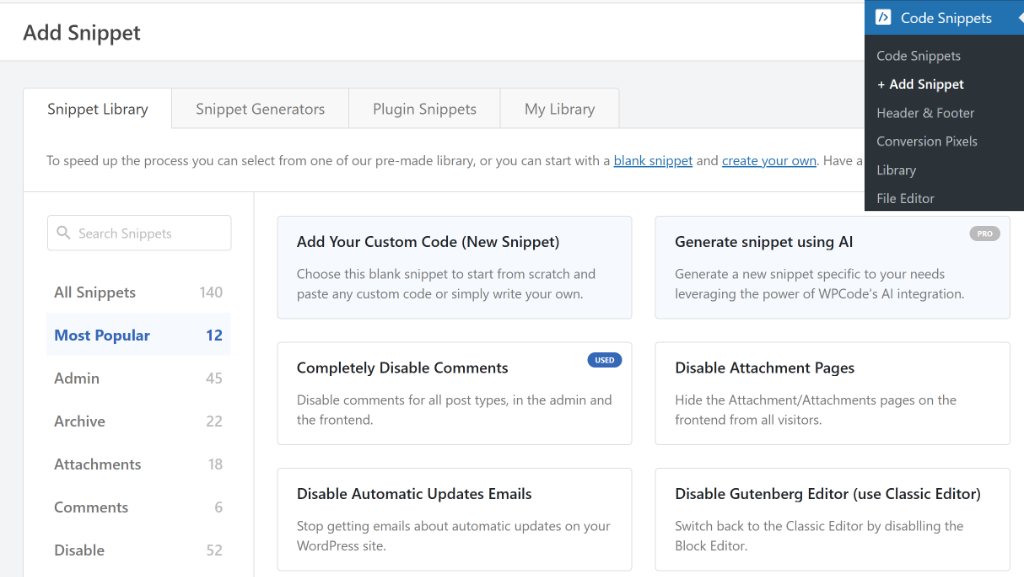
On the other hand, you can also use the ‘Add Your Custom Code’ option and enter your custom PHP, CSS, HTML, and JavaScript snippets.
To learn more, please see our guide on how to add custom code snippets in WordPress.
Step 2: Find Your Snippet’s Revision History
Next, you can head to Code Snippets from the WordPress dashboard. Here, you’ll see all the code snippets you’ve added to your website using WPCode.
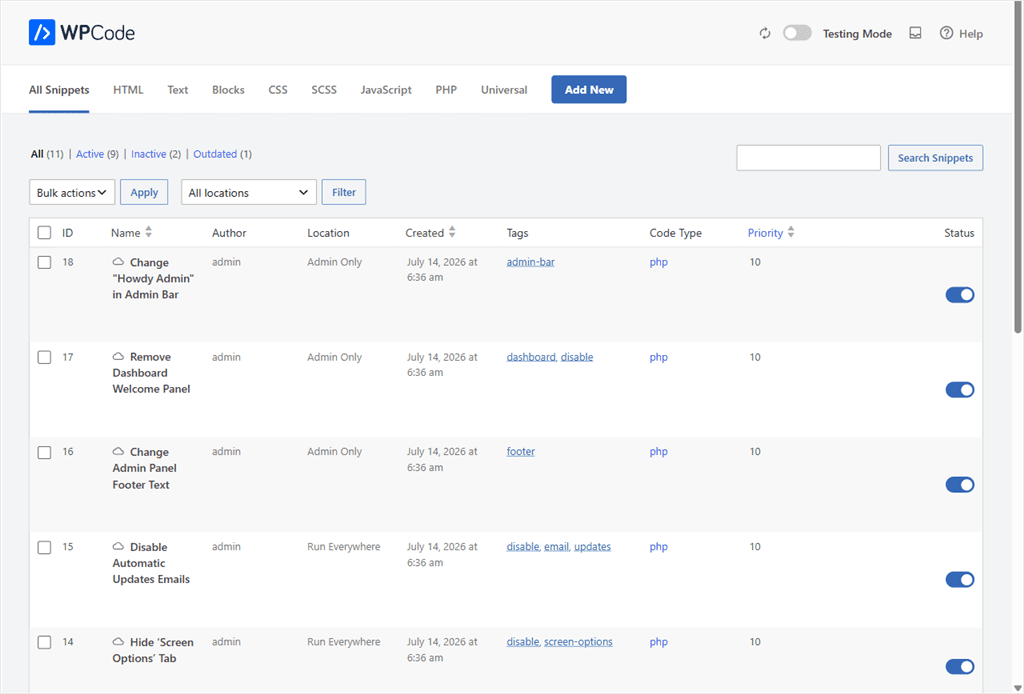
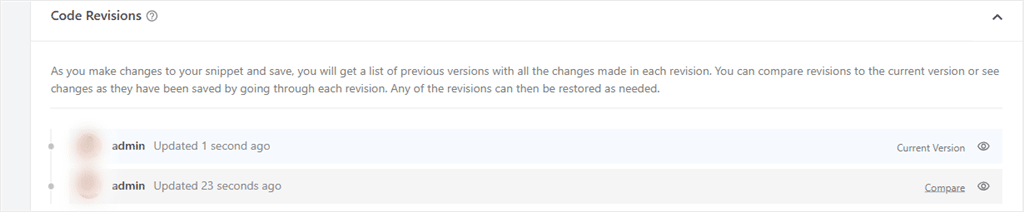
Next, select the snippet you’d like to track changes to and scroll down the settings sidebar to the Code Revisions panel.
Every time you edit and save that snippet, WPCode quietly saves a copy of the old version first, with no setup required.
You’ll see a list: your current version at the top, and every past version below it with who made the change and when.
Step 3: Compare Versions to See What Changed
Click Compare next to any past revision. WPCode shows you exactly what’s different, old value in red, new value in green, and only the fields that actually changed.
You won’t have to scroll through a wall of unchanged settings looking for the one line that’s different.
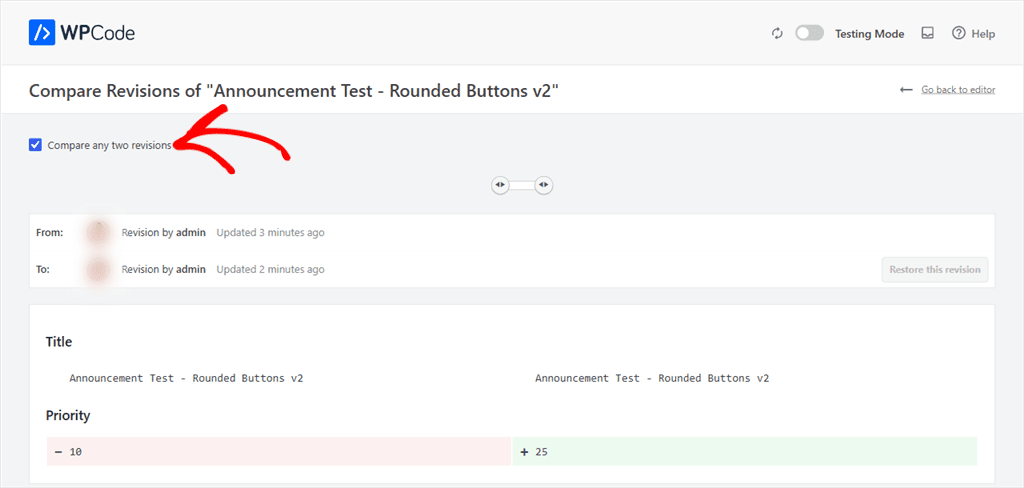
But what if you want to check more than one version back?
Ticking the “Compare any two revisions” checkbox also enables a slider that lets you pick any two points in the snippet’s history.
So, you can compare two older versions against each other, not just the current version against the past.
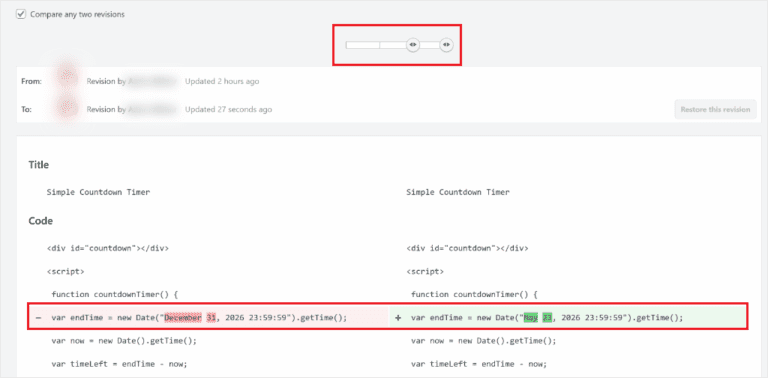
If you’ve ever restored a WordPress post or page from its revision history, this screen will look familiar. It has the same red-and-green difference and side-by-side layout. There’s nothing new to learn here.
Step 4: Restore a Previous Version
Found the version that worked? Click Restore this revision.
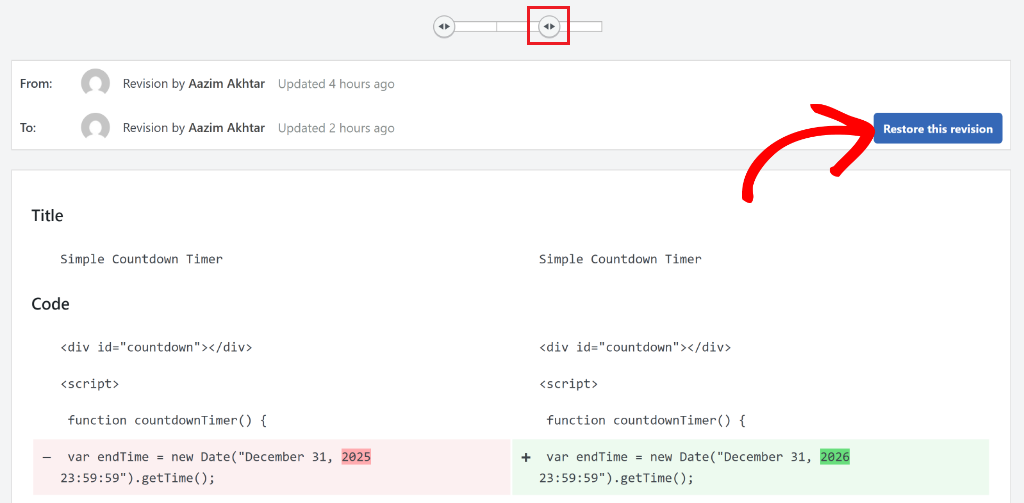
WPCode saves that old code as your live version immediately.
There’s no second save button and no confirmation screen to click through. The version you pick becomes the live one the moment you click Restore.
That’s it, you’ve successfully tracked changes to your snippets and restored the correct version.
What If You Don’t Know Which Snippet Broke It?
Revisions solve “I know which snippet, I just need the old code back.”
But sometimes you’re not sure which one is the problem, or your whole site is down, and you can’t comfortably access your WordPress dashboard to find out.
That’s what Safe Mode is for.
Add ?wpcode-safe-mode=1 to the end of any admin URL, even your login page, and WPCode stops running every snippet on your site instantly. Nothing gets deleted or changed. It’s a kill switch, not an undo.

With snippets paused, your site loads normally again while you investigate and fix the actual problem.
That might mean deactivating the broken snippet, or pulling up its revision history to restore an older version. Once you’re done, click Exit safe mode, and everything else turns back on.
⚠️ Note
Safe Mode is included on every WPCode plan, including the free version. If you’re not ready to upgrade for Code Revisions yet, this is the safety net you already have.
See the full PHP Error Handling & Safe Mode docs for every way to trigger it.
WPCode Automatically Deactivates Broken Code Snippets
A lot of the time, you won’t need Safe Mode or a manual restore at all, because WPCode often catches the problem before you do.
If a code snippet throws a fatal PHP error, WPCode automatically deactivates just that one snippet. It tells you exactly what happened right in the editor, with the offending line flagged in the code.
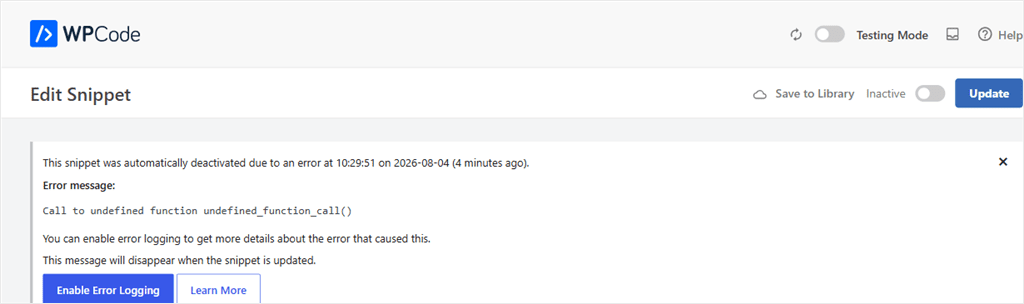
This way, your site keeps running, and every other snippet keeps working. You just fix or restore the one that failed.
Plus, you can also easily see which snippets have been automatically deactivated by going to Code Snippets and looking for the “Automatically Deactivated.”
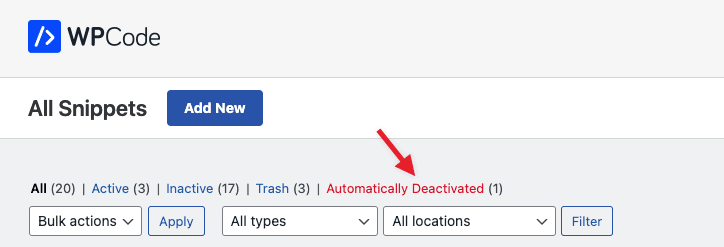
This feature is available on WPCode plans, including the free version.
But paid plans add an email alert, so you find out before a visitor does. For more detail on reading these errors, see how to debug PHP errors in WPCode.
Start with Testing Mode Before Live
If you’d rather catch a mistake before it goes live at all, WPCode’s Testing Mode lets you make changes privately, before any visitor sees them.
Flip the toggle in the WPCode header, and every snippet edit, Global Header & Footer script, or page script you touch stays visible only to you while you’re logged in as admin.
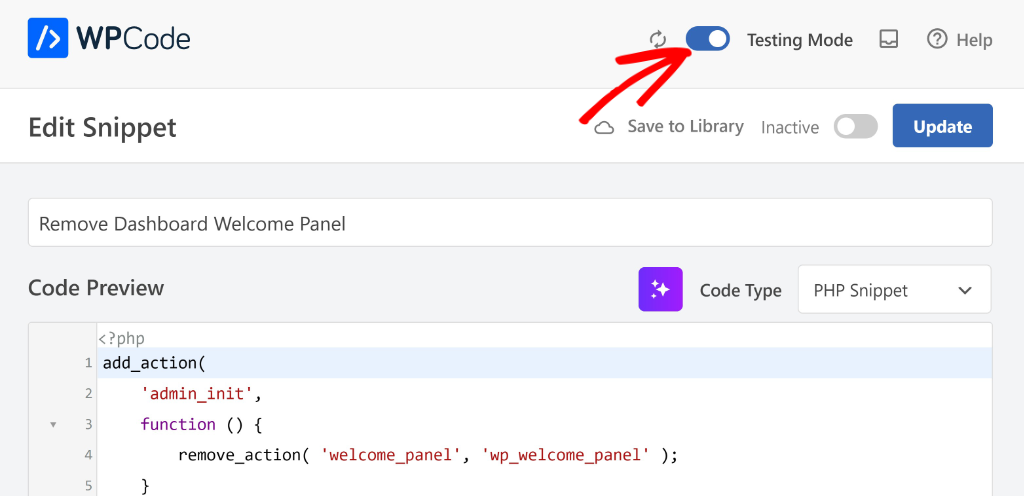
Once you’re happy with a change, you can publish it and disable Testing Mode.
And because publishing from Testing Mode still creates a new entry in Code Revisions, you’re never trading one safety net for the other.
You get to experiment first, then land in the same revision history you’d have if you’d edited live.
Well done. That is how to track code snippet changes and revisions in WordPress without coding experience.
Check out this post for 9 Tips to Easily Manage Code Snippets in WordPress if you are looking for more than undoing and tracking snippets.
If anything is unclear, check out the commonly asked questions below.
FAQs: How to Track and Safely Undo WordPress Code Changes
Is WPCode’s Code Revisions feature free?
No. It’s included starting on the Basic plan ($49/year) and every plan above it. The free Lite version doesn’t save a revision history. Safe Mode and automatic error deactivation, on the other hand, are free on every plan.
How fast can I actually undo a bad code change?
If you know which snippet caused it, opening its revision history and clicking Restore takes under a minute, one click, no extra save step. If you’re not sure which snippet is the problem, Safe Mode gets your site working again in seconds while you figure it out. Testing Mode is another option: try a change privately first, before it ever goes live.
What if I don’t know which snippet broke my site?
Add ?wpcode-safe-mode=1 to any admin URL to disable all snippets instantly, then check the Code Snippets list. WPCode also flags any snippet it automatically deactivated due to an error, which is often the culprit.
Does this help if I have a team editing snippets?
Yes. Every revision records who made the change and when, so you’re not guessing who edited what. That’s useful even outside of emergencies. It’s a plain audit trail for any snippet with more than one editor.
What if my whole site is down and I can’t reach wp-admin normally?
You can still add ?wpcode-safe-mode=1 to your login page URL. WPCode checks for that parameter before anything else runs, so it works even if a broken snippet is preventing pages from loading normally.
Never Lose a Working WordPress Code Version Again
A bad code edit used to mean digging through what you changed, hoping you remembered, or restoring a full site backup just to undo a few lines of code.
Now you’ve got four safety nets:
Code Revisions to restore a working version, Safe Mode to disable every snippet instantly, Testing Mode to try changes privately before publishing, and automatic deactivation that often catches fatal errors before they affect your site.
Already using WPCode? Open a snippet you’ve edited recently and check its revision history. You may be surprised how much history is already there.
New to WPCode? The free Lite version includes Safe Mode and automatic error protection from day one. Upgrade to WPCode Basic when you’re ready for automatic revision history and one-click restores.
Get WPCode for free →
See WPCode pricing →
Additional Resources
Here’s where to go next depending on what you’re trying to do.
- Advanced Code Revisions: the full feature breakdown if you want more detail before upgrading
- How to Limit Post Revisions in WordPress: if your database is filling up with revisions on the content side too
- Best HTML Snippets for WordPress Beginners: New to code snippets? Start with HTML snippets as a good entry point.



I want to know how to clean this code revision. I just need 2 code revisions of 1 file. In your current facility unlimited revisions of one file are being saved which is increasing the load on the server
Hi Sanjeev,
Thank you for the feedback, we are going to introduce a way to limit the number of revisions. Regarding server load, the revisions for the WPCode snippets are stored in a custom table that is only queried/loaded when the revisions list is loaded so it should not put any strain on your server in most instances.
I’m with Sanjeev! Please provide the ability to limit and delete the number of code snippet revisions. Until you add the new feature to your plugin, can you kindly provide us (via your reply) with a SQL database command that will allow us to delete all code snippet revisions? Thank you!
Thank you, Jonathan. WPCode revisions are stored in the “wp_wpcode_revisions” table, where “wp_” is your db table prefix.
Awesome. Thank you, Mircea. I have successfully deleted all code snippet revisions contained in the table you provided. Here’s what I suggest:
1. Add a new column (tab) to “Tools” titled, “Revisions”
2. Inside the new “Revisions” tab, add two new entries (with buttons, etc.) titled: “Delete all code snippet revisions from all code snippets” and another one titled “Delete all code snippet revisions for the following code snippet IDs: ______________” (where each code snippet ID is separated by a comma.
3. Add a “Delete All” button” and a “Limit Code Snippet Revisions” function under the Code Revisions section of each code snippet.
Again, thank you!
Another add for Item 2 above: Add another entry to the newly created “Revisions” tab titled; “Limit code snippet revisions to: ____” (showing a dropdown with numbers ranging from 0 to 10.
Cheers!
Apologies. Use the following SQL Commands instead:
To delete code snippet revisions from all code snippet:
DELETE FROM wp_wpcode_revisions;
To delete all revisions for a specific code snippet (e.g., with snippet_id 123):
DELETE FROM wp_wpcode_revisions WHERE snippet_id = 123;
To delete all revisions older than a certain date (e.g., September 1, 2025):
DELETE FROM wp_wpcode_revisions WHERE revision_date < '2025-09-01';
Cheerio!
Hi Mircea. Again, thank you. Following my last comment and for those interested, the following SQL command will do the trick:
TRUNCATE TABLE `wp_wpcode_revisions`;
Where wp_ is the site’s db table prefix.
Cheers!