TL;DR:
For a standard favicon, go to Settings » General » Site Icon and upload a square image at least 512×512 pixels. WordPress generates the browser tab, iOS, Android, and Windows tile icons automatically. If you already have favicon HTML from a generator or brand guidelines, paste it into Code Snippets » Header & Footer using WPCode instead.
Adding a favicon to WordPress is easy. Choosing the right way to do it isn’t always as obvious.
For most websites, WordPress’s built-in Site Icon feature is all you need.
But if you’re working with favicon HTML from a generator, migrating from another setup, or already managing custom code in your site’s <head>, using WPCode makes more sense.
The table below will help you choose the right approach in less than a minute.
| If you want to… | Use this |
|---|---|
| Add a standard favicon fast, no plugin | WordPress Site Icon |
| Paste favicon HTML you already have (from a generator like RealFaviconGenerator, brand guidelines, or a web app manifest) | WPCode |
| Manage this alongside the rest of your site’s custom <head> code | WPCode |
| Migrating from Squarespace, Wix, Shopify, or Webflow with just an old favicon image | WordPress Site Icon |
| Migrating from a hand-coded static site, or you ran your old site through a favicon generator | WPCode |
The Best Ways to Add a Favicon to WordPress
Now that you understand when to use WPCode to add your favicon and when to use the default WordPress method, use the table of contents below to skip to the section you want to read.
Method 1: WordPress Site Icon (Fastest, Built-In)
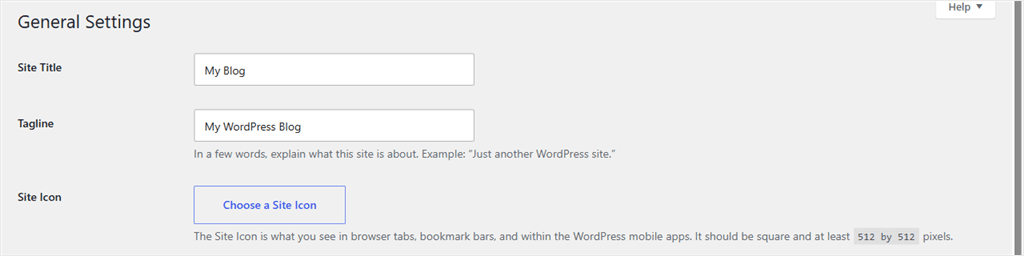
In your WordPress dashboard, go to Settings » General. Here, scroll to Site Icon and click Choose a Site Icon. Then, upload a square image.
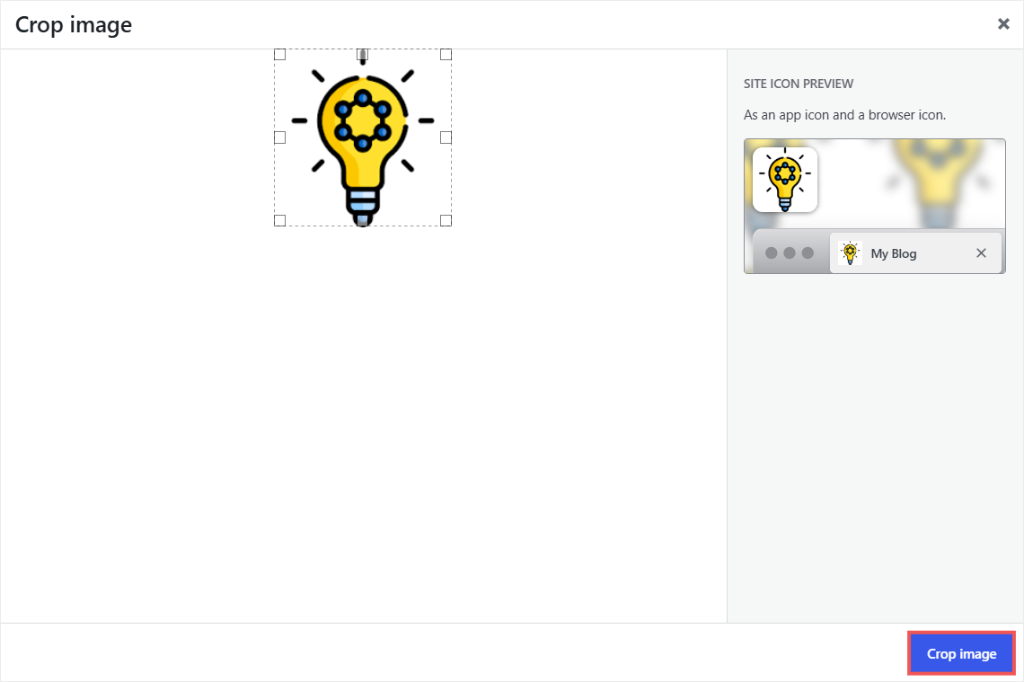
Make sure the image is at least 512×512 pixels, and WordPress crops it for you.
Once you upload it, click Save Changes.
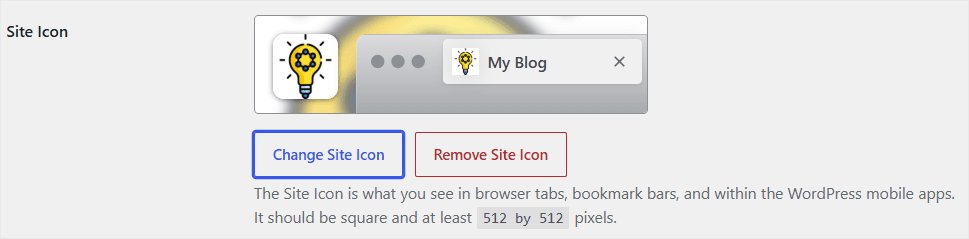
From that one image, WordPress automatically generates four versions.
- 32×32 icon for the browser tab
- 180×180 Apple touch icon for iOS home screens
- 192×192 icon for Android and Chrome
- 270×270 tile image for Windows
It also stores your Site Icon independently of your theme, so it stays in place through theme switches and updates.
Method 2: WPCode Header & Footer (When You Have Favicon HTML to Paste)
WPCode is built for exactly this kind of task. Pasting code into your site without touching a theme file.
It’s one of the most installed code snippet plugins for WordPress, running on over three million sites, and everything you need for a favicon is in the free version.
Beyond header and footer code, the free version also covers four snippet types (HTML, CSS, JavaScript, and PHP), a library of ready-made snippets you can install without writing code.
Plus, if anything goes wrong, you can use Safe Mode, which auto-disables a broken snippet instead of letting it take your site down.
If you manage several sites or want more control over where a snippet runs, WPCode Pro adds Smart Conditional Logic to show or hide a snippet by page, device, or user role.
And Snippet Revisions, a version history for every saved change, so a bad edit is a rollback instead of a redo.
Want the full picture before you install it? Read our WPCode review.
How to Use WPCode to Add a Favicon to your WordPress Site
WordPress’s Site Icon field doesn’t have a place to paste HTML you already have, from a generator, brand guidelines, or a web app manifest.
If you’re moving to WordPress from Squarespace, Wix, Shopify, or Webflow, check what you’re actually bringing with you before picking a method.
All four of those platforms handle favicons through their own image-upload field, not custom code.
So what you’re really holding onto is an old favicon image, not HTML. If that’s your situation, skip back to Method 1 and upload the same image to Site Icon.
Moving from a Static Website?
If you’re moving from a hand-coded website or already have favicon HTML from a generator, this method is for you. Just paste it into WPCode’s Header field.
First install WPCode if you haven’t already. Check out this guide if you need assistance on setting up this code snippet plugin.
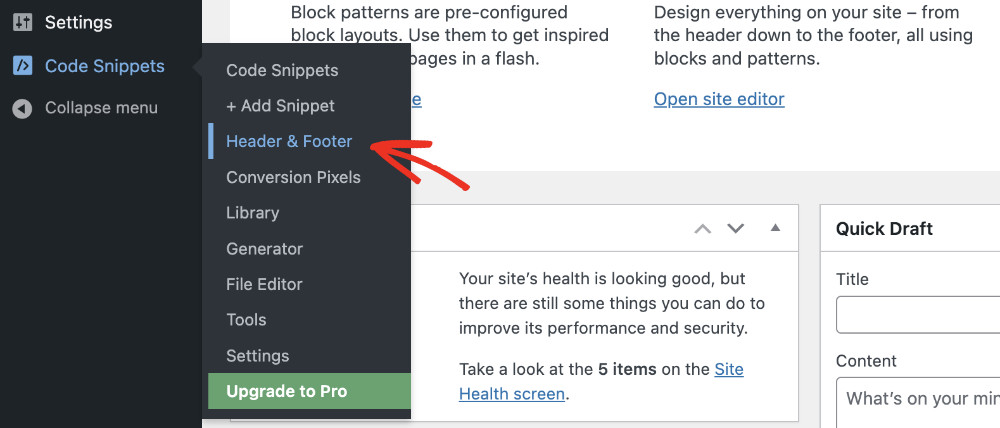
After that, go to Code Snippets » Header & Footer.
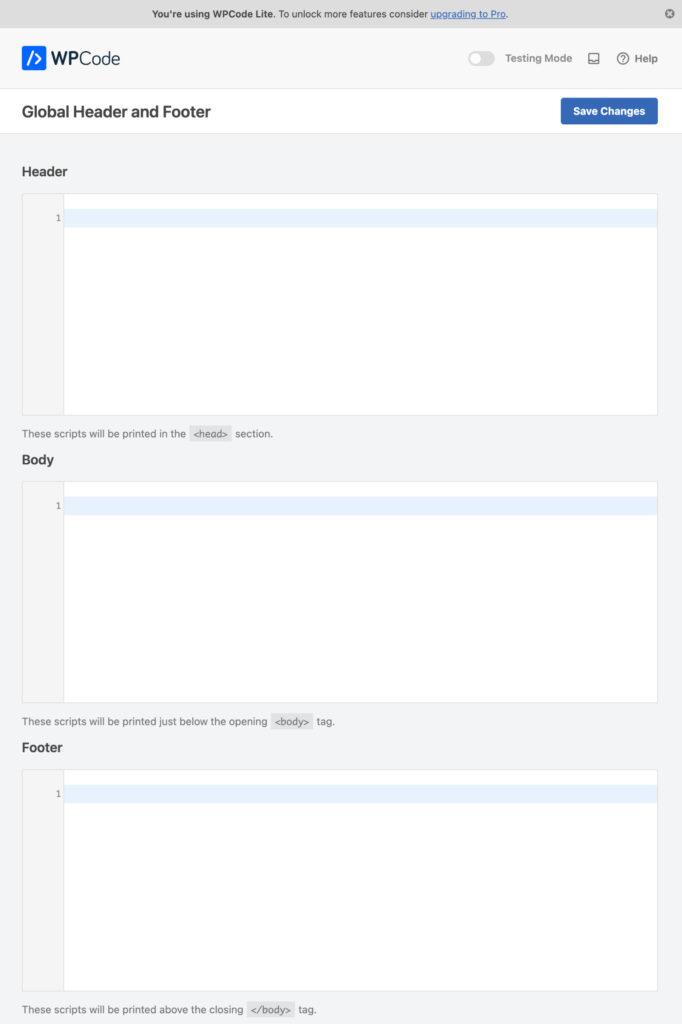
You’ll see three fields: Header, Body, and Footer.
Many favicon generators, such as RealFaviconGenerator, create a package of icon files and HTML tags for you to copy into your site. It usually looks something like this:
<!-- Example: HTML from a favicon generator -->
<link rel="apple-touch-icon" sizes="180x180" href="https://yoursite.com/apple-touch-icon.png">
<link rel="icon" type="image/png" sizes="32x32" href="https://yoursite.com/favicon-32x32.png">
<link rel="manifest" href="https://yoursite.com/manifest.json">
<meta name="theme-color" content="#ffffff">
Paste your favicon code into the Header field.
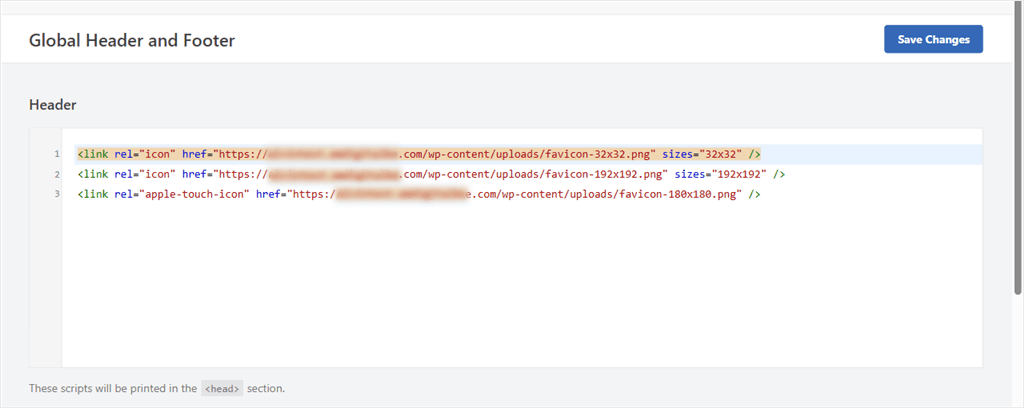
Click Save Changes, and the tags print inside <head> on every page.
💡 WPCode Tip
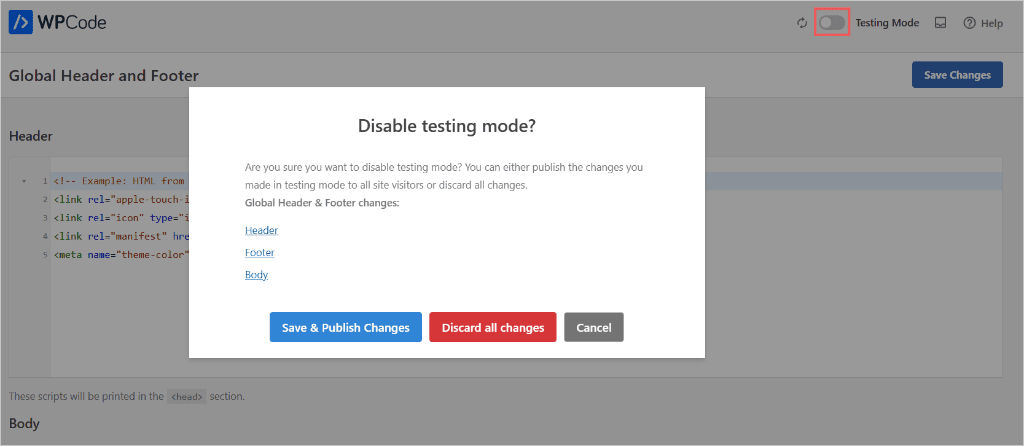
Flip the Testing Mode toggle next to Save Changes to preview it in your own session before it goes live to visitors.
Turning off Testing Mode displays a screen where you can confirm the changes you want to make before making them live.
If you already use WPCode for tracking pixels, verification tags, or other custom code, your favicon lives alongside everything else instead of being managed in a separate WordPress setting.
Prefer to manage your favicon as its own snippet instead of a global field?
Click + Add Snippet in the Code Snippets menu to create a dedicated HTML snippet and set its auto-insert location to Site Wide Header.
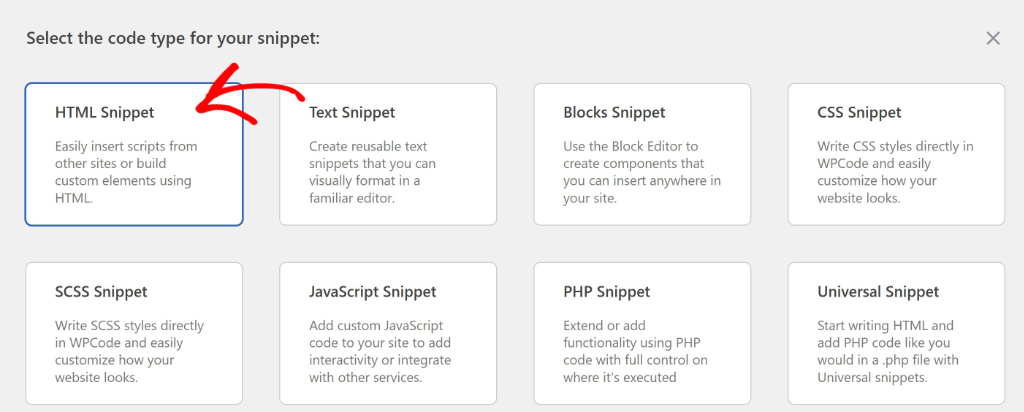
Same result, with its own on/off toggle. We walk through building custom snippets from scratch in our full guide to adding custom HTML code in WordPress.
Favicon Not Showing Up? Quick Fixes
Pasted the code, or uploaded the icon, and nothing changed? Check these first.
- Clear your cache. A caching plugin or your host’s server cache can serve the old, favicon-less version of your site for hours. Hard refresh with Ctrl+F5 (or Cmd+Shift+R on Mac), and clear any cache plugin you’re running.
- Check the file format. Favicons work best as PNG or ICO. Some older browsers are picky about anything else.
- Look for a typo in the URL. A single wrong character in the
hrefbreaks the whole tag silently. No error, just no icon. - Confirm the image is actually square. A non-square upload gets stretched or cropped in ways you didn’t intend.
Check out our troubleshooting library to find more fixes.
That’s it. You can now add a favicon to your WordPress site using the default method or with WPCode. If anything is unclear, check out the commonly asked questions below.
FAQs: How to Add a Favicon to WordPress
What is a favicon?
A favicon is the small icon that shows up in your browser tab next to your page title. It also appears in bookmarks, browser history, and on mobile home screen shortcuts.
What size should a WordPress favicon be?
Upload at least 512×512 pixels to Site Icon. WordPress crops it down to every size it needs automatically, so you only have to manage one file.
Why isn’t my WordPress favicon showing up?
It’s often caching. Clear your site’s cache and hard refresh your browser. If that doesn’t fix it, check the image is square and that the file path in your code has no typos.
Should I use both the Site Icon and custom favicon HTML?
Usually, no. If your custom favicon HTML already includes the standard favicon tags, using both methods can create duplicate favicon entries in your site’s <head>. Stick with the method that matches your setup. Use Site Icon if you’re starting with a single image, or WPCode if you’re adding an existing favicon package or custom HTML.
Can I add a favicon without a plugin?
Yes. If you only need a standard favicon, WordPress already includes a built-in Site Icon feature under Settings » General, and that’s the method we recommend for most websites. WPCode is useful when you already have favicon HTML to paste, such as code from a favicon generator, brand guidelines, or another website. It also gives you one place to manage other custom <head> code like verification tags and tracking scripts.
Pick the Method That Fits, Then You’re Done
There’s no single “best” way to add a favicon in WordPress, only the method that fits your setup.
For most websites, that’s the built-in Site Icon feature.
But if you’re working with custom favicon HTML or already managing code in your site’s <head>, WPCode keeps everything organized in one place and makes future changes much easier.
Ready to get started? WPCode Lite is free, and it’s everything you need for this.
Get WPCode Lite to See What Else You Can Add with Header & Footer →
Additional Resources
Here’s what to explore next if you want more control over your site’s custom code.
- How To Add Header And Footer Code In WordPress: See how you can easily add code to your header or footer
- What Is a Code Snippet? (Plain English Guide): the bigger picture of what else you can safely add to your site this way
- How to Change Your Font in WordPress: another CSS/HTML fix that lives in the same place
- How to Insert Scripts in WordPress: once you’re pasting code for one thing, here’s the natural next one