Short Answer
Go to Code Snippets » Settings » Error Handling in WPCode. Switch on Error Notifications and Deactivation Notifications, add who should get them, and click Save Changes. You’ll get an email when a PHP snippet throws an error, or when WPCode switches one off to protect your dashboard. Email alerts are part of WPCode’s paid plans.
Key Takeaways
- WordPress’s own error email only covers your dashboard and login pages, and it arrives once a day at most.
- WPCode sends two kinds of alert: one when a snippet throws an error, and one when it switches a snippet off.
- You get one email per snippet for each kind of alert, not one per visitor.
- Turn on Error Logging too, so the email’s log button has something to show you.
- Email alerts need a WPCode paid plan. The free plugin can still log errors once you switch Error Logging on.
You added a code snippet a few weeks ago. It worked, so you stopped thinking about it.
Then something on your site changed. Maybe a plugin updated, or a page started using that snippet in a way you never tested.
Now the snippet throws an error every time that page loads, and the first person to notice is a visitor, not you.
For a store, that can mean a morning of missing orders.
You shouldn’t have to keep checking your own site to catch this. WPCode can email you when one of your snippets throws an error while it runs.
It watches the code you added with WPCode, not your whole site.
In this article, we’ll show you what WordPress already tells you, then how to set up WPCode’s email alerts.
What WordPress Already Emails You (and What It Doesn’t)
Does WordPress email you when something breaks? Sometimes.
When a plugin or theme causes a fatal error on your dashboard or login page, WordPress sends an email to your site’s admin address.
The subject line reads something like “Your Site is Experiencing a Technical Issue,” and it includes a link that lets you log in safely and fix things.
That email is useful, but it has three limits worth knowing before you count on it.
- First, it only watches your dashboard and login pages. An error on your homepage, a product page, or your checkout sends nothing at all.
- Second, it arrives once a day at most, so a second problem that day won’t trigger another email.
- Third, it names the whole plugin instead of the snippet.
If the issue came from one of your snippets, the email says WordPress “caught an error with one of your plugins” and names WPCode.
⚠️ Got that email?
You don’t need to deactivate WPCode. The problem is one snippet, and our guide to fixing common PHP errors shows how to find and switch it off.
On the front of your site, WPCode marks the broken snippet with an error but leaves it running.
Without an email alert, you might not notice until you spot the error count on the WPCode menu in your toolbar, open your snippets list, or hear from a visitor.
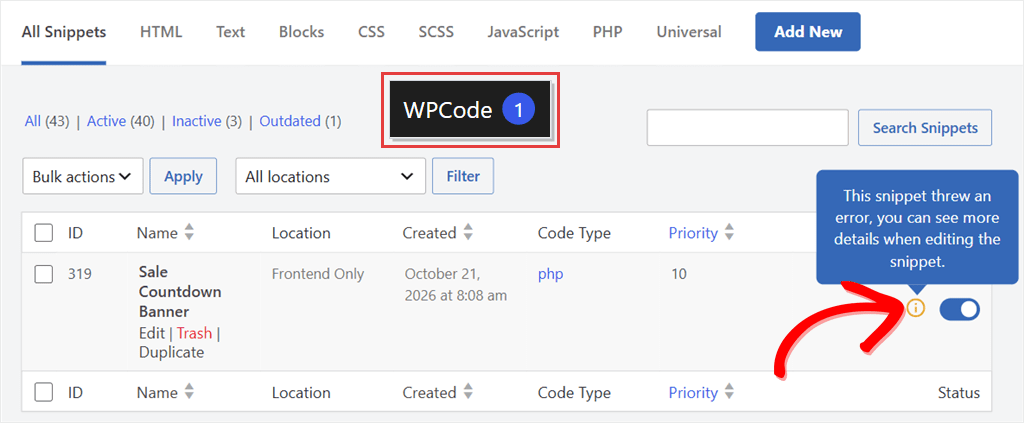
WPCode’s email alerts are built for that gap. They email you when a snippet throws an error while it runs.
How to Set Up WordPress Error Notification Emails for Your Snippets
WPCode, one of the best code snippets plugins, lets you add custom code to WordPress from your dashboard, without editing your theme files.
The email alerts are a paid feature, so we’re using a paid WPCode plan for this guide. On the free plugin, you can still log snippet errors, and we’ll show you where.
New to WPCode? Install the free version first. When you upgrade, enter your license key in WPCode’s settings to unlock the alerts.
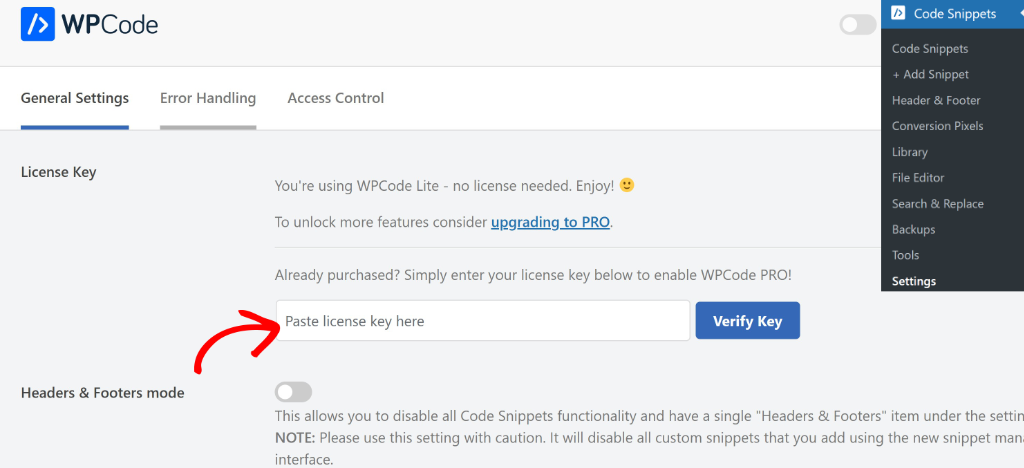
From there, the whole setup happens on one settings screen, and you won’t need to write any code.
Step 1: Open the Error Handling Settings (Paid Plans)
To get started, go to Code Snippets » Settings in your WordPress admin sidebar.
Next, click the Error Handling tab at the top of the page.
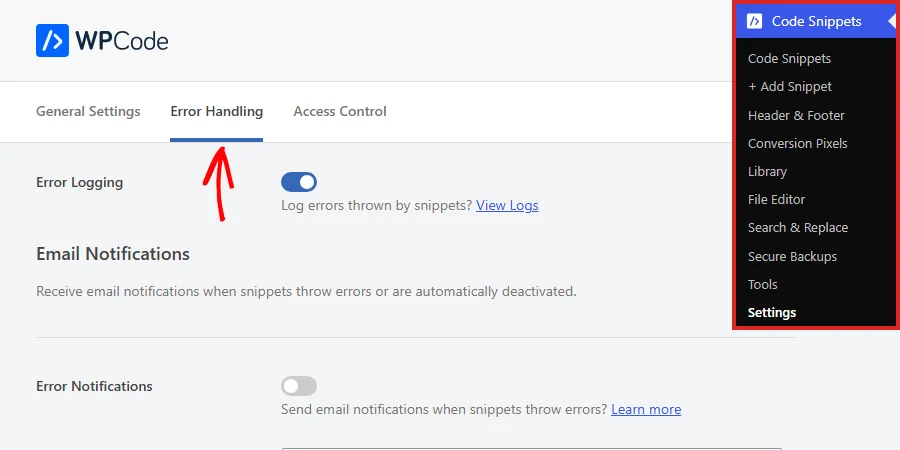
One tool on this screen works on every version, free included: Error Logging.
Switch it on before you set up the emails. It’s off by default.

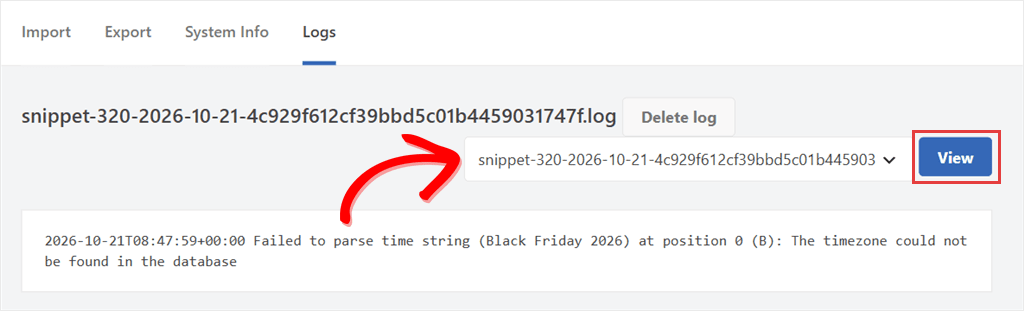
Every alert email has a View error logs button, and it only has something to show you when logging is on.
With logging on, WPCode keeps a record of each snippet error. That button opens the Logs page, where you pick that snippet’s log from the dropdown at the top and click View.
Step 2: Turn On Error and Deactivation Emails
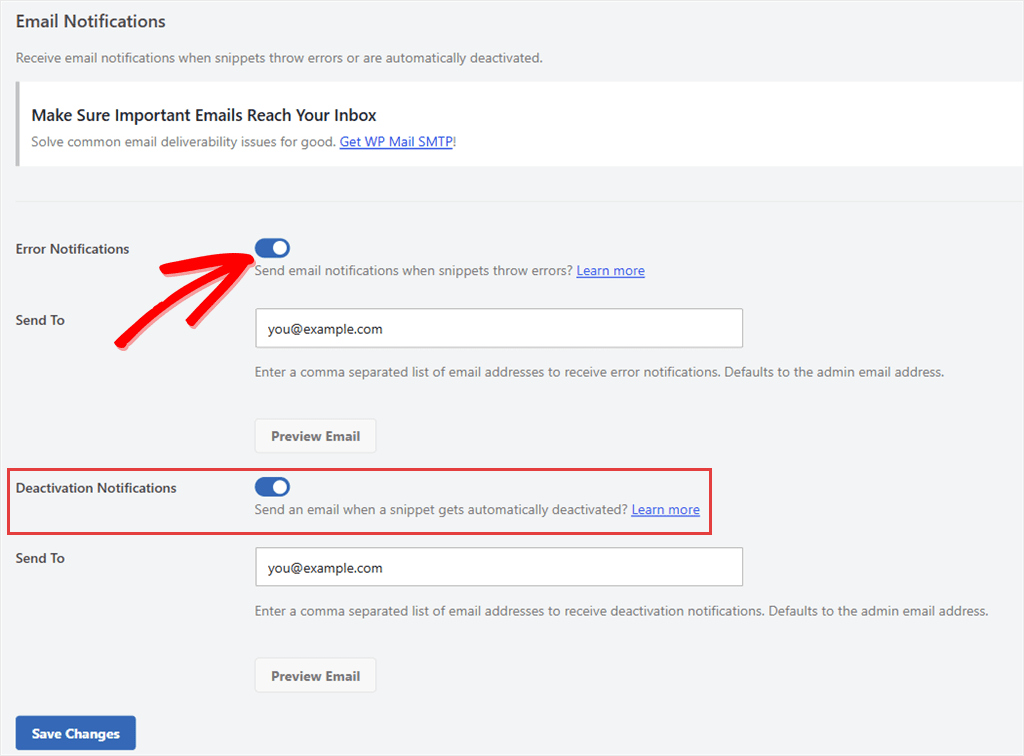
Below Error Logging, you see the Email Notifications section. It has two alerts.
- Error Notifications emails you when a snippet throws an error but keeps running. That’s what happens on the front of your site, where WordPress doesn’t alert you.
- Deactivation Notifications emails you when WPCode switches a snippet off by itself. WPCode does this when a snippet breaks a dashboard page, so you can still get in.
Our advice? Turn on both.
They tell you different things: one says something went wrong, the other says a snippet has stopped running.
To turn on the first alert, enable Error Notifications with a toggle.
After that, check the Send To field under it. WPCode fills in your site’s admin email address by default. You can find the admin email under Settings » General.
To send alerts to more than one person, add their addresses separated by commas.
Next, click the Deactivation Notifications toggle. It has its own Send To field.
So you can send each alert to different people. For example, you might send error emails to your developer and deactivation emails to yourself.
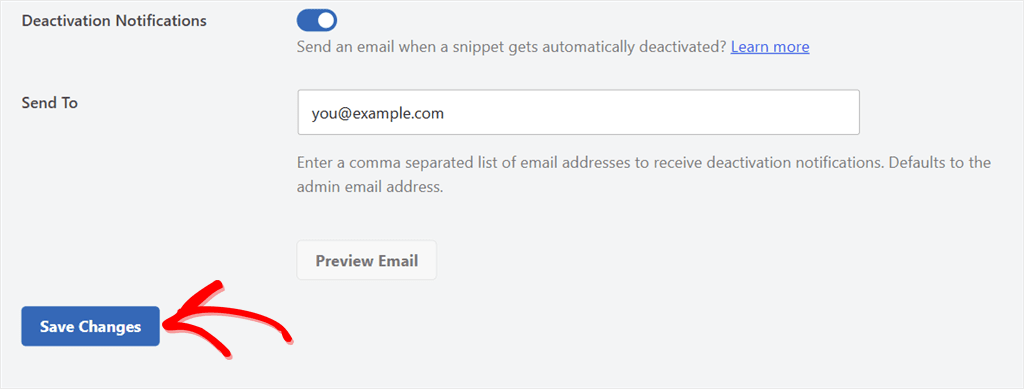
Check out the screenshot below to see both alerts switched on.
Step 3: Preview, Save, and Make Sure the Emails Arrive
As you have seen above, each alert has a Preview Email button under its Send To field. Click it to open the email in your browser. It doesn’t send anything.
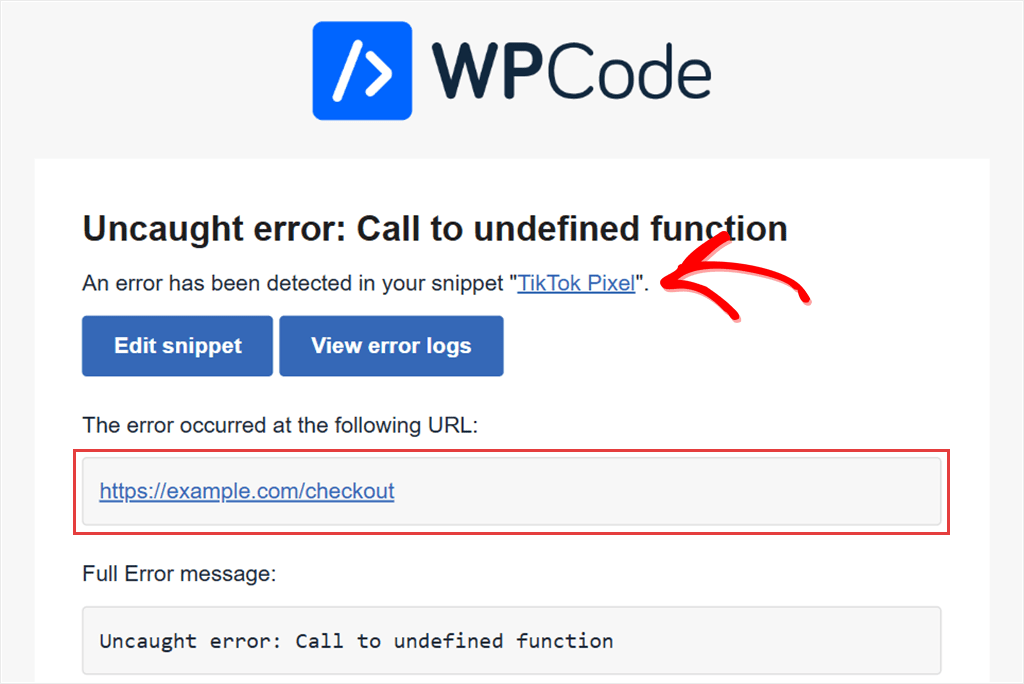
The preview uses sample details, like a checkout page address and the name of one of your snippets.
It’s example data, so expect placeholder details in the email. Nothing is wrong with that snippet.
Once you’re happy, scroll down and click Save Changes to save Error Logging and both alerts.
You don’t need to break a snippet to test any of this. The preview already showed you the email. What’s left is making sure it reaches your inbox.
That part matters, because many web hosts don’t send WordPress emails reliably. Alerts can land in spam or never arrive.
If WP Mail SMTP isn’t installed yet, WPCode points this out right on the Error Handling screen.
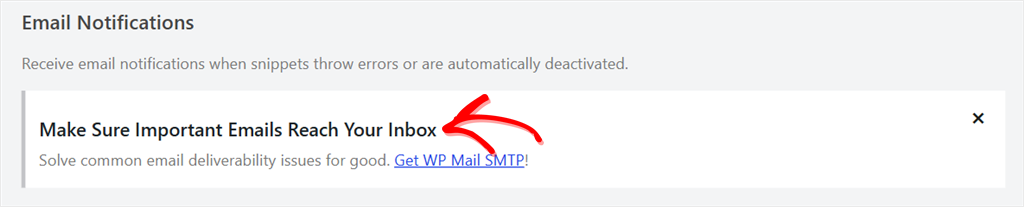
💡 Check Your Email Delivery
Install the free WP Mail SMTP plugin and connect it to an email sending service, like your Gmail account, SendLayer, or Brevo. Then open WP Mail SMTP » Tools, go to the Email Test tab, and send a test to the address you entered in Send To. WPCode’s alerts use the same email setup, so a test that arrives is a good sign. If it doesn’t arrive, check your mailer connection and spam folder before you rely on the alerts.
Here’s what to expect when a snippet does throw an error.
What the Email Tells You (and What to Do Next)
When an alert arrives, it tells you what failed and gives you a button straight back to your snippets.
Here’s a real error email from our test site. A snippet called “Sale Countdown Banner” was given a date PHP couldn’t read: “Black Friday 2026”.
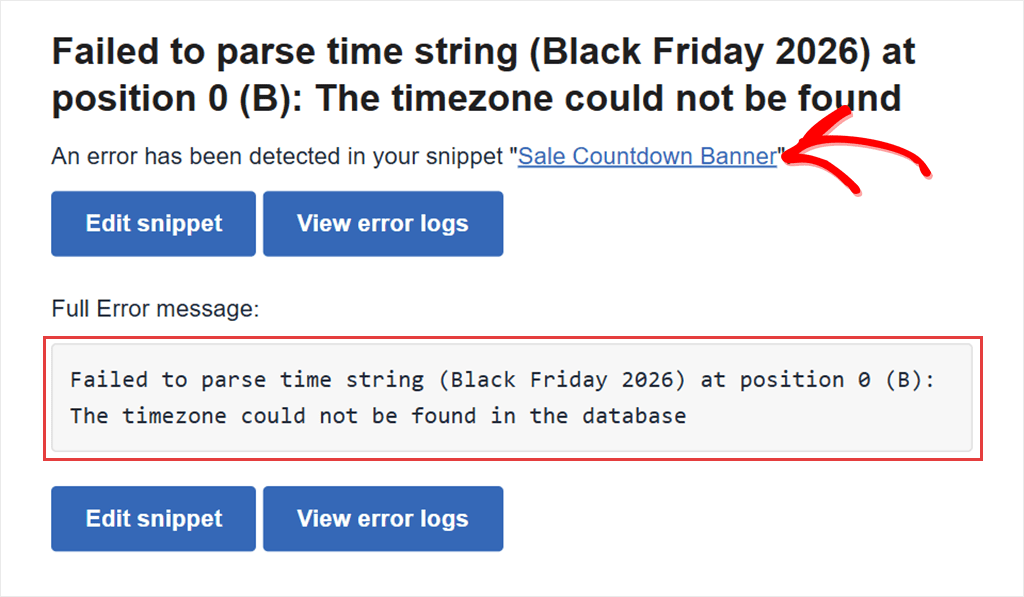
The big heading at the top is the raw error message, straight from PHP.
It can look intimidating if you’ve never written code. You don’t need to understand all of it. Here’s the order to read it in:
- Start with the line under the heading: “An error has been detected in your snippet…”
- Then read the error message in the grey box.
- The subject line gives you the snippet’s number too, like “Error detected in snippet #318.”
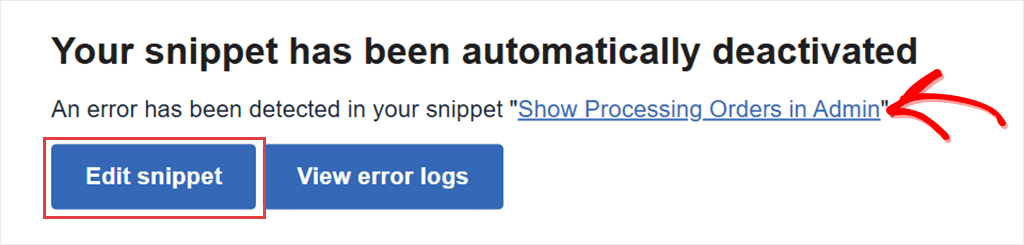
A deactivation email looks similar, with a plainer heading: “Your snippet has been automatically deactivated.”
What Happens When a Snippet Breaks Your Dashboard
You get the deactivation email when a snippet breaks a dashboard page, and WPCode switches it off.
To see this in action, we added a snippet that breaks the dashboard on our test site.
The page failed to load once.
When we refreshed, the dashboard loaded normally, because WPCode had already switched the snippet off. The email had already gone out too.
What if a busy page throws the same error for every visitor?
You still get one email.
WPCode sends one email per snippet. You won’t get another about that snippet until you save it again.
If you miss that email, the error count on the WPCode menu in your toolbar is still there the next time you log in.
If a snippet throws an error and is later switched off, you’ll get both emails, one for each.
What to do After an Alert
When an email arrives, click Edit snippet.
It opens the snippet in WPCode, where you can fix the code. If you can’t fix it yet, switch the toggle next to the Update button to Inactive, then click Update.
The snippet stops running until you switch it back on.
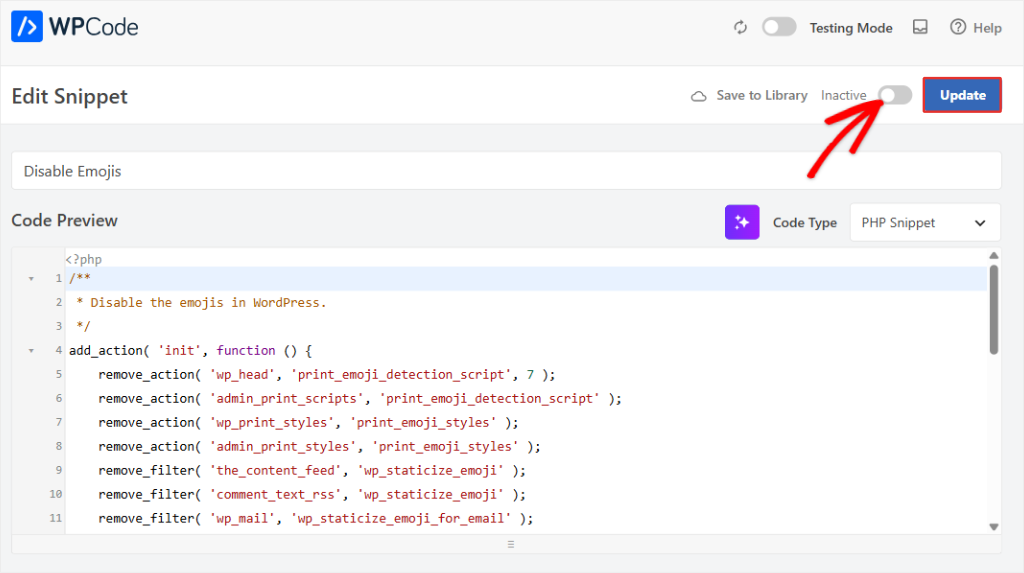
Need to find the broken line? WPCode highlights it in red in the code editor. Our guide to fixing common PHP errors walks through that.
You can also use Safe Mode, which pauses every snippet if one locks you out completely.
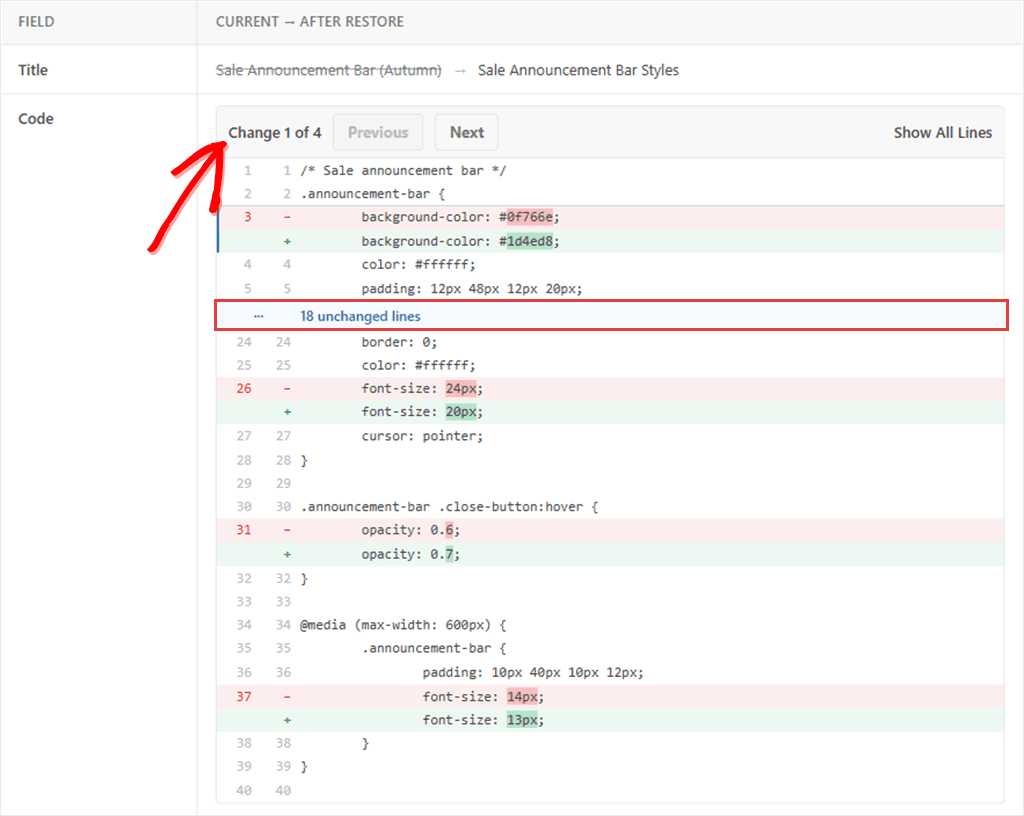
Sometimes a fix makes things worse. If that happens, WPCode’s Code Revisions feature lets you roll the snippet back to the version that worked. It’s part of the paid plans too.
FAQs: WordPress Error Notification Email
Can I get WPCode error emails on the free version?
No. Email alerts are part of WPCode’s paid plans. The free version still has Error Logging. Once you switch it on, it saves snippet errors you can review under Code Snippets » Tools » Logs.
Will WPCode email me about errors from other plugins or my theme?
No. WPCode’s alerts cover the code snippets you’ve added through WPCode. For errors on your dashboard from other plugins or your theme, WordPress’s own Recovery Mode email still applies.
Can more than one person get the emails?
Yes. Add several addresses in the Send To field, separated by commas. Error Notifications and Deactivation Notifications each have their own list.
Why didn’t I get an email when my snippet had an error?
Check that you clicked Save Changes after turning on the toggles. Then check the Send To address, your spam folder, and the delivery test from Step 3. If a snippet fails the moment you activate it, WPCode shows the error on screen instead of emailing you. And if you already got one email about that snippet, you won’t get another until you save it again.
Does this work for JavaScript or CSS snippets?
No. The alerts cover PHP code that runs on your server, including Universal snippets, which mix PHP and HTML. A JavaScript error happens in your visitor’s browser, so WPCode can’t see it.
Start Getting WordPress Error Notification Emails Today
You now have WPCode watching your PHP snippets and emailing you when one throws an error.
Turn on both alerts, switch on Error Logging, and send a test email through WP Mail SMTP before you close the tab.
For your next snippet, try Testing Mode, also part of WPCode’s paid plans. It lets you try changes privately before your visitors see them.
Want an email the moment one of your snippets throws an error?
See WPCode plans →
Want to start logging snippet errors for free first?
Get WPCode for free →
Additional Resources
These guides help you keep your custom code safe as your site grows.
- How to Stop Getting Automatic Update Emails: cut the WordPress emails you don’t need, keep the ones you do
- WPCode Review: everything else this snippet manager can do
- How To Add Code To The Functions.php File (Safely): why snippets beat editing theme files
- Smart Conditional Logic: run a snippet only on the pages that need it, so one bug can’t reach every page