Short Answer
Your Facebook pixel sends events two ways. Page views come from your visitor’s browser. Cart, checkout and purchase events can come from your server instead, through Meta’s Conversions API. Data Advisor shows what your visitor’s browser sent. Events Manager’s Test Events shows what Meta received, from both sides. Event Logs, part of WPCode’s Conversion Pixels addon, shows what your server sent and, when Meta rejects an event, why.
Key Takeaways
- Test Events lists the events Meta accepted. When Meta turns one away, Event Logs in WPCode shows you why.
- Accept your own cookie banner before you test, or the pixel may wait for consent.
- Event Logs needs WPCode’s Conversion Pixels addon, on the Plus plan and up.
- Turn Event Logs off and clear it when you’re done.
You added the Facebook pixel to your WordPress site, and your ads are running.
Meta is counting conversions, and you’re trusting those numbers to decide which ads to keep.
But do you know for sure that your Add to Cart and Purchase events are reaching Meta?
Most store owners only check when the numbers start to look off.
In this guide, we’ll show you how to check both kinds of pixel events. You’ll use two free Meta tools to see what your browser sends and what Meta receives.
Then you’ll turn on Event Logs in WPCode to see what your server sends, and what Meta said back.
Use the table of contents below to navigate this article.
Why Meta Ads Data Advisor Can’t See Every Event
Before you test anything, it helps to know where each event comes from, because otherwise a perfectly healthy pixel can look broken.
A browser event happens on your visitor’s device. Their browser loads the pixel and tells Meta that this person just viewed a page or a product.
A server event comes from your website itself, which sends it straight to Meta through the Conversions API.
Ad blockers and browser privacy settings can’t block it the same way, which is one big reason stores send server events.
If you added your pixel with WPCode’s Conversion Pixels addon, here’s how it splits Facebook events:
- PageView and ViewContent always come from the browser.
- Add to Cart, Initiate Checkout and Purchase come from your server once you’ve added a Conversions API token. Without a token, they come from the browser instead.
Browser tools like Meta Ads Data Advisor can only see browser events.
So if your server sends the Add to Cart, Data Advisor won’t show it. Nothing is broken.
That’s why this guide uses two kinds of checks. Let’s start with the browser side.
How to Check Your Facebook Pixel Events Are Firing
You’ll need Google Chrome and access to your Meta Events Manager.
We’ll test on a WooCommerce store, because Add to Cart is the easiest event to trigger yourself. On a site without a cart, browsing a few pages still lets you check PageView.
Steps 1 and 2 work for any Facebook pixel, including one you pasted in with WPCode’s free Header & Footer feature.
Steps 3 to 5 use Event Logs, which comes with the Conversion Pixels addon.
Step 1: Check Browser Events With Meta Ads Data Advisor (Free)
Meta Ads Data Advisor is Meta’s free Chrome extension for checking pixels.
It used to be called Meta Pixel Helper. If an older guide tells you to install Pixel Helper, install Data Advisor instead.
To get it, open the Chrome Web Store, search for Meta Ads Data Advisor, and click Add to Chrome.
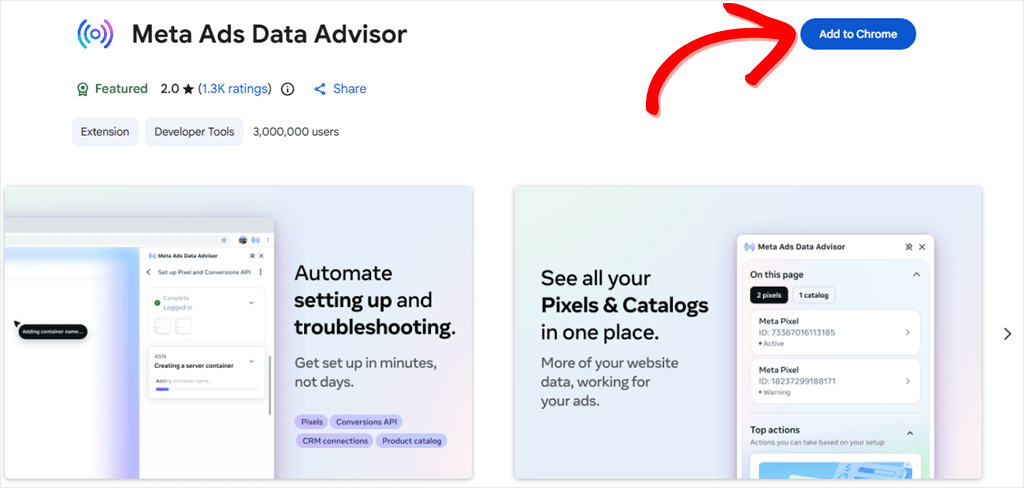
Before you test, pause your browser’s ad blocker for your site. A blocked pixel never loads, and Data Advisor will tell you there’s nothing there.
Next, open your store in Chrome. If a cookie banner appears, accept it.
Many consent plugins hold the pixel back until a visitor agrees to marketing cookies. On our demo coffee shop, the pixel did not load at all until we accepted the banner.
Now browse the way a shopper would. Open a product page and click Add to cart.
You should see PageView on every page you open, and ViewContent on product pages.
Then click the Extensions icon in Chrome’s toolbar and choose Meta Ads Data Advisor. Pin it while you’re there, so it stays one click away.
Your pixel ID appears at the top.
Underneath, Data Advisor lists each event your browser sent, under its own Test events heading. That’s the extension’s list, not the Test Events page in Step 2.
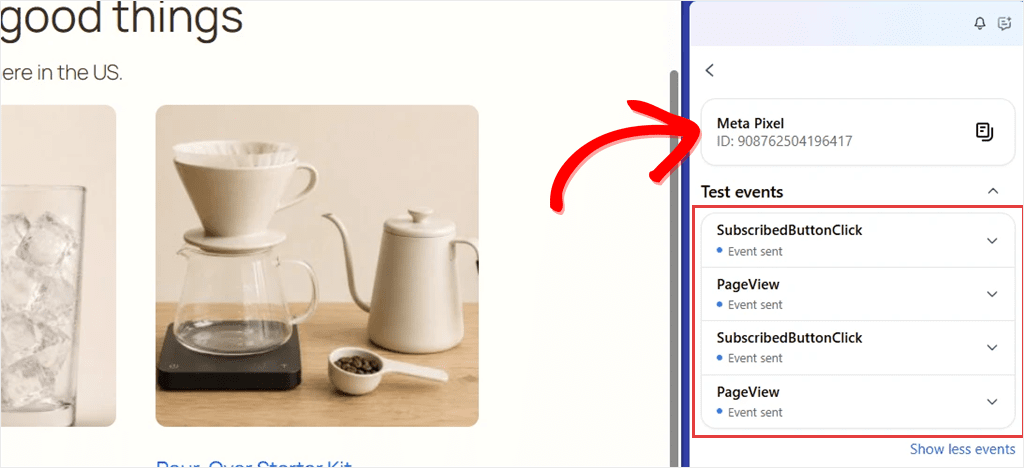
Notice there’s no Add to Cart in the list.
Our site has a Conversions API token, so WPCode sent that event from the server instead of the browser.
Without a token, you’ll see Add to Cart here instead. And if you pasted the base pixel code by hand, you’ll usually see only PageView, unless you added event code too.
You may also see SubscribedButtonClick. Meta records that one on its own when someone clicks a button, so it does not come from WPCode.
Step 2: Confirm Meta Received Them in Test Events (Free)
Data Advisor shows what your browser sent, but that doesn’t prove Meta received it.
For that, go to Events Manager in your Meta account and open your pixel, which Meta now calls a dataset. If you have more than one, pick the one whose ID matches the pixel ID Data Advisor showed you.
Click the Test events tab.
Under Confirm your website’s events are set up correctly, paste your store’s full address, starting with https://. Without https://, Meta may open the insecure version of your site, and Chrome may show a warning.
Then click Test Events. Your site opens in a new tab.
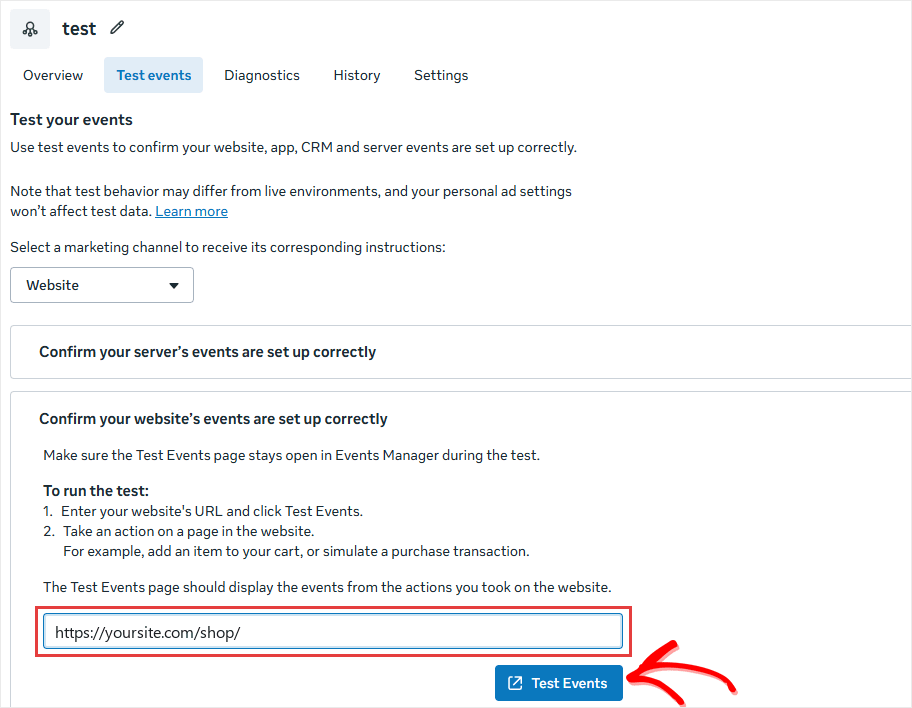
Leave the Events Manager tab open. Test Events only shows events while that page stays open.
In the new tab, add a product to your cart.
Then switch back to Events Manager and scroll down past the setup box to where the list of received events builds up.
Within a few seconds, your events should appear, and the Received From column tells you whether each one came from the browser or your server.
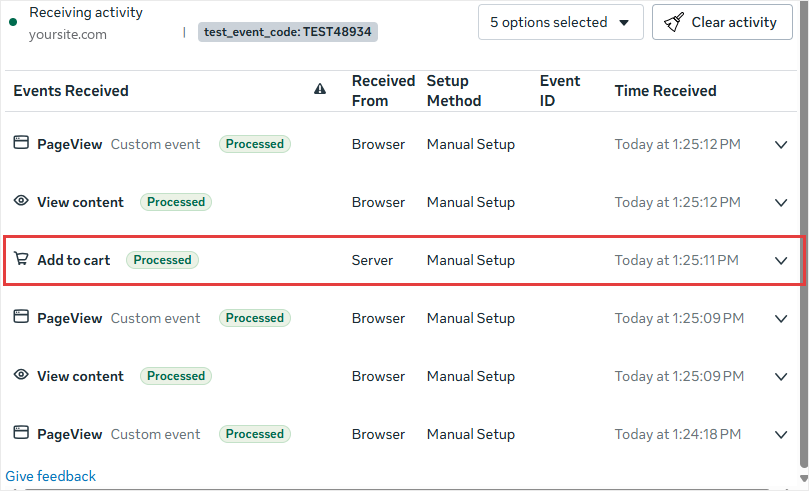
On our store, PageView and ViewContent arrived from the browser, and Add to Cart arrived from the server. Every row said Processed.
You can skip the Confirm your server’s events are set up correctly box. Our server events showed up here without it.
If your Add to Cart doesn’t show up here, don’t assume it wasn’t sent.
Meta may have rejected it, and Test Events only lists events Meta accepted. Or Meta received it but didn’t match it to your test visit.
Event Logs tells you which, with Meta’s reply on every server event.
Step 3: Turn On Event Logs in WPCode (Plus Plan and Up)
A rejected server event doesn’t show up as an error in WordPress, and you won’t get an email about it.
While it’s on, Event Logs keeps a record of every server event WPCode sends, along with Meta’s reply.
It’s part of the Conversion Pixels addon, which comes with the WPCode Plus plan and up. If you haven’t set up the addon yet, our step-by-step guide to Conversion Pixels gets you there first.
First, make sure your Facebook pixel has a Conversions API token, because WPCode only sends server events when one is saved.
To check, go to Code Snippets » Conversion Pixels. On the Facebook tab, look for your Facebook Pixel ID and Conversions API Token.
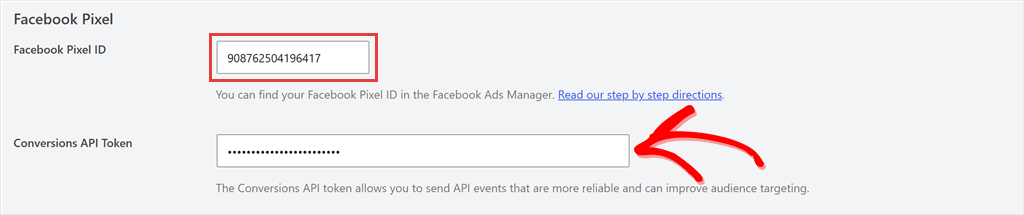
No token yet? Meta generates one in your dataset’s settings, and our guide on finding your Facebook Pixel ID and Conversions API token walks you through it.
Now click the Event Logs tab and scroll down to Logging Settings at the bottom of the page.
Turn on the Event Logging toggle and click Save Changes.

After that, a yellow notice appears at the top of every Conversion Pixels tab.
It stays there as a reminder that logging is on, until you turn it off again in Step 5.
Step 4: Trigger a Real Event and Read the Log Entry
The log stays empty until your site sends a server event. The easiest one to send is Add to Cart since you don’t need to make a purchase.
Open your store in a new tab and click Add to cart on any product.
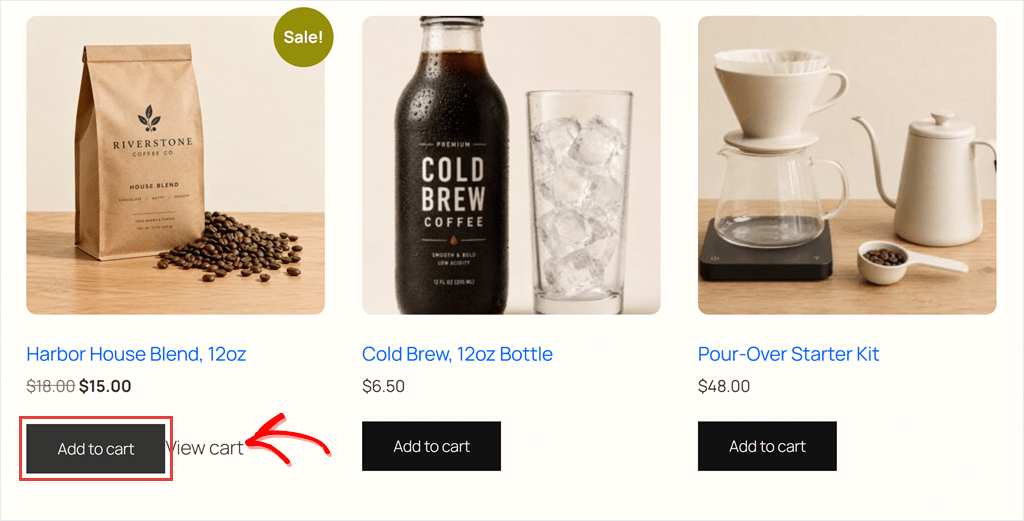
Then go back to Event Logs and reload the page. It doesn’t refresh on its own.
Each row shows the Time (UTC), the Provider, the Event, and a Status, which is the reply code Meta sent back.
The same tab also logs server events for TikTok, Snapchat, Pinterest, and OpenAI pixels, if you’ve set those up. The Provider filter lets you show one at a time.
A green 200 means Meta accepted the event. A red code, like the 400 here, means Meta rejected it.
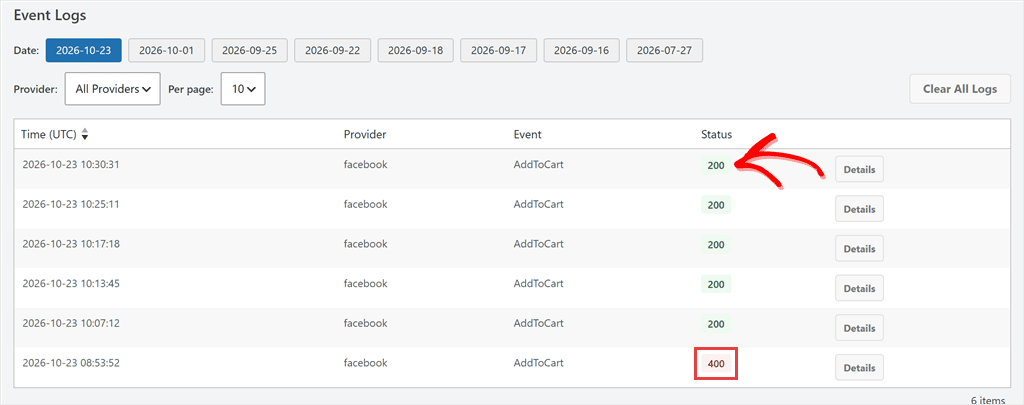
Our log shows both, because we tested with a placeholder pixel ID and token before we saved real ones.
To see the full story, click Details on any row.
The box that opens shows what WPCode sent, with Meta’s reply underneath. You’ll need to scroll inside the box to reach the reply.
A Copy button sits at the top right of the box, if you ever need to send the entry to support.
On a good event, look for => 200 and [events_received] => 1. That's Meta confirming it got one event.
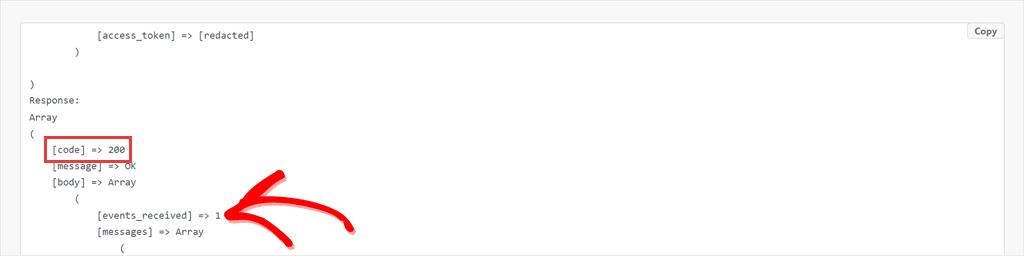
On our rejected row, Meta's reply said Malformed access token. That points straight at the fix: generate a new token in Meta and save it on the Facebook tab.
The details also list the product ID, price, and currency WPCode sent, so you can match each row to the product you clicked.
Your token shows as [access_token] => [redacted], so you can copy an entry for WPCode support without exposing it. The entry still holds your visitor's IP address, so share it with support and no one else.
Want to test Purchase too? WPCode sends it once per order, when a WooCommerce order changes to Processing or Completed.
⚠️ Test Purchase Carefully
Start with Add to Cart. It's the safer test.
A test order sends a real Purchase to Meta, and it shows up in your reports like any other sale. If you need to check Purchase anyway, place a single order and look for it in Events Manager. It may also count as a conversion in Ads Manager.
Step 5: Turn Logging Off and Clear the Logs
Don't leave Event Logs running.
While logging is on, your site waits for Meta's reply before it finishes each event. That can add a short delay for shoppers when they add to cart or check out.
Each entry also stores your visitor's IP address and browser details, and Purchase entries add their contact details in hashed form.
Found what you needed? Scroll back to Logging Settings, turn off Event Logging, and click Save Changes.
Then click Clear All Logs near the top of the tab. It can't be undone, so WPCode asks first.
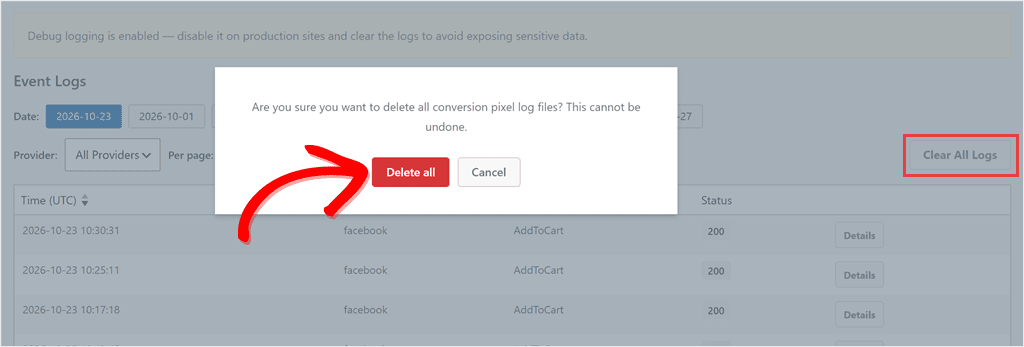
Click Delete all. WPCode confirms it with an Event logs cleared message.
This only deletes the log files. Your pixel ID, token and event settings stay as they were.
Troubleshooting: Pixel Events Not Showing Up? Start Here
If a check didn't go the way we described, find your symptom below.
"Data Advisor says no pixel was found."
Start with your cookie banner.
If you declined it before, the banner may not come back on its own. Use your banner's cookie settings link if it has one.
If not, click the icon left of your site's address in Chrome, choose Cookies and site data, then Manage on-device site data, and delete your site's cookies.
This also logs you out of WordPress in that browser. Reload the page and accept marketing cookies.
If that doesn't help, pause your ad blocker and clear your caching plugin's cache, since a cached page can hide a pixel you added recently.
"Data Advisor shows PageView, but not my Add to Cart."
That's normal if you use WPCode's Conversion Pixels with a Conversions API token.
WPCode sends Add to Cart, Initiate Checkout and Purchase from your server instead, so look for them in Test Events or Event Logs.
"Test Events shows nothing."
Check that you opened the dataset whose ID matches your pixel, and that the Events Manager tab stayed open while you browsed.
If browser events show up but your Add to Cart doesn't, turn to Event Logs. It shows whether your server sent it and what Meta said back.
"Event Logs is empty."
Check three things: that Event Logging is turned on and saved, that your Facebook tab has a Conversions API token, and that you triggered a server event like Add to Cart rather than just viewing pages.
Page views never appear in Event Logs, because they come from the browser.
"Every row in Event Logs says 400."
Click Details and scroll to Meta's reply. It usually names the problem.
Malformed access token means the token is wrong or incomplete. Generate a new one in your dataset's settings and save it on the Facebook tab.
For any other message, click Copy on the entry and send it to WPCode support.
"I see PageView firing twice."
Your pixel may be on your site twice.
That happens when it's pasted into your header and also added by a plugin or a theme setting. A common one is a pixel pasted into WPCode's Header & Footer and also set up in Conversion Pixels.
Data Advisor's list can keep events from earlier pages, so two PageViews after browsing two pages is normal. To check for a duplicate, reload a single page. If it lists two pixel IDs, or two PageViews for that one load, remove the copy you don't need.
FAQs: Check Facebook Pixel Events Firing
How long do pixel events take to show up in Meta?
In Test Events, ours appeared within seconds. The totals on your dataset's Overview tab can take longer to update. If a test event never shows up, check that you're viewing the right dataset ID.
Does a cookie banner stop my Facebook pixel from firing?
It can, and often by design. Many consent plugins hold the browser pixel until a visitor accepts marketing cookies. Accept your own banner before you test, or your browser checks will look empty.
Will Meta count my events twice if they come from the browser and the server?
Not with WPCode's eCommerce events. Once a token is saved, Add to Cart, Initiate Checkout and Purchase are sent from your server only. Custom events go both ways, with a shared event ID so Meta can match the pair.
Do I still need the browser pixel if I use the Conversions API?
With WPCode, yes. Your browser pixel sends PageView and ViewContent. The Conversions API sends cart, checkout and purchase events once your token is saved.
Check Your Facebook Pixel Events Before Your Next Campaign
You now know how to check both sides of your Facebook pixel, and where to look when something fails.
Before your next campaign goes live, add a product to your cart and run Test Events.
Then turn on Event Logs for a few minutes, make sure your server events come back with a 200, then switch it off and clear the logs.
Want to add your Facebook pixel without editing your theme files?
Get WPCode for free →
Want to see what your server sends to Meta, and why an event failed?
Get Conversion Pixels with WPCode Plus →
Additional Resources
These guides help you track more than Facebook once your pixel checks out.
- How To Add Google Ads Conversion Tracking In WordPress: measure sales from your Google Ads too
- How To Add A Pinterest Tag To WordPress: add Pinterest's pixel the same way, for free
- How To Use the Conversion Pixels Custom Click Tracking: send an event when someone clicks a button you choose