
Most WordPress tutorials are full of the same instructions: “Add this code to your site.” They hand you a snippet, point you toward functions.php, and leave you to figure out the rest.
But many never explain what a code snippet actually is, whether you’re using the right method to add it, or what happens when it breaks.
This guide fixes that. We cover what code snippets are, ways to add them, when each method makes sense, and how to manage them as your site grows. You don’t need to know how to code. You just need to know where things go, and why.
Key Takeaways
- A code snippet is a small, self-contained piece of PHP, CSS, JavaScript, or HTML that adds a specific feature to your WordPress site. Lighter than a plugin, safer than editing theme files.
- There are four ways to add snippets: WPCode (recommended for all skill levels), editing functions.php (advanced), a child theme (intermediate), or a custom plugin (developer). Each has different risk levels and trade-offs.
- Editing functions.php directly risks a white screen with no recovery option, and loses all changes on theme updates. WPCode solves both with an on/off toggle and safe mode error protection.
- WPCode sets placement, execution priority, and conditional logic from the dashboard. No need to hardcode them into the snippet, which keeps code clean and settings easy to change later.
- Before writing a snippet from scratch: check the WPCode library first for a community-confirmed working version, then share it with your AI tool to adapt it to your exact need. AI writes the logic, WPCode handles the rest.
- WPCode Pro has built-in AI that writes and places PHP snippets for you, without leaving WordPress.
What Is a Code Snippet?
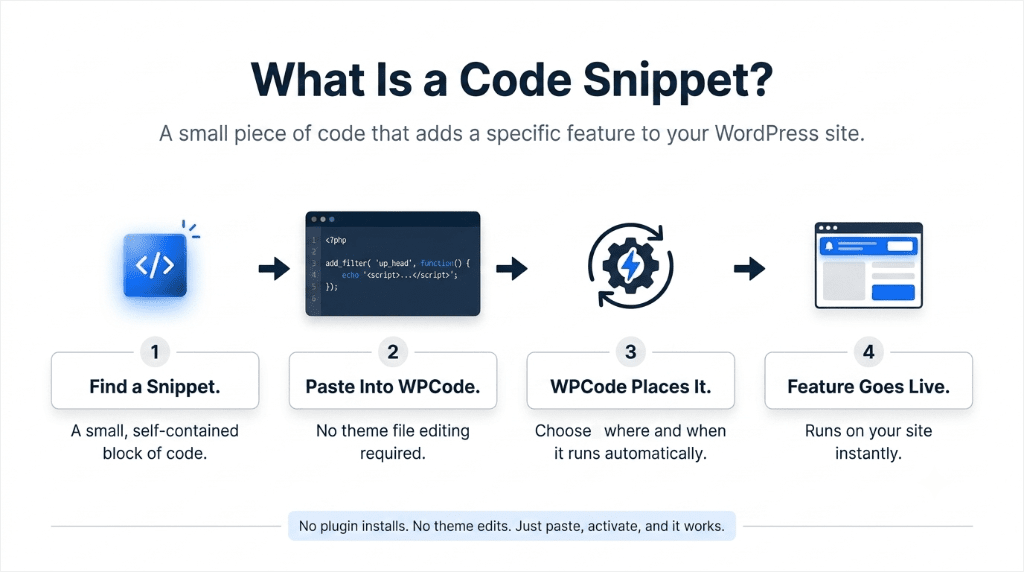
A code snippet is a small, self-contained piece of code that adds a specific feature to your WordPress site.
Instead of editing your theme files or installing a full plugin for every small change, you paste the snippet into a code manager, and it runs automatically on your site.
You can use the table of contents below to skip to exactly what you want to know about code snippets.
- Why WordPress Users Need Code Snippets
- The 4 Types of Code Snippets in WordPress
- How Can Code Snippets Help You?
- Where Do You Add Code Snippets in WordPress?
- WPCode Snippets vs Other Approaches
- Can You Share Code Snippets With Other Sites?
- Best Practices When Working With WordPress Code Snippets
- Can AI Write Your WordPress Snippets?
Why WordPress Users Need Code Snippets
Every WordPress site comes with a file called functions.php. It lives inside your theme and acts as a hub for adding extra features like disabling comments, adding a custom menu, tweaking your login page, and more.
The problem is that editing code directly in your theme files carries real risk. One syntax error, a missing semicolon, a stray bracket, and your site goes blank. You get a white screen. Many times, without an error message or a clear fix.
And even if the edit goes smoothly, the next time you update or switch your theme, those changes disappear. Every custom modification you added, gone.
Code snippets solve both problems.
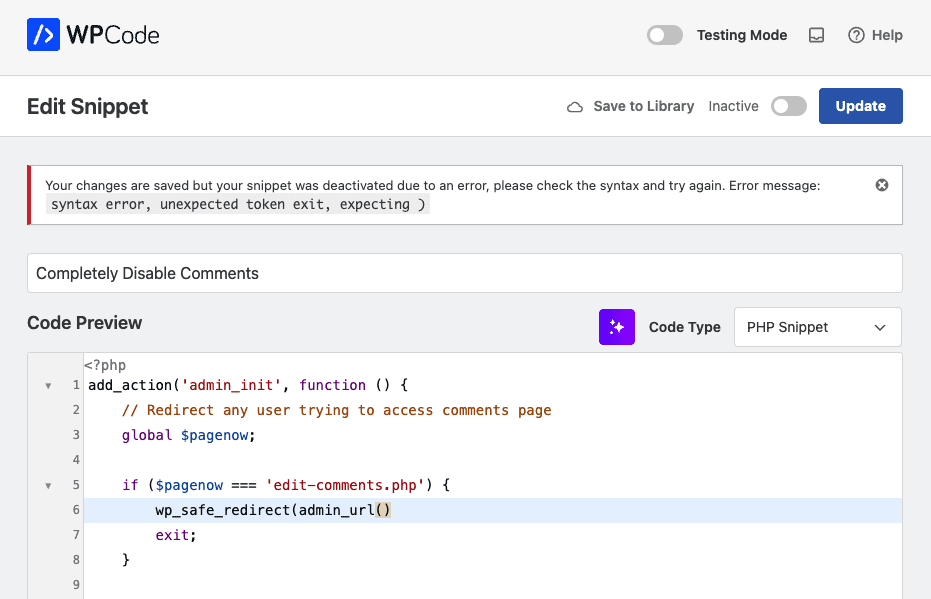
They’re stored separately from your theme, so updates can’t wipe them. A good code manager also catches errors before they go live, so a typo doesn’t take down your site.
That’s the core idea: snippets give you the same customization power as editing theme files directly without the risk.
The 4 Types of Code Snippets in WordPress
Code snippets aren’t all the same. WordPress supports four main types, and each one does a different job.
- PHP snippets are the most common. PHP is the language WordPress runs on, so PHP snippets can modify almost anything, from disabling comments site-wide to customizing what shows up on your login page. Most snippets you’ll find are in PHP.
- CSS snippets change how your site looks. If you want to adjust a font size, change a button color, or hide an element on mobile, CSS is the type you need. These snippets run after your theme’s styles load, making it easier to override defaults without editing any theme file. See our guide on how to add custom CSS to WordPress for step-by-step instructions.
- JavaScript snippets add interactivity. Scroll-to-top buttons, pop-up behavior, countdown timer, custom animations, and more. Anything that responds to what a visitor does on the page. JavaScript snippets are also how most analytics and tracking tools get added to a site.
- HTML snippets let you embed content directly into your pages. Google Search Console verification tags, Open Graph meta tags, third-party chat widgets, and tracking pixels are all added as HTML snippets. They don’t run code. They output markup that other tools or browsers read. Our guide on the best HTML Snippets for WordPress Beginners walks through the most common use cases.
Knowing which type you need is the first step to adding any snippet confidently. Next, let’s look at how code snippets help your WordPress site.
How Can Code Snippets Help You?
The most common use case is plugin replacement. Hundreds of WordPress plugins do exactly one thing: disable comments, add a copyright year, remove the WordPress version number from your page source, you name it.
Each one adds weight to your site. This also means one more plugin to maintain and update.
A code snippet replaces all of them. One snippet, one job. No settings page, no plugin update to run every week, no support ticket if it breaks.
Here are some real things WordPress site owners do with snippets every day:
- Disable comments site-wide: turn off comments on all posts and pages without a dedicated plugin. Here’s how to disable comments in WordPress.
- Add a dynamic copyright year: your footer updates automatically each January. Here’s how to add a dynamic copyright date.
- Allow SVG file uploads: WordPress blocks SVGs by default; one PHP snippet unlocks them. Here’s how to allow SVG uploads.
- Remove the WordPress version number: hides the version from your page source to reduce your site’s attack surface. Here is how to remove the WordPress version number (step-by-step).
- Change the login page logo: replaces the WordPress logo with yours on the login screen. Here is how to replace the WordPress logo on the login page.
- Add Google Search Console verification: paste the HTML tag as a snippet instead of installing a plugin just for that. Here is how to verify GSC with a code snippet.
- Redirect the login page: send users to a custom URL after signing in, no plugin needed.
You can get all these code snippets and more in the WPCode Snippet Library. Just use the search function or the tab to narrow down to what you want.
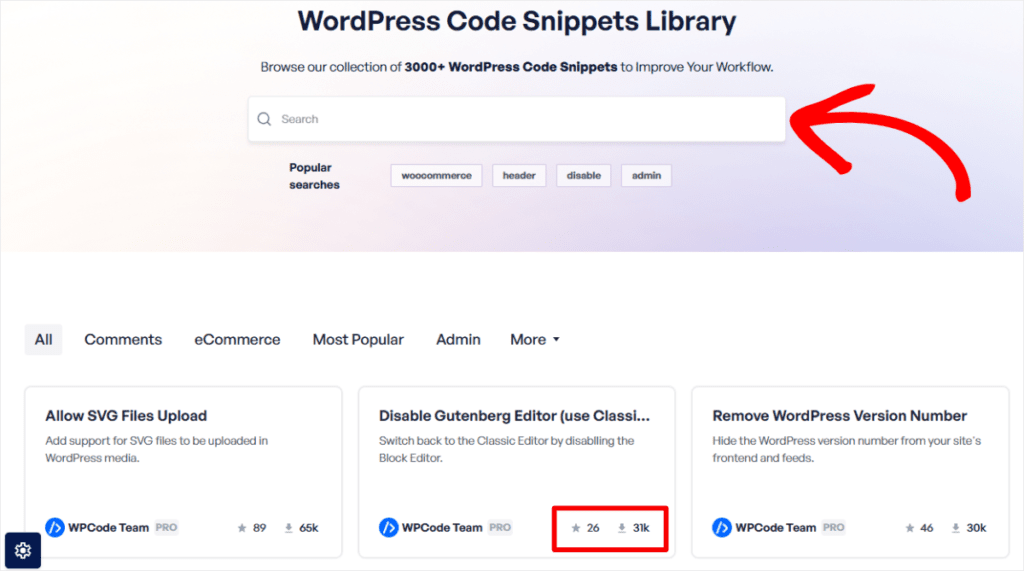
On top of that, snippets keep your site lean.
A single-purpose plugin adds overhead, database queries, admin menus, and update checks.
A code snippet usually adds very little overhead because it runs only the code needed for a specific task. The actual impact depends on what the snippet does and how efficiently it’s written.
Where Do You Add Code Snippets in WordPress?
There are different ways to add code snippets to WordPress. The right one depends on your skill level, the type of code you’re adding, and how much risk you’re comfortable taking on.
| Method | Skill Level | Best For |
|---|---|---|
| Snippet plugin like WPCode | Beginner – Advanced | All snippet types, any site |
| functions.php | Advanced | Quick server-side edits (with caution) |
| Child theme | Intermediate | Theme-specific customizations |
| Custom plugin | Developer | Reusable code across multiple sites |
We’ll cover all four below with a quick step-by-step and a pros/cons breakdown for each.
Method 1: Using Code Snippet Plugin – Easy (WPCode Recommended)
There are many WordPress code snippet plugins out there. You can go through this article on the best snippet plugins if you are looking for options.
But for this demonstration, we will use WPCode.
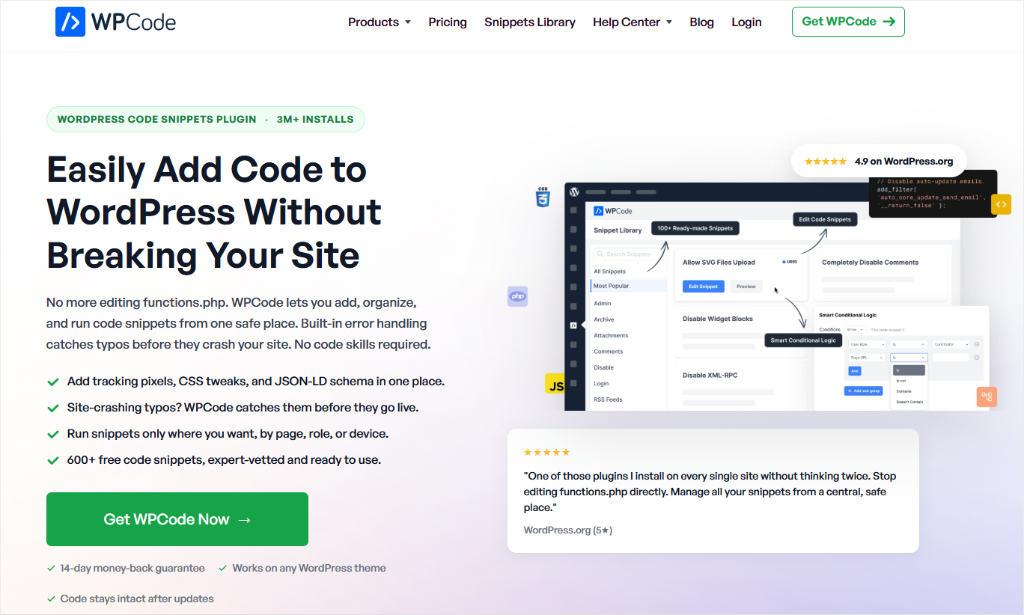
It is the safest and most flexible way to add code snippets to WordPress. It’s used by more than 3 million sites.
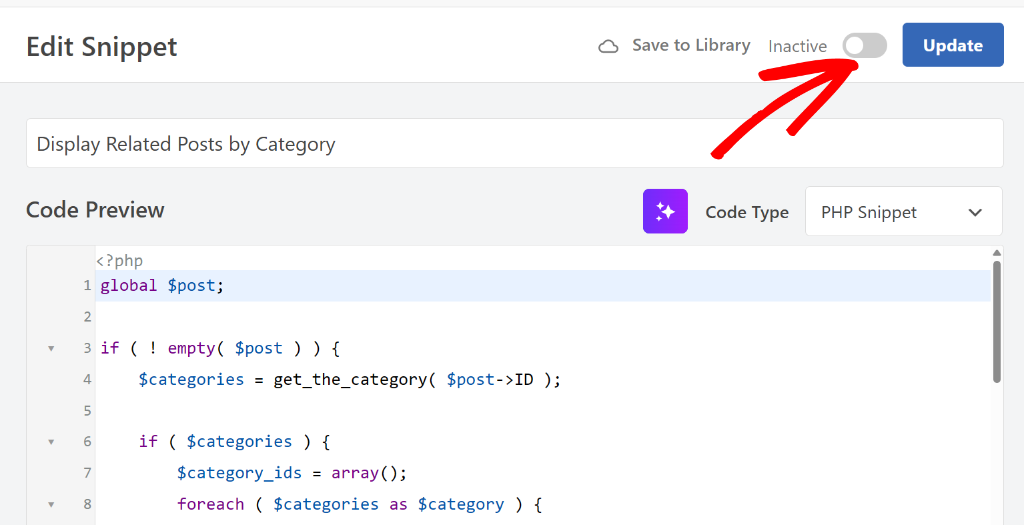
The key difference from every other approach: WPCode gives each snippet its own on/off toggle. If something breaks, you flip it off. Your site recovers instantly without coding.
Quick Step-by-Step of Adding a Code Snippet with WPCode:
First, install WPCode from the official site or the WordPress plugin repository. Here is a full tutorial on how to get started with this snippet plugin.
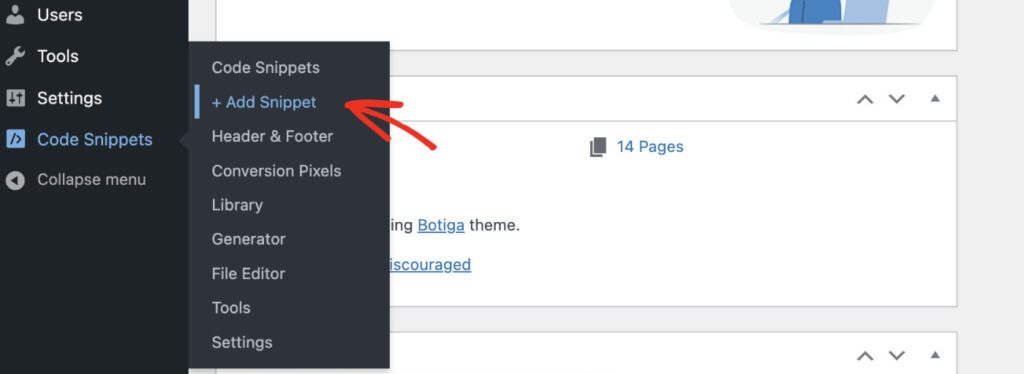
Once it’s active, go to Code Snippets » +Add Snippet in your left sidebar.
On the next screen, you can pick from one of the snippet templates or add your own custom code.
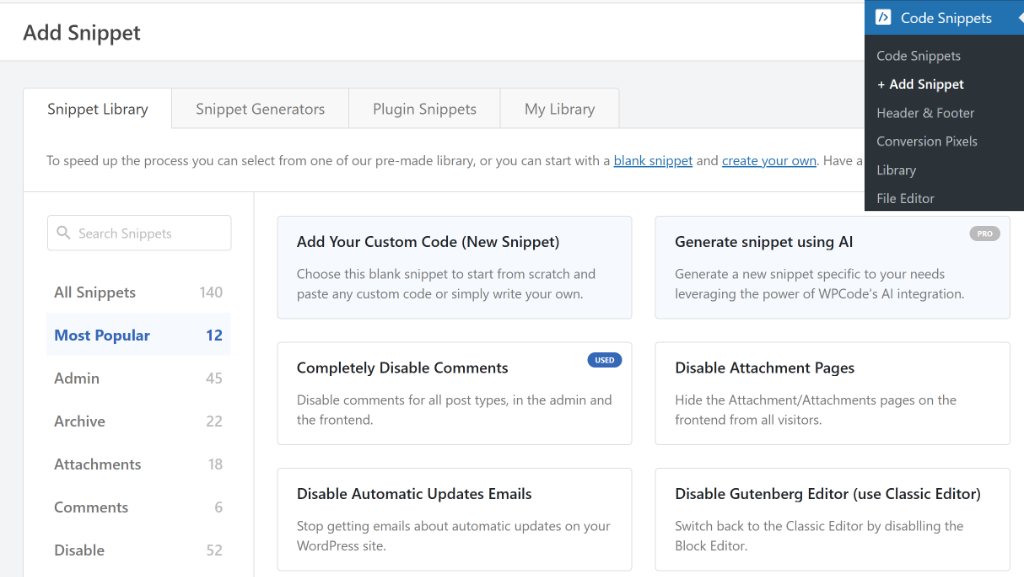
Give your snippet a descriptive name that shows what its function is. Something like “Allow SVG Files Upload” rather than “Snippet 1.” Since the templates come with ready code, all you have to do is click on the “Active” toggle button and hit “Update.”
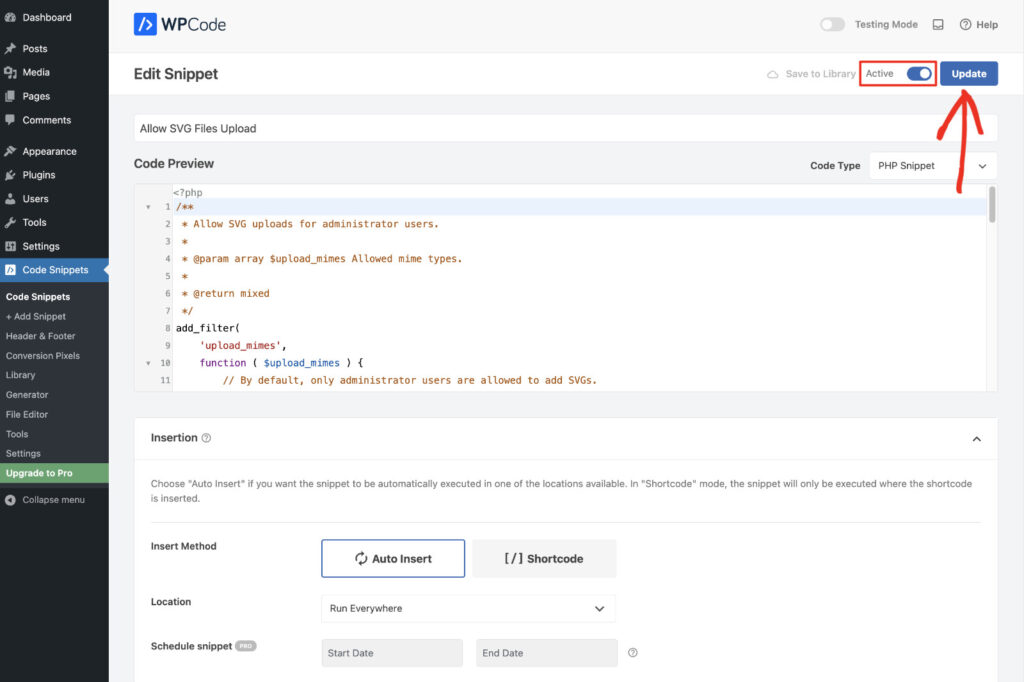
The process is the same if you are adding your own snippet code. You select the code type with a simple dropdown option, paste your code in the Code Preview section, and activate it.
If you want WPCode to handle placement, set an auto-insert location. Most PHP snippets run site-wide by default, but you can restrict them to specific pages, post types, or user roles.
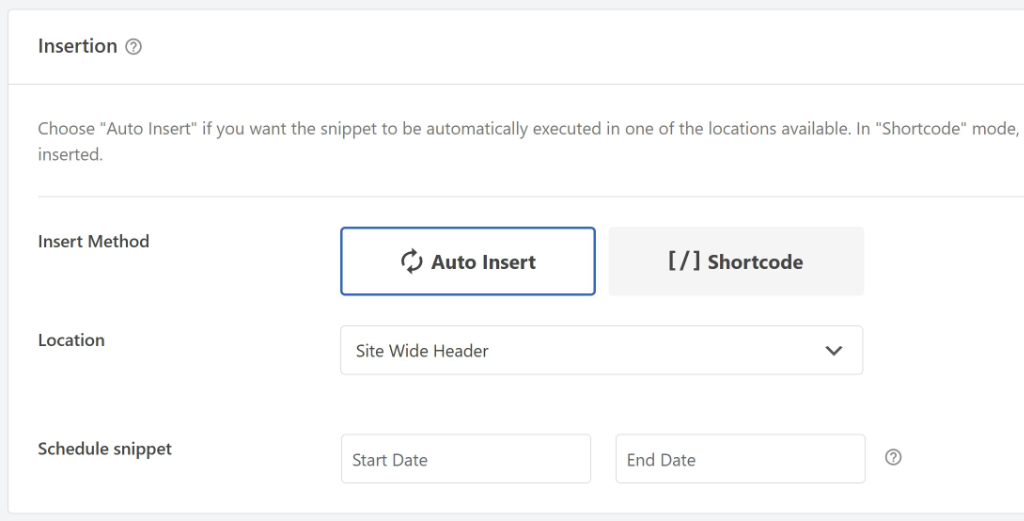
Then toggle the snippet Active and click Save Snippet. That’s it.
⚠️ Quick Check: Visit your site and confirm the change is live. If anything looks off, toggle the snippet off. WPCode reverts the change instantly.
Pros and Cons of Using a Code Snippet plugin (WPCode)
| ✅ Pros | ❌ Cons |
|---|---|
| On/off toggle. Instant revert without FTP | Requires installing WPCode |
| Safe mode catches PHP errors before visitors see them | Advanced features (conditional logic, scheduling) need Pro |
| No file access or FTP needed | — |
| Library of 1,000+ ready-to-use snippets | — |
| Supports all types: PHP, CSS, JS, HTML | — |
| Import/export snippets across sites | — |
For a deeper walkthrough, see our full guide on how to add custom code in WordPress.
Method 2: Editing the functions.php File (Advanced)
Every WordPress theme includes a functions.php file. WordPress loads it automatically on every page request, which makes it a natural place to add custom code.
But editing it directly carries two serious risks. A syntax error, a missing semicolon, or an unclosed bracket throws a fatal PHP error and takes your site offline.
Worst of all, there’s no safety net. And when you switch or update your theme, the file gets replaced. Any code you added disappears.
This method is best for developers working in a staging environment first, who are either using a child theme (Method 3) or have a version-controlled backup plan.
Quick Step-by-Step of Adding a Code Snippet in your functions.php File:
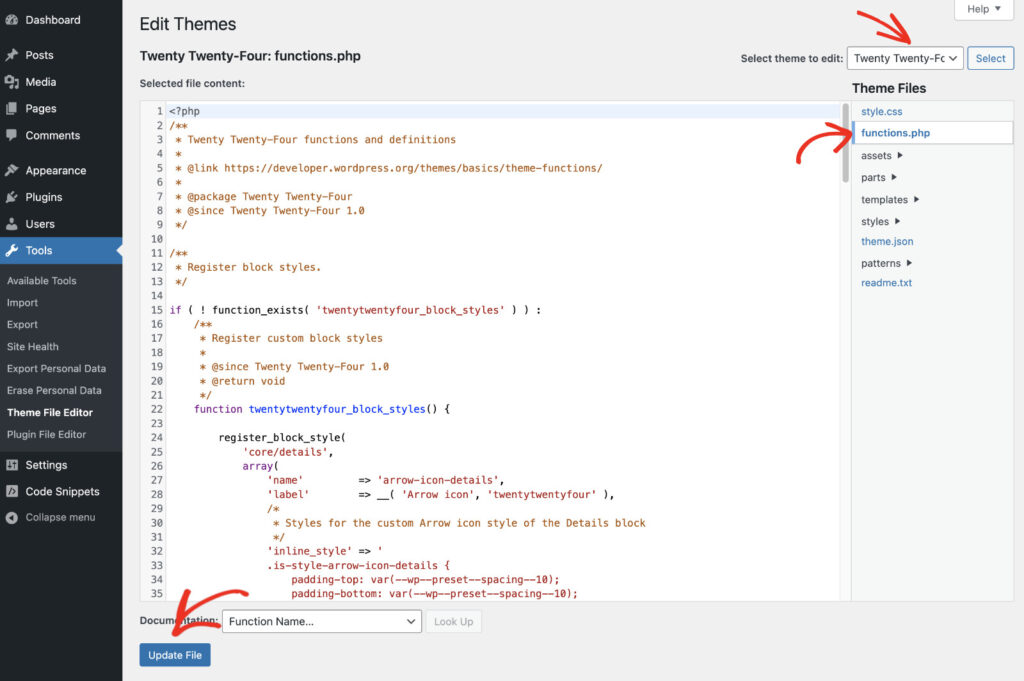
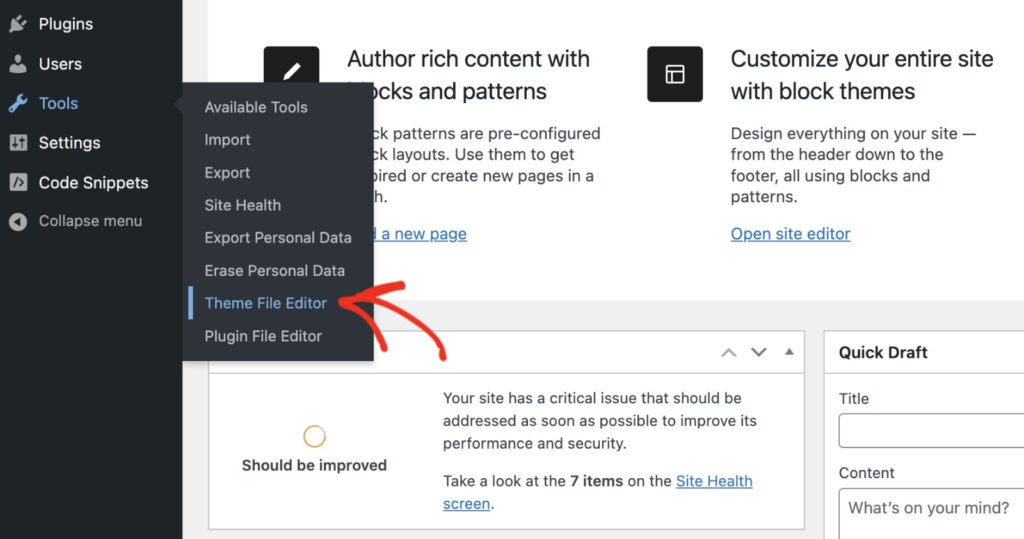
In your WordPress dashboard, go to Appearance » Theme File Editor.
⚠️ Note: If you don’t see the Theme File Editor, your host or a security plugin may have disabled it. On newer Block Themes like Twenty Twenty-Four, it may have moved to Tools » Theme File Editor.
In either case, use FTP or your host’s file manager instead.
In the file list on the right, click Theme Functions (functions.php) and scroll to the very bottom of the file. Here, add your code below all existing content. Never between existing functions, or never above the opening <?php tag.
Once done, click Update File to save.
⚠️ Before making any edit: copy the entire file contents into a text file as a backup or do a full site backup with a plugin like Duplicator. This way, if your edit causes a white screen, you can restore it via your site backup, FTP, or host file manager.
Pros and Cons of Using the functions.php File
| ✅ Pros | ❌ Cons |
|---|---|
| No extra plugin needed | Fatal PHP errors take site offline with no safety net |
| Code runs at core WordPress load. Maximum priority | Changes wiped on theme updates |
| Familiar to developers | No error protection or version history |
| — | Not suitable for beginners |
Method 3: Using a Child Theme (Advanced)
As a result, its functions.php is loaded by WordPress just before the parent theme’s. So, anything you add there remains through updates.
This solves the biggest problem with Method 2. It’s a safer approach, but it requires creating and activating a child theme before you can use it.
Quick step-by-step of Using a Child Theme to Add Code Snippets
Create a new folder in /wp-content/themes/ named your-theme-child. Inside it, create two files: style.css (with a Template: header pointing to your parent theme name) and functions.php (starting with <?php).
In your WordPress dashboard, go to Appearance » Themes and activate your child theme.
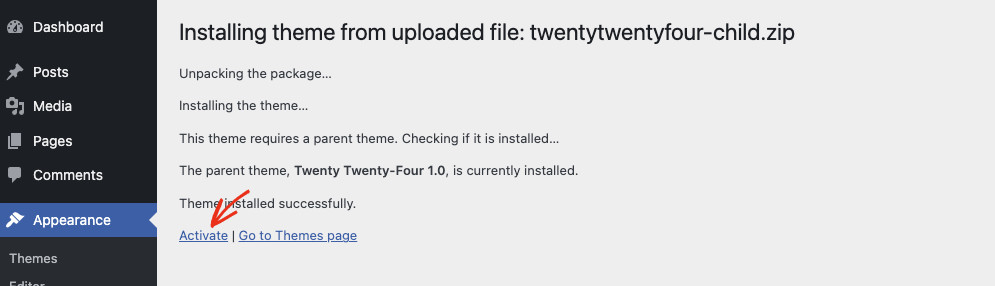
Then add your code to the child theme’s functions.php. After this, it will run alongside the parent theme without being overwritten on updates.
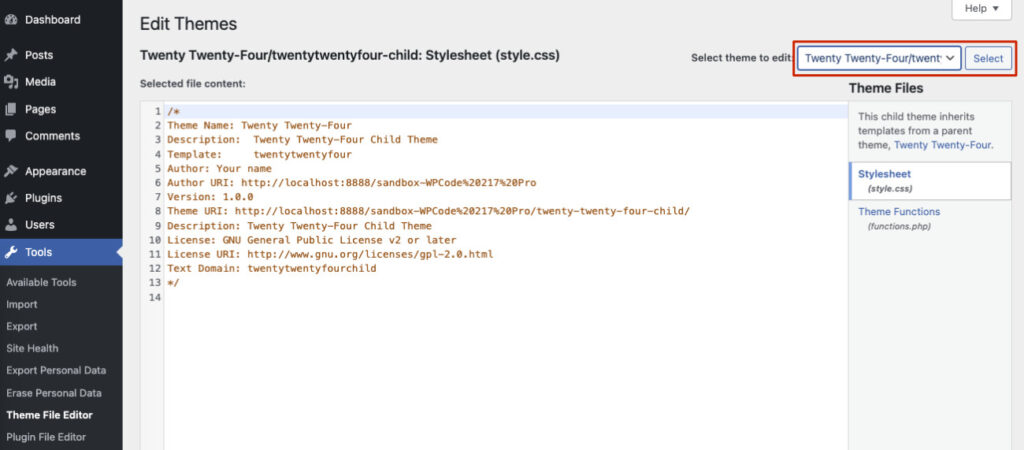
As you can see, it has a few extra steps compared to Method 2, where you add the code snippet directly to the parent theme files, but safer. Here is a full tutorial on how to edit your child theme’s function.php.
Pros and Cons of Using a Child Theme
| ✅ Pros | ❌ Cons |
|---|---|
| Survives parent theme updates | Requires setting up a child theme first |
| Logical home for theme-specific customizations | Syntax errors still cause white screen. No error protection |
| No extra plugin needed | Customizations tied to one specific theme. Lost if you switch |
Method 4: Creating a Custom Plugin (Very Advanced)
For developers managing multiple sites or building functionality that needs to work regardless of which theme is active, creating a custom plugin is the cleanest architecture.
Unlike theme files, plugins aren’t replaced when you switch themes, and they can be deployed across a WordPress Multisite network from one place.
This is a developer-level method. Most single-site owners don’t need it. A ready-made code snippet plugin like WPCode covers everything they need.
Quick step-by-step of using a Custom Plugin for adding a Code Snippet
Create a new folder in /wp-content/plugins/ named my-custom-code. Inside it, create a PHP file with the same name: my-custom-code.php.
At the top, add the plugin header, then your snippet code below it. In WordPress, go to Plugins » Installed Plugins and activate it like any other plugin.
⚠️ Note on Must-Use plugins (mu-plugins): For code that must always run, even if a plugin is accidentally deactivated, place the file in /wp-content/mu-plugins/ instead.
WordPress activates Must Use plugins automatically, with no on/off toggle in the dashboard. Use this for critical code only.
Pros and Cons of Using a Custom Plugin
| ✅ Pros | ❌ Cons |
|---|---|
| No third-party plugin dependency | Requires file access and FTP |
| Survives theme changes completely | Developer-level skill required |
| Full control over load priority and structure | No built-in error protection. Need to create it |
| Reusable across multiple sites and Multisite networks | No on/off toggle per feature unless you build it yourself |
| Can be version-controlled with Git | Significantly more setup time than other methods |
WPCode Snippets vs Other Approaches
WPCode Snippets vs Editing functions.php
Both handle the same PHP customizations. The difference is what happens when something goes wrong or when you update your theme.
With functions.php, a single typo takes your site offline, and there’s no rollback without FTP access. With a snippet manager, each snippet has an on/off toggle, and safe mode catches errors before your visitors see them.
And when you update your theme, your snippets stay intact; there’s nothing to lose.
| Code Snippets (WPCode) | functions.php | |
|---|---|---|
| Survives theme updates | ✅ Yes | ❌ No |
| Error protection | ✅ Safe mode | ❌ None |
| On/off toggle | ✅ Yes | ❌ No |
| Version history | ✅ Yes | ❌ No |
| Supports all code types | ✅ PHP, CSS, JS, HTML | PHP only |
| Beginner-friendly | ✅ Yes | ❌ No |
WPCode Snippets vs a Child Theme
A child theme protects customizations from parent theme updates, but it’s tied to one specific theme. Change your theme, and you need to migrate every customization manually.
Snippets managed through WPCode aren’t tied to any theme. They run regardless of which theme is active and survive a theme switch without any migration work.
| Code Snippets (WPCode) | Child Theme | |
|---|---|---|
| Survives theme updates | ✅ Yes | ✅ Yes (parent updates only) |
| Survives theme change | ✅ Yes | ❌ No. Tied to parent theme |
| Error protection | ✅ Safe mode | ❌ None |
| Setup complexity | Low | Medium. Requires child theme creation |
| Best for | Any customization, any site | Theme-specific visual and template changes |
WPCode Snippets vs Custom Plugin
Both approaches store code outside your theme, so neither gets wiped on a theme update. The difference is how much setup is required to get the code running and how easy it is to manage later.
As mentioned, building a custom plugin is advanced. Plus, you will need to build in features, toggle per feature, error protection, and an interface for targeting specific pages or user roles.
WPCode gives each snippet its own named entry with an on/off toggle. You add code through the dashboard, set placement and priority without touching the snippet itself.
Most importantly, you can set up conditional logic to show the snippet functionality on specific pages or specific user roles with one click.
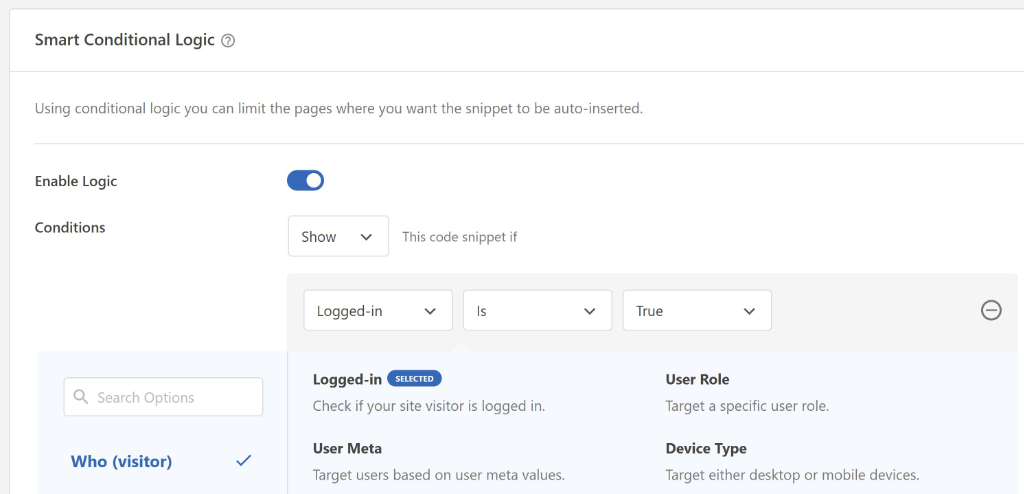
For most use cases, WPCode does everything a custom plugin does without the file setup.
Custom plugins do have one clear advantage: You can build reusable functionality to deploy across many client sites. You get very fine control over plugin load order at a structural level.
You are basically building something to solve your very particular WordPress problems.
| Code Snippets (WPCode) | Custom Plugin | |
|---|---|---|
| Requires file access / FTP | ❌ No | ✅ Yes |
| On/off toggle per snippet | ✅ Yes | ⚠️ Build it yourself |
| Error protection | ✅ Safe mode | ⚠️ Build it yourself |
| Survives theme changes | ✅ Yes | ✅ Yes |
| Conditional logic (page / user targeting) | ✅ Dashboard UI | ⚠️ Build it yourself |
| Snippet library included | ✅ 1,000+ ready-to-use | ❌ No |
| Beginner-friendly | ✅ Yes | ❌ No |
Can You Share Code Snippets With Other Sites?
Yes, and WPCode makes it straightforward. In Code Snippets » Tools, select any snippet and export it as a JSON file. Import it on another site in a few clicks. The snippet arrives with its name, code type, settings, and auto-insert location intact.
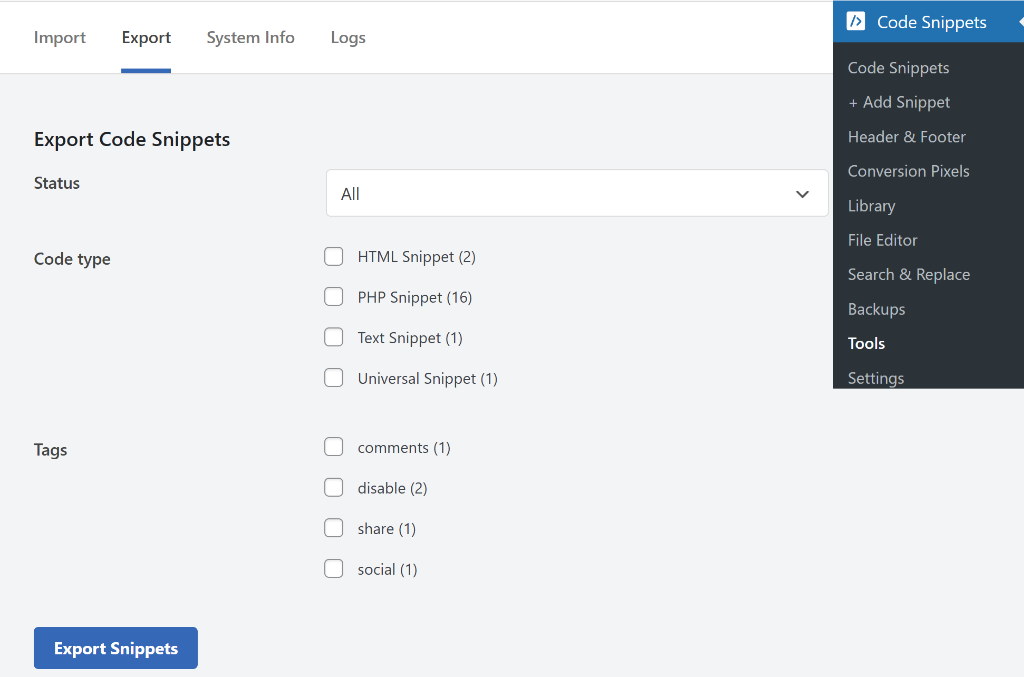
For a full walkthrough, see our guide on how to import and export code snippets from a WordPress site.
Can I Share Code Snippets With My Team?
Yes. WPCode includes a private snippet library that works as a shared repository for your team. Add vetted, tested snippets to the library, and team members can deploy them with one click, without touching the code directly.
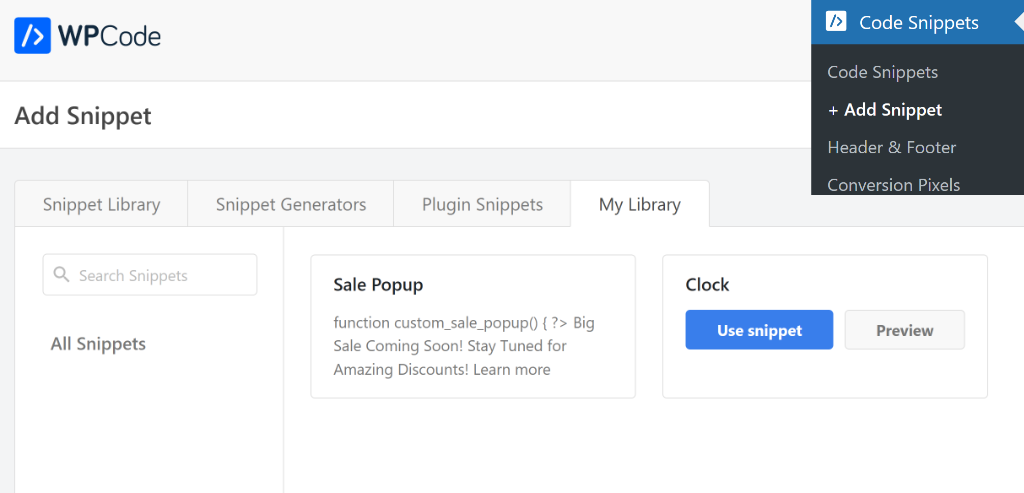
Access control lets you decide who can add, edit, or toggle snippets.
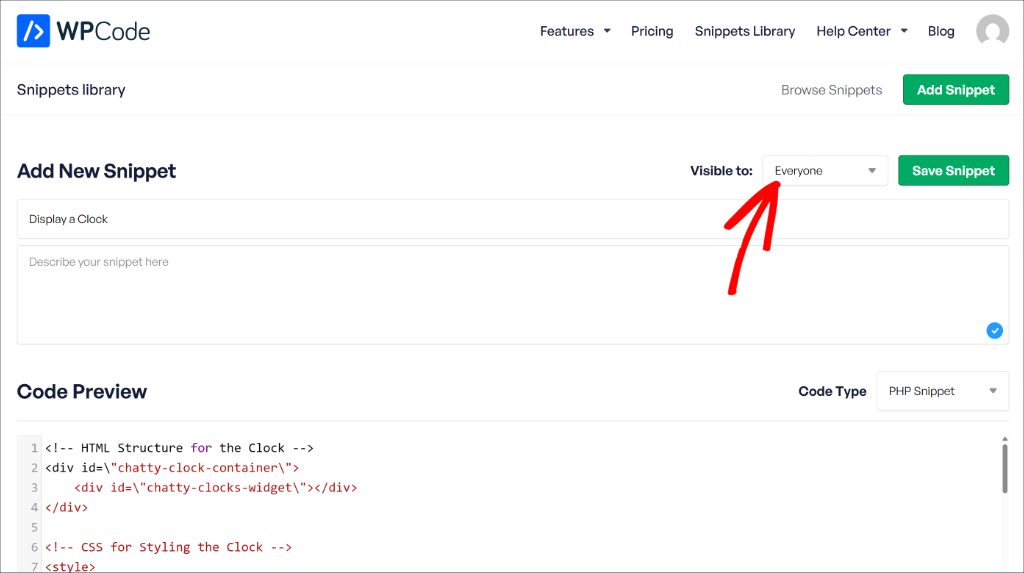
This is useful for agencies where a client should be able to activate a snippet but not modify the underlying code. See our guide on how to create a private code snippet library in WordPress for setup instructions.
WPCode’s public library also includes thousands of community-reviewed snippets. This is a useful starting point before writing your own.
Best Practices When Working With WordPress Code Snippets
Working with code snippets is low-risk when you follow a few simple habits. These apply whether you’re adding your first snippet or managing fifty.
1. Test on staging before going live
Every snippet should run on a copy of your site before touching production. Most hosts include a one-click staging environment. This matters most for PHP snippets. A logic error can have effects that aren’t obvious until you test against real content.
💡 WPCode Tip: WPCode offers Testing Mode, which allows you to see if your snippet will break your site before it is live. This can be helpful if you do not want to use or build a testing site. And you can set it up with a one-click toggle button.

See how you can set up WPCode Testing Mode here.
2. Double-check your code before it goes live
Before activating any snippet, read through it once, even if you copied it from a trusted source. If you don’t understand what it does, paste it into an AI tool and ask. A quick review catches conflicts and unexpected behavior before they reach your site.
💡 WPCode Tip: WPCode’s Live Preview lets you see CSS and SCSS changes in real-time, right alongside the code editor. You can edit your styles and watch them update instantly in the preview pane. You don’t need to save or refresh, it is a live preview.
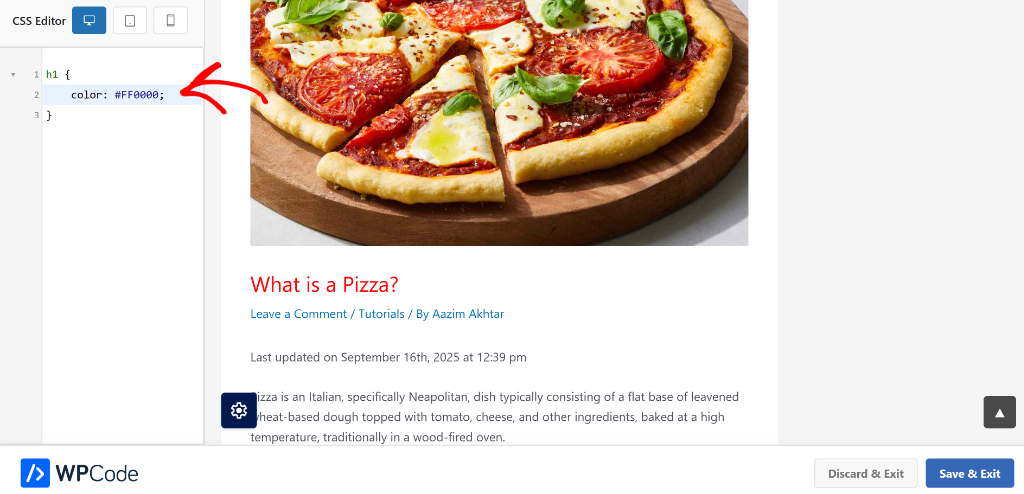
See how to use WPCode Live Preview here.
3. Name snippets well and give each one a single job
“Snippet 1” tells you nothing six months later. “Enable SVG Files” tells you exactly what it does and why it’s there. And don’t combine multiple changes into one snippet. If something breaks, you won’t be able to isolate which change caused it.
💡 WPCode Tip: WPCode allows you to name for every snippet. In your code snippet list, you can also see the author, location, when it was created, code type and priority. Plus, you can add tag snippets by purpose to filter your list instantly. On the Status column you can instantly activate and deactivate the snippet.
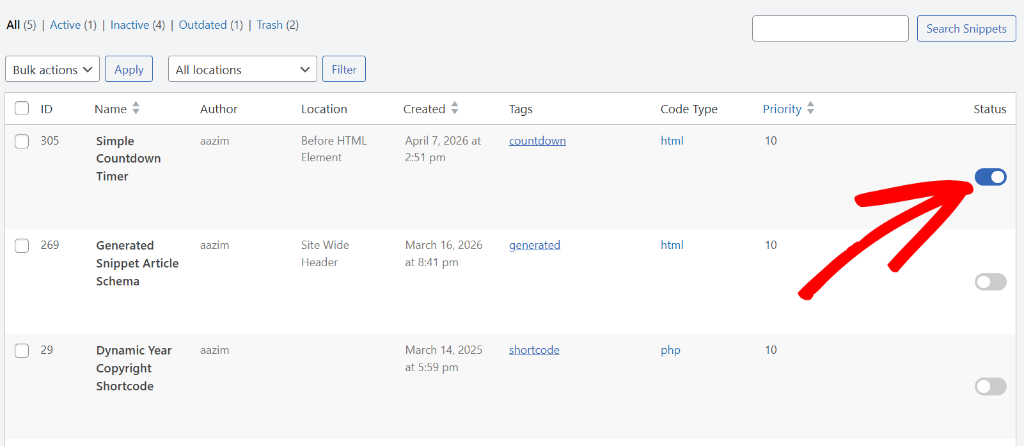
4. Review active snippets quarterly
Snippets you added a year ago may conflict with new plugins, updated themes, or newer WordPress versions. A quick pass through your active list, reading the name, confirming it’s still needed, takes ten minutes and prevents silent conflicts building up over time.
💡 WPCode Tip: WPCode automatically tracks snippet versions from the library. When an update is available, an Update Available button appears directly in your Code Snippets dashboard, meaning no manual checking required. Click it, confirm, and your snippet is up to date in one click.
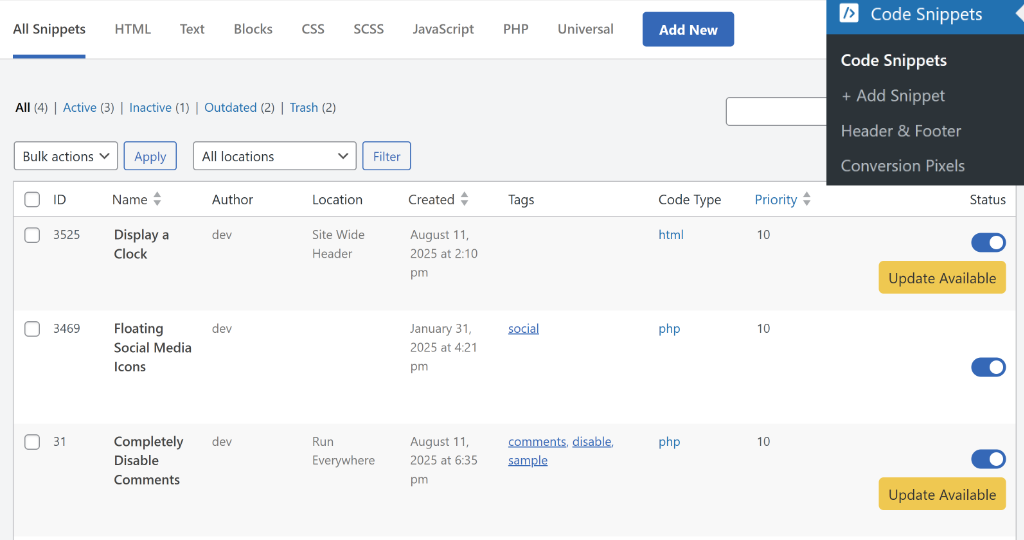
Learn more about the 1-click snippet updates by WPCode
5. Toggle off before deleting
Before removing a snippet permanently, deactivate it first and confirm your site behaves as expected. Some snippets have side effects that only show up after a page cache clears. Toggle off, wait, then delete.
💡 WPCode Tip: WPCode’s toggle deactivates a snippet instantly without deleting it. The snippet stays in your list and can be reactivated any time. Only delete when you’re certain you no longer need it.
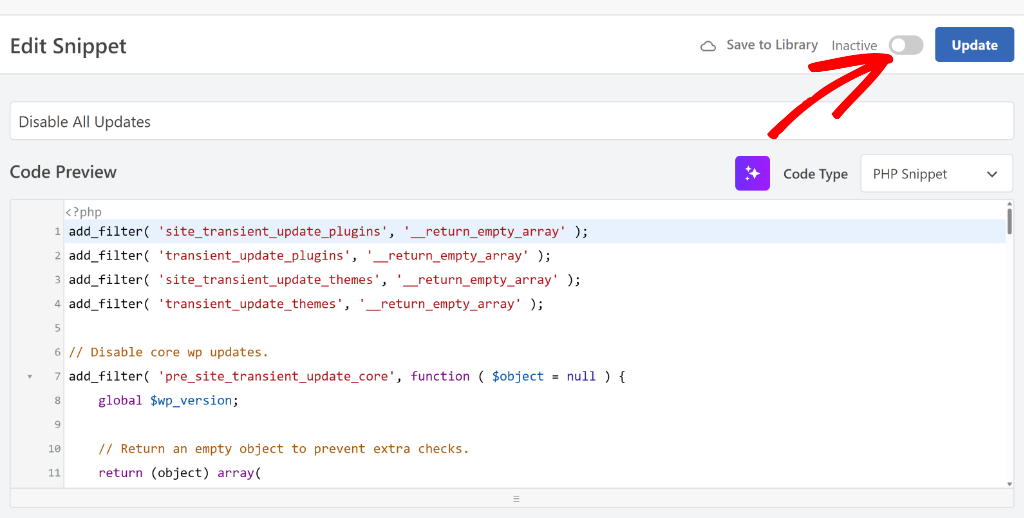
6. Source snippets carefully and get notified when something breaks
Not every snippet on a tutorial blog is safe. Before adding code from an external source, understand what it does. If you’re not sure, paste it into an AI tool and ask. While AI tools are not always 100%, it is a good place to verify.
💡 WPCode Tip: If a snippet causes a PHP error, WPCode catches it automatically. The snippet is deactivated before your visitors see anything, and the exact line that caused the error is highlighted in red directly in the editor.
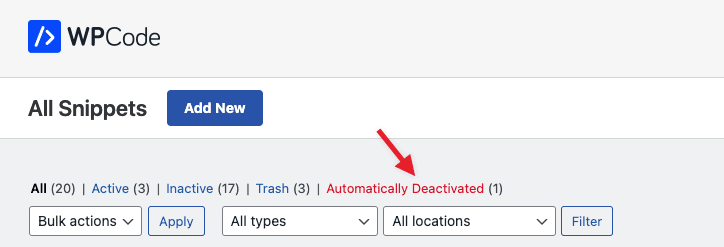
Check out how to debug PHP errors in WPCode.
Can AI Write Your WordPress Snippets?
Yes, and this has become one of the fastest ways to get working code without writing it yourself. ChatGPT, Claude, and Gemini can all generate PHP, CSS, JavaScript, and HTML snippets for WordPress.
Describe what you want in plain English, and they’ll output usable code in seconds. For example, I gave Claude this exact prompt, nothing fancy, just told it what I wanted to accomplish.
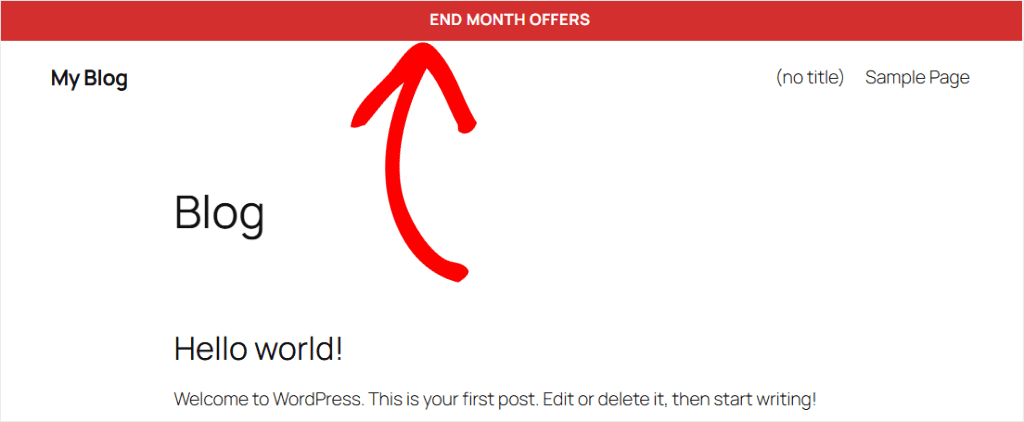
“Generate a WordPress code snippet, adding a top page banner titled “End Month Offers” that should be in red and covers the entire header above the header.”
It created the PHP code snippet, and I was ready to add it.
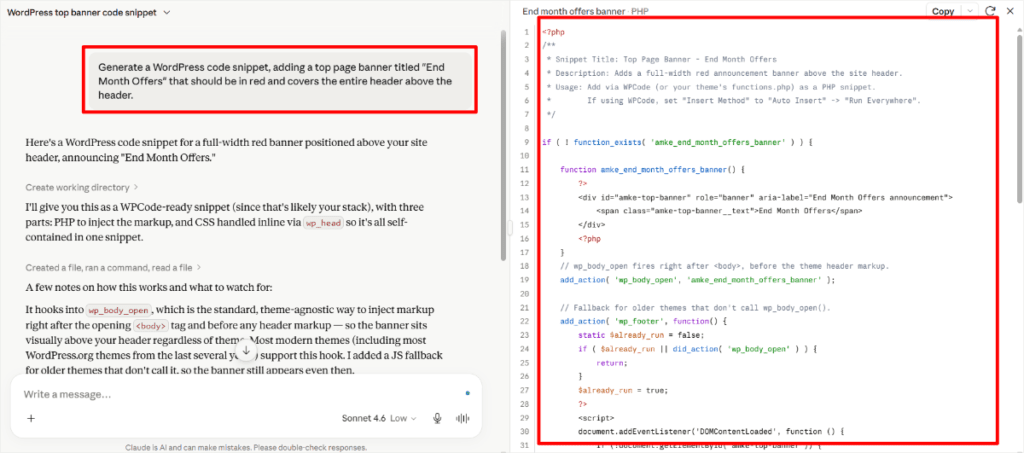
But generating the code is only half the job. The easy part. The other half is placement, and that’s where most people run into trouble.
A PHP snippet that fires in the wrong hook runs too early or too late and has no effect. A JavaScript snippet loaded in the wrong location breaks other scripts on the page. HTML added outside the <head> doesn’t get picked up by the tools expecting it there.
WPCode handles placement, priority, and targeting from the dashboard, without you touching the code itself.
Paste a snippet in, pick an auto-insert location from a dropdown, and WPCode wires it up automatically.
Priority works the same way: it’s just a number that decides whether your snippet runs before or after other code doing similar things, and you set it from the same dashboard.
Here’s why that matters. AI tools often write that priority number directly into the code, like add_action('wp_head', 'my_function', 25).
It works, but now the only way to change it is to edit the code again. WPCode keeps that number in the dashboard instead, separate from the logic, so you can adjust it with a click instead of a rewrite.
Take the example I have shared above. I picked the code generated by Claude, and as you can see in the screenshot below, WPCode placed it correctly without any issues.
The recommended workflow:
- Check the WPCode library first. Search for what you need. The WPCode team or the WPCode community may have likely already written it and confirmed it works. You can use it as-is.
- If it’s close but not exact, copy the snippet and share it with your AI tool: “This snippet does X, I need it to do Y instead.” The AI adapts proven, working code rather than writing from scratch.
- What if nothing exists in the library? Describe exactly what you need from your AI tool in plain English. If you are a coder, you can create it yourself. Then, copy the output.
- Paste it into WPCode. Set the auto-insert location and priority in the dashboard. Add conditional logic if needed. No PHP required. Toggle active and test.
AI writes the logic. WPCode handles where it runs, when it runs, and who sees it. You never touch a theme file.
💡 WPCode Tip: One thing to watch with many AI tools is they sometimes write more code than needed to get the job done. WPCode Pro has its own built-in AI that writes PHP snippets natively inside WordPress. Because it’s built into WPCode, it auto-suggests the right insert location and conditional logic for your snippet. You can also edit the generated code directly in the snippet editor. The result is leaner code, optimized for the least lines needed, and less for you to read, test, and maintain long-term.
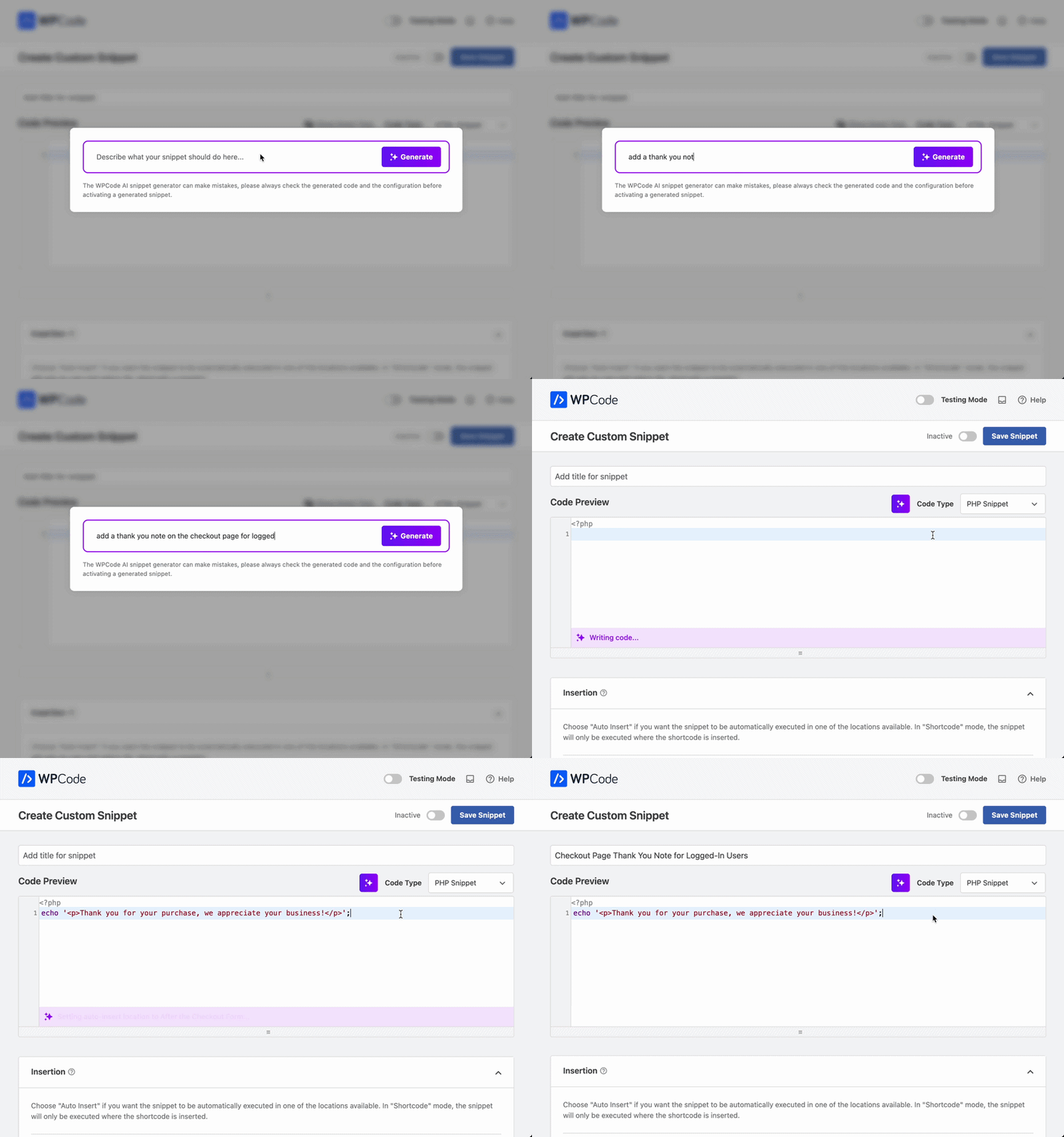
All you have to do is hit the AI icon in your code editor page and the AI will generate both the code and the snippet name for you.
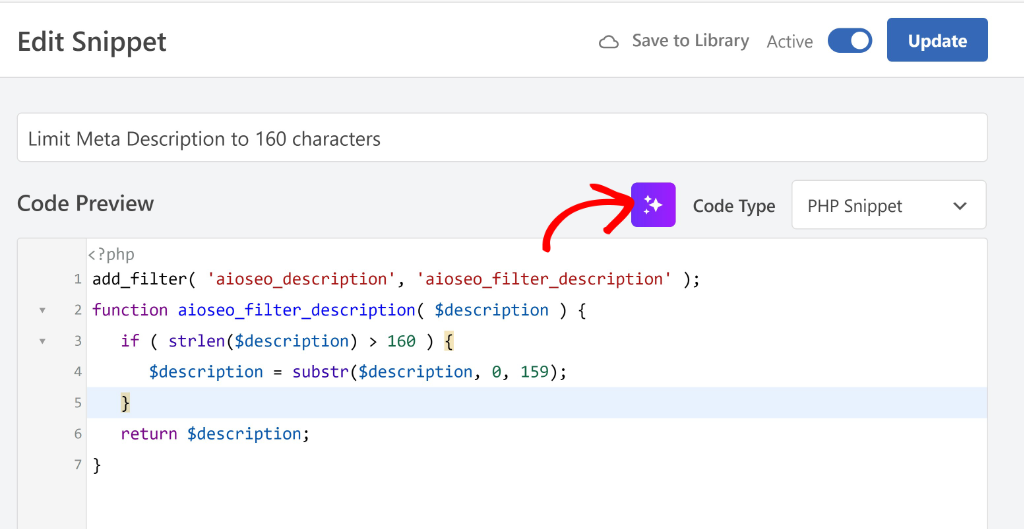
Check out how to add PHP code snippets to learn more about how to use the WPCode AI snippet generator.
WordPress Code Management Strategy
Most WordPress sites accumulate code gradually. A snippet added here, a plugin for one feature there, some CSS in the Customizer.
Over time, custom code ends up scattered across three or four locations with no documentation and no clear picture of what’s running.
- Use WPCode as your single code home. Every piece of custom code goes into WPCode, PHP, CSS, JavaScript, and HTML. One location means one place to audit, one place to troubleshoot, and one export file if you ever migrate to a new host.
- Before installing a plugin, ask first. “Could a snippet do this?” Many single-purpose plugins are five lines of code. Replacing them with snippets removes a plugin update to run, a potential conflict to manage, and a database query from every page load.
- Group snippets by purpose. Use consistent tags: Performance, SEO, Security, Tracking, UI. When something breaks, you know exactly which group to check first.
- Keep inactive snippets. Don’t delete immediately. If you deactivate a snippet and your site behaves correctly, leave it inactive for a couple of weeks before deleting it permanently. Inactive snippets consume no meaningful resources.
- Document once, benefit forever. WPCode’s description field is there for a reason. One sentence per snippet, “Removes the version number from page source to reduce security exposure,” means anyone reading it later understands the intent without reading the code.
That’s it. You now have a deep understanding of what a code snippet is, how to use it, where to add them, and the best practices. If anything is unclear, check out the commonly asked questions below.
FAQs: What Is a Code Snippet?
What is a code snippet in simple terms?
A code snippet is a small piece of code that makes your WordPress site do something specific, like showing a copyright date in the footer or blocking spam comments. Instead of building a feature from scratch, you copy a snippet from a tutorial or library and paste it into a code manager like WPCode.
Are code snippets safe to add to WordPress?
They can be, if you use a code manager with error protection. Adding code directly to your functions.php file carries real risk. One typo and your site can go blank. WPCode includes a safe mode that catches PHP errors before they affect your visitors. Always test on staging first for any snippet that modifies core WordPress behavior.
What’s the difference between a code snippet and a plugin?
A plugin is a packaged app that adds features to WordPress. A code snippet is a small piece of code that does one specific thing. Snippets are faster to add, lighter on your server, and easier to remove. But they don’t come with a settings page or ongoing support.
Do I need to know how to code to use code snippets?
No. Most WordPress users copy a snippet from a tutorial or library and paste it into WPCode. You don’t need to understand the code to use it safely. But knowing which type (PHP, CSS, JS, or HTML) you’re working with helps you pick the right one for the job.
Can a snippet break my site?
A snippet with a PHP error can cause problems. But WPCode’s safe mode catches most errors before they reach your visitors and lets you toggle the snippet off instantly. The risk is significantly higher when adding snippets directly to functions.php with no error protection.
How many snippets can I have active at once?
There’s no hard limit. Most sites run 5–20 active snippets without any performance impact. WPCode handles each one independently, so the total count doesn’t affect execution; only the complexity of individual snippets matters.
What’s the difference between auto-insert and shortcode in WPCode?
Auto-insert runs your snippet automatically, in the header, footer, after every post, or at a specific WordPress hook, without any extra steps. Shortcode lets you place the snippet output manually anywhere in your content by typing [wpcode id="X"]. Use auto-insert for global changes; use shortcode when you need precise control over where the output appears.
Final Verdict? Should I use Code Snippets?
Yes, and it is more beneficial than many WordPress users think.
Code snippets are the most flexible way to extend WordPress. They’re lighter than plugins, safer than editing files directly, and powerful enough to replace most single-purpose tools you’re currently running.
Whether you use functions.php, a child theme, a custom plugin, or WPCode, the method you choose determines how safe and manageable that code is long-term.
For most WordPress site owners, WPCode is the answer: all snippet types, one location, one toggle, and error protection that no other method has.