Short Answer
You can add CSS to WordPress without touching your theme files. With the free WPCode plugin, create a CSS Snippet, paste the code, and check it in Live Preview before you switch it on. We tested all 16 on a block theme. We also checked the header, menu, print, and sale badge snippets on a classic theme.
Key Takeaways
- Every snippet goes in as a CSS Snippet in WPCode. Fifteen use the Site Wide Header location, and the dashboard one (#15) uses Admin header.
- All 16 work with the free version of WPCode, and so does Live Preview.
- Where themes differ, we mark the one line you may need to change and show you how to check it.
- Some popular CSS snippets aren’t needed anymore, because WordPress or your theme already does the job. We list five you can skip.
Your WordPress theme decides how most of your site looks.
That’s handy, until you want one small change it has no setting for. Maybe your links are hard to spot, your header scrolls away, or your sale badge clashes with your brand.
The usual advice is to edit your theme’s style.css file. But unless you’re using a child theme, that change can disappear the next time the theme updates. And it’s easy to break something if you’ve never opened the file.
In this guide, you’ll find 16 CSS snippets we’ve tested on a real WordPress site, each with copy-and-paste code.
We’ll also show you WPCode’s free Live Preview, so you can see most of these changes on your site before any visitor does.
Use the table of contents below to navigate this article.
How to Add a CSS Snippet in WordPress
You add all 16 snippets the same way, so we’ll walk through it once.
We’ll use the first snippet, nicer link underlines, as the example. Every site has links, and you can watch them change as you type.
You need one thing first: the free WPCode plugin from WordPress.org. Install and activate it like any other plugin.
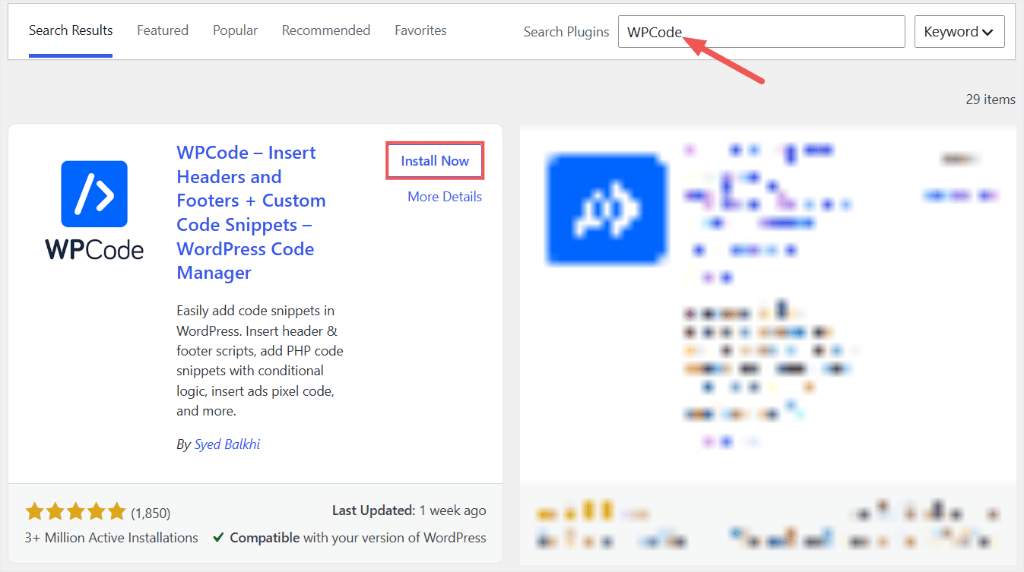
You don’t need to write any CSS.
You’ll copy the code from this article and paste it in. Some snippets have a line you can change, like a color or a size, and we’ll point it out each time.
Create the snippet
Once you install WPCode, in your WordPress dashboard, go to Code Snippets » + Add Snippet. This opens the WPCode snippet library first, not a blank editor.
At the top of the library, you’ll see a card called Add Your Custom Code (New Snippet). Hover over it and click + Add Custom Snippet.
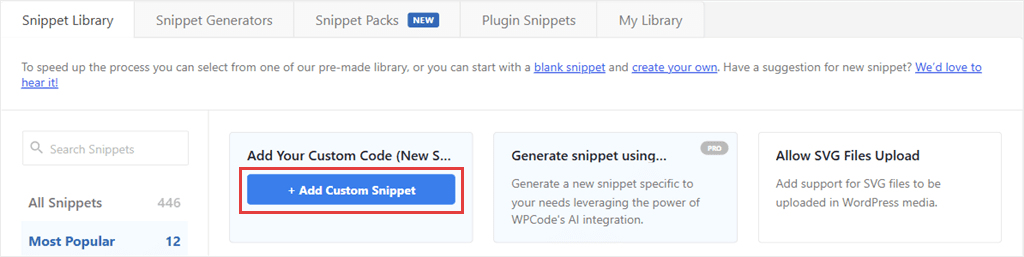
Next, WPCode asks what kind of code you’re adding. Pick CSS Snippet.
It adds the <style> tags for you, so paste the code exactly as it is.
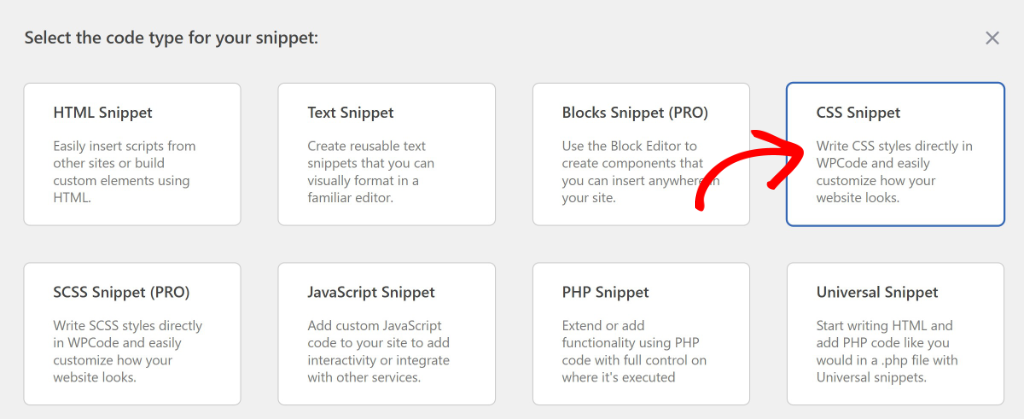
💡 Prefer SCSS?
You’ll also see an SCSS Snippet option. SCSS lets you use variables and nesting, and it comes with every paid WPCode plan. Every snippet in this article is plain CSS, so the free CSS Snippet type is all you need.
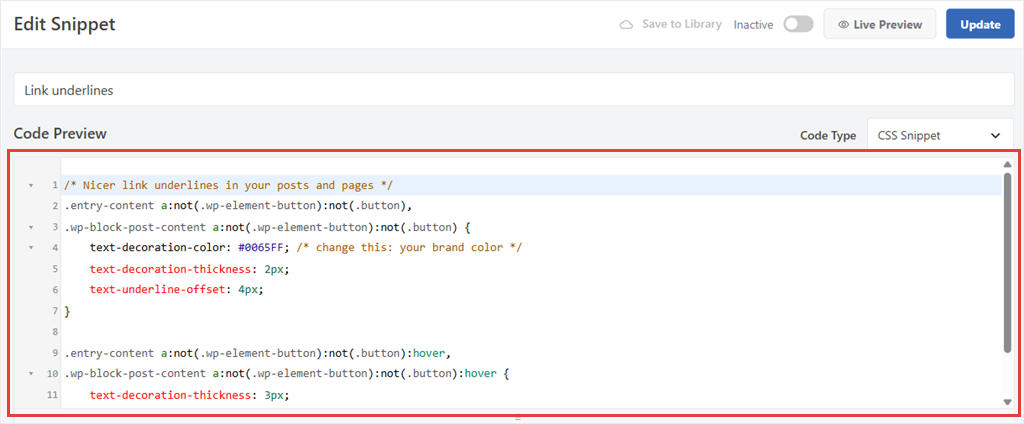
Give your snippet a name you’ll recognize later, like “Link underlines.”
Then paste the code into the Code Preview box.
/* Nicer link underlines in your posts and pages */
.entry-content a:not(.wp-element-button):not(.button),
.wp-block-post-content a:not(.wp-element-button):not(.button) {
	text-decoration-color: #0065FF; /* change this: your brand color */
	text-decoration-thickness: 2px;
	text-underline-offset: 4px;
}

.entry-content a:not(.wp-element-button):not(.button):hover,
.wp-block-post-content a:not(.wp-element-button):not(.button):hover {
	text-decoration-thickness: 3px;
}
Scroll down to the Insertion box. Leave it on Auto Insert, and make sure the Location is Site Wide Header.
That’s already the default for a new CSS snippet. Only #15, which styles your dashboard, uses a different location, and we’ll show you that one when we get there.

Preview it live
Before you switch the snippet on, you can see what it does to your site.
First, click Save Snippet at the top right. Live Preview needs the snippet saved once, so WPCode knows what to show.
Then click the Live Preview button next to it. (It arrived in WPCode 2.3.2, and it’s free.)
WPCode opens a split screen. Your CSS is on the left, and your homepage is on the right. Change a value on the left, like the color, and the links on the right update as you type.
If your homepage doesn’t show any post content, click through to one of your posts inside the preview. Live Preview keeps your CSS on every page you open there.
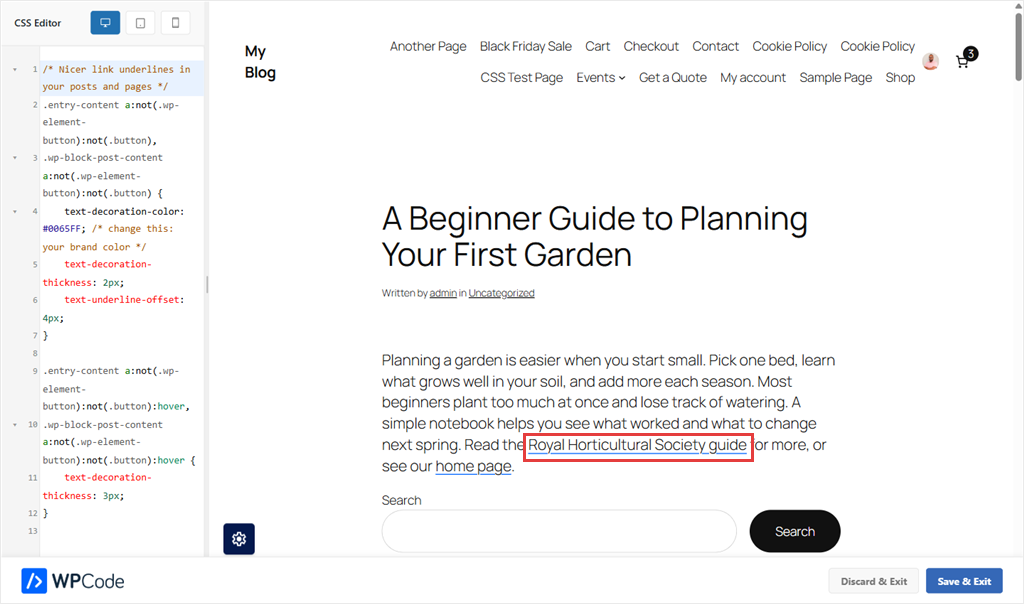
At the top of the editor, three small icons switch the preview between desktop, tablet, and mobile sizes. That’s handy for snippets that should look right on phones.

Happy with it? Click Save & Exit. Changed your mind? Discard & Exit removes what you typed in the preview.
⚠️ One catch
Live Preview only works with the Site Wide Header, Site Wide Body, and Site Wide Footer locations. If you pick another location, WPCode tells you Live Preview is unavailable.
Switch it on and check it
At the top right of the screen, click the toggle so it changes from Inactive to Active. Then click Update.
The snippet is now live on your site.

To check it, open one of your posts in a private browser window. The links in the post should have your new underline color and sit a little lower than before.
If you ever want it gone, switch the same toggle back to Inactive and click Update.
You’ll find every snippet you’ve added under Code Snippets in your dashboard, where you can switch each one on or off, or move it to the Trash.
What if you paste the code wrong? It won’t take your site down.
A browser skips CSS it doesn’t understand, so a typo usually just means nothing changes.
A rule that targets too much can change more than you meant, though. That’s what Live Preview is for. Check the result there first, and if something looks off after you switch it on, switch the snippet off.
And because the snippet lives in WPCode, not in your theme, it stays put when your theme updates.
The 16 Snippets at a Glance
Now that you know how to add a CSS snippet, here’s every snippet in one table.
| Snippet | What it changes | Difficulty | Live Preview? | Plan |
|---|---|---|---|---|
| 1. Nicer link underlines | Links in your posts | Easy | Yes | Free |
| 2. Text-selection color | Highlighted text | Easy | Yes | Free |
| 3. Stop long links breaking phones | Sideways scrolling on mobile | Easy | Yes | Free |
| 4. Button hover lift | Buttons | Easy | Yes | Free |
| 5. Highlight the current menu item | Your menu | Easy | Yes | Free |
| 6. Visible keyboard focus | Links, buttons, fields | Easy | Yes | Free |
| 7. Smooth scrolling | Jump links | Easy | Yes | Free |
| 8. Sticky header with a shadow | Your header | Intermediate | Yes | Free |
| 9. Headings under a sticky header | Jump links | Intermediate | Yes | Free |
| 10. Print-friendly posts | Printed pages | Easy | No (check with Print) | Free |
| 11. Branded scrollbar | The scrollbar | Easy | Yes | Free |
| 12. Contact Form 7 submit button | Form buttons | Easy | Yes | Free |
| 13. Readable placeholder text | Form fields | Easy | Yes | Free |
| 14. WooCommerce sale badge | Product badges | Intermediate | Yes | Free |
| 15. Color-code drafts and pending posts | Your Posts screen | Easy | No (dashboard) | Free |
| 16. Admin bar at the bottom | The admin bar | Easy | No (admin bar hidden) | Free |
Easy means paste it and switch it on. The “change this” lines are optional, for your own colors. Intermediate means you may need to change one line to match your theme, and we show you how.
Want to change your site’s font instead? That one has its own guide: how to change your font in WordPress with a CSS snippet.
Reading and Links
These three make your text easier to read and use on any screen.
1. Nicer Link Underlines (Free)
| Best for | Difficulty | Location | Plan |
|---|---|---|---|
| Blogs, guides | Easy | Site Wide Header | Free |
You’ve already added this one if you followed the walkthrough.
Most themes underline links with a thin line that sits right on the letters. It works, but it’s easy to miss, and it cuts through letters like g and y.
This snippet gives your links a thicker underline in your brand color, with a little space below the text.
It only touches links inside your posts and pages.
Menus stay as they are, and so do WordPress buttons and most theme buttons.
If a button in your theme picks up the underline, right-click it and choose Inspect. This opens your browser’s developer tools and shows the button’s class name.
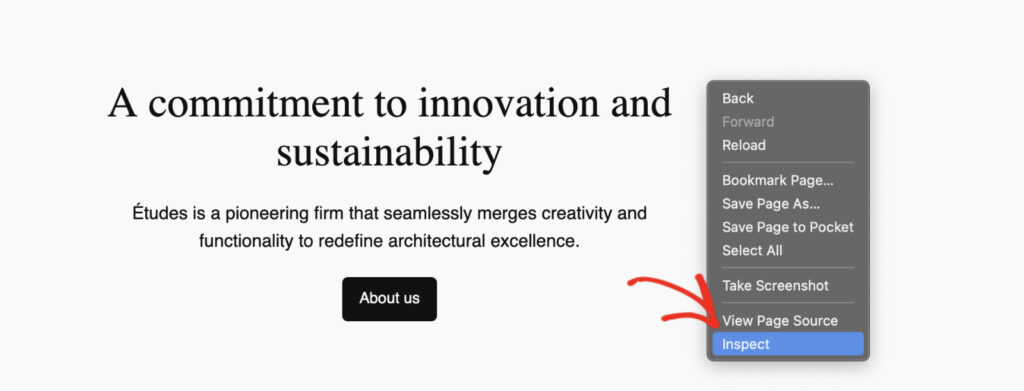
Add another :not() for that class.
Check out this guide to learn how to inspect elements with Developer Tools in your browser.
The full code is in the walkthrough above.
💡 Change this line
Swap #0065FF for your brand color. For a bolder line, raise both numbers by the same amount, like 3px and 4px.
✓ How you know it worked: Hover over a link in a post. The underline should get a little thicker.
2. Custom Text-Selection Color (Free)
| Best for | Difficulty | Location | Plan |
|---|---|---|---|
| Any site | Easy | Site Wide Header | Free |
When a visitor drags across text to copy it, the browser highlights it in blue or grey.
This snippet uses your brand color instead. It’s a small touch that shows up every time a visitor copies a quote or an address.
/* Brand color when visitors highlight text */
::selection {
	background-color: #0065FF; /* change this: highlight color */
	color: #ffffff; /* text color while highlighted */
}
Keep the background dark enough that white text stays easy to read.
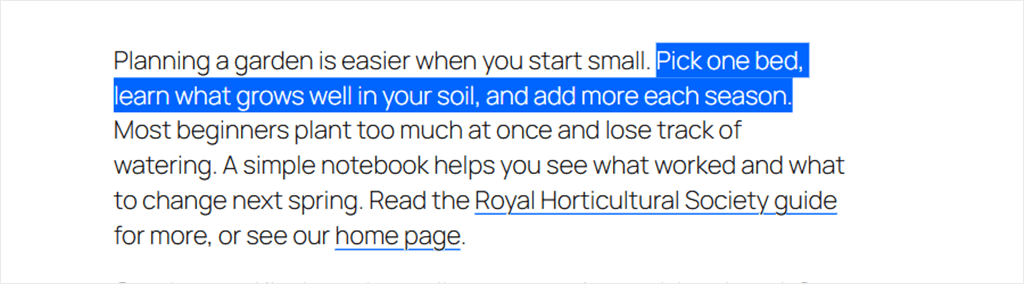
✓ How you know it worked: Select a sentence on any page. The highlight should be your color.
3. Stop Long Links Breaking the Layout on Phones (Free)
| Best for | Difficulty | Location | Plan |
|---|---|---|---|
| Blogs, newsletters, affiliate sites | Easy | Site Wide Header | Free |
Does your page scroll sideways on a phone?
A long link pasted into a post is a common cause.
Browsers often won’t break it onto a new line, so it pushes past the edge of the screen. Links with dashes usually wrap fine. Tracking links full of ?utm_source= and & often don’t.
On our test site, one tracking link stretched the page to 931 pixels wide on a phone. With this snippet, the page went back to fitting the screen.
/* Let long links and words wrap instead of pushing past the screen */
.entry-content,
.wp-block-post-content,
.comment-content {
	overflow-wrap: break-word;
}
It only breaks a word when the word is too long to fit. Normal words wrap the way they always have.
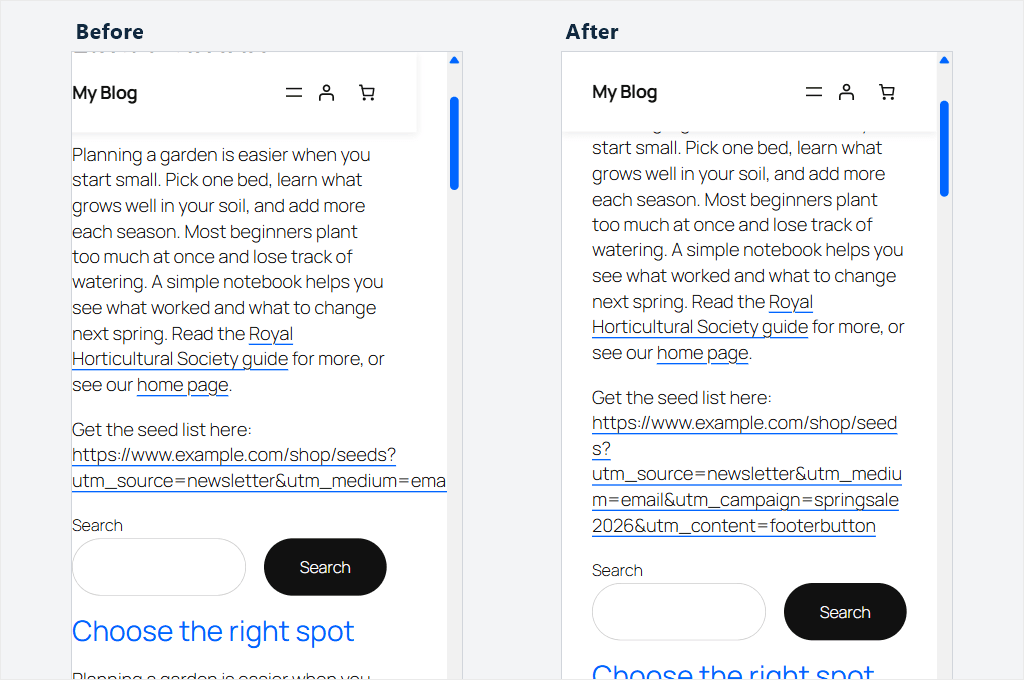
✓ How you know it worked: In Live Preview, switch to the mobile view, then click through to a post with a long link. The page shouldn’t move sideways.
Buttons and Navigation
These four make your buttons and menus easier to use, including for visitors who browse with a keyboard.
4. Button Hover Lift (Free)
| Best for | Difficulty | Location | Plan |
|---|---|---|---|
| Landing pages, stores | Easy | Site Wide Header | Free |
A button that reacts when you point at it feels clickable.
This snippet lifts your buttons by 2 pixels on hover and adds a soft shadow under them. It works on WordPress’s Button block and on most theme buttons.
If yours don’t lift, your theme names its buttons differently. Use Inspect to find the class and add it to each list.
/* Lift buttons slightly when visitors hover over them */
.wp-block-button__link,
.wp-element-button,
.button {
	transition: transform 0.15s ease, box-shadow 0.15s ease;
}

.wp-block-button__link:hover,
.wp-element-button:hover,
.button:hover {
	transform: translateY(-2px);
	box-shadow: 0 6px 16px rgba(0, 0, 0, 0.15);
}

/* No movement for visitors who turn on "reduce motion" */
@media (prefers-reduced-motion: reduce) {
	.wp-block-button__link,
	.wp-element-button,
	.button {
		transition: none;
	}

	.wp-block-button__link:hover,
	.wp-element-button:hover,
	.button:hover {
		transform: none;
	}
}
Some people get dizzy from movement on screens, and they can turn on a “reduce motion” setting on their device. The last part of the snippet respects it, so their buttons stay still.
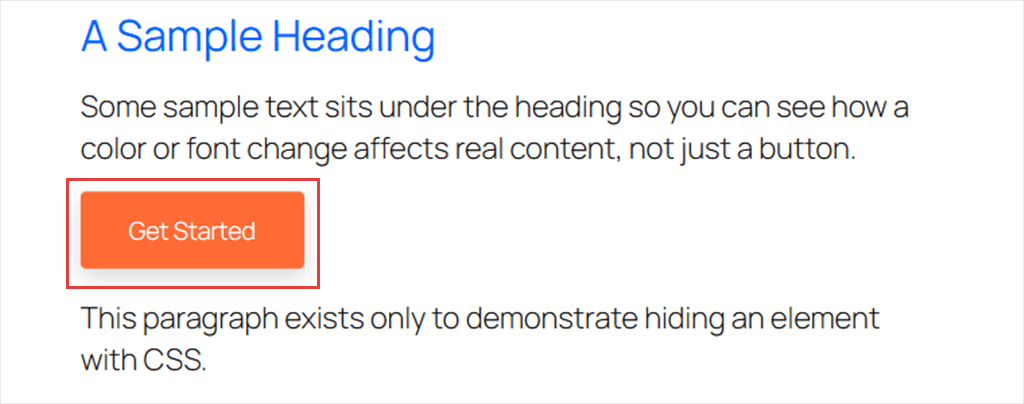
✓ How you know it worked: Point at a button. It should rise a little and cast a shadow.
5. Highlight the Current Menu Item (Free)
| Best for | Difficulty | Location | Plan |
|---|---|---|---|
| Sites with a main menu | Easy | Site Wide Header | Free |
Visitors should be able to tell which page they’re on just by looking at your menu.
Many themes don’t mark the current page at all. This snippet draws a line under it.
/* Underline the menu item for the page the visitor is on */
.current-menu-item > a,
.current_page_item > a,
.wp-block-navigation-item a[aria-current="page"] {
	box-shadow: inset 0 -3px 0 currentColor;
}
It works with the Navigation block in block themes and with classic theme menus.
We draw the line with a shadow instead of a normal underline for a reason. On Astra, our classic test theme, the theme’s own menu styles removed a normal underline. The shadow version showed up on both themes.

✓ How you know it worked: Open a page that’s in your menu. Its menu link should have a line under it.
6. Visible Keyboard Focus Outline (Free)
| Best for | Difficulty | Location | Plan |
|---|---|---|---|
| Any site | Easy | Site Wide Header | Free |
Some visitors move around your site with the Tab key instead of a mouse.
A focus outline is the ring that shows them where they are. Without it, they’re tabbing around blind.
This snippet gives every link, button, and form field a clear blue ring when it’s reached with the keyboard.
/* Clear focus ring for visitors using a keyboard */
a:focus-visible,
button:focus-visible,
input:focus-visible,
select:focus-visible,
textarea:focus-visible,
summary:focus-visible,
[tabindex]:focus-visible {
	outline: 3px solid #0065FF !important; /* change this: ring color */
	outline-offset: 2px !important;
}
Browsers decide when to show it. On links and buttons, that’s usually only for keyboard users. Form fields often show it when clicked or tapped too, which helps everyone.
You may wonder about the !important in the code above.
Some themes and plugins remove focus outlines, and !important makes sure yours still shows. On our test site, only the version with !important displayed the ring.

✓ How you know it worked: Click an empty spot on a page, then press Tab a few times. Each link should get a ring in your color.
7. Smooth Scrolling for Jump Links (Free)
| Best for | Difficulty | Location | Plan |
|---|---|---|---|
| Long posts, guides with a table of contents | Easy | Site Wide Header | Free |
When someone clicks a link to a section further down the page, like a table of contents entry, the page jumps there instantly. It can feel like you’ve landed on a different page.
This snippet makes the page glide there instead.
/* Glide to sections instead of jumping */
html {
	scroll-behavior: smooth;
}

/* Jump straight there for visitors who turn on "reduce motion" */
@media (prefers-reduced-motion: reduce) {
	html {
		scroll-behavior: auto;
	}
}
This used to take JavaScript, often a jQuery script loaded on every page. It took over every jump link, so it could clash with tabs, accordions, or table of contents plugins.
Today, CSS does it in one line, and your browser handles the scrolling.
Want a button that takes readers back to the top, too? See how to add a scroll to top button in WordPress.
Pair it with snippet #9 if your header is sticky, so the heading doesn’t land underneath it.
✓ How you know it worked: Click a table of contents link in a long post. The page should scroll down smoothly.
Layout
Next, how your pages behave as people scroll, print, and move around them.
8. Sticky Header With a Shadow (Free)
| Best for | Difficulty | Location | Plan |
|---|---|---|---|
| Stores, sites with a long menu | Intermediate | Site Wide Header | Free |
A sticky header stays at the top of the screen while visitors scroll. Your menu and search are always one click away.
This snippet makes your header stick and adds a soft shadow, so it stands apart from the page below it.
/* Keep the header at the top while visitors scroll */
.wp-site-blocks > header,
#masthead,
.site-header {
	position: sticky;
	top: 0;
	z-index: 100;
	background-color: #ffffff; /* change this: your header background */
	box-shadow: 0 2px 8px rgba(0, 0, 0, 0.08);
}

/* Make room for the admin bar when you're logged in */
body.admin-bar .wp-site-blocks > header,
body.admin-bar #masthead,
body.admin-bar .site-header {
	top: 32px;
}

@media (max-width: 782px) {
	body.admin-bar .wp-site-blocks > header,
	body.admin-bar #masthead,
	body.admin-bar .site-header {
		top: 46px;
	}
}

@media (max-width: 600px) {
	body.admin-bar .wp-site-blocks > header,
	body.admin-bar #masthead,
	body.admin-bar .site-header {
		top: 0;
	}
}
The three names at the top of the code are your header. .wp-site-blocks > header covers block themes like Twenty Twenty-Five. #masthead and .site-header cover Astra and most classic themes. We tested both.
The admin bar part only matters when you’re logged in.
It keeps your header from sliding under the black bar at the top. On phones, the bar scrolls away with the page, so the header goes back to the very top.
💡 Change this line
If your header has a color, swap #ffffff for it. If the header doesn’t stick, your theme may use a different name for it. Right-click your header, choose Inspect, and look for its class or ID. Then add it to the first list, with a dot in front of a class (.my-header) or a # in front of an ID (#my-header). If you’re logged in, add it to the admin bar lists below too.
Block themes do have a built-in sticky option, but only on a Group block at the top level of a template.
To use it, you’d wrap your header in a Group in the Site Editor. Classic themes don’t have this block setting, though some add their own sticky header option.
For most sites, the snippet is the simpler route.
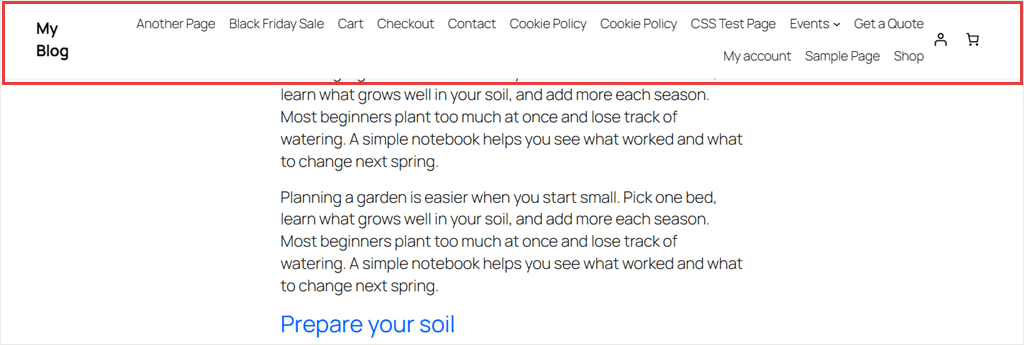
✓ How you know it worked: Scroll down a long page. Your header should stay at the top. Check it once while logged in and once in a private window, on a computer and a phone, since themes handle the header differently.
9. Keep Headings Visible Under a Sticky Header (Free)
| Best for | Difficulty | Location | Plan |
|---|---|---|---|
| Sites with a sticky header and a table of contents | Intermediate | Site Wide Header | Free |
Once your header is sticky, you may experience a new problem.
Click a table of contents link, and the heading you jumped to hides behind the header. Your reader lands just below the title they wanted.
This snippet leaves room above the heading, so it stops below your header.
/* Stop jump links landing behind a sticky header */
:where(h2, h3, h4)[id] {
	scroll-margin-top: 130px; /* change this: your header height + about 20px */
}

/* Extra room for the admin bar when you're logged in */
body.admin-bar :where(h2, h3, h4)[id] {
	scroll-margin-top: 162px; /* change this: the number above + 32 */
}
It works on headings that have an ID, which is what a jump link points to.
Table of contents plugins add IDs for you. You can also add one yourself in the heading block’s Advanced » HTML anchor setting.
The number depends on your header’s height.
Our first try used 96px, and on Twenty Twenty-Five the heading still hid behind the 108px header. 130px worked. Astra’s header was taller, at 161px, so it needed about 180px.
💡 Change this line
To find your header’s height, right-click the header and choose Inspect. Hover over the highlighted header and your browser shows its size, like 1280 × 108. The second number is the height. Add about 20 to it for the first number, and 32 more for the second.
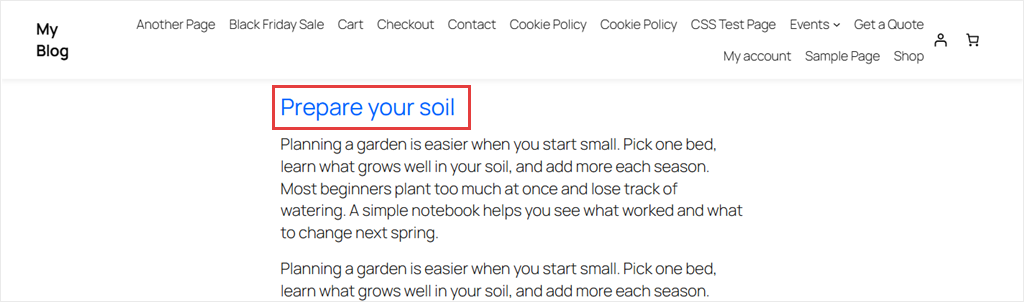
✓ How you know it worked: Click a table of contents link. The heading should sit just below your header, fully visible.
10. Print-Friendly Posts (Free)
| Best for | Difficulty | Location | Plan |
|---|---|---|---|
| Recipes, guides, help docs | Easy | Site Wide Header | Free |
Readers print recipes, guides, and instructions.
When they do, they usually get your menu, your footer, and your comments too. That’s pages of paper they didn’t want.
This snippet hides those parts when someone prints. It also prints the web address after each link, since nobody can click a link on paper.
/* Clean printouts: just the post, with link addresses */
@media print {
	.wp-site-blocks > header,
	.wp-site-blocks > footer,
	#masthead,
	#colophon,
	.site-header,
	.site-footer,
	nav,
	.wp-block-post-navigation-link,
	.post-navigation,
	.wp-block-comments,
	#comments,
	#secondary,
	.sidebar,
	#wpadminbar {
		display: none !important;
	}

	.entry-content a[href^="http"]::after,
	.wp-block-post-content a[href^="http"]::after {
		content: " (" attr(href) ")";
		font-size: 0.85em;
	}
}
Nothing changes on screen. The snippet only does something when the page is printed.
We checked it on both test themes. The header, footer, and menus disappeared, and the post title stayed.
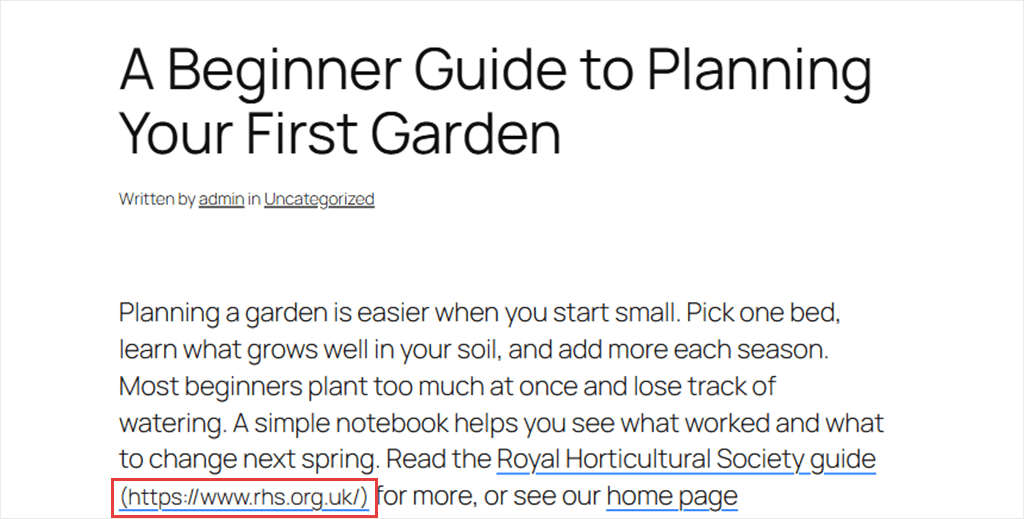
✓ How you know it worked: Open a post and press Ctrl+P (Cmd+P on a Mac). The print preview should show the post without your menu or footer.
11. Branded Scrollbar Color (Free)
| Best for | Difficulty | Location | Plan |
|---|---|---|---|
| Brand-focused sites | Easy | Site Wide Header | Free |
Want your scrollbar to match your brand?
This snippet colors the scrollbar’s bar and the track it slides in.
/* Scrollbar in your brand colors */
html {
	scrollbar-color: #0065FF #f1f1f1; /* change this: bar color, then track color */
}
It works in current versions of Chrome, Edge, and Firefox, and in Safari 26.2 or later. Older Safari versions just keep the normal scrollbar, so nothing breaks.
✓ How you know it worked: Look at the right edge of any long page. The scrollbar should be your color.
Forms
Your forms should look like part of your site, not something bolted on.
12. Restyle the Contact Form 7 Submit Button (Free)
| Best for | Difficulty | Location | Plan |
|---|---|---|---|
| Sites using Contact Form 7 | Easy | Site Wide Header | Free |
Contact Form 7 doesn’t come with style settings. Its Submit button looks like whatever your theme decides, and that may not match the rest of your site.
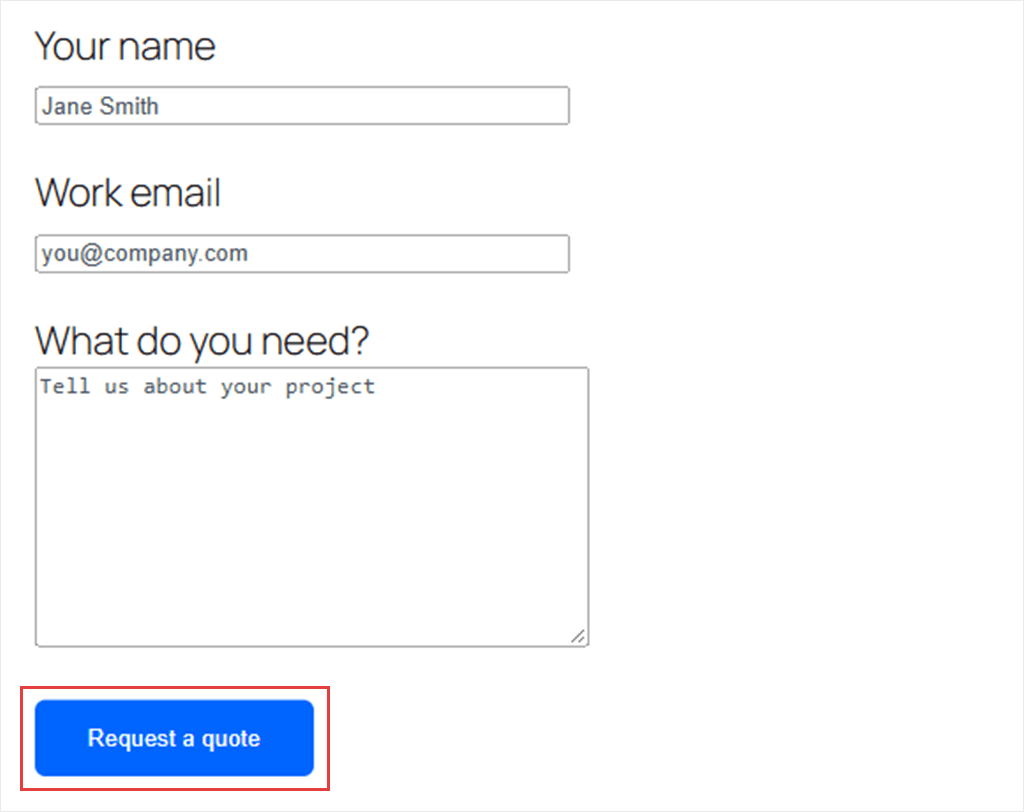
This snippet gives it your brand color and a darker hover color.
/* Brand-colored Contact Form 7 submit button */
.wpcf7-submit {
	background-color: #0065FF; /* change this: button color */
	border: 2px solid #0065FF; /* same color as the line above */
	color: #ffffff;
	padding: 12px 28px;
	border-radius: 6px;
	cursor: pointer;
}

.wpcf7-submit:hover {
	background-color: #11293E; /* change this: hover color */
	border-color: #11293E;
}
Using WPForms? You don’t need this one.
WPForms has its own button color settings, free, under Settings » Themes in the form builder. See WPForms’ guide to styling your forms.
✓ How you know it worked: Open your contact page. The Submit button should be your button color and change to your hover color when you point at it.
13. Readable Placeholder Text (Free)
| Best for | Difficulty | Location | Plan |
|---|---|---|---|
| Any site with forms | Easy | Site Wide Header | Free |
Placeholder text is the hint inside an empty form field, like “[email protected].”
Many themes make it a very light grey. It’s hard to read, especially on a phone outside.
This snippet makes it darker in every form on your site.
/* Darker, easier-to-read placeholder text in form fields */
input::placeholder,
textarea::placeholder {
	color: #4b5563; /* change this: placeholder color */
	opacity: 1;
}
The opacity: 1 line matters. Firefox fades placeholder text by default, so without it, the color looks lighter than you set.
You may find longer versions of this snippet elsewhere, with extra lines for very old browsers. You don’t need them anymore.
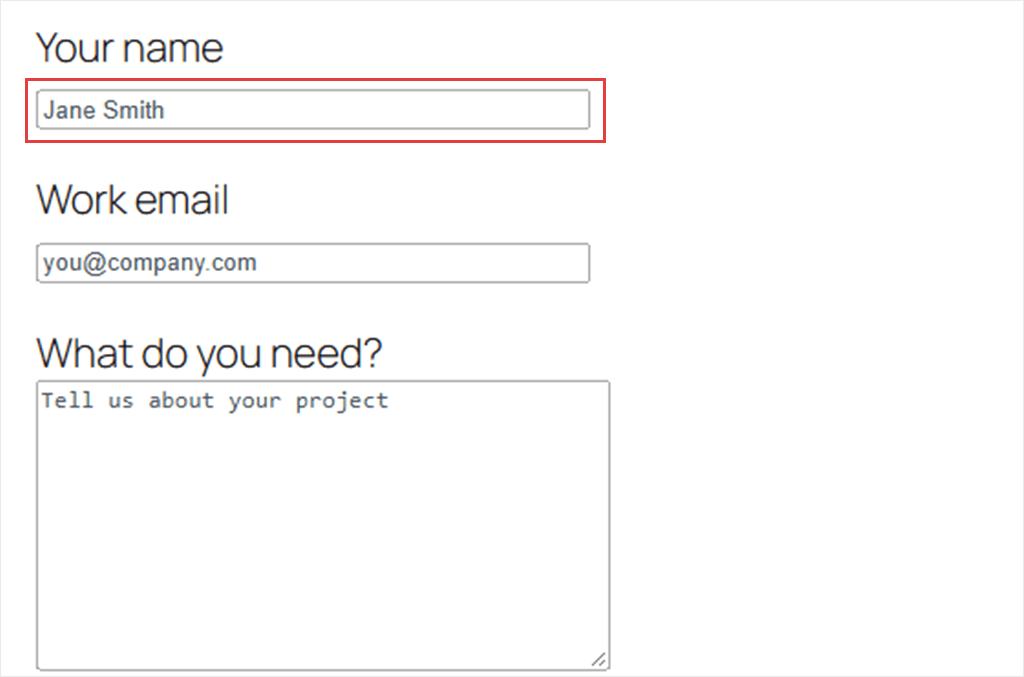
✓ How you know it worked: Open a form with placeholder text. The hint should be darker but still lighter than what you type.
Store and Dashboard
The last three are for store owners and for you and your team behind the scenes.
14. WooCommerce Sale Badge Color (Free)
| Best for | Difficulty | Location | Plan |
|---|---|---|---|
| WooCommerce stores | Intermediate | Site Wide Header | Free |
The “Sale!” badge on your products is one of the first things shoppers see.
Its default color often clashes with your brand. This snippet gives it your color and a rounded pill shape.
/* Sale badge in your brand color */
.onsale,
.wc-block-components-product-sale-badge,
.ast-onsale-card { /* change this: your theme's badge name (this one is Astra's) */
	background-color: #E11D48 !important; /* change this: badge color */
	border-color: #E11D48 !important;
	color: #ffffff !important;
	border-radius: 999px !important;
	font-weight: 700;
	text-transform: uppercase;
}
.onsale covers classic WooCommerce pages. .wc-block-components-product-sale-badge covers the newer product blocks.
Some themes rename the badge. On Astra, our classic test theme, it’s .ast-onsale-card, which is why it’s in the list.
💡 Change this line
If your badge doesn’t change, right-click it, choose Inspect, and copy its class name. Replace .ast-onsale-card with it, keeping the dot in front.
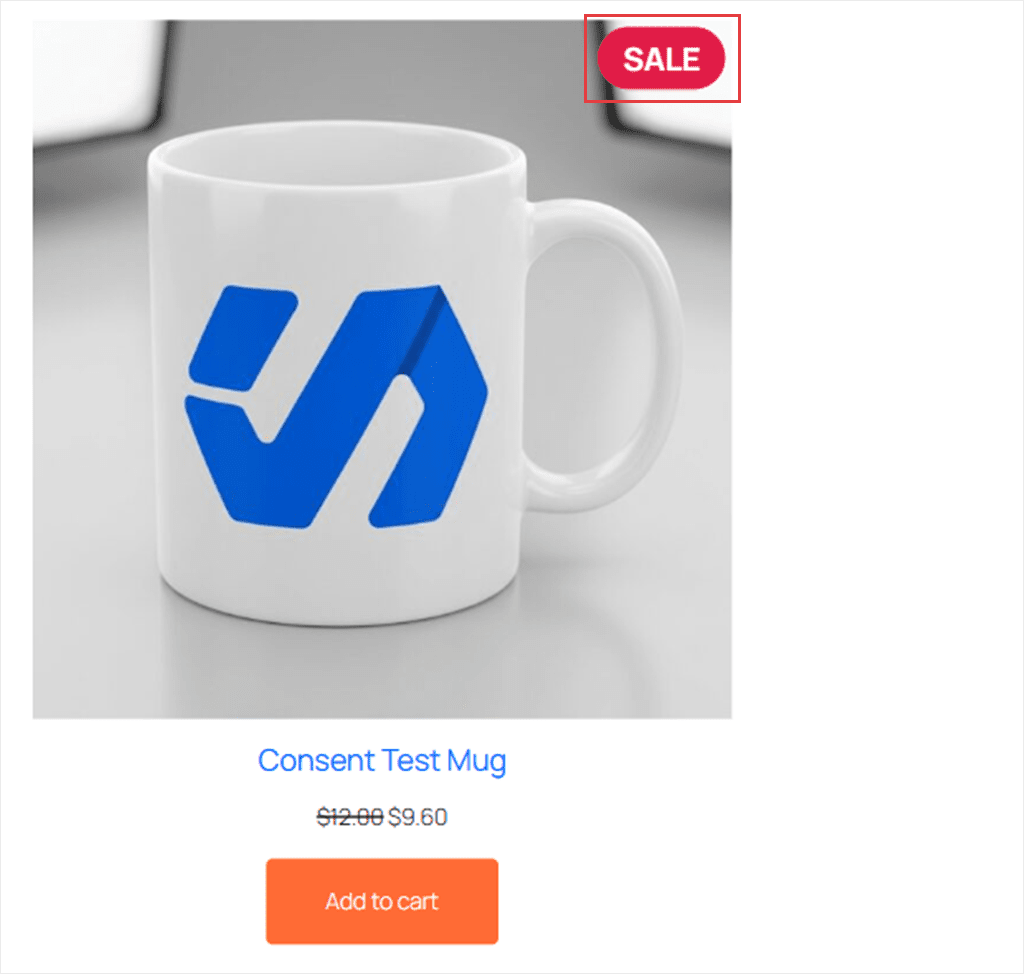
✓ How you know it worked: Open your shop page. Products on sale should show the badge in your color.
15. Color-Code Drafts and Pending Posts (Free)
| Best for | Difficulty | Location | Plan |
|---|---|---|---|
| Teams, busy blogs | Easy | Admin header | Free |
Your Posts » All Posts screen shows published posts, drafts, and posts waiting for review in one long list, and they all look the same.
This snippet gives each status its own background color, so you can spot unfinished work at a glance.
/* Color rows on the All Posts screen by status */
.wp-list-table tr.status-draft {
	background-color: #FEF9C3 !important; /* drafts: yellow */
}

.wp-list-table tr.status-pending {
	background-color: #DBEAFE !important; /* pending review: blue */
}

.wp-list-table tr.status-future {
	background-color: #DCFCE7 !important; /* scheduled: green */
}

.wp-list-table tr.status-private {
	background-color: #F3F4F6 !important; /* private: grey */
}
This snippet is not added site-wide, only in your Admin area.
In your WPCode editor, go to the Insertion box.
Then, open the Location dropdown and choose Admin header, under Admin Area. That loads the CSS in your dashboard instead of on your site. Your visitors never see it.
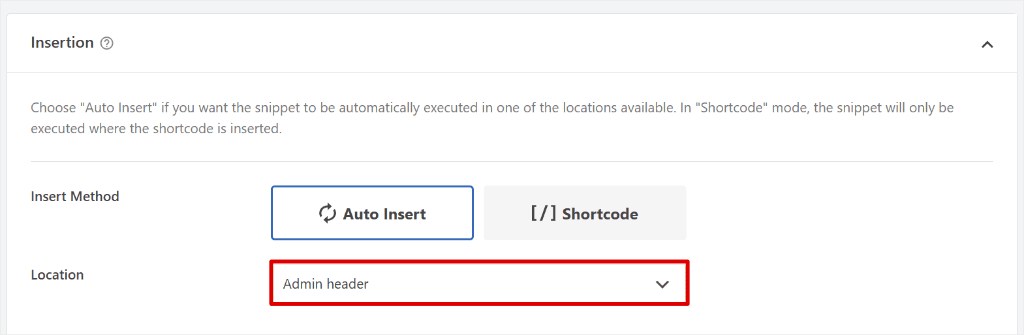
Live Preview doesn’t work with the Admin header location. So save it, switch it on, and check the result on your Posts screen.
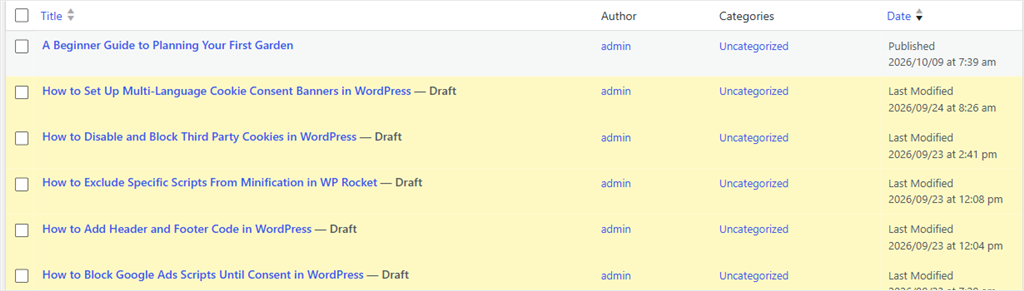
✓ How you know it worked: Open Posts » All Posts. Drafts should have a yellow background.
16. Move the Admin Bar to the Bottom (Free)
| Best for | Difficulty | Location | Plan |
|---|---|---|---|
| Site owners who check their site while logged in | Easy | Site Wide Header | Free |
When you’re logged in, the black WordPress admin bar sits across the top of your site. It covers part of your header and pushes everything down.
This snippet moves it to the bottom of the screen. You still have it; it just stays out of the way.
/* Move the admin bar to the bottom of the screen */
html {
	margin-top: 0 !important;
}

#wpadminbar {
	position: fixed !important;
	top: auto !important;
	bottom: 0;
}

body.admin-bar {
	padding-bottom: 46px;
}

@media (min-width: 783px) {
	body.admin-bar {
		padding-bottom: 32px;
	}
}

/* Open the admin bar's menus upward */
#wpadminbar .menupop .ab-sub-wrapper {
	top: auto;
	bottom: 100%;
}
We tested it on a computer and on a phone-sized screen. In both, the bar stayed at the bottom with no gap at the top of the page.
Only logged-in users see the admin bar, so your visitors won’t notice any change. Live Preview hides the admin bar too, so check this one on your live site.
If you also use the sticky header from snippet #8, change its top: 32px and top: 46px lines to top: 0. The admin bar isn’t at the top anymore, so the header doesn’t need to make room for it.
Would you rather hide the admin bar completely? Here’s how to disable the admin bar in WordPress.
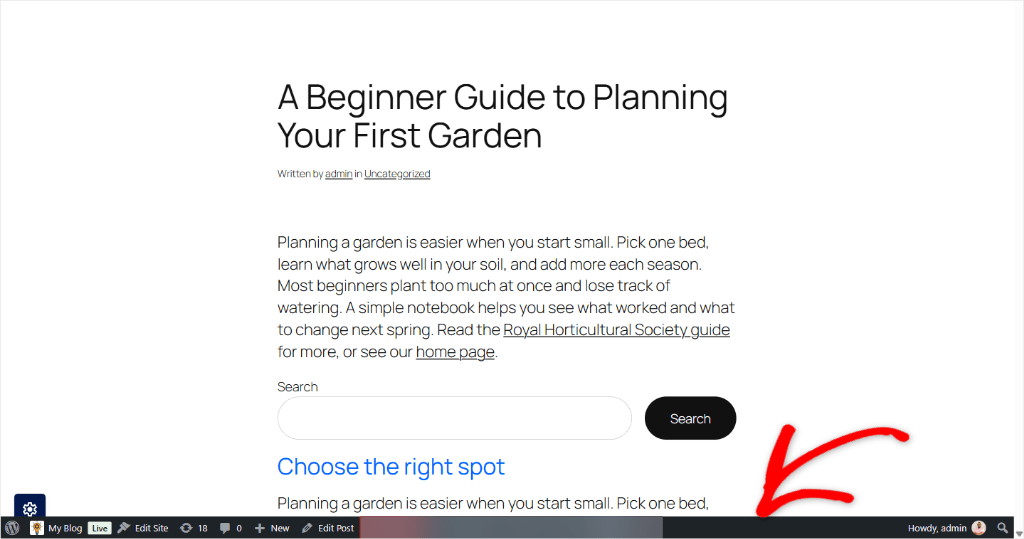
✓ How you know it worked: Visit your site while logged in. The black bar should be at the bottom.
5 CSS Snippets You Can Skip in 2026
You’ll still find these five in other lists of CSS snippets.
Many of those lists were written before WordPress or modern themes could do the same job. Check the built-in option first, so you don’t add a snippet for something your site already does.
One more you won’t find here: a custom login logo. That needs PHP, not just CSS, and we cover it in how to replace the WordPress logo on the login page.
Hide a Block on Mobile
Since WordPress 7.0, you can hide most blocks on mobile, tablet, or desktop right from the block toolbar. No CSS or extra class needed. See the WordPress 7.0 block visibility announcement.
Make YouTube Videos Resize on Phones
If your theme supports responsive embeds (every block theme does, and most modern classic themes too), WordPress’s Embed block already keeps videos at the right shape on every screen size.
Paste the YouTube link into an Embed block, and it resizes on its own.
Headings That Scale With the Screen
Many block themes already shrink headings smoothly on smaller screens. Twenty Twenty-Five does this out of the box, so a snippet adds nothing there.
Full-Width Sections
Block themes have a Full width option on Group, Cover, and Image blocks. Pick it in the block toolbar instead of writing CSS to stretch a section.
Drop Caps
The Paragraph block has a Drop cap setting in its Typography panel. One click, no snippet.
Which Snippet Should You Add First?
Of the 16 worth keeping, here’s where we’d start, depending on what you want to fix.
Running a blog? Start with nicer link underlines from the walkthrough. Then add smooth scrolling, since long posts have the most jump links. You can skip a heading-size snippet, since block themes like Twenty Twenty-Five already scale headings.
Running a store? Start with the sale badge. Add the sticky header next, so your cart stays in reach.
Want your site to work for more people? Start with the keyboard focus outline. Then add readable placeholder text to your forms.
Using Contact Form 7? Start with the submit button. Using WPForms instead? Its free Themes settings already cover the button, so skip straight to placeholder text.
Running a site with a team? Start with the colored drafts on your Posts screen. Then move the admin bar to the bottom for everyone who’s logged in.
Publishing recipes or how-to guides? Start with print-friendly posts. Your readers will use less paper.
FAQs: CSS Snippets
Why isn’t my CSS snippet showing up?
Often, it’s your cache. Your caching plugin may still be showing an old copy of the page. Clear your cache (most caching plugins add a Clear Cache or Purge button to the top admin bar) and check again in a private browser window. Still nothing? Make sure the snippet is set to Active. Then check whether your theme uses a different class name for the thing you’re styling. Right-click it and choose Inspect to see. Our doc on finding code that isn’t showing on your site walks through the other causes.
How do I find the right CSS class for something on my site?
Right-click the part of the page you want to change and choose Inspect. Your browser opens a panel showing the code behind it, including its class names. Our guide on finding the right CSS selector walks through it with pictures.
Will my CSS snippets survive a theme update or a theme change?
Yes. The snippets live in WPCode, not in your theme, so updating your theme doesn’t touch them. If you switch themes, they keep running too. You may need to update a class name if the new theme uses different ones. Fonts work the same way. See how to add Google Fonts in WordPress.
Should I use Additional CSS or a CSS snippet?
WordPress’s built-in Additional CSS (in the Customizer, or under Styles in block themes) works, but it’s one big box tied to your current theme. With WPCode, each fix is its own snippet with its own name, and you can switch one off without touching the rest. You also get Live Preview. We compare the options in our guide on how to add custom CSS to your WordPress site.
What’s the difference between CSS and SCSS?
SCSS is CSS with extras, like variables you can reuse and rules you can nest. WPCode turns it into normal CSS for you. SCSS snippets come with every paid WPCode plan, starting with Basic. Every snippet in this article is plain CSS, which is free. To see what else the paid plans add, read our WPCode review.
Add Your First CSS Snippet Today
You now have 16 tested CSS snippets, and one way to add all of them.
Pick the one that bothers you most from the table above. Paste it into a new CSS Snippet, open Live Preview, and tweak it until it looks right.
Then switch it on.
Ready to fix your site’s look without touching a theme file?
Get WPCode for free →
Want to write your styles in SCSS and get more tools for managing your code?
See WPCode pricing →
Additional Resources
These guides help you do more with code snippets on your site.
- JavaScript Snippets for WordPress: 13 tested snippets that add behavior, like click-to-call and reading progress bars.
- WPCode Library: browse ready-made snippets you can add in one click.
- How to Add Header and Footer Code in WordPress: where to put other code, like tracking scripts, without touching your theme.
- See What a Restore Will Change Before You Click: Before you restore a snippet, you can now know which settings will change along with it.