TL;DR:
Find your PHP version at Tools » Site Health » Info » Server. If you’re checking because your site broke, don’t assume PHP is the cause: a plugin, theme, PHP mismatch, or custom code can all trigger the same critical error. Locked out of your dashboard? Check your email for a WordPress Recovery Mode link first.
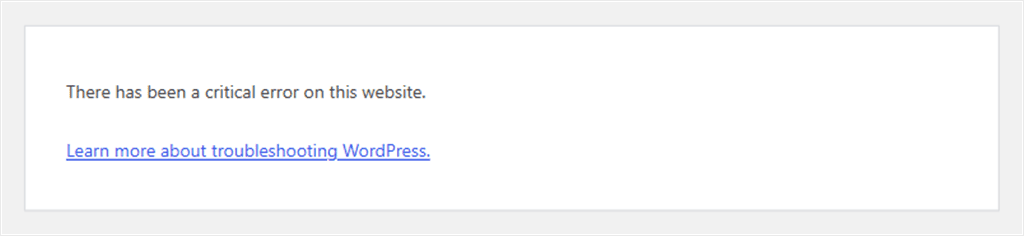
You update a plugin, switch themes, or paste in a code snippet, and suddenly your site shows “There has been a critical error on this website.”
Your first thought: Did PHP just break my site?
Maybe, maybe not.
The error message doesn’t tell you what actually broke. If it locks you out of your dashboard, finding out gets a lot harder.
Before you change anything, check which PHP version your site is actually running.
Then you can work out whether PHP is the problem or whether something else caused the error, and get back into your dashboard without FTP.
See this screen or something similar? Start here.
Key Takeaways
- Check your actual PHP version in WordPress Site Health before changing anything.
- Recovery Mode only fires for errors on your dashboard or login page. A front-end-only break won’t trigger it. But you can use a small snippet to force WordPress to show you the real error yourself.
- If custom code is responsible, WPCode tests it in two stages and can shut off the exact snippet that broke.
- Locked out by a WPCode snippet? WPCode’s Safe Mode pauses every snippet at once via a URL parameter.
Locked out or seeing a critical error right now? Jump straight to Why PHP Errors Crash WordPress to find your exact cause.
Otherwise, use the table of contents below to navigate this guide:
- How to Check Your PHP Version in WordPress
- What Your PHP Version Means (and Whether to Update It)
- Why PHP Errors Crash WordPress (and Which Kind You Have)
- Plugin or Theme Errors: Use WordPress Recovery Mode
- Custom Code Errors: Get Back In Without Touching Files
- Keep Custom Code Safe Before Your Next PHP Update
- FAQs: How to Check Your PHP Version and Fix Errors in WordPress
- Protect Your Site From PHP Errors
How to Check Your PHP Version in WordPress
Your PHP version affects which plugins, themes, and custom code can run correctly on your site.
Most current plugins list a minimum version. If you’re below it, that plugin misbehaves or doesn’t install at all.
Here are two ways to find the PHP version your site is actually running.
Method 1: WordPress Site Health
Site Health is a diagnostics page built into every WordPress site. It checks your server, security, and performance in one place without needing a plugin.
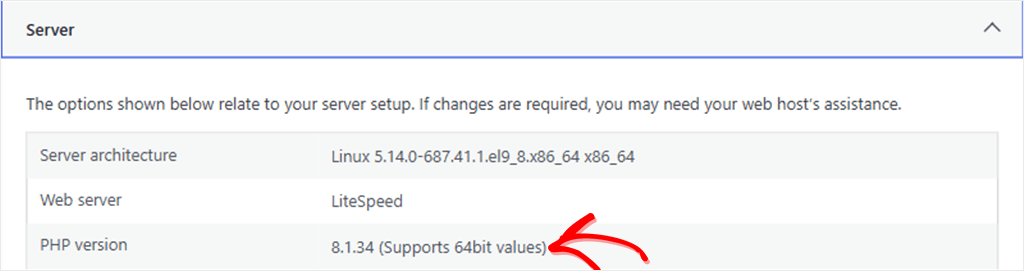
To use this method, go to Tools » Site Health, then click the Info tab.
Scroll to Server and open it. The PHP version row shows the PHP version your website is actually running.
Method 2: Your Hosting Dashboard
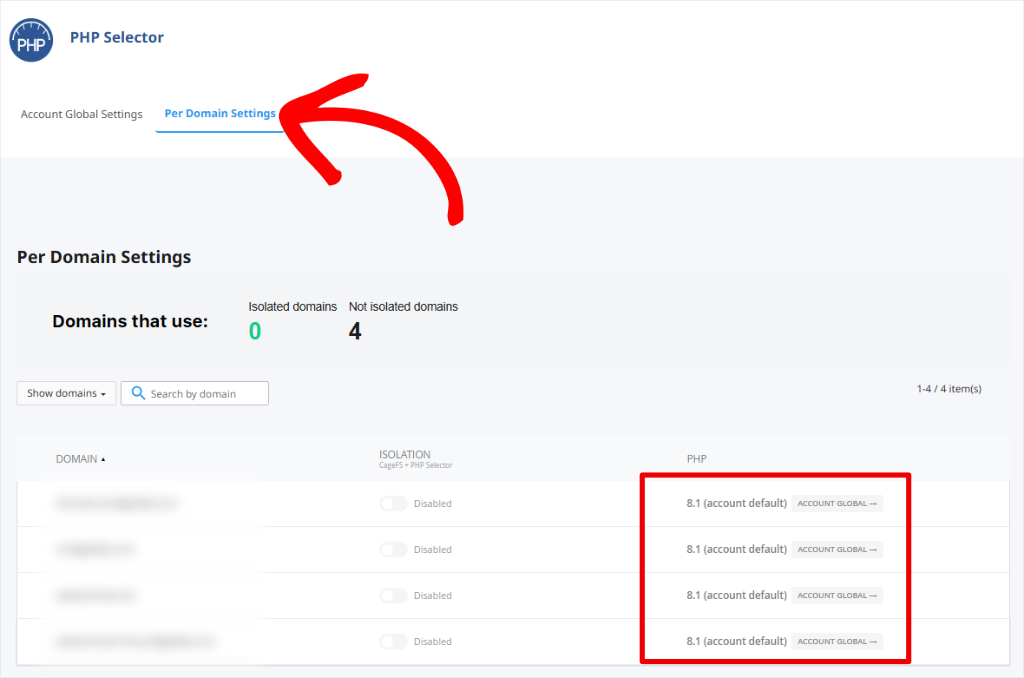
Your hosting dashboard can also show your PHP version, but that number can differ, since a per-domain setting overrides the account default.
So if you’re only checking which PHP version is running, trust the number shown in Site Health.
However, your hosting dashboard is handy when switching the version, since Site Health can show you the number but can’t change it.
Look for a setting called “PHP Version,” “Select PHP Version,” or something similar under your site’s software or server settings. The exact location varies by host.
For example, on the host for our test site, the setting lives under PHP Selector » Per Domain Settings, as shown below.
If you can’t find it, ask your hosting provider where to change the PHP version.
What Your PHP Version Means (and Whether to Update It)
Once you have the number, Site Health tells you what to do with it.
This time, open the Status tab instead, the one Site Health lands on by default, and look for the PHP line under your recommended improvements.
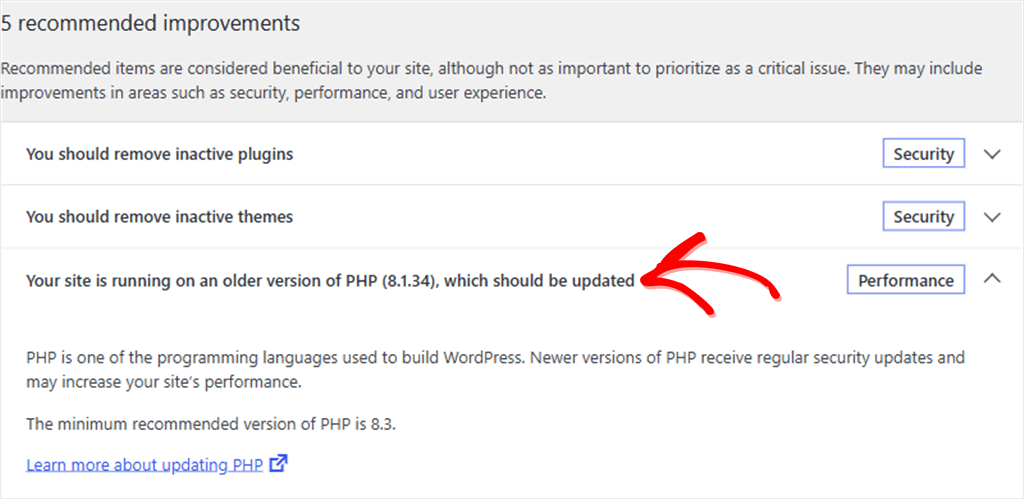
WordPress currently recommends PHP 8.3 or higher. Older versions such as 7.4 can still run WordPress, but they no longer receive security updates.
Depending on your PHP version, you’ll see one of three labels:
- “Running a recommended version” means you’re current. Nothing to do.
- “Running on an older version, which should be updated” means you’re behind but still supported. Plan an update; no need to panic.
- “Running on an outdated version” means your PHP no longer gets security fixes. Update this one soon.
Updating fixes that, but it comes with a catch. Old plugins, old themes, or old custom code can break when the PHP running underneath them changes.
So don’t just flip the switch. Work through this in order:
- Back up your site. Your host’s backup tool or a backup plugin, whichever you already have.
- Update WordPress, your plugins, and your theme. Most developers patch their code for new PHP versions before you ever switch.
- Export your code snippets, if you use any.
- Check that your plugins and theme support the PHP version you’re moving to.
- Switch the version in your hosting dashboard, or ask your host to do it.
- Load your site and your dashboard. Confirm both still work before you move on.
If something breaks after that, the question isn’t “was it PHP?” anymore. It’s “what exactly broke.”
Why PHP Errors Crash WordPress (and Which Kind You Have)
A PHP fatal error means WordPress hit code it couldn’t run and stopped. That’s what produces the blank “critical error” page.
The tricky part is that the message never says why.
A handful of things usually cause it, most likely first, and each one gets you back in a different way.
| Cause | When you’ll see it | How you get back in |
|---|---|---|
| A plugin or theme | Right after an update, even without touching PHP or code | WordPress Recovery Mode |
| A PHP version change | Right after you or your host switch PHP versions | Switch back, then update the plugin or theme causing it |
| Code in functions.php | Right after you or a theme update edits that file | Recovery Mode pauses the theme, then remove or fix the code |
| A WPCode snippet | Right after you add or edit a snippet | WPCode’s own error handling and Safe Mode |
🧭 Which One Is Yours?
If your row is “A WPCode snippet,” skip to Custom Code Errors below. Otherwise, start with the Recovery Mode section. If it’s “Code in functions.php,” Recovery Mode gets you into your dashboard, but you’ll still need your host’s file manager to fix the file itself.
Only your front end broken? See the exact error behind the critical error screen.
Plugin or Theme Errors: Use WordPress Recovery Mode
WordPress has built this exact situation in.
Recovery Mode is a safety net that switches on by itself whenever a plugin or theme error hits your dashboard or your login page, so you’re not locked out while everyone else still sees the error.
Here’s what that looks like.
- WordPress emails your admin address a subject line like “Your Site is Experiencing a Technical Issue,” with a one-time login link inside.
- Click it, and WordPress pauses whatever caused the crash, just for you, so you can reach your dashboard.
- From there, update the plugin, replace it, or turn it off.
⚖️ Good to know
Recovery Mode can fire for a plugin or theme error on your dashboard or login page. A WPCode snippet counts, since it runs inside the plugin itself. If your custom code only breaks your site’s front end, though, no email gets sent.
Only expect one email a day. A second error won’t trigger another one. If you don’t see it at all, check your spam folder and confirm your admin email under Settings » General.
Read WordPress’s own Recovery Mode documentation for the full walkthrough. If the email named WPCode as the cause, this section shows you exactly what to do about it.
Custom Code Errors: Get Back In Without Touching Files
If you’ve pasted PHP into your site, whether it came from a tutorial, an AI tool, or your own testing, WPCode gives you a safer way to manage it than pasting it straight into your theme.
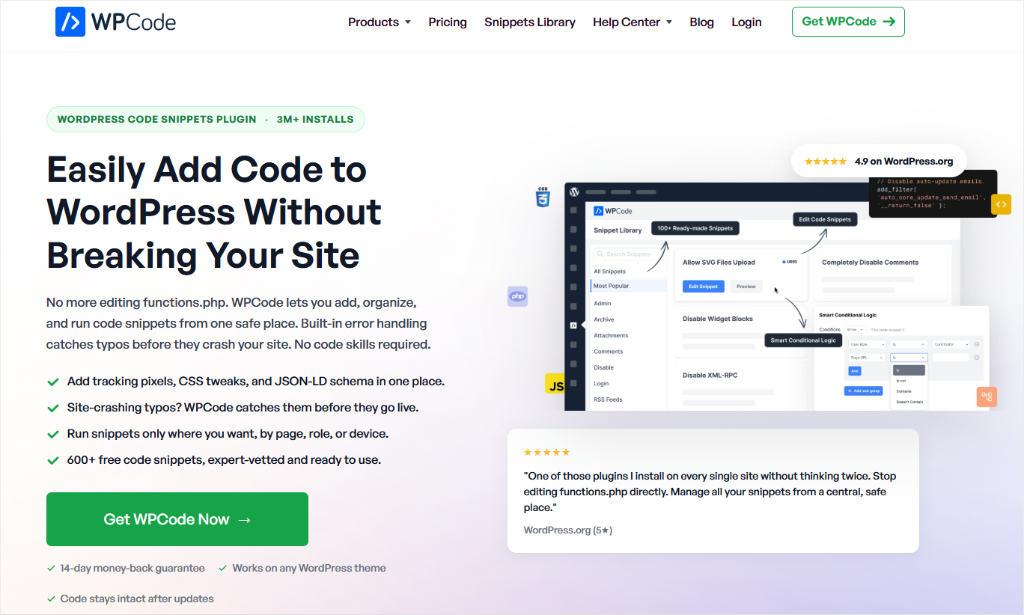
It’s one of the best plugins for adding code to your WordPress site.
WPCode stores your code snippets outside your theme files, so you manage and disable them from your dashboard instead of a file editor.
Check out our WPCode review to learn more about what this code snippet plugin can do.
Everything in this section works on the free version, WPCode Lite, except Code Revisions, which needs a Basic plan.
This includes a way to see the real error when a critical error breaks only your front end, whether the cause is a plugin, a theme, or your own code.
First, install and activate WPCode Lite to follow along. Want more advanced features? Check out our pricing page to see which plan works for you.
See the Exact Error Behind the Critical Error Screen
WordPress hides the actual error on purpose.
Showing a stranger your file paths and code details is a security risk, so it’s hidden from everyone by default, you included.
A front-end-only break doesn’t trigger a Recovery Mode email either, so you have nothing to go on unless you look yourself.
A small snippet, added through WPCode, can show you the real error, and only to you.
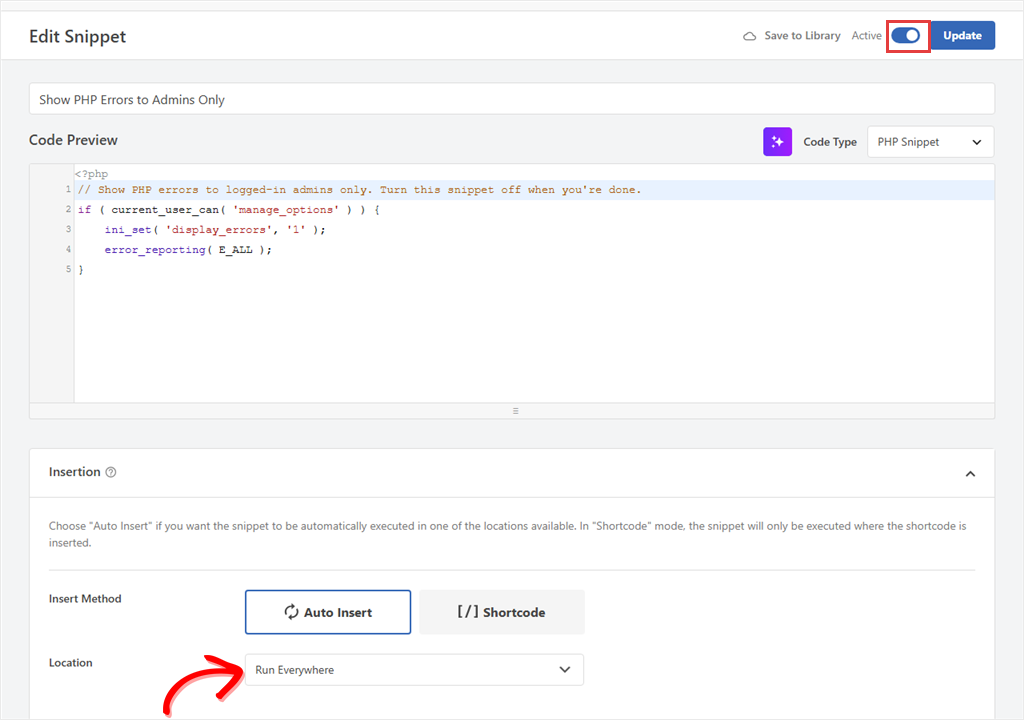
Go to Code Snippets » + Add Snippet and choose PHP Snippet. Paste the code below.
// Show PHP errors to logged-in admins only. Turn this snippet off when you're done.
if ( current_user_can( 'manage_options' ) ) {
	ini_set( 'display_errors', '1' );
	error_reporting( E_ALL );
}
Set the location to Run Everywhere, switch it to Active, and click Save Snippet (or Update if you’re editing an existing snippet).
Now load the broken page while logged in. You’ll see the real error, including the file and line that failed. Visitors still see the normal critical error screen.
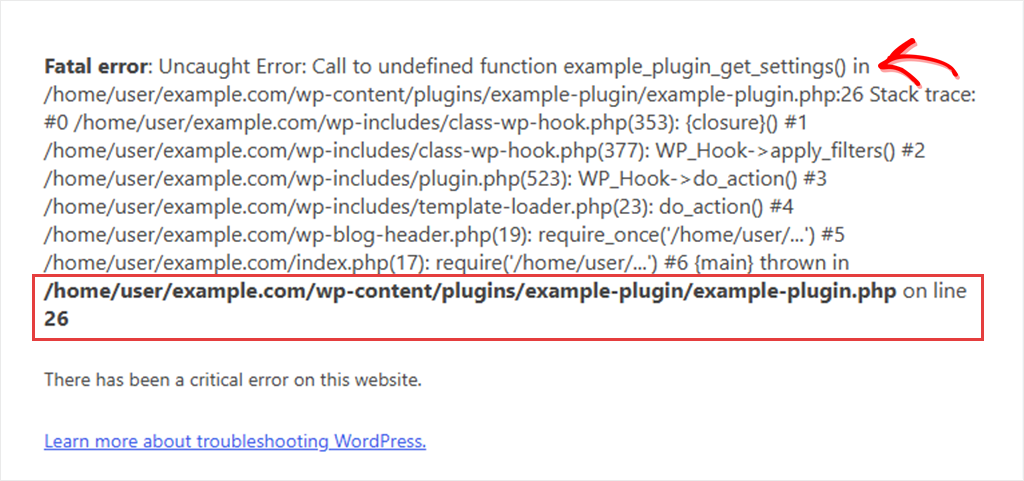
Only seeing the generic message? Your host may be blocking this. Ask them for the site’s PHP error log. It records the same details.
The file path usually points to the culprit, since it sits inside that plugin’s or theme’s folder.
⚠️ Note
Switch this snippet off as soon as you have your answer. It also won’t help while you’re in Recovery Mode, because WordPress pauses the broken plugin for your session and the error doesn’t happen.
WPCode Tests PHP Snippets Before They Go Live
WPCode checks your own snippets a little differently. Here’s what that two-stage process looks like.
Here’s a real example:
A PHP snippet that counts WooCommerce orders, tested on a site that doesn’t have WooCommerce installed. The function it calls doesn’t exist, the same kind of undefined-function error old code throws after a PHP version switch.
When you switch a snippet on, WPCode runs the code first. An error there means WPCode won’t activate it, and it tells you why.

The snippet stays Inactive while your code is saved exactly as you wrote it. Nothing is lost, so you can fix the syntax and try switching it on again.
If a Snippet Breaks Your Dashboard, WPCode Switches It Off
Some errors don’t show up during that first test.
They only appear once the snippet is running for real, on a later page load. If that happens somewhere in your dashboard, WPCode can catch the error and automatically deactivate the snippet, so you can get back in.
If you turned on Error Logging (covered below), you can also check the logs.

Reload the page, and your dashboard works normally again. One snippet paused. Nothing else touched.
⚠️ Note
WordPress may also email you saying WPCode caused the error. That’s technically accurate. The crash happened inside a WPCode snippet, and WPCode already turned that snippet off for you. Don’t deactivate WPCode itself. The one snippet causing trouble is already handled.
Find the Exact Line That Broke
Go to Code Snippets and click View Snippets With Errors. Anything that’s thrown an error carries a red icon next to its status toggle.
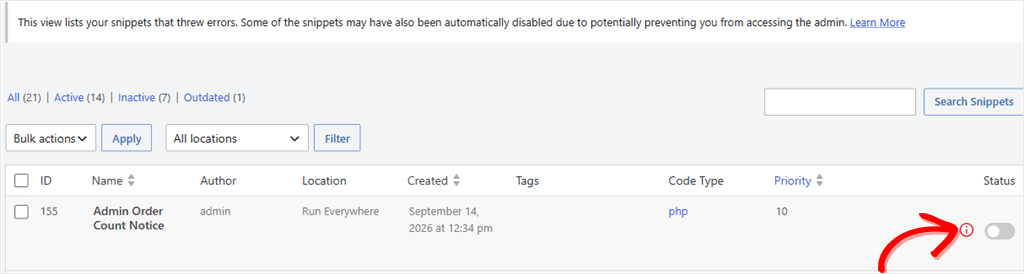
Open the snippet, and WPCode points to the exact line, highlighted in red in the code editor, along with the error message itself.

That notice disappears the moment you update the snippet, so fix the line, save, and switch it back on.
Made a change that made things worse?
WPCode’s Advanced Code Revisions feature tracks every change to a snippet, so you can roll back to the version that worked. It’s included on Basic plans and up.
Locked Out by a WPCode Snippet? Use Safe Mode
If a WPCode snippet still blocks your admin area, or even your login page, add this to the end of the URL:
https://yoursite.com/wp-admin/?wpcode-safe-mode=1
That pauses every snippet on your site until you turn it back off. Our PHP Error Handling & Safe Mode documentation covers exactly how both protections work under the hood.
You’ll see a notice confirming Safe Mode is on. From there, find and disable whatever’s causing the problem, then click Exit safe mode to bring your other snippets back.

What If Only Your Front End Is Broken?
WPCode only auto-disables snippets that could lock you out of your dashboard. A snippet that only runs on your site’s front end gets logged as an error, but it stays active, since your dashboard still works fine.
You can always reach Code Snippets yourself and flip the toggle off. No Safe Mode required.
Keep Custom Code Safe Before Your Next PHP Update
A few habits make the next PHP change, or the next pasted snippet, far less stressful.
Move code out of functions.php.
Code pasted directly into your theme’s functions.php file has no safety net.
A typo can crash your site, and a theme update can wipe your changes entirely. Read our guide on adding code to functions.php safely to see the difference.
Turn on Error Logging.
Error logging is off by default in WPCode.
Turning it on saves the details of any future snippet error to your site, so you have them even if you miss the moment it happens.
Head to Code Snippets » Settings » Error Handling and switch on Error Logging.

From then on, every snippet error gets written to a log you can read under Code Snippets » Tools » Logs. Pick your snippet’s log from the dropdown, since the page opens the oldest log by default, not the newest.
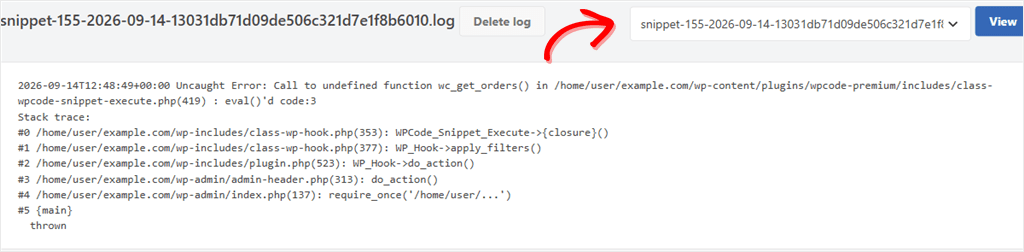
Recheck your snippets after a PHP update. Once you’ve switched PHP versions, open View Snippets With Errors and confirm nothing needs attention.
You can now check your WordPress PHP Version and fix errors without getting locked out. If anything is unclear, check out the commonly asked questions below.
FAQs: How to Check Your PHP Version and Fix Errors in WordPress
How do I know which PHP version my WordPress site is using?
Go to Tools » Site Health » Info » Server, and check the PHP version row. That’s the version actually running your site, which can differ from what your hosting dashboard shows elsewhere.
What PHP version should WordPress use?
WordPress currently recommends PHP 8.3 or higher. Its requirements page says WordPress “will still run on PHP 7.4+,” but those versions “have reached official End Of Life and may expose your site to security vulnerabilities.”
Can updating PHP break my WordPress site?
It’s possible, though not common. Old plugins, themes, or custom code written for an older PHP version can throw errors after a switch. Back up first, update everything else, then switch PHP.
What does “There has been a critical error on this website” mean?
It means WordPress hit a fatal PHP error, code that failed to run, and stopped the page. The cause could be a plugin, a theme, a PHP version mismatch, or custom code you’ve added.
How do I turn off a PHP snippet if I can’t log in?
If you’re using WPCode, add ?wpcode-safe-mode=1 to the end of your admin or login URL. That pauses every snippet on your site so you can get back in and disable the one causing the problem.
Protect Your Site From PHP Errors
Your site doesn’t have to depend on you never making a mistake.
Test a risky PHP change, and if it breaks something, you already know exactly how to get back in, whether the cause is a plugin, a theme, or code you wrote yourself.
The next snippet you paste in doesn’t have to be a gamble. Manage it through WPCode, and you get a way to test it, catch what breaks, and switch it off, all without touching a file.
Get WPCode for free →
See WPCode pricing →
Additional Resources
Here’s where to go next to keep your custom code organized and easy to manage.
- How to Add Custom Code in WordPress (Safely For Free): the full walkthrough for adding your first snippet the safe way
- 9 Tips to Easily Manage Code Snippets in WordPress: keep a growing snippet library organized as you add more
- WPCode Review: Is It Still the Best WordPress Code Snippets Plugin in 2026?: see how WPCode compares before you commit