

I’ve been using code snippets on my WordPress sites for years. At first, I stored everything in the database through snippet plugins, and it worked fine for simple sites.
But as my sites grew and I started managing multiple projects, I noticed something. My sites were getting slower, and keeping track of code changes across different projects was becoming a nightmare.
That’s when I learned about loading code snippets as files instead of storing them in the database. The difference was immediate and measurable.
In this tutorial, I’ll show you how to load code snippets as files using WPCode. This simple change will speed up your site and make managing your custom code so much easier.
Why Load Code Snippets as Files in WordPress?
Before I switched to loading snippets as files, I didn’t realize how much the database storage method was holding me back. Let me walk you through the real benefits I discovered after making this change.
1. Improved Website Performance
When you switch to loading snippets as files, you reduce the number of database queries required to load your site. This means your server doesn’t have to work as hard every time someone visits your pages.
In our internal tests at WPCode, we saw up to a 17% increase in load times when this feature was enabled. That’s a significant boost that your visitors will notice.
Keep in mind that results will vary depending on your hosting service and how many snippets you are currently loading on your site. But even a modest improvement in speed can help with SEO rankings and user experience.
2. Version Control Management
For developers and agencies managing client sites, keeping track of code changes is essential. I learned this after accidentally overwriting an important snippet and having no way to recover the previous version.
By loading snippets as physical files on your server, you can now manage your snippets using version control systems like Git. This means you can track every change, roll back to previous versions, and collaborate with team members without confusion.
3. Better Organization
When all your snippets live in the database, finding the right one means scrolling through a long list. I once had over 40 snippets and could never remember which one controlled what.
File-based snippets let you organize your code into folders by category or function. You can name files descriptively and even add comments directly in the code without cluttering your dashboard.
That said, let’s look at a quick and easy way of loading snippets as files in WordPress.
Load Code Snippets as Files in WordPress
Setting up file-based snippet loading is simpler than you might think. And the code snippet plugin to get this done is WPCode.
WPCode is a powerful code snippets plugin that lets you add custom code to your WordPress site without editing theme files and allows you to load them as files. You can insert PHP, JavaScript, CSS, HTML, and other custom snippets with ease using the plugin, without risking breaking anything.
The best part is that it helps you keep your snippets organized in WordPress. Instead of manually going through the theme files, you can view all your custom code neatly organized in the WordPress dashboard.
The plugin comes with features that make managing code safer and more efficient:
- Smart code validation that catches syntax errors before they break your site
- Conditional logic to load snippets only where you need them
- Code library with over 140 verified pre-built snippets
- Scheduling options to activate snippets on specific dates
- Device targeting to run code only on mobile or desktop
- Marketing and conversion tracking to load Google and social media pixels
- Private cloud snippet library to access snippets across your sites
- Track code changes and easily restore revisions
Now, let’s dive into the steps for loading code snippets as files.
Step 1: Install and Activate WPCode
First, you need to install WPCode on your WordPress site. This is the plugin that makes loading snippets as files possible.
Do note that you’ll need the WPCode Basic or higher plan to access the ‘Load Snippets as Files’ feature. To get started, simply click here to sign up for WPCode premium plans.
Once you’ve created a new account, the next step is to download the WPCode plugin files.
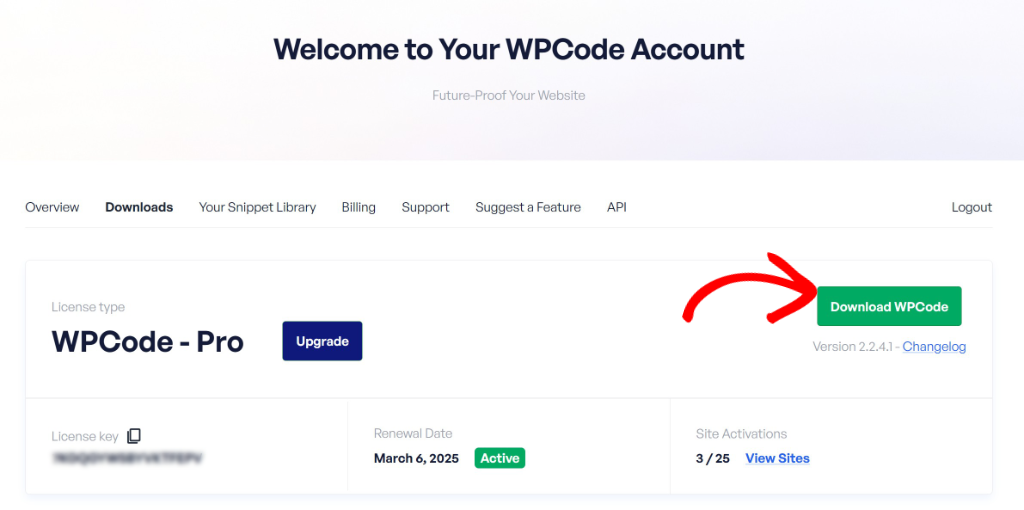
Simply head to your account area and switch to the ‘Download’ tab. After that, click the Download WPCode button and save the ZIP files on your computer.
Next, you’ll need to upload the plugin files to your WordPress website. If you need help, then please see this guide on how to install a WordPress plugin.
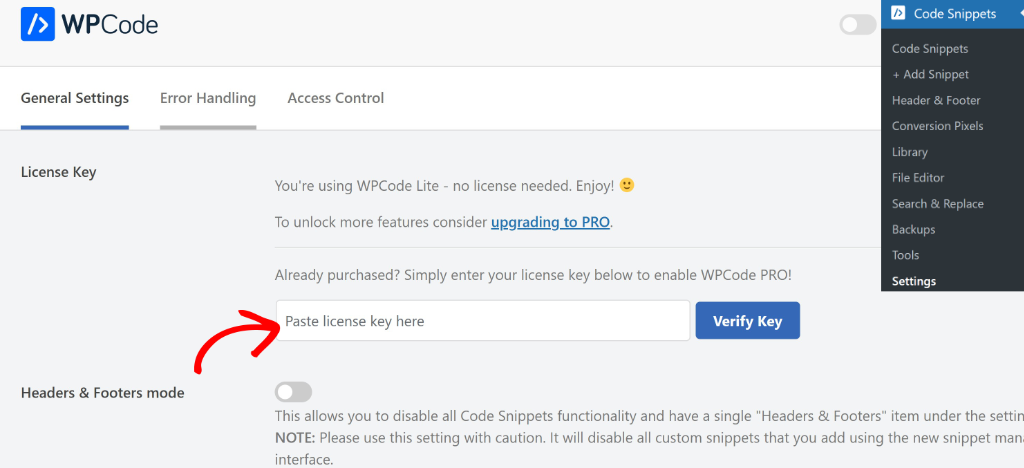
Upon activation, you can go to Code Snippets » Settings in your WordPress dashboard and enter your license key. You can find this key in your WPCode account area.
Step 2: Enable Load Snippets as Files Option
Before you can start loading snippets as files, you need to enable this feature in WPCode’s settings.
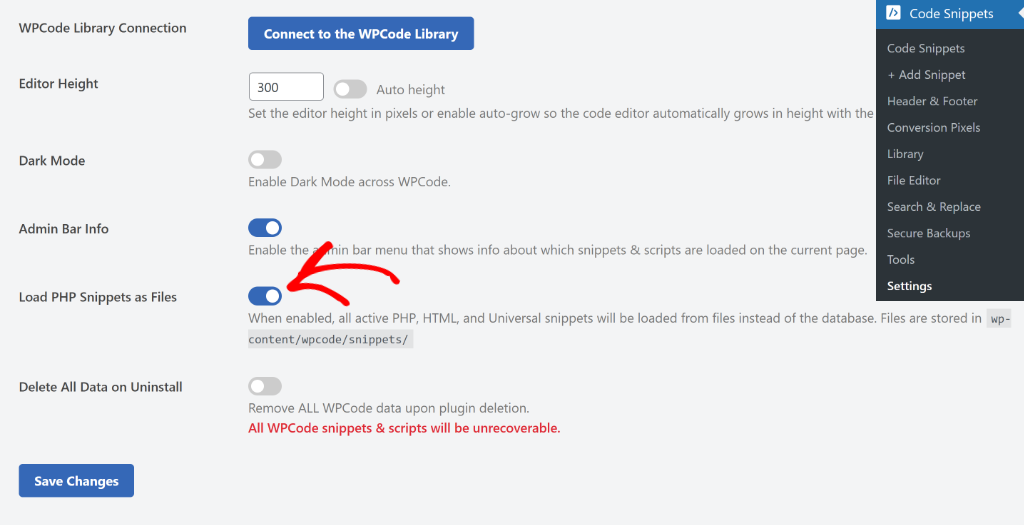
To get started, navigate to Code Snippets » Settings in your WordPress dashboard. After that, you can look for the ‘Load PHP Snippets as Files’ option and click the toggle to enable it.
Step 3: View File Paths for Your Snippets
Now that the load snippets as files option is enabled, the next step is to view the file path.
First, you can load an existing snippet on your site or add a new one. Simply head to Code Snippets from the admin panel. Here, you will see all your code snippets and an option to add a new one.
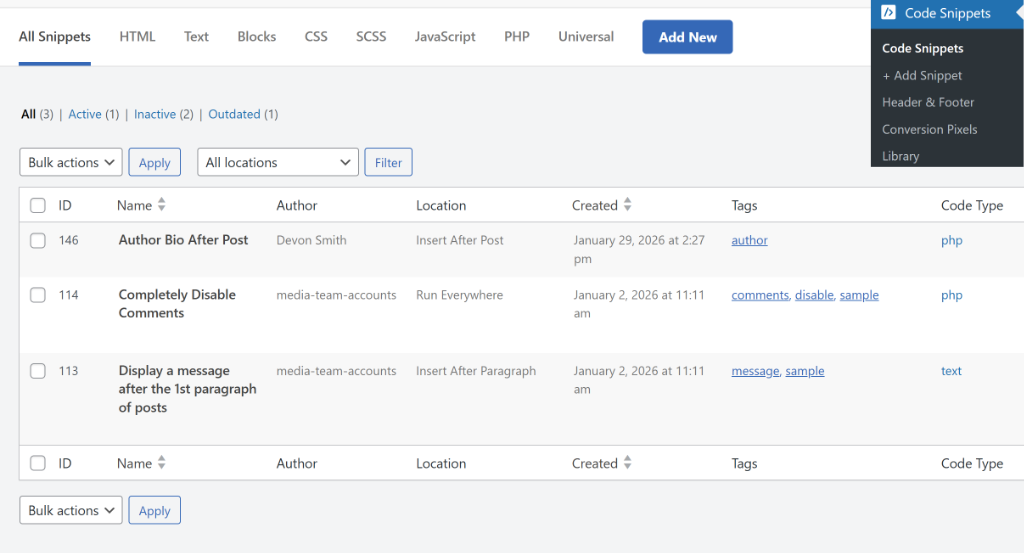
If you need help creating a new snippet, then please see our guide on how to insert scripts in WordPress.
After selecting or creating a snippet, you will see the code editor where you can enter your custom code or your code will be preloaded (if you select one from the library).
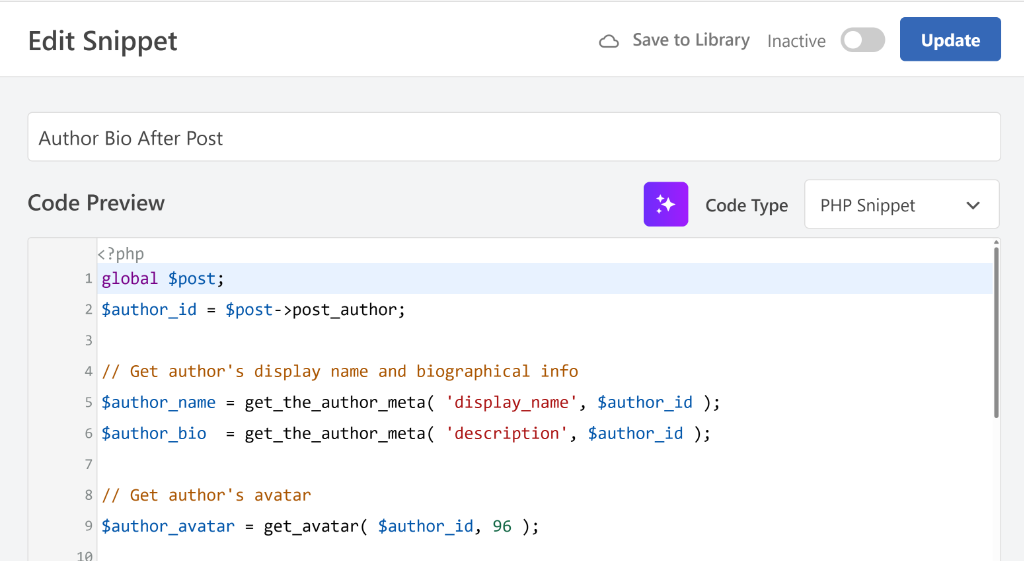
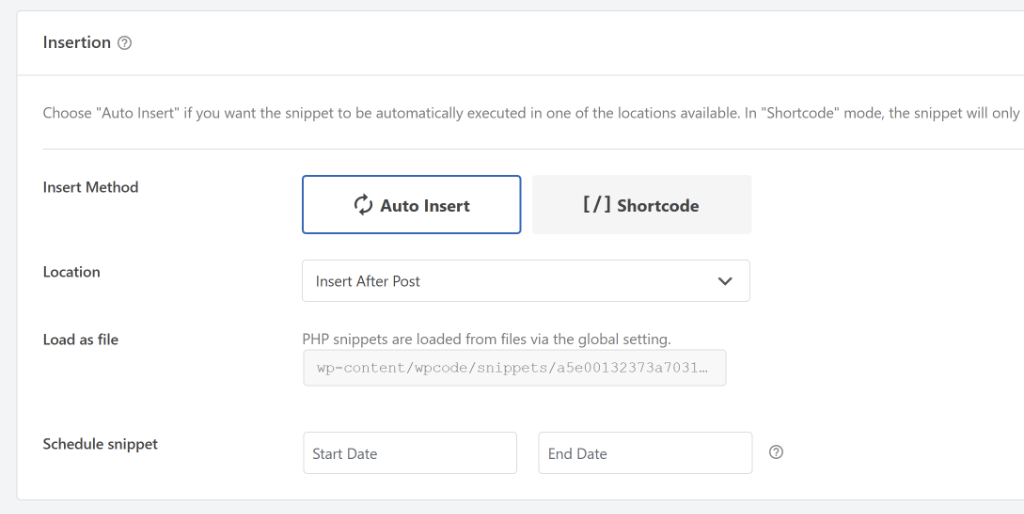
Next, you will need to scroll down to the Insertion section.
Here, you can see the Load as file option with the file path.
Bonus: Using Version Control with Git
Version control has been a game-changer for me. I now track every change I make to my snippets, and I can roll back if something breaks.
To set this up, navigate to your wpcode-snippets folder using your terminal or command line. Run git init to create a new Git repository in this folder.
If you’re new to Git, then you might want to see this guide on using Git with WordPress.
After making changes to any snippet file, you can commit those changes with a descriptive message. This creates a snapshot you can return to later if needed.
I commit my changes after every modification with messages like “Added user role check to login redirect” or “Fixed syntax error in cart discount function.” These notes help me understand what changed and why.
If you’re working with a team, you can push your repository to GitHub. This lets everyone access the same snippets and see who made which changes.
FAQs About Loading Snippets as Files
1. What are the main benefits of loading code snippets as files in WordPress?
Loading code snippets as files improves website performance by reducing database queries, enhances version control management through systems like Git, and offers better organization of code, making it easier to find and manage snippets.
2. How can version control be integrated with snippets loaded as files in WordPress?
You can initialize a Git repository in the folder where your snippets reside by running ‘git init’, then commit changes regularly with descriptive messages, and push the repository to platforms like GitHub for team collaboration and version management.
3. How does switching from database storage to file-based snippets affect site performance?
Switching to file-based snippets decreases the number of database queries needed to load your site, leading to faster load times and a better user experience, as demonstrated by internal tests showing up to a 17% improvement.
I hope this article helped you learn how to load code snippets as files in WordPress. You may also want to see our guides on how to search and replace text in your WordPress database and how to add an event schema markup to WordPress.
If you need help, then feel free to leave a comment below. And don’t forget to follow us on X (formerly known as Twitter) and subscribe to our newsletter for all the latest updates.