
If you manage a WordPress site, you know that feeling when you log into the dashboard and see a wall of update notifications staring back at you. It can be overwhelming, especially when you’re managing multiple sites or working with plugins you’ve customized and can’t safely update.
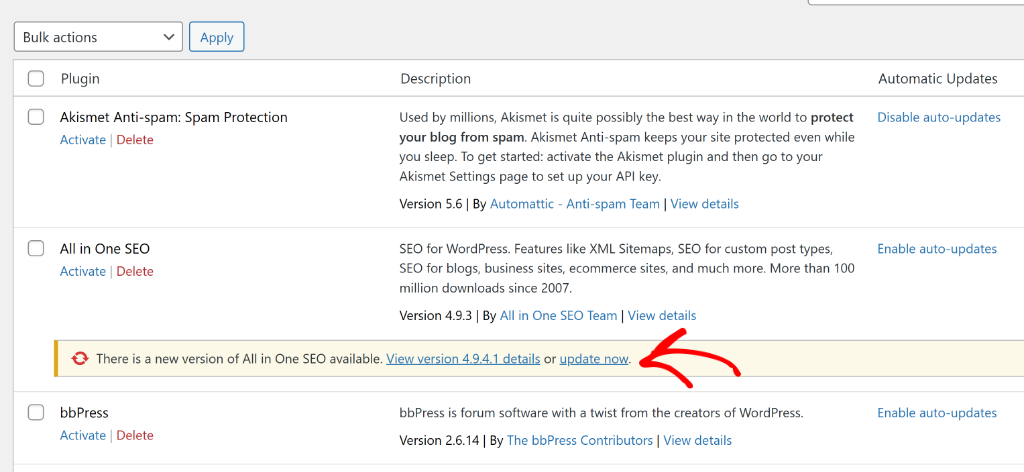
I’ve been in that spot more times than I can count. On client sites, those red notification badges can cause real headaches. A client sees them and panics, thinking something is broken. Or worse, they click the update button or link, and something stops working.
The good news is that you can turn off those update notifications using a small snippet of PHP code. And with a tool like WPCode, you don’t have to touch your theme files or worry about losing your changes during a theme update.
In this guide, I’ll walk you through exactly how to disable WordPress update notifications. Whether you want to hide them from clients, protect a modified plugin, or just declutter your dashboard, this tutorial has you covered.
Why WordPress Update Notifications Can Be a Problem
Update notifications exist for good reason in WordPress. They keep your site secure and running on the latest features. But there are plenty of situations where seeing them constantly is more of a nuisance than a help.
One of the most common scenarios I’ve run into is managing a site for a client who isn’t very tech-savvy. They log in to write a blog post and immediately see a dozen notifications. Next thing I know, I’m getting a panicked phone call asking if the site is about to crash.
Another situation is when you’re working with a plugin you’ve customized. Maybe you tweaked the code to do something specific for your site.
If that plugin gets updated, your changes could be wiped out completely. In that case, you don’t want anyone, including yourself, to be tempted to hit that update button.
And then there’s staging environments. When you’re testing things on a staging site, you usually don’t want updates running at all. Keeping the environment frozen helps you test accurately without unexpected changes sneaking in.
Disabling update notifications doesn’t mean ignoring updates forever. It just means you’re choosing when and how updates happen, on your terms, not WordPress’s.
Now, let’s look at an easy way of disabling update notifications in WordPress.
Hiding Update Notifications in WordPress
When it comes to hiding update notifications and adding custom code to WordPress, WPCode is the best tool out there.
It’s the most popular code snippet plugin for WordPress. It is super easy to use, and nothing comes close to how simple it makes the whole process of managing code snippets in WordPress.
Before WPCode, adding custom PHP code meant editing your theme’s functions.php file directly. That’s a bit like performing surgery without a safety net. One small mistake and your entire site could go down with a white screen of death.
WPCode solves that problem by giving you a safe, organized place to add and manage your code snippets. Each snippet can be turned on or off with a single toggle, so if something goes wrong, you can disable it without touching any core files.
Here are some of the key features that make WPCode stand out:
- Snippet Library: It comes with a built-in library of ready-to-use code snippets for common WordPress tasks, including disabling update notifications.
- Smart Conditional Logic: You can choose exactly where and when a snippet runs, like only on specific pages or for certain user roles.
- Multiple Code Types: It supports PHP, JavaScript, CSS, HTML, and more.
- Revision History: WPCode tracks changes to your snippets, so you can roll back if needed.
- Error Protection: If a snippet causes a fatal error, WPCode automatically deactivates it to protect your site.
Whether you’re a beginner or an experienced developer, WPCode makes managing custom code feel effortless. It’s the safest and most organized way to add code to WordPress without hiring a developer or risking your site.
That said, let’s look at the steps for hiding update notifications for WordPress core and plugins.
Step 1: Install and Activate WPCode
First, you need to install and activate the WPCode plugin.
For this tutorial, I’ll use the free version because it includes the snippet for disabling update notifications. However, if you want advanced features like conversion pixels, cloud storage for code snippets, smart conditional logic, and more, then I recommend getting the WPCode Pro version.
To get started, go to your WordPress dashboard and navigate to Plugins » Add New Plugin. In the search bar, type ‘WPCode’ and hit enter.

Once the plugin shows up in the results, click the Install Now button next to it. After it installs, click the ‘Activate’ button to turn it on. If you need more help with the installation process, check out our guide on how to install a WordPress plugin.
Once WPCode is active, you’ll notice a new ‘Code Snippets’ menu item appear in your WordPress dashboard.
Step 2: Add a New Code Snippet in WPCode
Now that WPCode is installed, it’s time to create the snippet that will disable your update notifications.
From your WordPress dashboard, go to Code Snippets » Add Snippet. This will take you to a page where you can create or select snippets from the library.
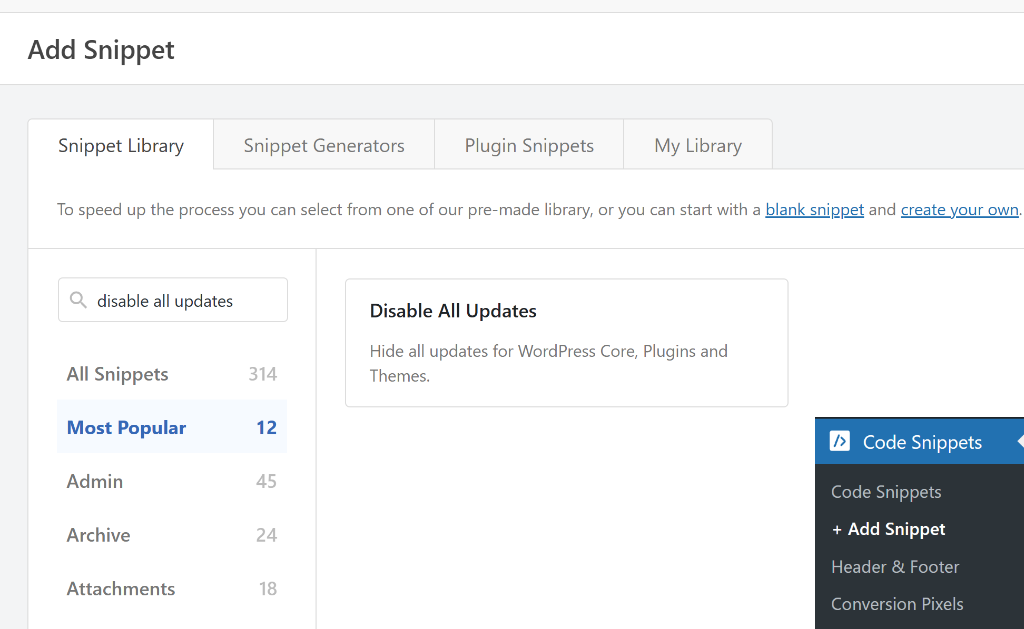
Go ahead and search for the ‘Disable All Updates’ snippet using the search bar.
Once you select the snippet, you’ll see it pre-loaded in the code editor.
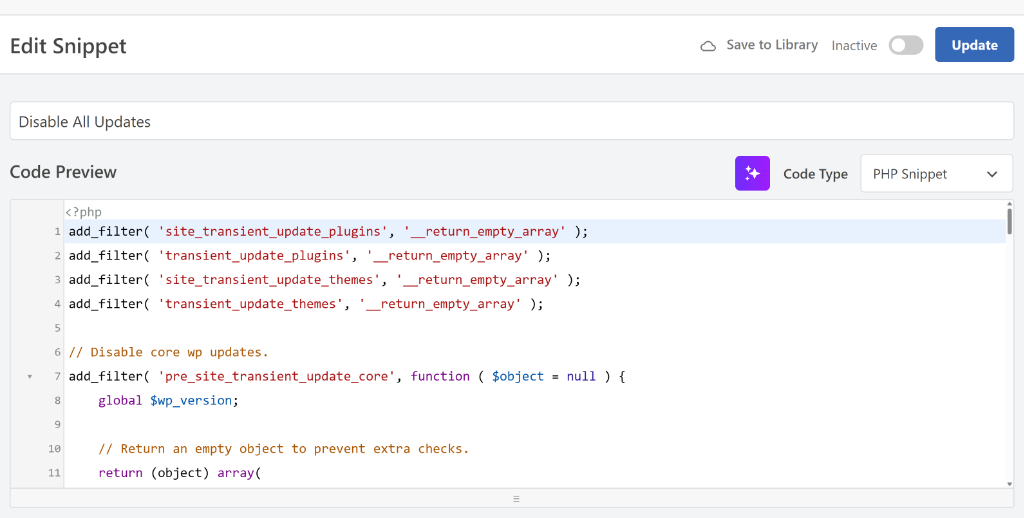
The best thing about using WPCode is that it also automatically configures where the code will be executed on your site.
You can scroll down to the Insertion section to see the method the plugin will use to run the code.
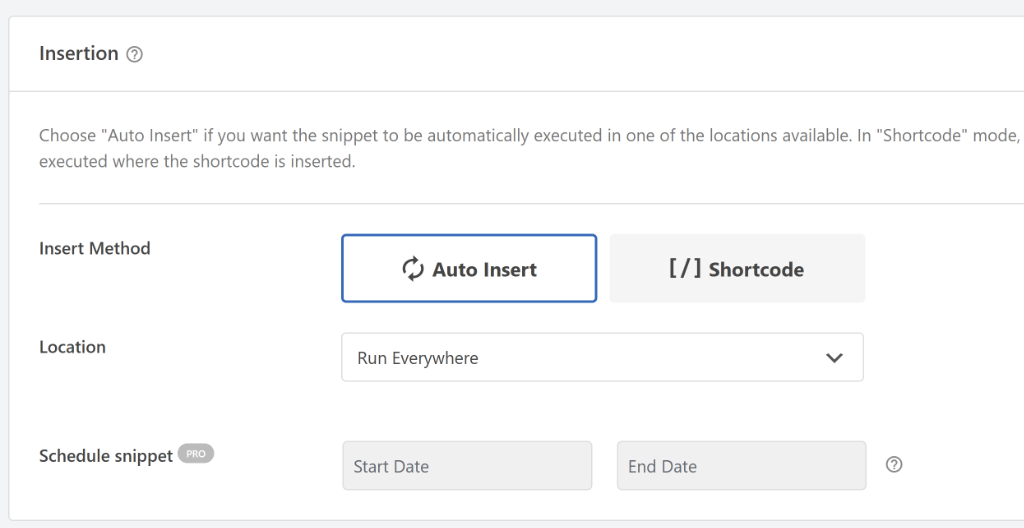
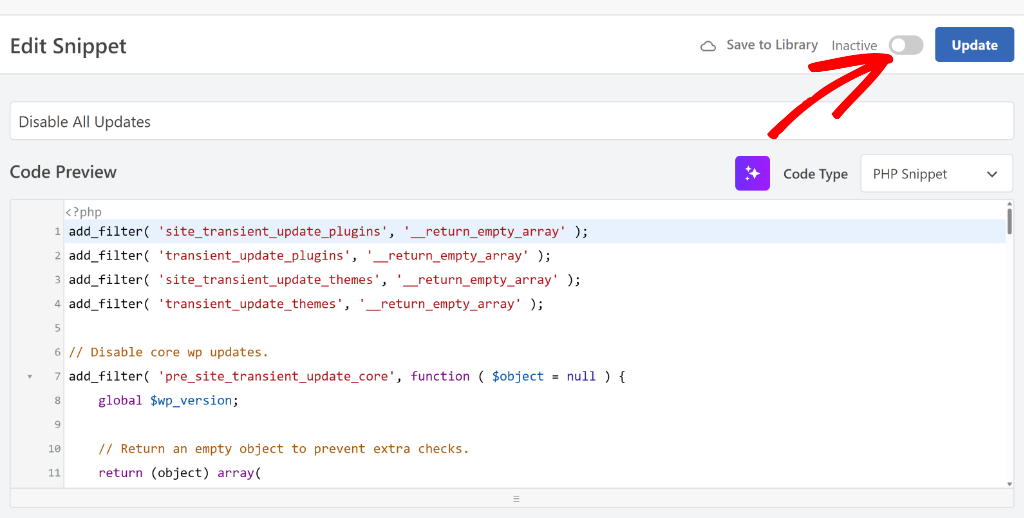
Now, you will need to scroll back to the top of the page and click the toggle to activate the snippet.
Once that’s done, you can click the Update button.
Step 3: Verify Hiding WordPress Update Notifications
After saving your snippet, it’s a good idea to double-check that everything is working as expected. This only takes about a minute and gives you peace of mind.
Start by refreshing your WordPress dashboard. If the code is working correctly, you should notice that the update notification badges are no longer showing up in the admin menu. The red circles that used to appear next to “Plugins” and “Dashboard” should be gone.
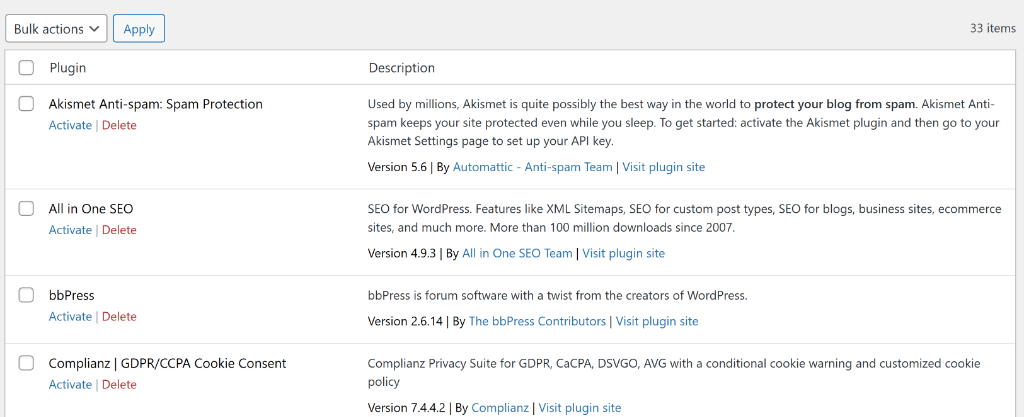
You can also head over to Plugins » Installed Plugins to confirm. Even if there are plugins with available updates, you won’t see any notification banners or badges pointing them out. The page will look clean and free of any update prompts.
For instance, here’s how the plugin page looks on our demo site with the code snippet active. All the update notifications disappear.
If you still see notifications showing up, go back to Code Snippets » Manage Snippets and check that your snippet is toggled to “Active.” It’s easy to accidentally skip that step, and it happens to the best of us.
It’s also worth checking the top of your dashboard for any admin notice banners. Those should be gone too, since our code targets all the places where WordPress displays update notifications. If everything looks clear, you’re all set.
FAQs about Disabling Update Notifications
1. Will disabling update notifications stop WordPress from checking for updates?
No, it won’t. Disabling update notifications only hides the badges and banners from your dashboard. WordPress will still check for updates in the background, and you can still run updates manually whenever you choose.
2. Is it safe to disable WordPress update notifications?
It is safe as long as you have a plan for managing updates manually. Update notifications are just reminders. Hiding them doesn’t make your site vulnerable on its own. However, you should make sure you’re still checking for and applying important security updates regularly.
3. What happens if I deactivate the WPCode snippet?
If you toggle the snippet to “Inactive” in WPCode, the update notifications will come back immediately after you refresh the dashboard. Nothing is permanently changed, so you can turn it on and off as needed.
4. Can I hide update notifications from specific user roles only?
Yes, you can. WPCode’s conditional logic feature lets you set a snippet to only run for specific user roles. For example, you could hide update notifications from editors or contributors while still seeing them yourself as the admin.
5. Will this cause any issues when WordPress releases a major update?
No, it won’t cause any issues. The snippet simply removes the notification hooks and doesn’t interfere with the update process itself. Major updates will still be available for you to run manually whenever you’re ready.
I hope this tutorial helped you learn how to disable WordPress update notifications. You may also want to check out our guide on how to load code snippets as files in WordPress and how to search and replace text in WordPress.
If you need help, then feel free to leave a comment below. And don’t forget to follow us on X (formerly known as Twitter) and subscribe to our newsletter for all the latest updates.