Think about the last time you finished reading a blog post you really enjoyed. What did you do next?
If there were suggestions for similar articles right there at the bottom of the page, chances are you kept reading. But if the page just ended with nothing, you probably closed the tab and moved on.
That’s exactly what happens to visitors on most WordPress sites. Someone reads your post, reaches the end, and there’s nothing pulling them toward the next one. So they leave, even if you have dozens of other articles they’d love.
The thing is, WordPress doesn’t show related posts by default. It’s one of those features that feels like it should just be there, but isn’t. The good news is that you can add it yourself without installing yet another plugin.
In this guide, I’ll show you how to display related posts from the same category at the bottom of every post.
Why Related Posts Are Worth Adding to Your Site
Adding a related posts section might seem like a small detail, but it can make a real difference to how people experience your site.
It keeps visitors around longer. When someone finishes a post and sees a list of articles on the same topic, there’s a natural pull to keep reading. That means more time spent on your site and fewer people bouncing after a single page.
It helps readers find content they’d actually enjoy. Not everyone lands on your homepage first. A lot of visitors come in through a specific post from Google or social media. Without related posts, they might never know how much other content you have on the same subject.
It’s good for SEO. Related posts create internal links between articles on the same topic. Search engines use those connections to better understand your site’s structure and what each page is about. More relevant internal links can quietly improve how your content ranks over time.
It makes your site feel more complete. Sites that surface related content feel more intentional and polished. It’s a small thing that signals to readers that you’ve put thought into their experience, not just the individual article they landed on.
Adding Related Posts by Category in WordPress
The easiest way to add related posts without a dedicated plugin is with WPCode, the most popular code snippets plugin for WordPress. It lets you add custom features to your site safely, without touching theme files or risking breaking anything.
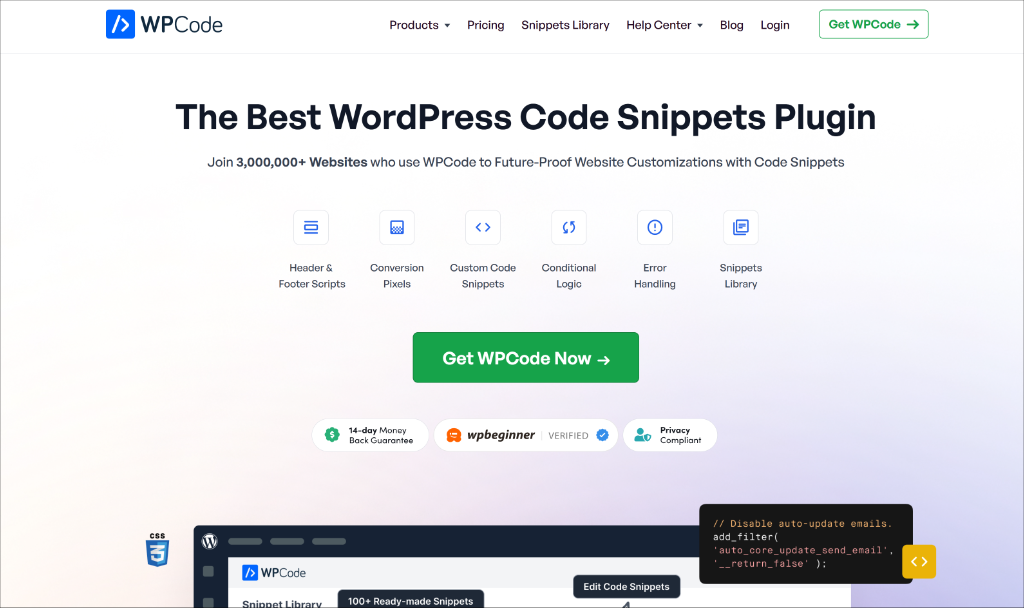
WPCode comes with a built-in snippet library that includes a ready-made snippet for displaying related posts by category. You just find it, activate it, and it works, no coding required.
Besides that, WPCode also offers features like a built-in schema generator that creates the correct JSON-LD code for you automatically. It also lets you track code changes, restore revisions, AI code generator, smart conditional logic, and multiple insertion methods for your snippet.
That said, let’s look at the steps you can follow to get started.
Step 1: Install and Activate WPCode
First, you’ll need to install WPCode on your site. For this tutorial, I am using the WPCode Lite version as it includes the snippet to show related posts.
From your WordPress dashboard, go to Plugins » Add New Plugin in the left-hand menu. Type “WPCode” into the search bar and press Enter.
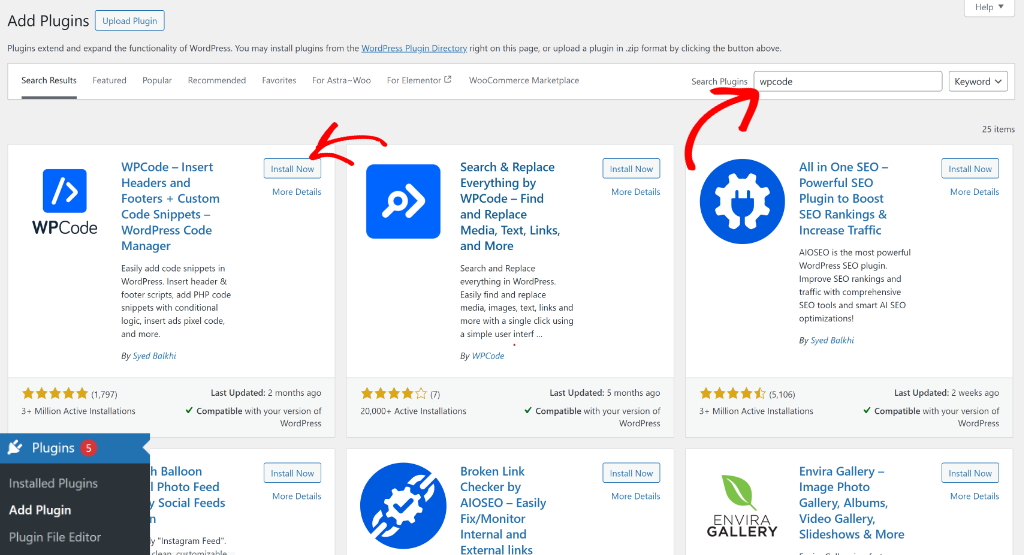
When WPCode appears in the results, click Install Now. Once it finishes installing, click Activate. If you haven’t installed a WordPress plugin before, this beginner’s guide on how to install a WordPress plugin can walk you through it.
Once the plugin is active, you’ll notice a new Code Snippets menu item in your WordPress dashboard. That’s where we’re headed next.
Step 2: Add the Related Posts Snippet
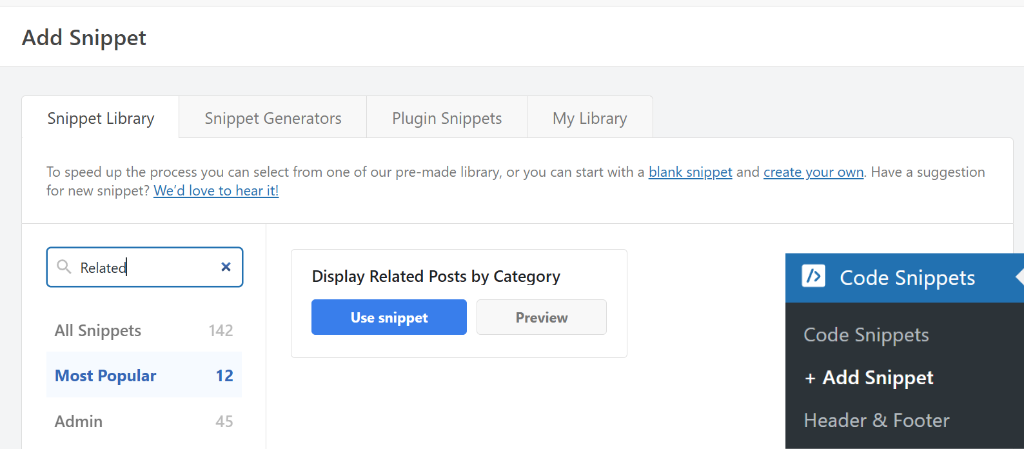
Now, you can go to Code Snippets » Add Snippet from your WordPress dashboard. This opens WPCode’s snippet library, where you can search for ready-to-use code snippets.
In the search bar, type “related posts” to find the right snippet. Look for the one called “Display Related Posts by Category” and click the Use snippet button next to it.
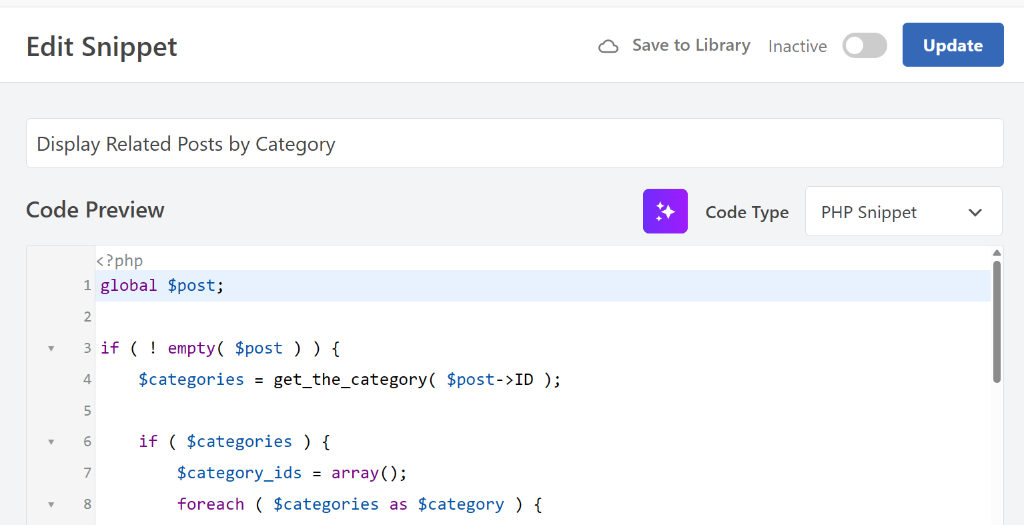
WPCode will load the snippet straight into the code editor.
The best part is that you don’t need to change anything inside the code — it’s already set up and ready to go.
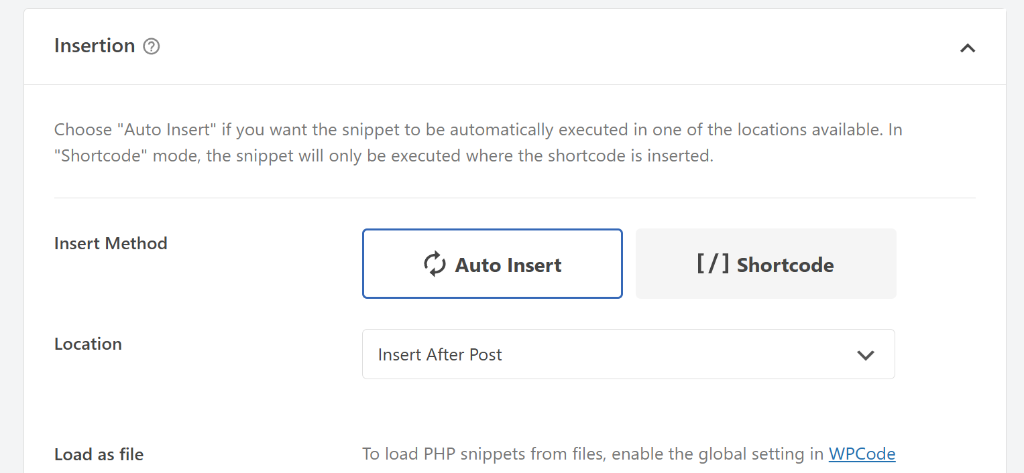
Next, you can scroll down to the Insertion section to see how WPCode will run the snippet. It should be set to Auto Insert with the location set to Insert After Post.
This is exactly what you want. The related posts section will appear automatically at the bottom of every single post on your site, right after the article ends.
Step 3: Activate and View Your Related Posts
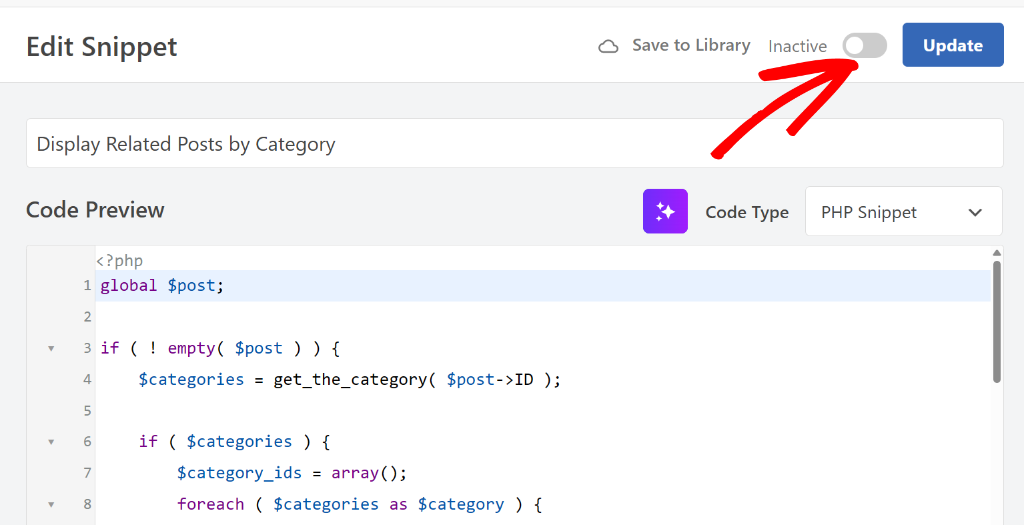
Next, you can simply scroll back to the top of the page and click the toggle that says Inactive to switch it to Active. Then click the Update button to save your changes.
Now, open your website in a new tab and visit any published blog post.
Go ahead and scroll to the bottom of the article, and you should see a section showing a handful of posts from the same category, giving readers an easy way to keep exploring.
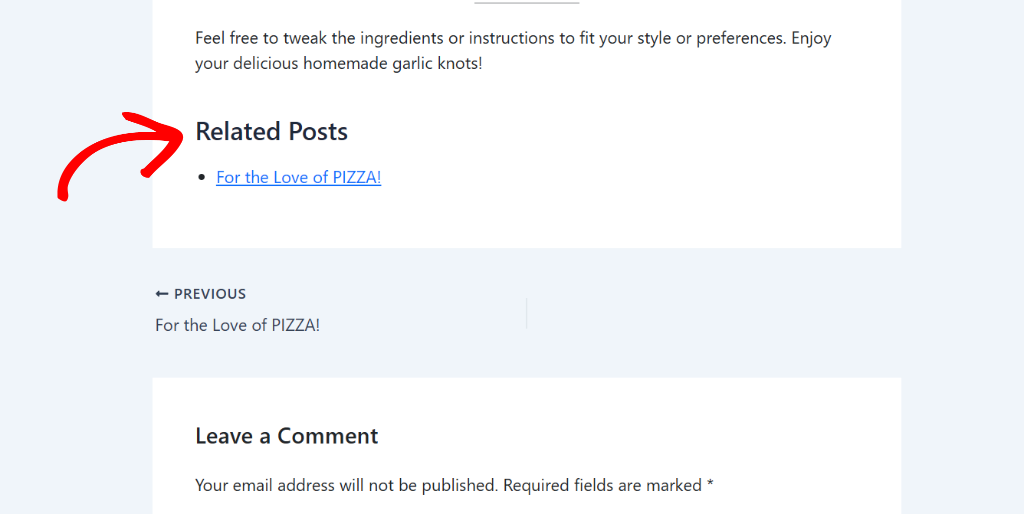
If you don’t see anything right away, there are a couple of things to check. First, go back to Code Snippets » Manage Snippets and confirm the snippet is toggled to Active.
Second, make sure the post you’re viewing actually belongs to a category and that there are other published posts in that same category. If a post is uncategorized or the only post in its category, there’s nothing for the snippet to pull from. You can also try clearing your browser cache and refreshing the page.
Bonus: Tips to Get the Most Out of Related Posts
The related posts snippet works by pulling other posts from the same category, so a little organization goes a long way in making it work well for your site.
Make sure your posts are properly categorized. This one is important. If a post is left as “Uncategorized” or doesn’t have a category assigned, the snippet won’t have anything to match it against. It’s worth doing a quick audit of your posts to make sure everything has a relevant category attached.
Keep your categories focused and descriptive. The more meaningful your categories are, the more useful the related posts will be. If every post is lumped into one or two broad categories, readers will see suggestions that don’t feel very related. Specific, well-organized categories make the recommendations feel spot-on.
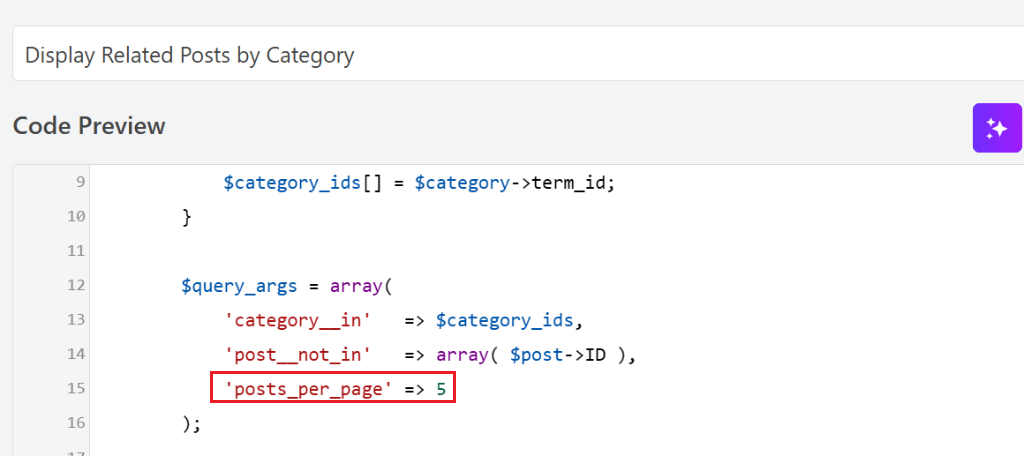
Think about how many related posts you want to show. Somewhere between three and five related posts tends to be the sweet spot. Enough to give readers options without turning the bottom of your page into an overwhelming wall of links. If you want to adjust the number, that can be done by editing the snippet code (by default, it will be set to 5 posts).
FAQs About Adding Related Posts in WordPress
1. Will this slow down my website?
No. The snippet is lightweight and only runs on single post pages. It pulls posts from the same category using a simple database query, which has minimal impact on your site’s speed.
2. What if a post belongs to multiple categories — which one does it use?
The snippet typically uses the first assigned category to find related posts. If your post belongs to several categories, the related posts shown will be based on whichever category WordPress considers primary. You can control this by being intentional about which category you assign first when editing a post.
3. Can I show related posts by tag instead of category?
The snippet in WPCode’s library is set up to work with categories. Showing related posts by tag would require a different version of the snippet. If that’s something you need, it’s worth searching WPCode’s library or reaching out for help with a custom snippet.
4. Will this work on Pages, or only Posts?
This snippet is designed specifically for WordPress Posts, not Pages. Pages don’t use categories the same way Posts do, so the related posts logic doesn’t apply to them. If you want something similar on Pages, that would require a different approach.
5. Can I control how many related posts are shown?
Yes, but it requires editing the snippet code directly. The number of posts displayed is set inside the snippet, and changing it means adjusting a value in the code. If you’re comfortable making small code edits, you can do it yourself in WPCode. Otherwise, a developer can make that change for you quickly.
I hope this guide helped you add related posts to your WordPress site and keep readers exploring your content longer. You might also want to check out our guide on how to add schema markup in WordPress and how to add custom event tracking for the Snapchat pixel.
If you have any questions or run into any trouble, feel free to leave a comment below. And don’t forget to follow us on X (formerly known as Twitter) and subscribe to our newsletter for more WordPress tips and tutorials.