TL;DR:
To speed up WordPress with code snippets, start with the basics: good hosting, a caching plugin, and optimized images. Then add free WPCode snippets that stop WordPress from loading emoji scripts, jQuery Migrate, and embed code. Load heavy scripts only on the pages that need them, and cut background server work. Each one installs from the WPCode library.
Most WordPress sites load a few things they don’t need.
Some come from WordPress itself, like emoji scripts and old compatibility files. Others come from plugins and embeds that load on every page, even where nothing uses them.
You can’t see any of this on the page.
But PageSpeed Insights, Google’s free speed test, can. It lists these files as warnings, like unused JavaScript and render-blocking requests.
You can fix this by editing your theme’s functions.php file. That’s risky if you don’t have experience using the theme files.
Worse, a theme update can wipe your changes.
In this article, we’ll show you 8 free code snippets that trim what WordPress loads, and how to add each one without touching a theme file.
We’ll also cover 3 popular speed snippets you can skip, because WordPress now handles them on its own.
Key Takeaways
- Snippets work on top of good hosting, caching, and optimized images. They don’t replace them.
- Four of these snippets trim what your pages load. The other four lighten the load on your server and database instead.
- If your caching plugin already has a setting for something, use one or the other, not both.
- Some popular speed tips are out of date, because WordPress now does the job itself.
Start With the Basics (Snippets Work on Top of These)
Snippets clean up what’s left once the big pieces are in place.
So before you add any, check these four things.
Optimized images
Large images are often the heaviest part of a page and one of the most common reasons for slow-loading WordPress sites.
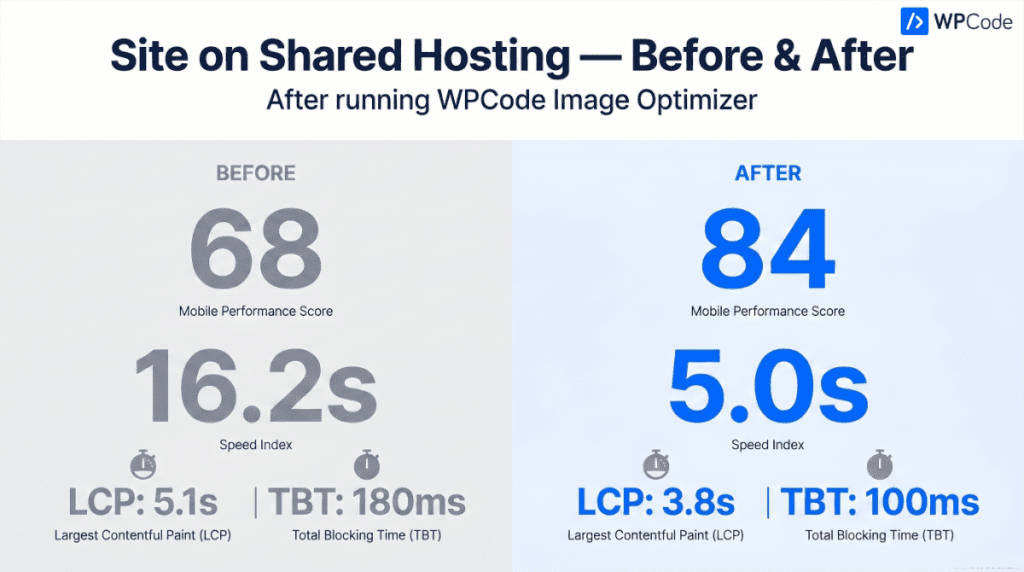
On the WPCode Bundle plan, Image Optimizer by WPCode handles this for you. It compresses your images on your own server, with no per-image credits.
When we ran it on a copy of a real site on shared hosting, the mobile PageSpeed score went from 68 to 84. Largest Contentful Paint dropped from 5.1 to 3.8 seconds.
A good host, running a current PHP version
Your host sets the ceiling for how fast your site can be.
Many hosts let you change the PHP version from your hosting panel. WordPress recommends PHP 8.3 or higher, and our guide shows you how to check your PHP version in WordPress.
A caching plugin, with its minify settings turned on
Caching saves a ready-made copy of each page, so your server doesn’t rebuild it for every visitor.
Most caching plugins can also minify your CSS and JavaScript files, which strips out the spaces and comments browsers don’t need.
Fewer plugins
Some plugins load their own scripts and settings on every page, even when they only do one small job.
If that job is a small change, like adding custom CSS or a line of tracking code, a snippet can often replace the whole plugin. We’ve rounded up 19 WordPress tasks WPCode can handle without an extra plugin if you’d like ideas.
How to Add a Snippet From the WPCode Library
Every snippet in this list is free, and you add them all the same way.
First, install and activate the WPCode Lite plugin from the WordPress plugin directory. To see all this WordPress snippet manager can do, check out our WPCode review.
Find and Activate a Snippet
We’ll walk through it with the Disable Emojis snippet.
Once you install the plugin, go to Code Snippets » + Add Snippet in your dashboard.
This opens the WPCode snippet library.
Type the snippet’s name into the search box on the left, then hover over its card.
Some snippets show a Use snippet button right away.
Others show Connect to library to unlock (Free). Click it, and WPCode asks you to create a free WPCode account.
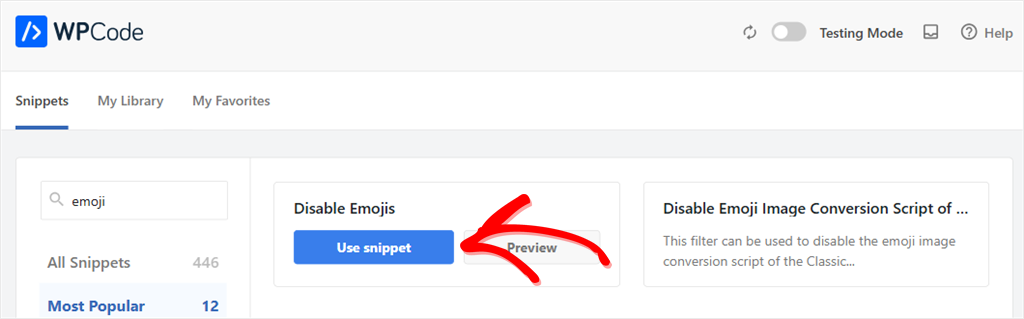
After you connect the WPCode Library, every free snippet installs with one click.
💡 Rather not make an account?
You can add any snippet in this article by hand. Go to Code Snippets » + Add Snippet, choose Add Your Custom Code (New Snippet), and pick PHP Snippet as the code type. Then paste in the code we show for that snippet, or copy it from the snippet’s library page.
Every snippet in this guide is a PHP snippet, but WPCode handles other types of code snippets too.
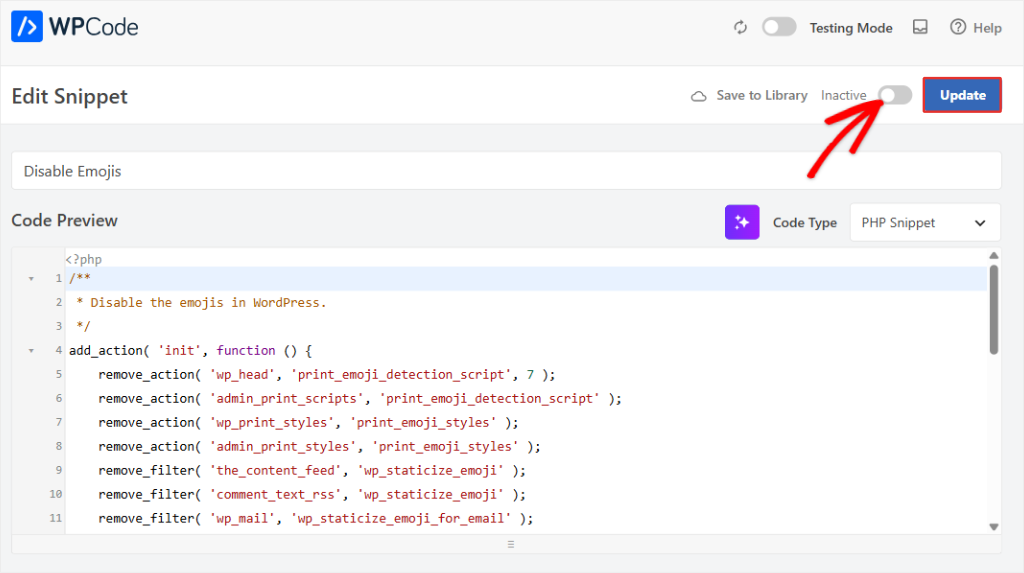
When you click Use snippet, WPCode adds the snippet to your site and opens it in the editor. The snippet starts switched off. You’ll see the Inactive toggle at the top right.
Click the toggle so it says Active, then click Update. The snippet is now running on your site.
To undo it later, switch the same toggle back to Inactive.
And if a PHP snippet ever causes an error, WPCode switches it off on its own, so one bad snippet doesn’t take your site down.
⚠️ Back up first
Take a backup of your site before you change how it loads. It takes a minute, and it gives you a clean way back.
On a paid WPCode plan, you can also use Testing Mode to try a snippet privately before your visitors see it.
The 8 Snippets at a Glance
The first four change what PageSpeed Insights sees. The last four work behind the scenes.
| Snippet | What it does | What improves | Plan |
|---|---|---|---|
| Disable Emojis | Stops the emoji script and styles loading on every page | Fewer files on every page | Free |
| Disable jQuery Migrate | Removes an old compatibility script | Fewer render-blocking files | Free |
| Load scripts only where needed | Shows a script or embed on chosen pages only | Less unused JavaScript | Free |
| Disable Embeds | Removes embed code from your posts | Fewer tags on single posts | Free |
| Heartbeat Setting | Slows how often your dashboard checks in with the server | Less server load | Free |
| Limit Post Revisions | Keeps up to 20 saved versions per post | Smaller database | Free |
| Disable XML-RPC | Blocks login attempts through an old remote access file | Less load from bots | Free |
| Completely Disable Comments | Turns comments off across the site | Less spam in your database | Free |
Snippets That Change What PageSpeed Sees
These four remove files and code from your pages.
They’re the ones that can show up in your PageSpeed Insights report.
We tested them on our own shared-hosting site, running WooCommerce and a block theme. For the snippets that changed a PageSpeed warning, we’ll show you what disappeared.
To check your own site, run your homepage through PageSpeed Insights and look through the list of warnings under the scores. Your results will depend on your host and what your site already loads.
You can skip to any section you want to read using the table of contents below.
1. Disable Emojis
WordPress loads a small emoji script on every page, plus the styles that go with it.
It was built for old browsers that couldn’t show emojis on their own.
Modern phones and computers can, so most visitors never need it.
This snippet stops that script and its styles from loading.
Your emojis still show, using the emoji font on your visitor’s device.
/**
 * Disable the emojis in WordPress.
 */
add_action( 'init', function () {
	remove_action( 'wp_head', 'print_emoji_detection_script', 7 );
	remove_action( 'admin_print_scripts', 'print_emoji_detection_script' );
	remove_action( 'wp_print_styles', 'print_emoji_styles' );
	remove_action( 'admin_print_styles', 'print_emoji_styles' );
	remove_filter( 'the_content_feed', 'wp_staticize_emoji' );
	remove_filter( 'comment_text_rss', 'wp_staticize_emoji' );
	remove_filter( 'wp_mail', 'wp_staticize_emoji_for_email' );

	// Remove from TinyMCE.
	add_filter( 'tiny_mce_plugins', function ( $plugins ) {
		if ( is_array( $plugins ) ) {
			return array_diff( $plugins, array( 'wpemoji' ) );
		} else {
			return array();
		}
	} );

	// Remove from dns-prefetch.
	add_filter( 'wp_resource_hints', function ( $urls, $relation_type ) {
		if ( 'dns-prefetch' === $relation_type ) {
			$emoji_svg_url = apply_filters( 'emoji_svg_url', 'https://s.w.org/images/core/emoji/2/svg/' );
			$urls          = array_diff( $urls, array( $emoji_svg_url ) );
		}

		return $urls;
	}, 10, 2 );
} );
There’s nothing to configure. Switch it on and you’re done.
⚠️ Check first
Many caching plugins have their own “disable emojis” setting. If yours is already on, skip this snippet.
📚 WPCode Library
Install the Disable Emojis snippet from the WPCode library, or search the library for “Disable Emojis” inside WPCode.
2. Disable jQuery Migrate
jQuery Migrate is a helper file.
It lets very old themes and plugins keep working with newer versions of jQuery, a script library many WordPress sites use.
WordPress loads it on the front end by default.
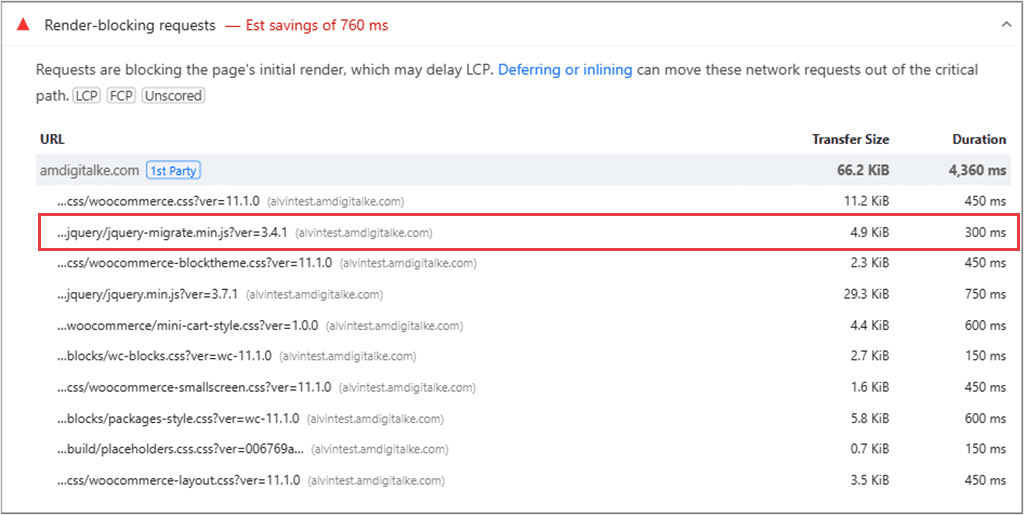
It’s also one of the files PageSpeed Insights lists under Render-blocking requests, because the browser waits for it before it shows the page.
This snippet stops WordPress from loading it on your front end. Your dashboard isn’t affected.
add_action( 'wp_default_scripts', function ( $scripts ) {
	if ( ! is_admin() && isset( $scripts->registered['jquery'] ) ) {
		$script = $scripts->registered['jquery'];
		if ( ! empty( $script->deps ) ) {
			$script->deps = array_diff( $script->deps, array( 'jquery-migrate' ) );
		}
	}
}, 150 );
⚠️ Test after switching it on
An older theme or plugin might still depend on this file. Click through your menus, forms, sliders, and cart. If something stops working, switch the snippet back to Inactive.
Some caching plugins have a “remove jQuery Migrate” option too. Use one or the other.
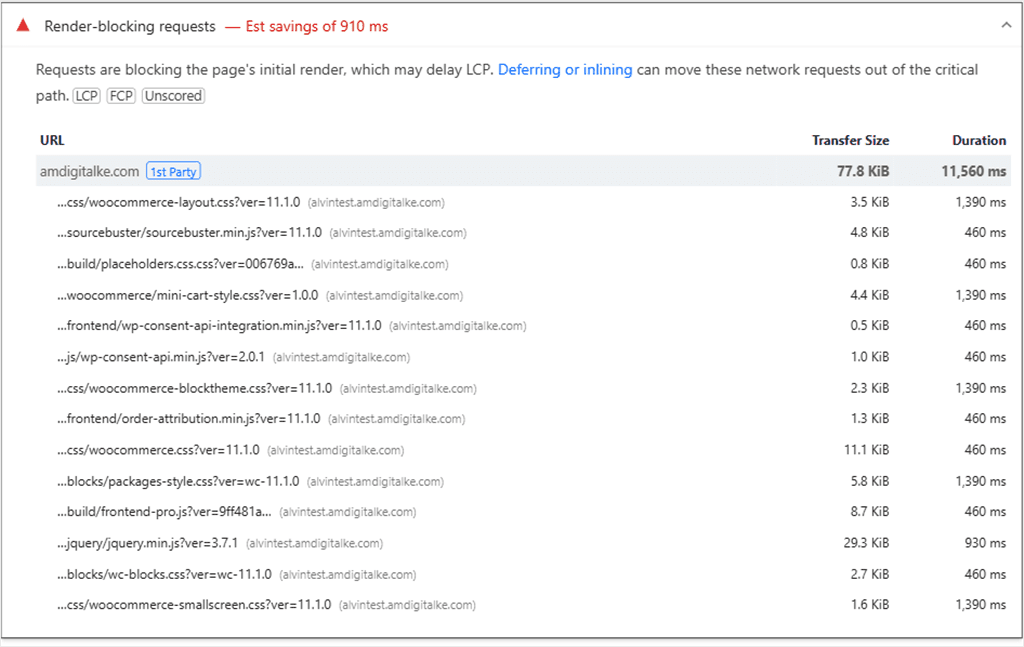
After we switched the snippet on, jquery-migrate.min.js was gone from the Render-blocking requests list.
jQuery itself still loads, because the rest of the site uses it.
📚 WPCode Library
Install the Disable jQuery Migrate snippet from the WPCode library, or search the library for “Disable jQuery Migrate” inside WPCode.
3. Load Scripts Only on the Pages That Need Them
A map, a chat widget, or a booking form often needs a script from another company. Add it sitewide, and every visitor downloads it, on every page.
This applies to scripts added across your whole site, like a WPCode snippet set to load in your header or footer. A map you pasted into a single page already loads on that page only.
This one is a WPCode feature, not a library snippet.
It’s called Smart Conditional Logic, and the page rules are free.
Here’s how it looks with a Google Maps embed that should only show on a Contact page.
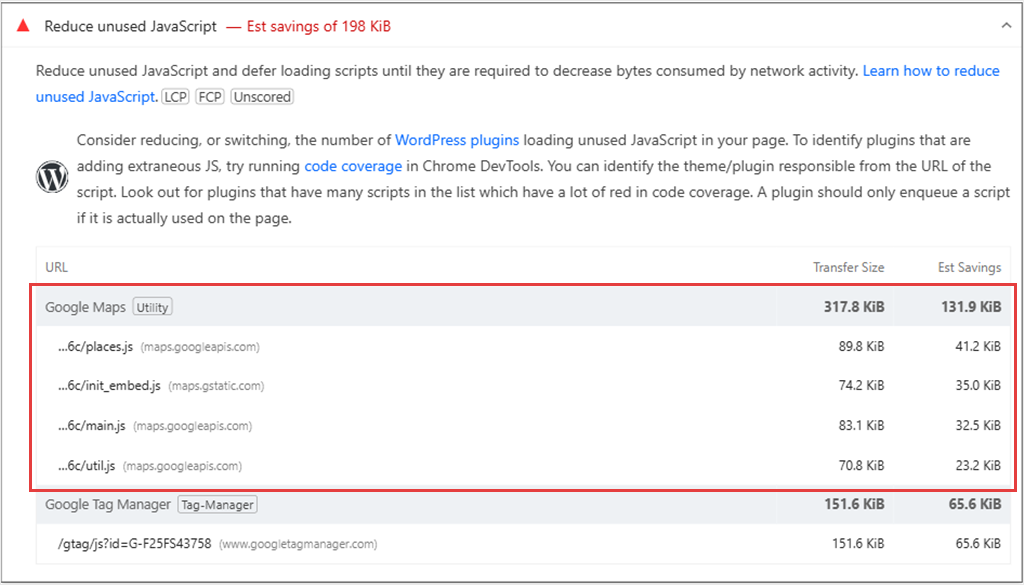
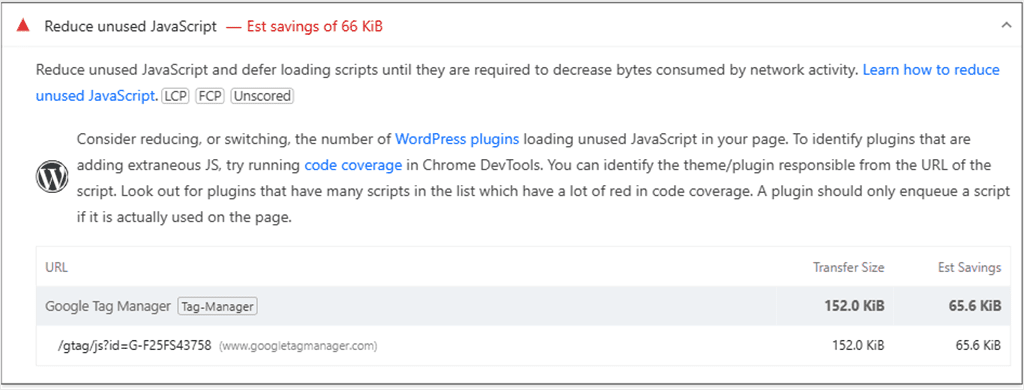
On our test site, we first added the map sitewide. PageSpeed then listed over 300 KB of Google Maps scripts under Reduce unused JavaScript on our homepage, a page with no map on it.
To fix it, open the snippet that adds your map or script, and scroll down to Smart Conditional Logic. Switch on Enable Logic, and leave the dropdown set to Show.
From there, click + Add new group. In the first dropdown, choose Post/Page. Set the next one to Is one of, then pick your Contact page.
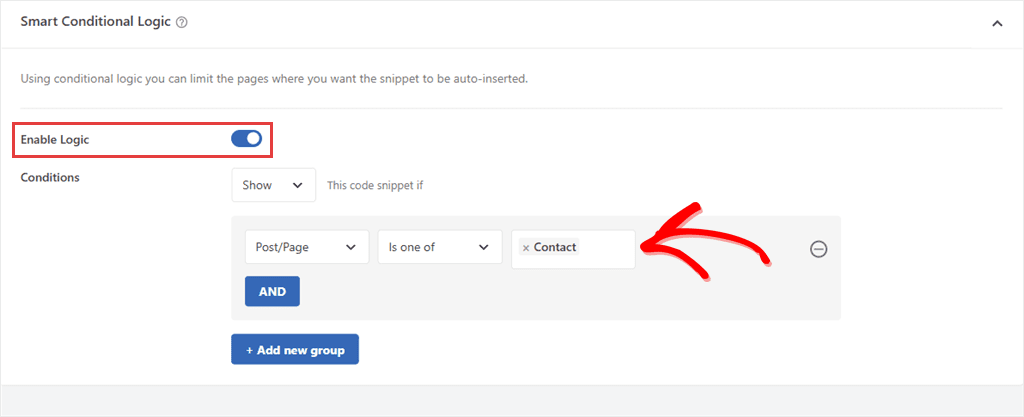
Click Update. The map still shows on your Contact page, and every other page skips it.
When we ran PageSpeed on the homepage again, the Google Maps rows were gone from the list.
The free version can target pages, post types, and page URLs. Targeting by device, like mobile only, needs a paid WPCode plan.
We cover more targeting examples in our guide on how to add scripts to specific pages in WordPress.
4. Disable Embeds
WordPress lets other sites embed your posts, and it adds small tags to your posts’ code to make that work.
This snippet turns that off. It removes those tags and stops other sites from embedding your content.
The speed effect is small, and you’ll only see it on single posts, not your homepage.
So add it if you’d rather other sites didn’t embed your posts. Skip it if you’re happy for them to. Either way, you can still embed YouTube videos and other content in your own posts.
/**
 * Disable all embeds in WordPress.
 */
add_action( 'init', function () {

	// Remove the REST API endpoint.
	remove_action( 'rest_api_init', 'wp_oembed_register_route' );

	// Turn off oEmbed auto discovery.
	add_filter( 'embed_oembed_discover', '__return_false' );

	// Don't filter oEmbed results.
	remove_filter( 'oembed_dataparse', 'wp_filter_oembed_result', 10 );

	// Remove oEmbed discovery links.
	remove_action( 'wp_head', 'wp_oembed_add_discovery_links' );

	// Remove oEmbed-specific JavaScript from the front-end and back-end.
	remove_action( 'wp_head', 'wp_oembed_add_host_js' );
	add_filter( 'tiny_mce_plugins', function ( $plugins ) {
		return array_diff( $plugins, array( 'wpembed' ) );
	} );

	// Remove all embeds rewrite rules.
	add_filter( 'rewrite_rules_array', function ( $rules ) {
		foreach ( $rules as $rule => $rewrite ) {
			if ( false !== strpos( $rewrite, 'embed=true' ) ) {
				unset( $rules[ $rule ] );
			}
		}

		return $rules;
	} );

	// Remove filter of the oEmbed result before any HTTP requests are made.
	remove_filter( 'pre_oembed_result', 'wp_filter_pre_oembed_result', 10 );
}, 9999 );
📚 WPCode Library
Install the Disable Embeds snippet from the WPCode library, or search the library for “Disable Embeds” inside WPCode.
Snippets That Lighten the Load Behind the Scenes
These next four won’t change your PageSpeed score.
PageSpeed only measures what a visitor downloads, and these work on your server and database instead.
They still matter, especially on shared hosting.
A shared plan limits how much work your site can do at once. When your site goes over that limit, pages can slow down for every visitor, and your dashboard can feel sluggish.
5. Control the WordPress Heartbeat
While you have the dashboard open, WordPress checks in with your server every so often. It uses these check-ins for autosaves and to stop two people editing the same post.
Each check-in is a request your server has to handle.
Leave a few dashboard tabs open, and those requests add up.
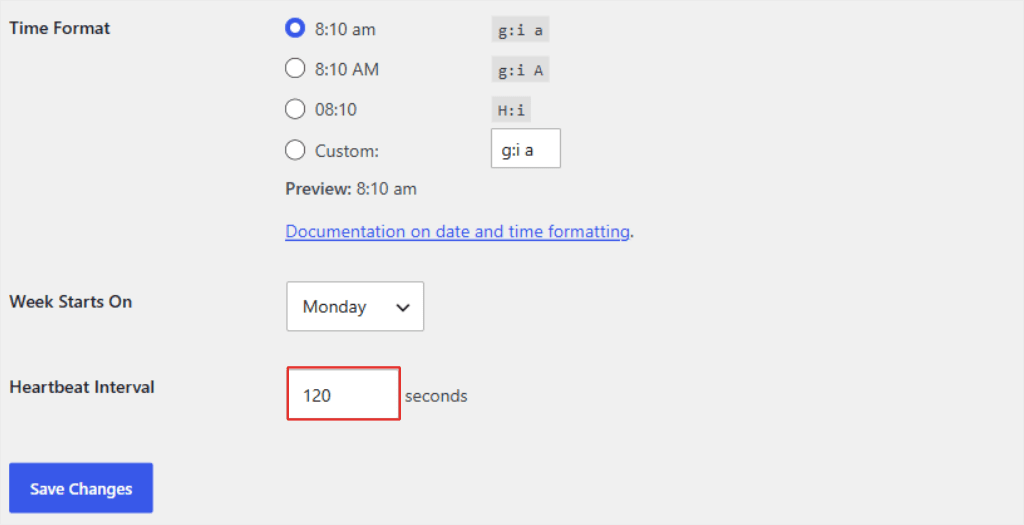
This snippet adds a Heartbeat Interval field to Settings » General. You can pick any interval from 15 to 120 seconds. It uses 120 seconds until you change it.
// Add a new setting in wp-admin > Settings > General
add_action( 'admin_init', function() {
   register_setting( 'general', 'custom_heartbeat_interval', 'intval' );
   add_settings_field( 'custom_heartbeat_interval', 'Heartbeat Interval', function() {
       $interval = get_option( 'custom_heartbeat_interval', 120 );
       echo "<input type='number' name='custom_heartbeat_interval' value='".absint($interval)."' min='15' max='120' /> seconds";
   }, 'general' );
});

add_filter( 'heartbeat_settings', function( $settings ) {
   $settings['interval'] = get_option( 'custom_heartbeat_interval', 120 );
   return $settings;
});
If you edit posts with other people, a lower number makes the “someone else is editing this post” warning show up sooner.
📚 WPCode Library
Search the WPCode library for Heartbeat Setting.
6. Limit Post Revisions
Every time you save a post, WordPress keeps a full copy of it as a revision.
Edit a post 60 times, and that’s 60 copies sitting in your database. Your database grows, and so do your backups.
This snippet keeps the latest 20 revisions per post. You can change the number 20 to whatever you like.
add_filter( 'wp_revisions_to_keep', function( $limit ) {
	// Limit to the last 20 revisions. Change 20 to whatever limit you want.
	return 20;
} );
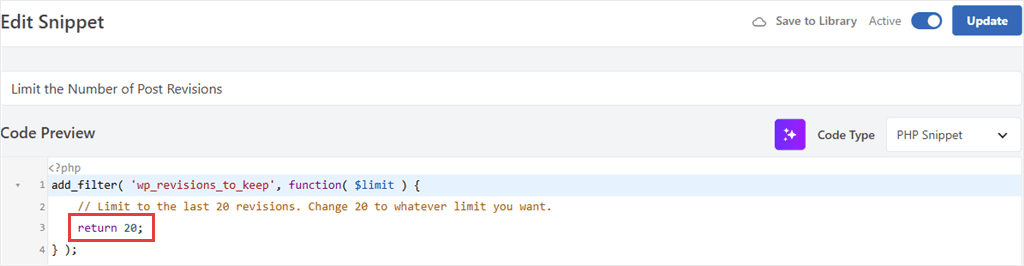
It works from here on, so the revisions you already have stay put.
For more ways to manage them, see our guide on how to limit post revisions in WordPress.
📚 WPCode Library
Install the Limit Post Revisions snippet from the WPCode library, or search the library for “Limit Post Revisions” inside WPCode.
7. Disable XML-RPC
XML-RPC is an old way for apps to connect to WordPress from outside your site.
Bots also use it to guess passwords, over and over.
Every guess is work for your server, even when it fails.
This snippet turns off logins through XML-RPC. Bots can still reach the file, but WordPress turns away every attempt before it checks the password.
When we tested it, a login attempt through XML-RPC got back one reply: “XML-RPC services are disabled on this site.”
add_filter( 'xmlrpc_enabled', '__return_false' );
⚠️ Check first
Jetpack connects through XML-RPC, and so do some apps that post to WordPress. If you use Jetpack, or you post from an app, skip this snippet.
📚 WPCode Library
Install the Disable XML-RPC snippet from the WPCode library, or search the library for “Disable XML-RPC” inside WPCode.
8. Completely Disable Comments
Plenty of business sites and online stores don’t use comments at all.
But the comment forms still load, and spam comments still pile up in your database.
This snippet turns comments off across your whole site. It closes comment forms, hides existing comments, and removes the Comments menu from your dashboard.
Existing comments are hidden, not deleted.
Switch the snippet off, and they come back.
add_action('admin_init', function () {
    // Redirect any user trying to access comments page
    global $pagenow;

    if ($pagenow === 'edit-comments.php') {
        wp_safe_redirect(admin_url());
        exit;
    }

    // Remove comments metabox from dashboard
    remove_meta_box('dashboard_recent_comments', 'dashboard', 'normal');

    // Disable support for comments and trackbacks in post types
    foreach (get_post_types() as $post_type) {
        if (post_type_supports($post_type, 'comments')) {
            remove_post_type_support($post_type, 'comments');
            remove_post_type_support($post_type, 'trackbacks');
        }
    }
});

// Close comments on the front-end
add_filter('comments_open', '__return_false', 20, 2);
add_filter('pings_open', '__return_false', 20, 2);

// Hide existing comments
add_filter('comments_array', '__return_empty_array', 10, 2);

// Remove comments page in menu
add_action('admin_menu', function () {
    remove_menu_page('edit-comments.php');
});

// Remove comments links from admin bar
add_action('admin_bar_menu', function () {
    remove_action('admin_bar_menu', 'wp_admin_bar_comments_menu', 60);
}, 0);
We walk through the other options in our guide on how to disable comments in WordPress.
📚 WPCode Library
Install the Completely Disable Comments snippet from the WPCode library, or search the library for “Completely Disable Comments” inside WPCode.
The WPCode library has a few smaller cleanup snippets too. Disable RSS Feed Links, Disable the WordPress Shortlink, and Disable Self Pingbacks each remove a little extra code or background work.
3 Speed Snippets You Can Skip in 2026
Some speed tips have been around for years.
A few of them made sense once, but WordPress or the speed tests have moved on.
Remove query strings from static files. This removes the version number from the end of your CSS and JavaScript file links. Older speed tests flagged it, but PageSpeed Insights doesn’t check for it. And that version number helps visitors get your updated files after a plugin or theme update.
Remove the block library CSS. This stops WordPress loading the styles for its blocks. If your site uses a block theme, like Twenty Twenty-Five, those styles are part of your design. Removing them can break how your pages look.
Add auto sizes to lazy-loaded images. This helps the browser pick the right image size. WordPress has done it on its own since version 6.7, so the snippet doesn’t add anything.
If you added any of these a while ago, it’s worth switching them off.
Which Snippets Should You Add?
You don’t need all eight.
Start with the ones that match your site.
On shared hosting? Start with the Heartbeat and XML-RPC snippets. They cut the background work that counts against your plan’s limits.
Already using a caching plugin? Check its settings before you add Disable Emojis or Disable jQuery Migrate. If it already covers them, skip those two.
Using Jetpack? Skip Disable XML-RPC.
Running an older theme or plugins? Add Disable jQuery Migrate on its own, then test your site before adding anything else.
Have a map, chat widget, or booking form? Use Smart Conditional Logic to load it only on the page where it appears.
Don’t use comments? Disable Comments is an easy win.
FAQs: WordPress Speed Optimization
Can code snippets slow down my site?
It depends on what the snippet does. A snippet that adds a big script adds weight, just like a plugin would.
The snippets in this list work the other way. They remove code, so each page has less to load.
Do I still need a caching plugin if I use these snippets?
Yes. They do different jobs. A caching plugin speeds up how your pages are served. These snippets trim what goes into each page.
Will these snippets work with my caching plugin?
They should. Just don’t double up. If your caching plugin already disables emojis or removes jQuery Migrate, skip that snippet.
Why didn’t my PageSpeed score change much?
It happened on our test site too. The page got lighter, but the headline score didn’t go up.
The score depends on your host, your theme, and what your site already loads. It can also move a few points between tests. Look at the specific warnings instead, like Reduce unused JavaScript, and check whether they got smaller.
Pick Your First WordPress Speed Snippet
You now know which parts of a WordPress page these snippets remove, and which old speed tips you can leave out.
Start with the one that fits your site best. For most sites, that’s Disable Emojis or the Heartbeat setting, and each takes a couple of minutes to add.
Want to try these for free?
Get WPCode for free →
Want to test snippets where only you can see them before they go live?
See WPCode plans with Testing Mode →
Additional Resources
If you’re new to snippets, these guides cover the basics and what happens if one goes wrong.
- What Is a Code Snippet?: a plain-English guide to what snippets are and how they work
- PHP Error Handling & Safe Mode: what WPCode does when a snippet causes an error
- 9 Tips to Easily Manage Code Snippets in WordPress: keep your snippets organized as your list grows