
TL;DR:
Yes, Image Optimizer by WPCode still finds savings on an already-optimized site. The bigger story is what the screenshots show along the way: a smart skip-and-move-on approach, real storage reclaimed from backups, a bulk run that survived a shutdown, and speed gains that depended more on hosting than on the plugin.
In our first look at Image Optimizer, we tested it on a small library. A handful of images and a few uploads. Finally, a quick run that finished in about a second.
The results were real, but the library was light.
The harder question stayed open. What happens when you point it at a site that’s already been through an image optimization pass?
One that’s been live for months with thousands of images on real hosting underneath it.
So we used Image Optimizer by WPCode to see if we could improve the performance. We ran it on a live production site on a VPS hosting and a shared hosting copy of that exact same site.
Both libraries had already been compressed by another image optimization plugin. This would show us what speed improvements we would get on an already optimized site.
Here’s what we found.
Key Takeaways
- On an already-optimized library, Image Optimizer compressed 195 of 1,574 images and skipped 1,379 on purpose, saving 686.2 KB without wasting a re-compression on files that had nothing left to give.
- A bulk run survived a full shutdown mid-process. Closing the tab, and the PC, did not restart the job or lose progress.
- Backups from months of runs quietly grew to 221 MB. One click freed all of it, with the compressed images left untouched.
- On the live VPS, gains were small (desktop hit a perfect 100, mobile barely moved) because there was little headroom left to reclaim.
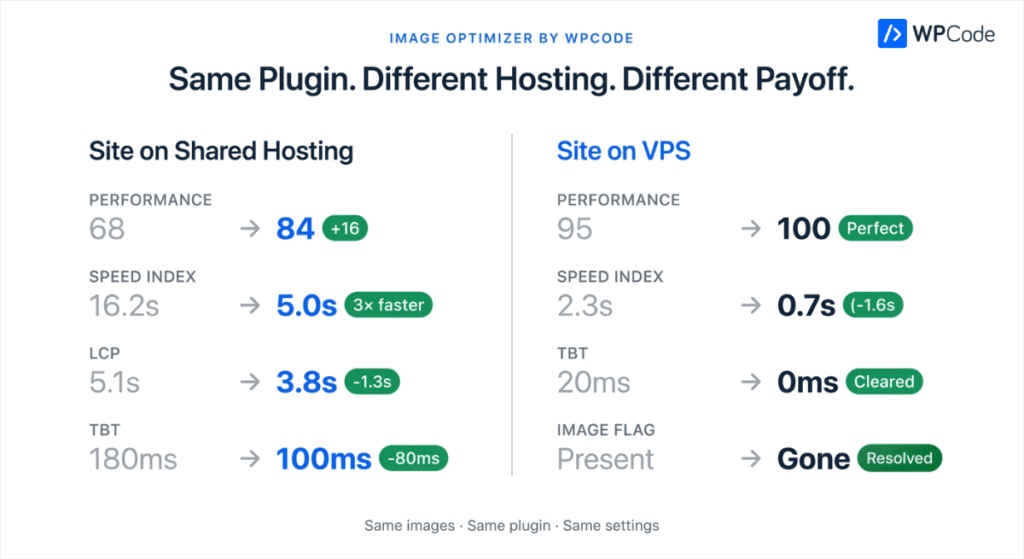
- Shared hosting saw the real payoff: mobile went from 68 to 84, and Speed Index dropped from 16.2 seconds to 5.0 seconds, more than three times faster.
Here is a table of contents to help you quickly scan this article.
- The Setup: One Site, Two Hosting Environments, Already Optimized
- How We Set It Up
- Running at the Best Possible Engine
- Shared Hosting Already Optimized: What This Actually Means
- The Bigger Library: What Happened on the Live VPS
- Same Plugin, Same Images, Different Hosting, Different Payoff
- What Our Tests Tell Us About WPCode Image Optimizer
- Final Verdict: Does an Image Optimizer Still Help an Already-Optimized Site? We Tested It
- FAQs: We Ran WPCode Image Optimizer on an Optimized Site: Here’s What We Found
- See What It Finds on Your Site
With that out of the way, let’s dive in.
The Setup: One Site, Two Hosting Environments, Already Optimized
As mentioned, we picked the same site and tested it in two types of hosting. The same content, images, and theme.
As you can imagine, the usual shared-hosting ceilings were evident. This includes shared CPU, shared memory, and slower disk access.
But we weren’t starting from a messy, unoptimized library. We wanted the harder test.
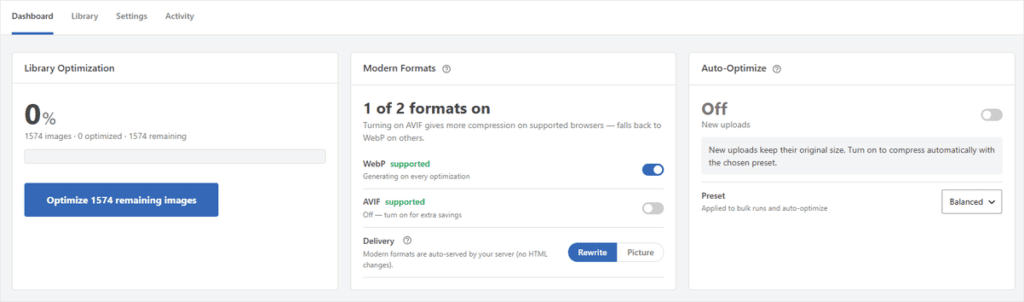
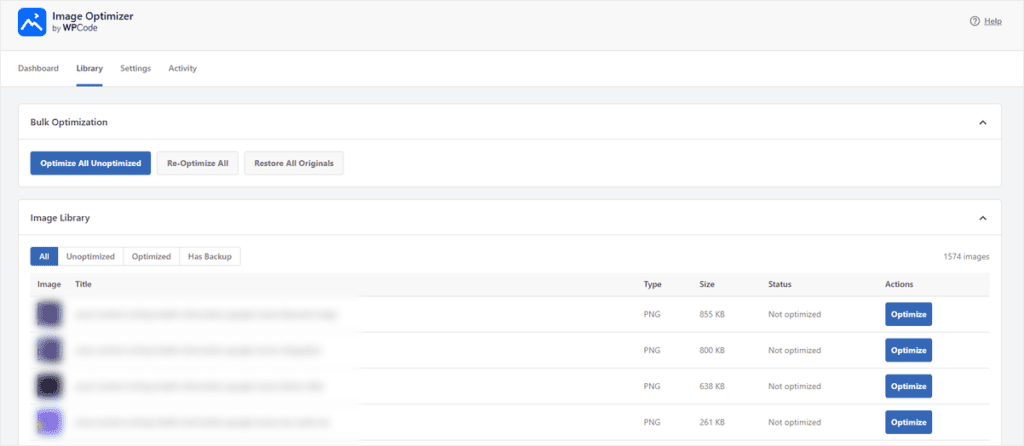
But “already optimized” doesn’t mean “nothing left.” The library still had plenty of images sitting untouched, including PNGs over 800 KB marked “Not optimized.”
How We Set It Up
Before running anything, we walked through the settings. This is worth doing on your own site, too, to shape every run after.
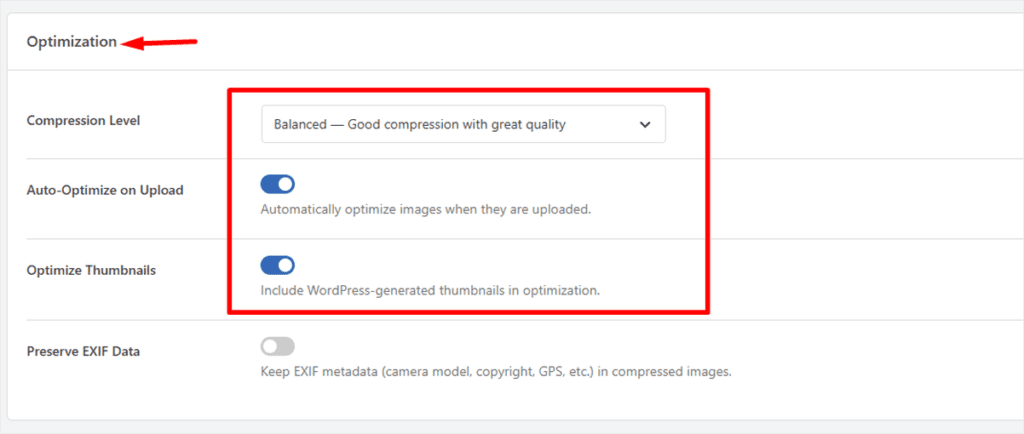
We set up the Compression Level to “Balanced,” Auto-optimize on upload toggle “on, and Thumbnails included in every run.
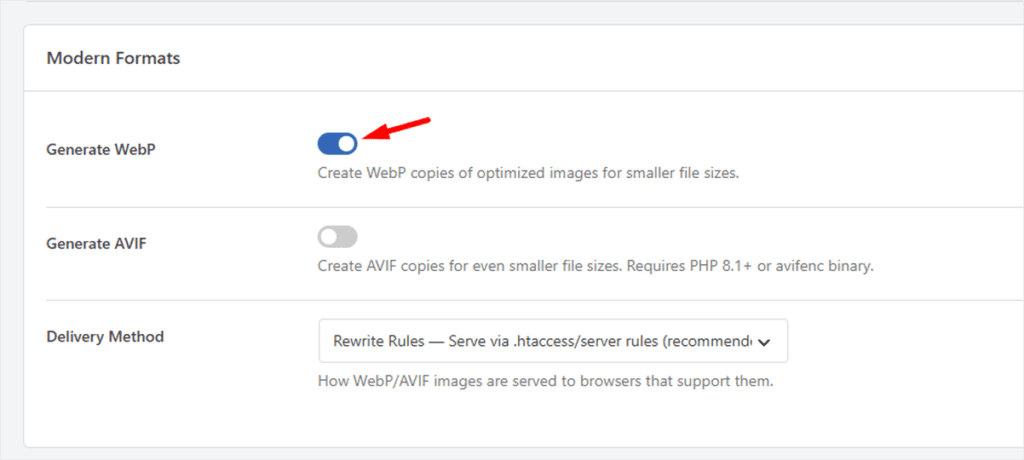
After that, we enabled WebP Generation for every image going forward. If you want more control over the formats your images use, see our guide on how to replace image file extensions in WordPress.
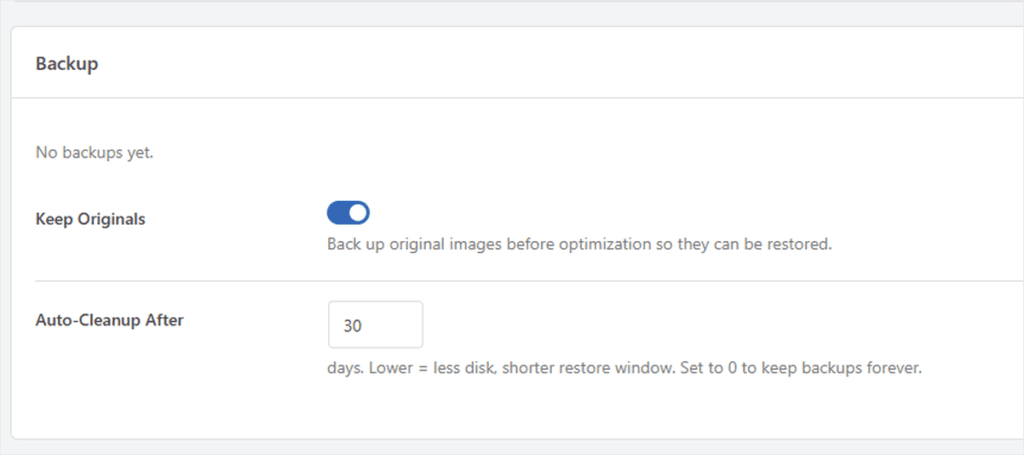
Since we wanted to protect our site better, we enabled Keep Originals so every compression has a backup behind it.
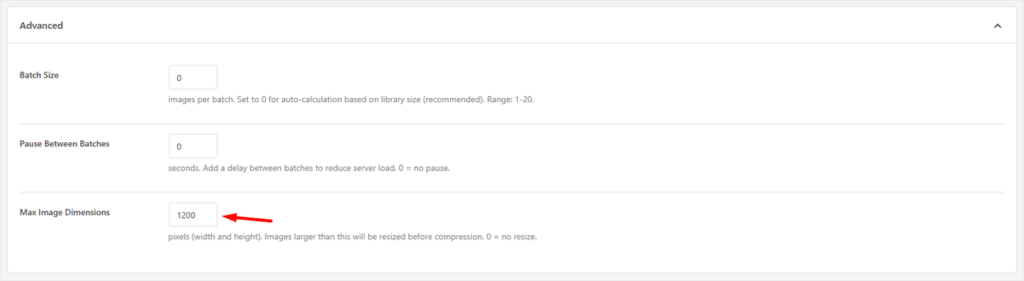
We then set Max Image Dimensions under Advanced, so oversized uploads get resized automatically, not just compressed.
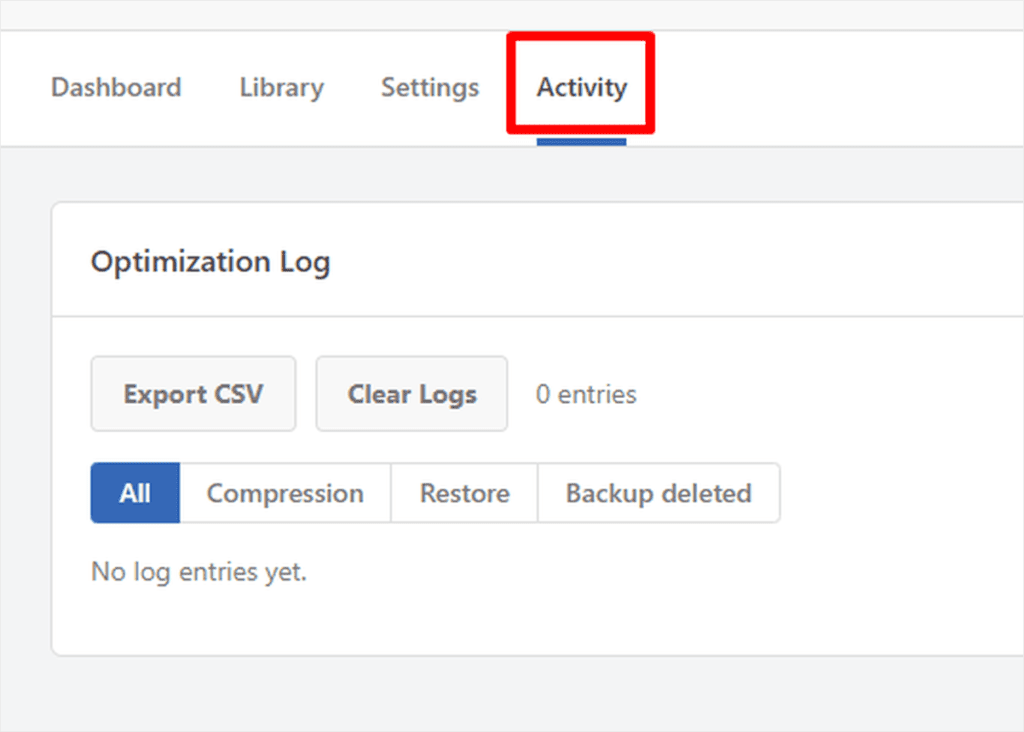
And before any of it ran, we looked at the “Activity” to make sure it was empty, giving us a clean slate to measure against.
💡 WPCode Tip: If your library is already optimized, compression itself may only save you kilobytes. The backups sitting behind months of runs can be the bigger win, and it’s one click away.
We added these settings to both our test sites, and finally, we were ready to run Image Optimizer by WPCode to see the site improvement we would gain.
Running at the Best Possible Engine
One thing we checked before clicking anything was what the VPS and shared hosting servers could actually do in terms of optimizing images.
The dashboard showed Tier 1, the best-quality compression tier. With green checkmarks, Image Optimizer by WPCode detected that binary tools, Imagick, WebP, and AVIF were supported.
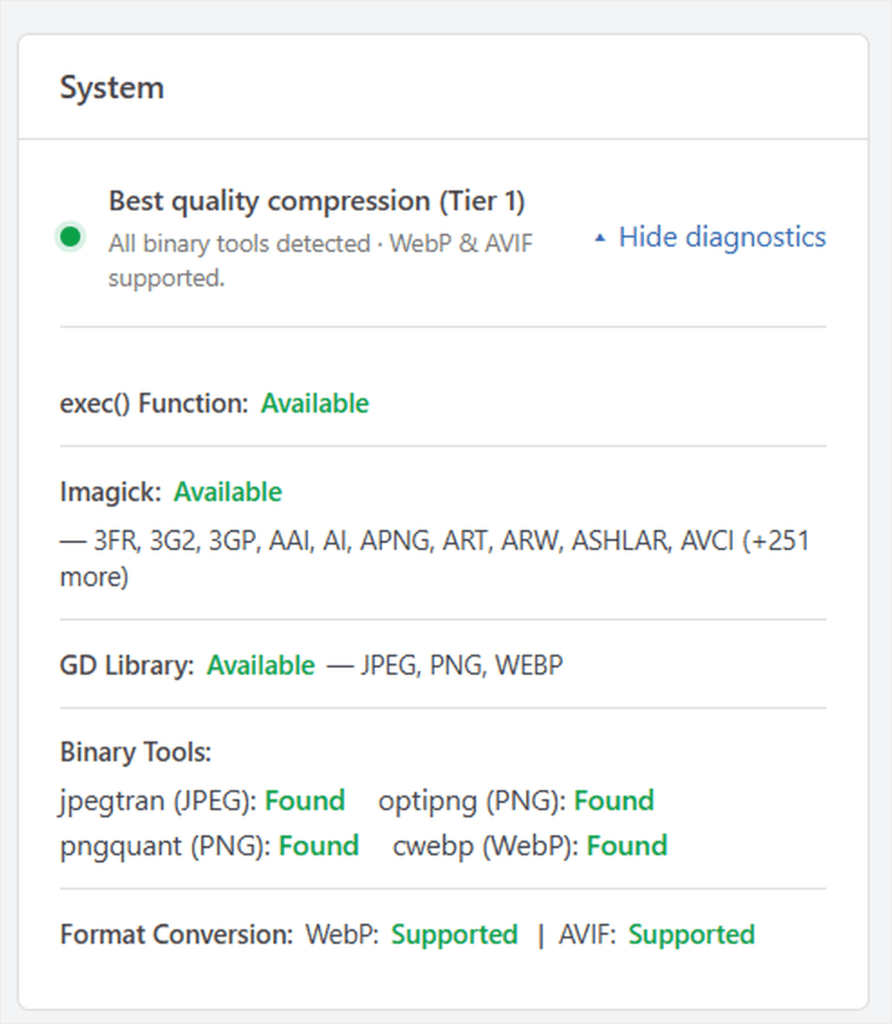
That matters more than it sounds. A lot of hosts only offer Tier 2 or Tier 3, which are fallback processes. This means you can only do fallback compression. Yes, it does the job, but not at full strength.
We weren’t testing a fallback; we wanted to see this image optimization plugin at its best. That’s the fairest comparison there is.
Watching the Bulk Run: What Happened When I Walked Away
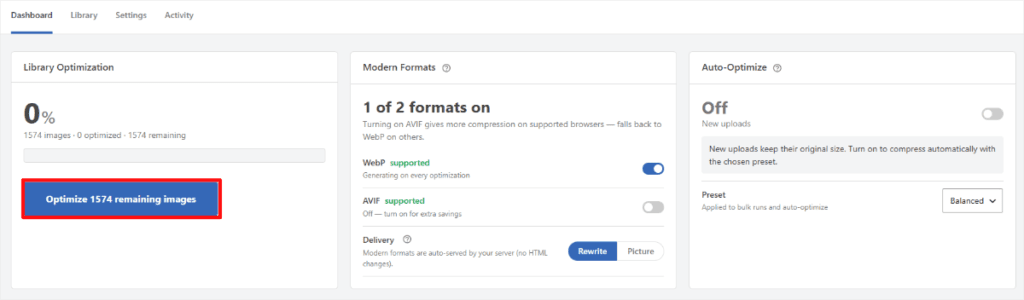
Finally, I clicked Optimize All Unoptimized and watched it start.
Immediately I did this, I saw a progress chart start running on the top banner of my WordPress, telling me everything was going smoothly.
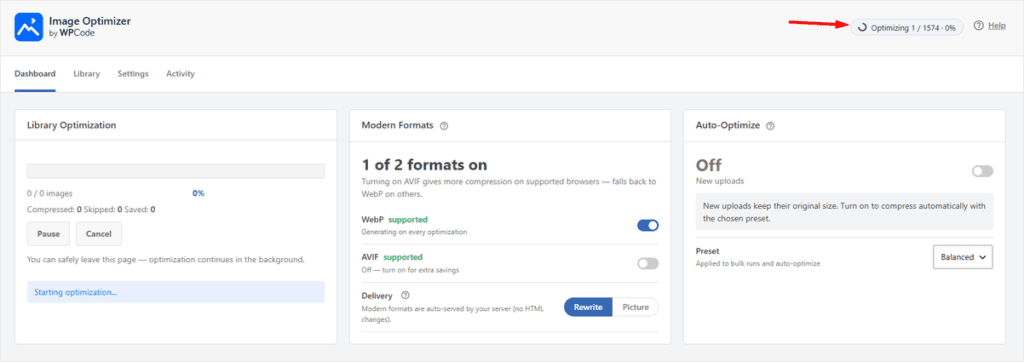
A few minutes in, the dashboard showed real movement: 63 of 1,574 images done. 4% complete. An estimate of three hours left.

Three hours was longer than I had. I shut down my PC and didn’t think about it again until the next morning.
When I logged back in, I expected to restart it from scratch or find an error.
Neither happened. It picked up from where it was and kept going quietly, on its own schedule.
Once the process was complete, I saw a notification on my WordPress stating “Optimization complete!” with the full library processed.
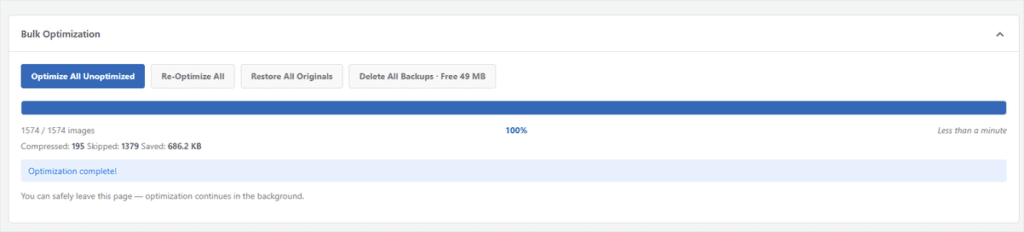
No rerun, babysitting, or lost progress from the session before.
That’s the promise from our original Image Optimizer announcement. You can close the tab, and it keeps going holding up under a real interruption, not just a closed browser tab.
Shared Hosting Already Optimized: What This Actually Means
When that run finished, the numbers told the real story. 195 images compressed, 1,379 skipped, and a total saved of 686.2 KB.
That’s not a disappointing result. It’s the expected one. Out of nearly 1,600 images, the plugin found just over a tenth of them worth touching. The rest had already been squeezed about as far as they’d go.
Here’s the part worth noticing: it didn’t re-compress them anyway. It checked, recognized there was nothing left to gain, and left them alone.
Running compression on an already-compressed file doesn’t make it smaller. It just risks making images blur.
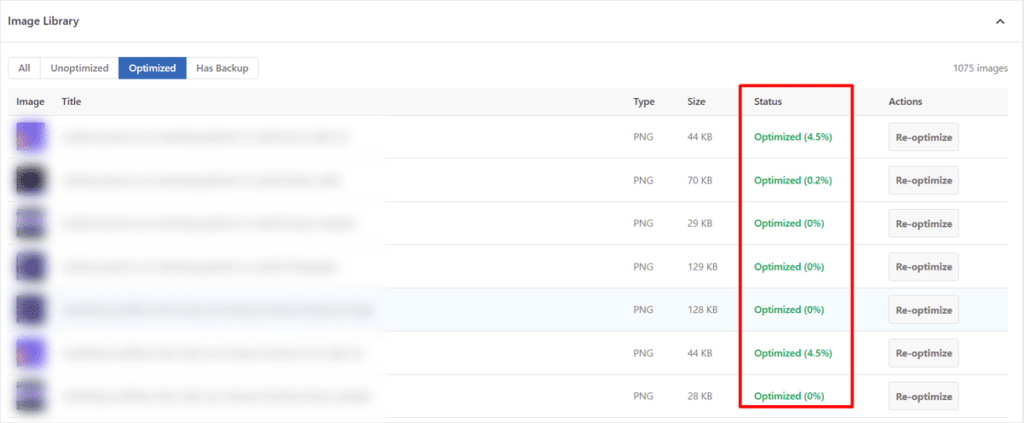
Look at those percentages. 4.5%. 0.2%. Zero. That’s not the plugin underperforming; that’s the plugin telling you the truth about what’s left.
This is the difference between an image compression WordPress tool that runs a process and one that makes a judgment call. Image Optimizer by WPCode skipped 1,379 images on purpose.
The Bigger Library: What Happened on the Live VPS
The test site library was a useful sample. The live VPS library was the real test. Over 1,700 images, actively growing, serving real traffic.
If a library that size has images you don’t actually need anymore, our guide on how to delete unused images from your WordPress media library is worth a look before your next bulk run.
Partway through that run, the dashboard showed 81% complete: 1,769 images, 1,425 optimized, 344 remaining. Total saved so far: 4 MB about 2.1% of the library’s weight.
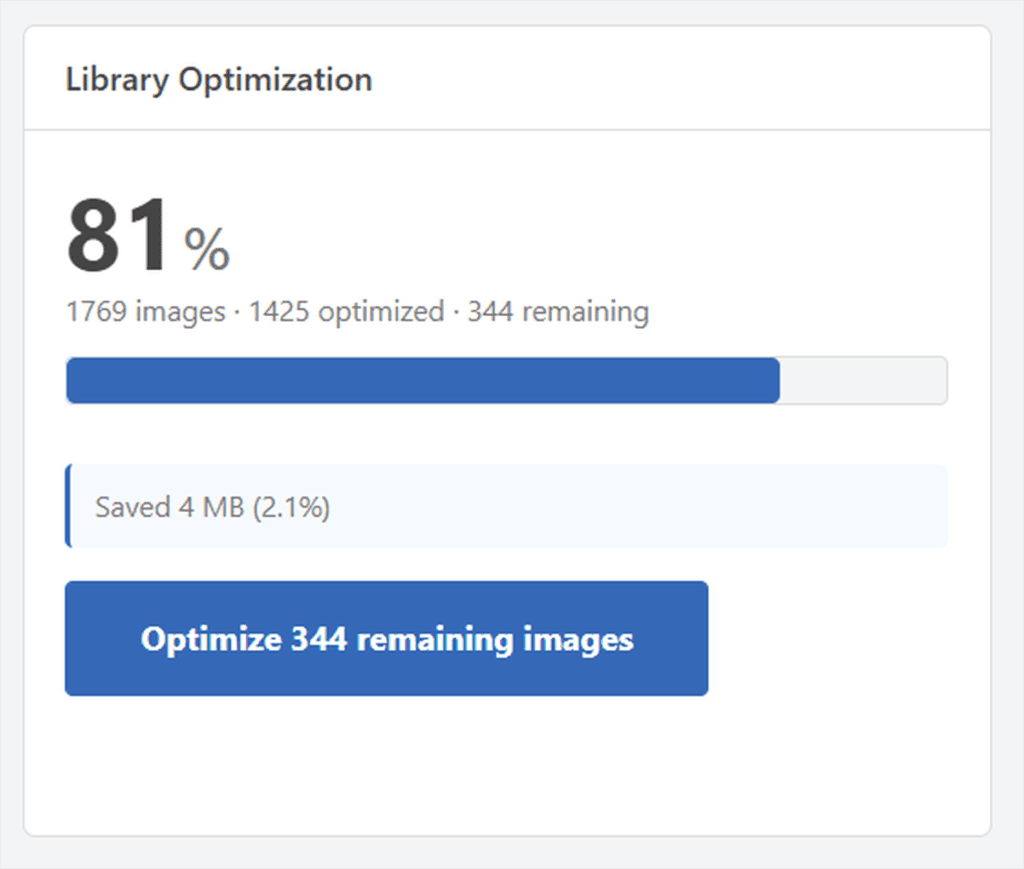
By the end, 1,069 of those images carried the “Optimized” badge. Each one checked and accounted for.
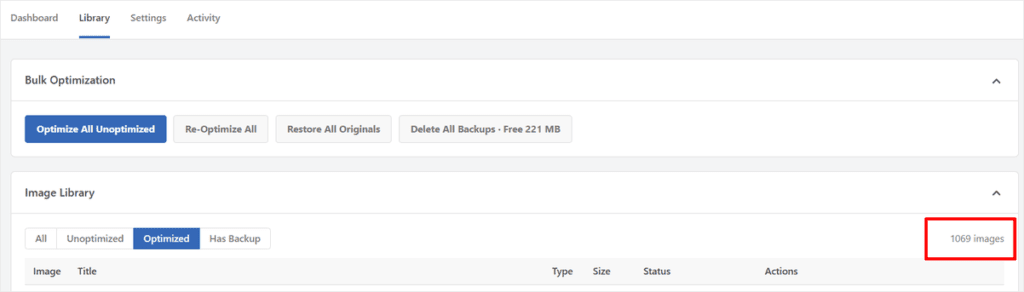
On a site this size, 2.1% is still megabytes of weight that visitors no longer have to download.
The Storage Win Nobody Expects
Here’s a number that had nothing to do with compression at all.
Image Optimizer by WPCode keeps a backup of every original before it touches anything. That’s the safety net that makes running it on a live site low-risk.
This way, if you ever need one back, you can simply roll back the optimization. Our guide on how to restore deleted images in WordPress covers that too.
Over time, on a site this size, those backups had quietly built up to 221 MB.
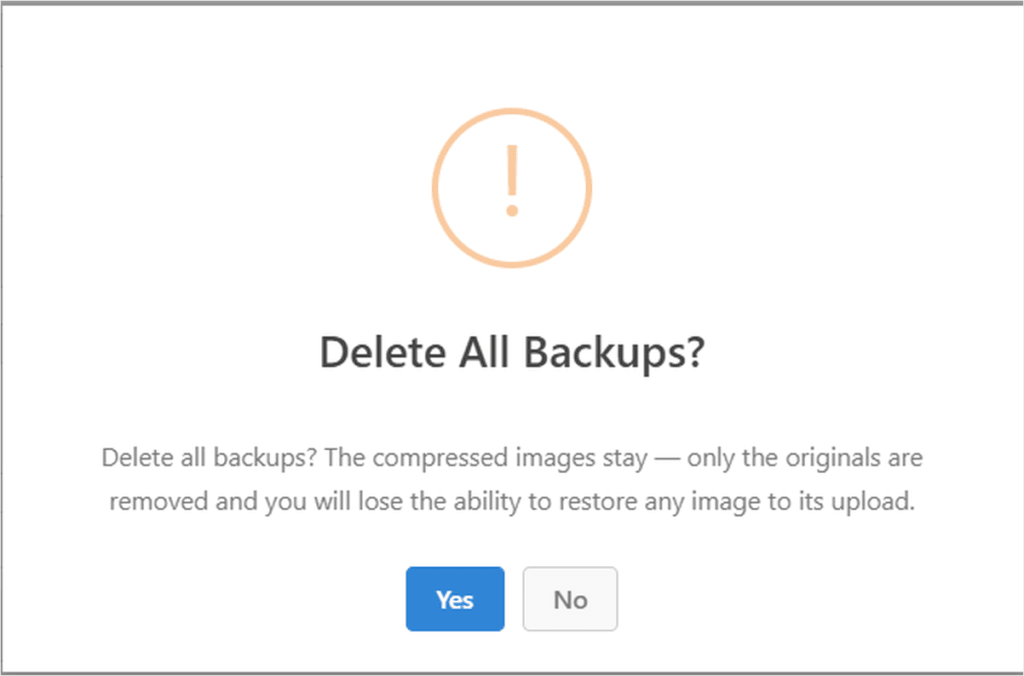
One click freed all of it. The compressed versions stayed exactly where they were. Only the old originals went.
If your library is already optimized, the compression itself may only save you kilobytes. The backups sitting behind months of runs can be the bigger win, and it’s one click away.
Same Plugin, Same Images, Different Hosting, Different Payoff
Already on the Bundle? Log into library.wpcode.com, find Image Optimizer in your dashboard, and download it. Nothing to buy. It is already included in your plan.
This is where the two-site test paid off and where the real numbers from PageSpeed Insights live.
VPS Desktop: A Perfect Score
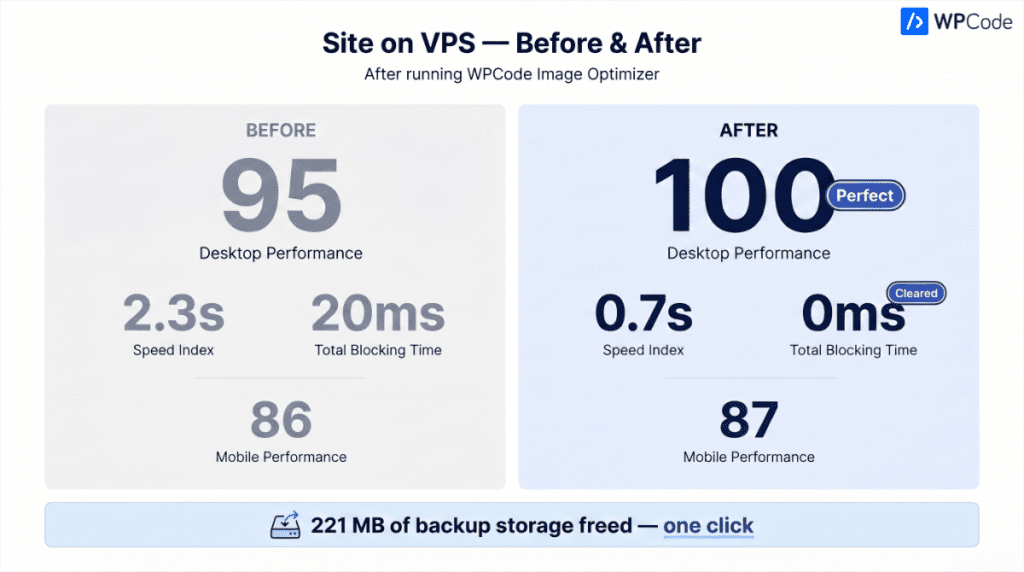
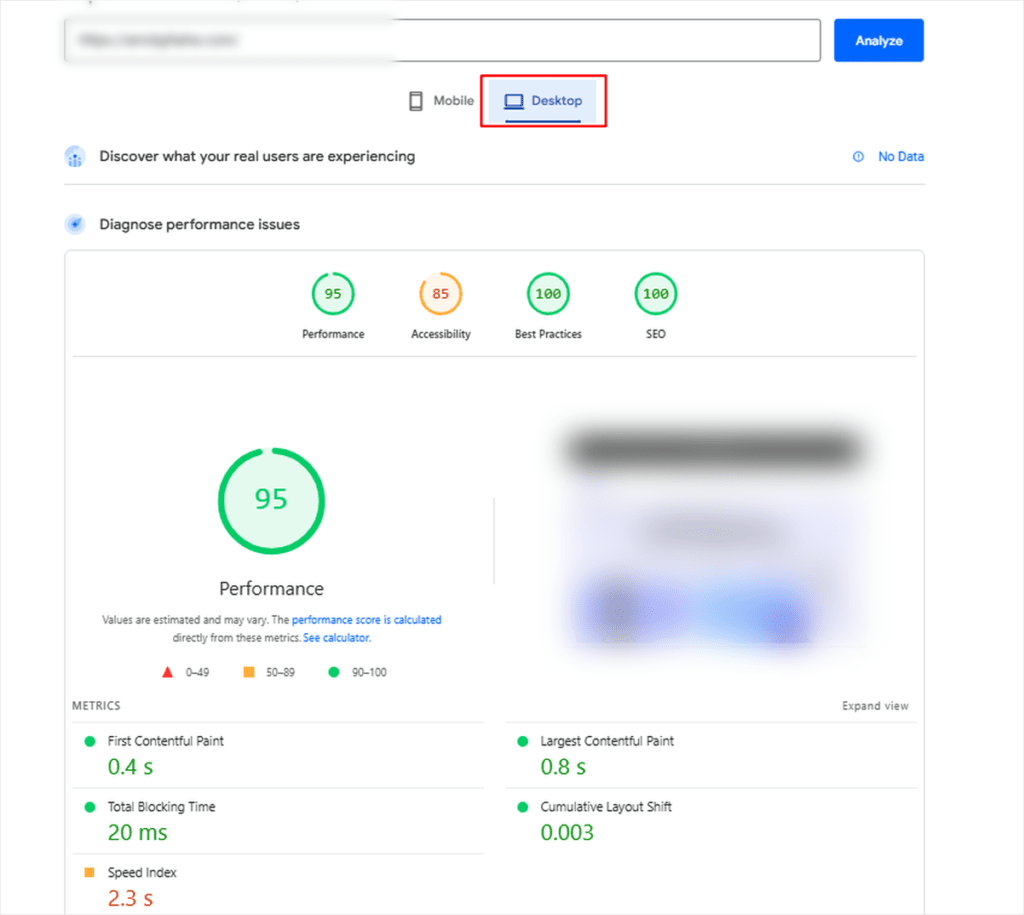
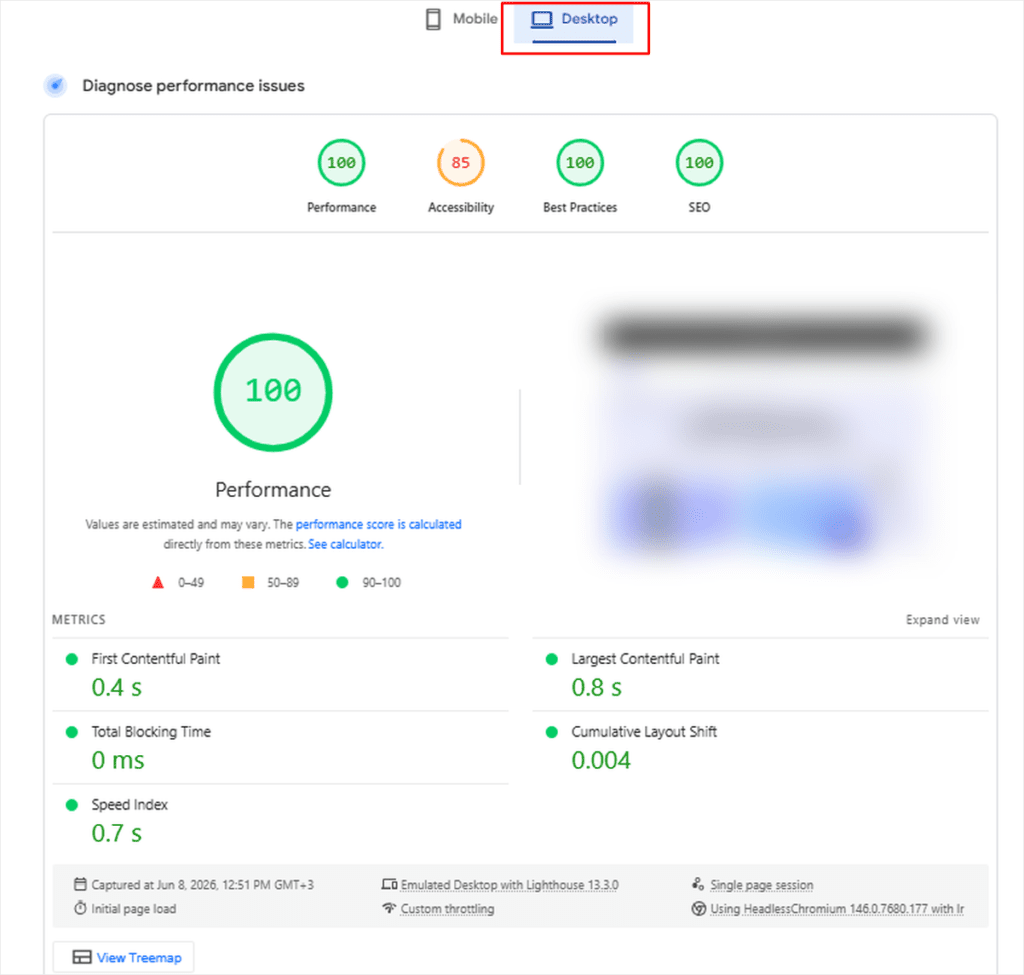
Before the run, the live VPS scored 95 on desktop. After: 100. Largest Contentful Paint landed at 0.8 seconds, essentially instant.
VPS Mobile: Small Movement, and That’s the Point
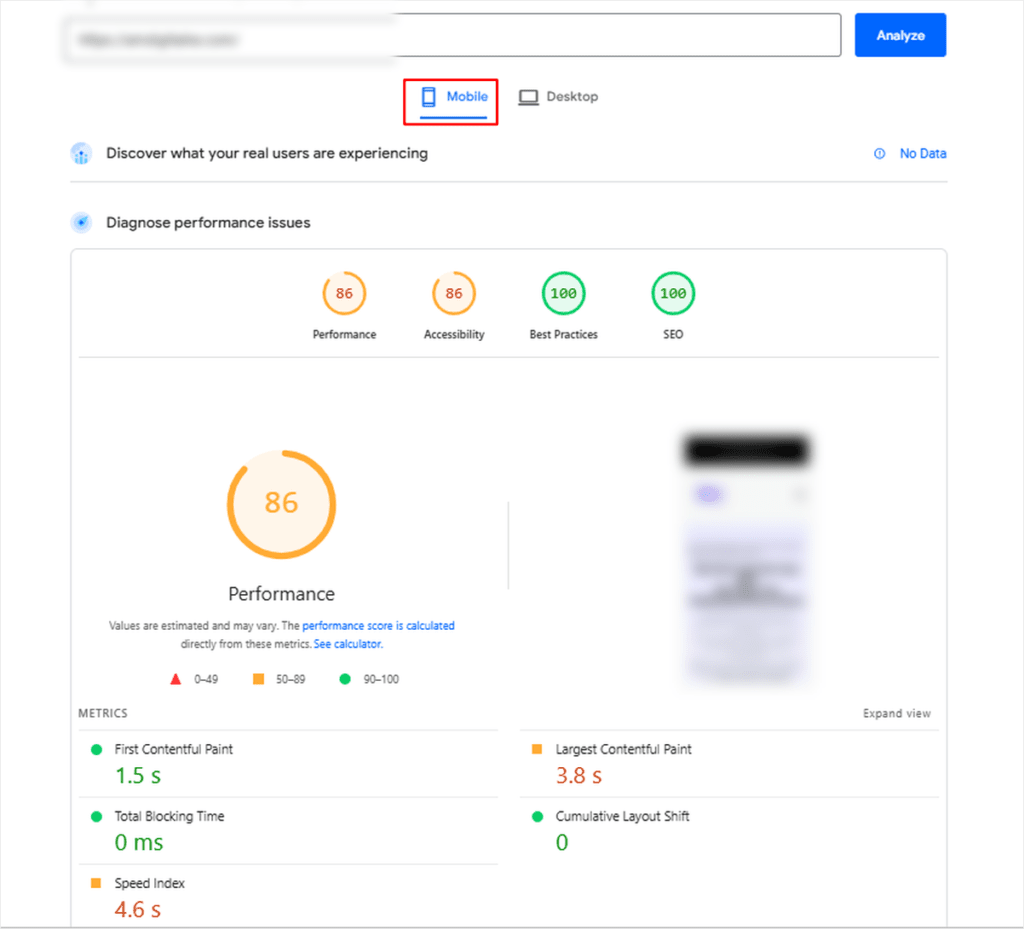
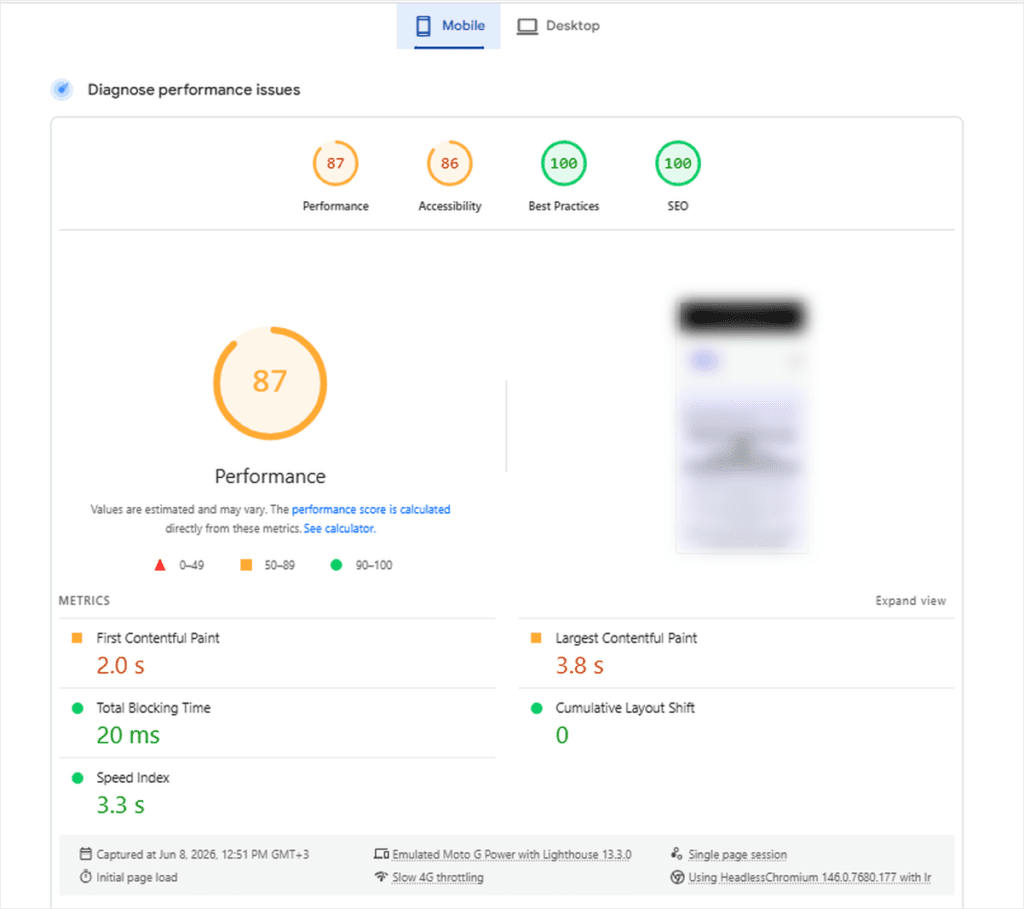
Mobile moved from 86 to 87, which was barely a shift. The site was already tuned well enough that there wasn’t much room left to climb.
Anyone who has optimized mobile sites knows that getting anything over 80 is pretty good.
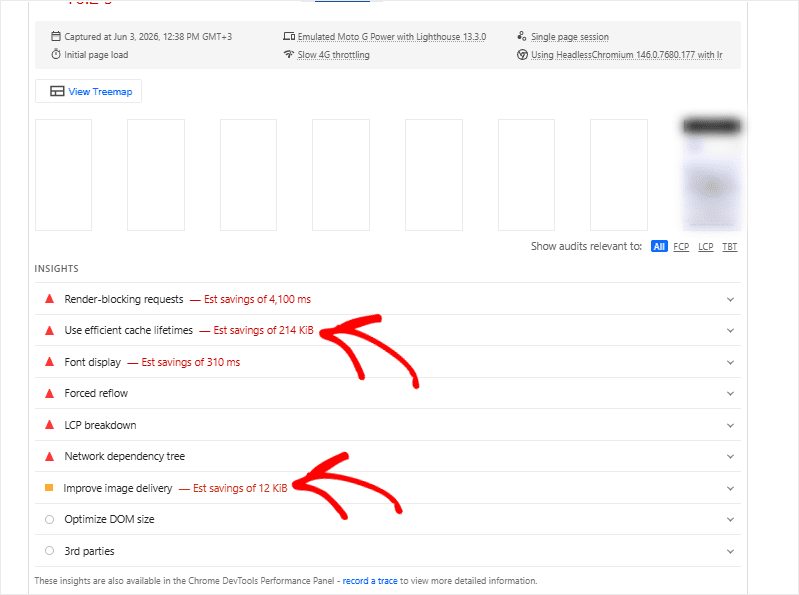
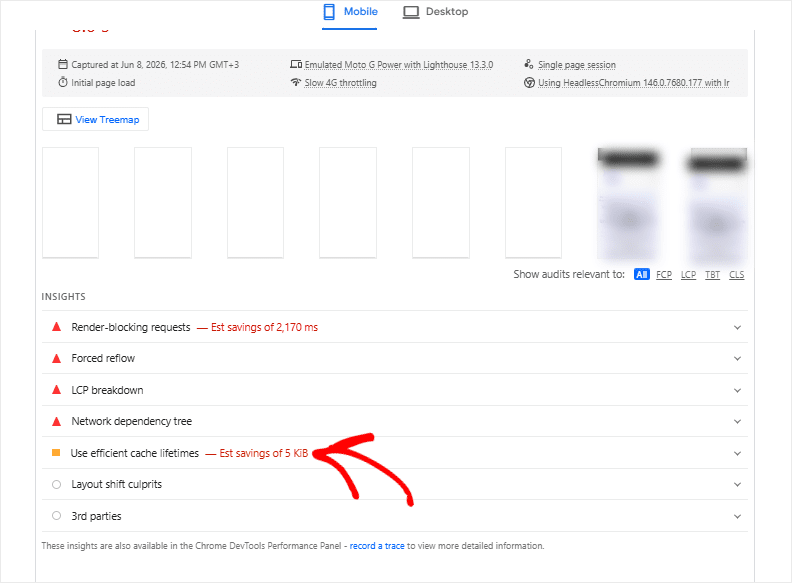
But the unexpected win came from the “Improve image delivery” flag, which was there before the run. After it, it wasn’t showing up anymore.
On top of that, cache lifetimes dropped from 214 KiB to 5 KiB. Smaller images mean less for your server to cache.
Shared hosting Mobile: The Biggest Jump on The Board
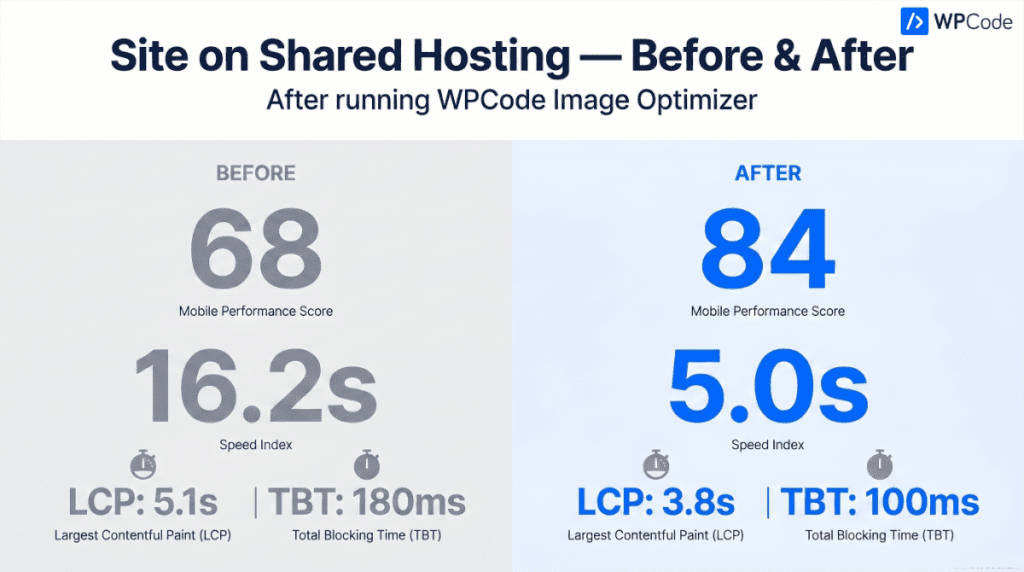
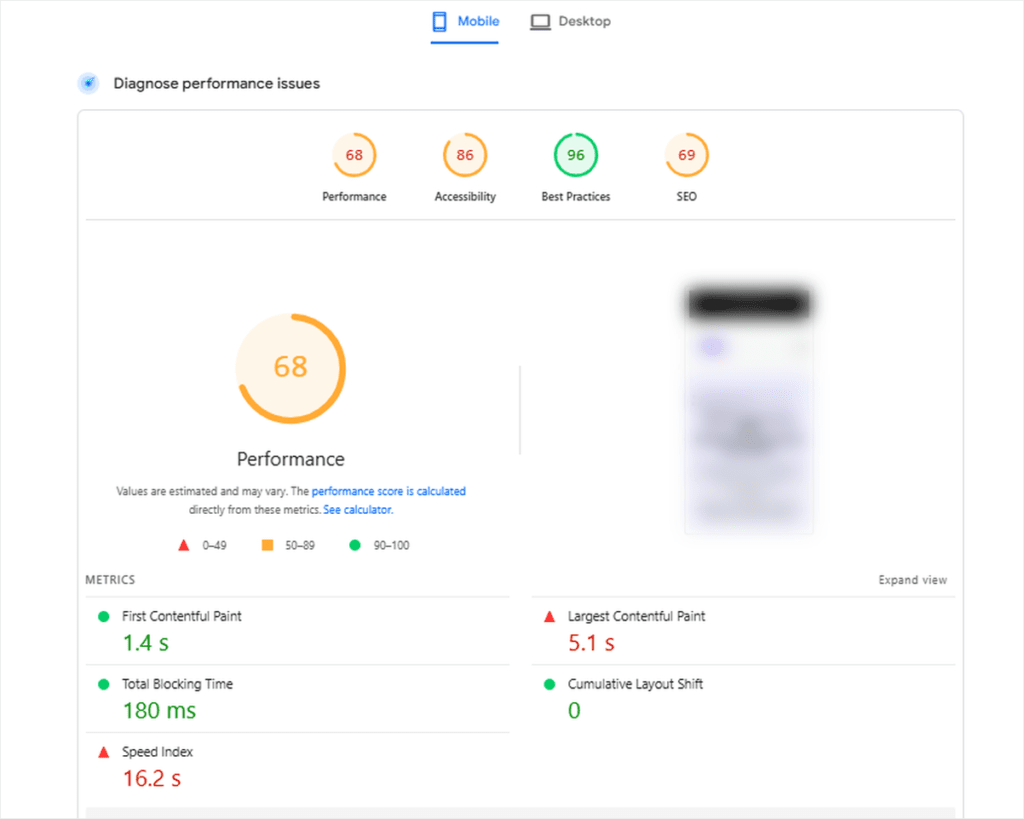
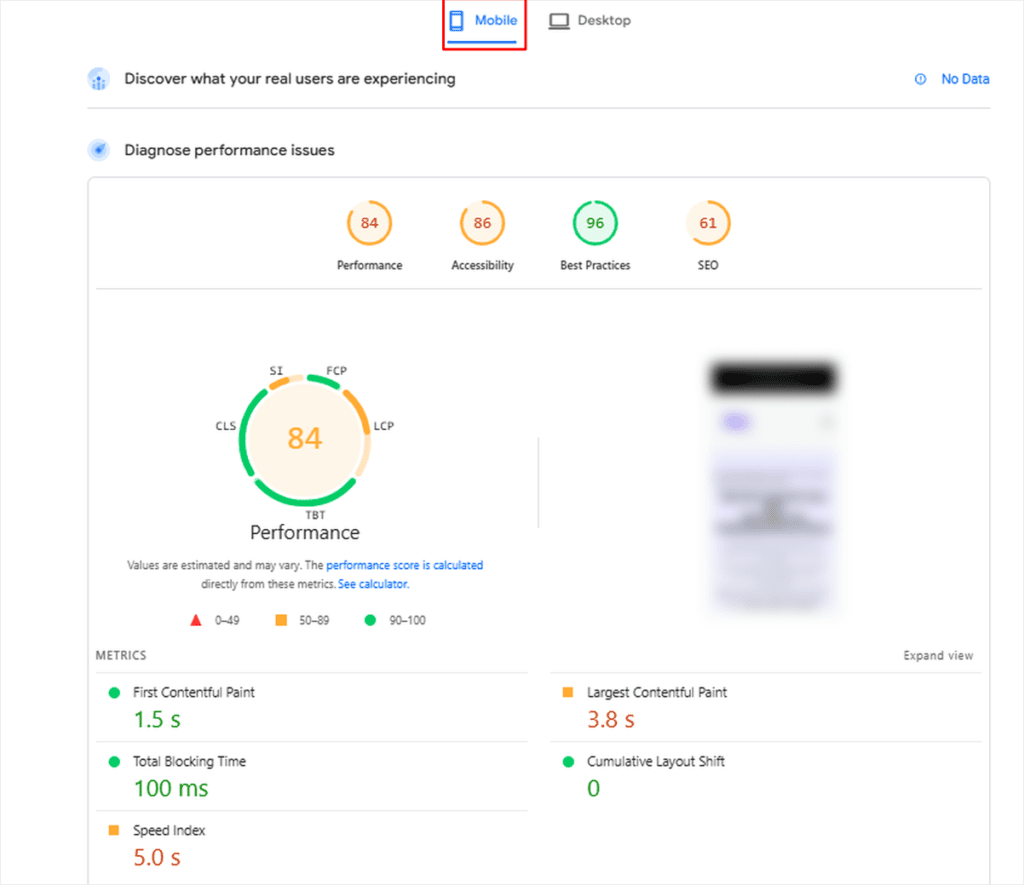
This is the one to pay attention to. Performance went from 68 to 84 a 16-point gain. But the score is the smallest part of the story.
Speed Index dropped from 16.2 seconds to 5.0 seconds. More than three times faster. Largest Contentful Paint fell from 5.1 seconds to 3.8 seconds, and total Blocking Time dropped from 180ms to 100ms.
Shared hosting Desktop: A Smaller, Steady Gain
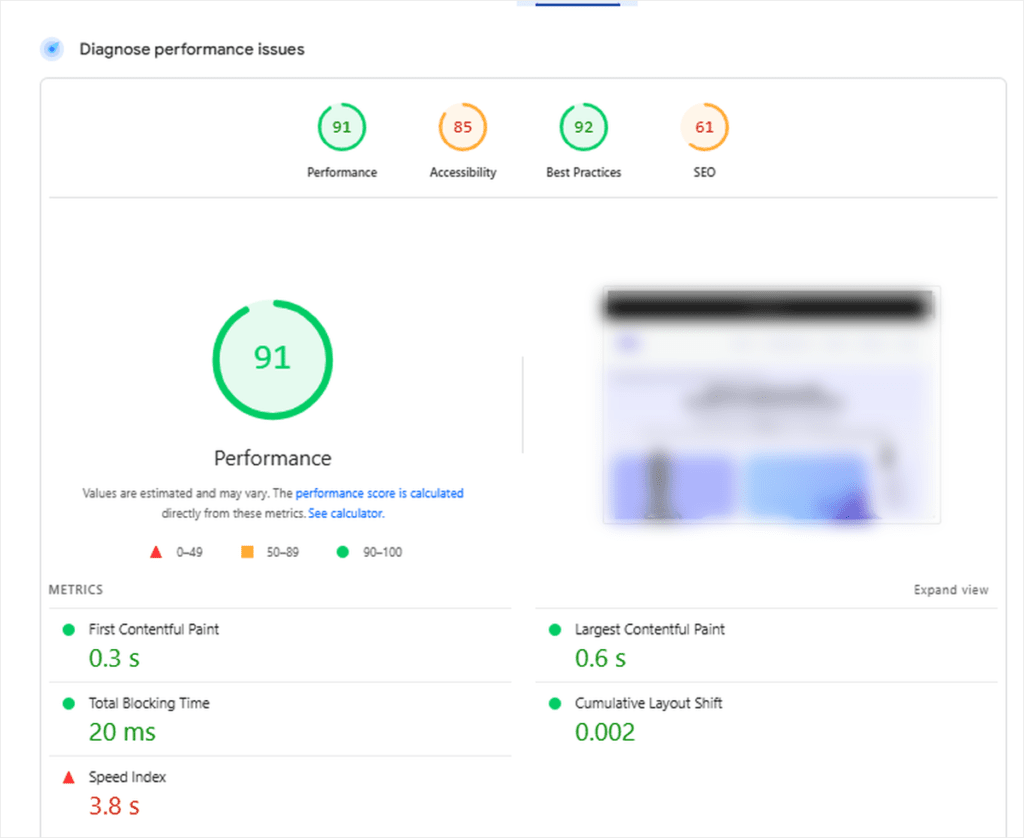
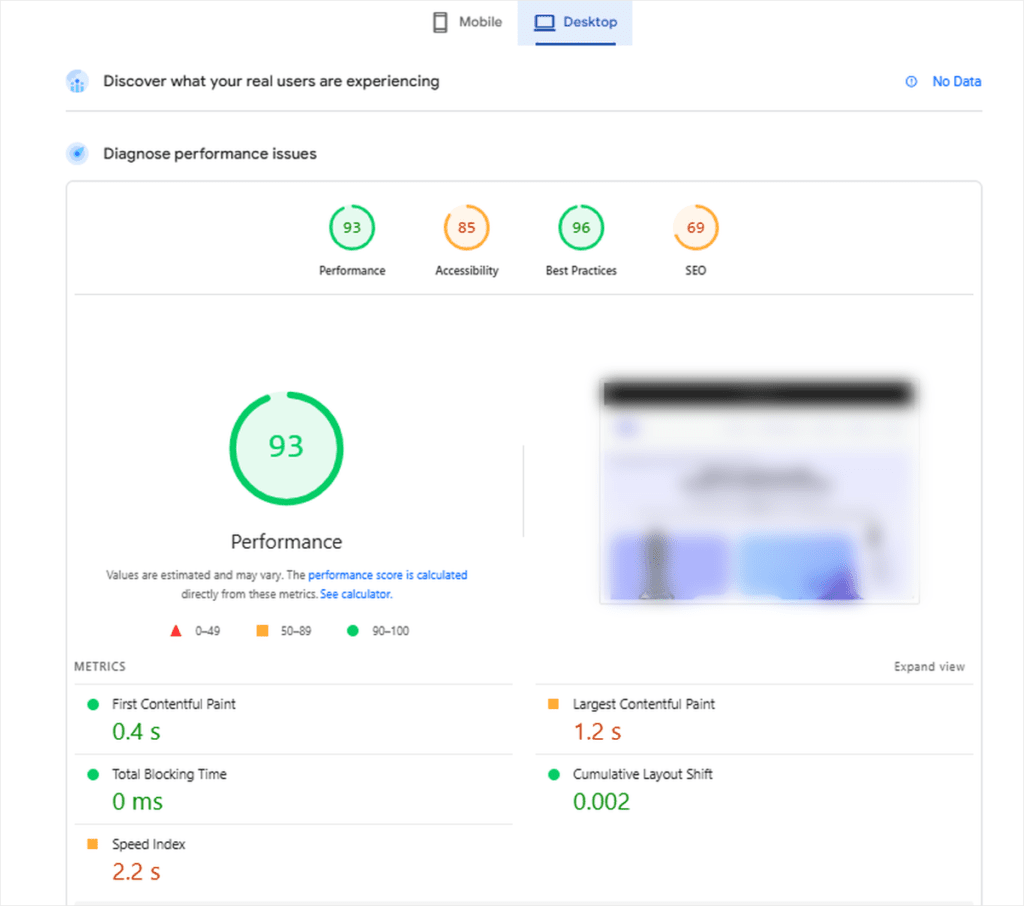
Desktop moved from 91 to 93. Smaller jump, same direction, same story.
Shared hosting performs better on desktop by default, with less throttling and more processing headroom. So the gap was smaller to close.
The image compression plugin still moved it forward, just with less room to work with.
What Our Tests Tell Us About WPCode Image Optimizer
The compression work was identical in both places, the same images, the same settings, the same plugin. What changed was how much each environment had to gain back.
Most small businesses run on shared hosting. It’s affordable, it works, and it’s where a lot of WordPress sites live.
But shared resources mean slower delivery, and in 2026, a slow mobile site doesn’t get a second chance. Visitors leave, and Google notices.
That’s where Image Optimizer did its heaviest lifting.
As you can see, mobile performance jumped 16 points. Speed Index dropped by more than three times. Largest Contentful Paint and Total Blocking Time both improved.
On shared hosting, smaller images don’t just help. They carry the site.
For businesses already on a VPS, the gains look different, but they matter just as much.
Faster infrastructure means less room to improve dramatically. The desktop score hit a perfect 100. Speed Index dropped to under a second. Total Blocking Time cleared to zero.
At that level, every tenth of a second is the difference between your site and your competitor’s. Image Optimizer by WPCode finds what’s left and improves it.
Final Verdict: Does an Image Optimizer Still Help an Already-Optimized Site? We Tested It
Yes, more than we expected, and in ways we didn’t anticipate.
The compression savings were modest. That was expected. But the plugin still cleared a PageSpeed flag that had no business being there on an “optimized” site.
It frees storage that quietly builds up for months. And on shared hosting, it moves metrics that most site owners don’t even know to look at.
If your site is already optimized, running Image Optimizer by WPCode isn’t redundant. It’s a second opinion, one that checks every file, skips what doesn’t need touching, and cleans up what was left behind.
And it costs nothing extra to run it.
That’s it. If anything is unclear, check out the commonly asked questions below.
FAQs: We Ran WPCode Image Optimizer on an Optimized Site: Here’s What We Found
Does image optimization actually improve PageSpeed scores on shared hosting?
Yes, and more than you’d expect. On shared hosting, resources are already stretched. Smaller images do more work per kilobyte because the server has less headroom to compensate. In our test, mobile performance jumped 16 points, and Speed Index dropped by more than three times.
What happens when you run WPCode Image Optimizer on images that are already optimized?
It skips them. The plugin checks each file before compressing and leaves already-optimized images alone. In our test, 1,379 of 1,574 images were skipped on purpose. Re-compressing an already-compressed file doesn’t make it smaller; it just risks making it worse.
Does WPCode Image Optimizer work if I close my browser mid-run?
Yes. The bulk optimization runs on your server, not in your browser tab. You can close the tab, shut down your PC, and come back the next day. It picks up exactly where it left off with no need to restart the run.
Is Image Optimizer by WPCode included in the Bundle plan?
Yes. Image Optimizer is a Bundle-only feature, there is no standalone version or lite plan access. If you are already on the Bundle plan, it is in your account now and ready to install at no extra charge.
How much storage can I free up after running Image Optimizer?
It depends on your library size, but the biggest storage win often comes from deleting the original backups after a successful run, not the compression itself. In our test on a live site, clearing the backup originals freed 221 MB in a single click.
Does image optimization help VPS sites if they are already fast?
Yes, but the gains are more targeted. A fast server has less room to improve dramatically, so the score movement is smaller. In our test, the desktop score hit a perfect 100, Speed Index dropped to under a second, and Total Blocking Time cleared to zero. It removes the final speed friction points.
See What It Finds on Your Site
Maybe your site has already been through an optimizer. Maybe you’re not sure how much is really left to gain.
Point Image Optimizer at your library and let it tell you. You’ll see the same kind of detail you just saw here.
If there’s nothing left, you’ll know for certain. If there’s more, you’ll see exactly where.