
When you add custom code to WordPress, where that code appears on your page matters just as much as the code itself.
For example, you might want to add a promotional banner before your site’s header, or insert a trust badge right before a checkout form. Getting that placement right can make a real difference to your visitors’ experience.
The problem is that WordPress doesn’t give you an easy built-in way to target specific HTML elements and inject code before them. I’ve seen many WordPress users accidentally break their site’s layout simply because a script was loaded at the wrong place and at the wrong time.
The good news is there’s a clean, safe way to handle this using WPCode. It makes it very easy to insert custom snippets anywhere on your site.
In this guide, I’ll walk you through exactly how to add code snippets before HTML elements in WordPress.
Why Does Code Placement Matter in WordPress?
If you’ve ever wanted to add something to a specific spot on your WordPress page, you know how frustrating it can be to get the placement just right. It’s a bit like trying to hang a picture frame on a wall. You need to hit the exact right spot, or the whole thing looks off.
Here are some real situations where this comes in handy. Say you want to show a promotional banner right before your site’s navigation menu. Or maybe you want to add a trust badge just before your WooCommerce checkout form to nudge visitors into completing their purchase.
These are the kinds of things that can directly impact your conversions and user experience. But without the right tool, pulling it off is harder than it sounds.
The traditional way of doing this is editing your theme’s template files directly. You’d have to find the right PHP file, locate the correct HTML element, and manually insert your code. If your theme updates, those changes vanish instantly.
Worse, if you make a typo in a template file, you could break your entire page layout. It’s a high-risk approach for what should be a simple task.
Having a way to safely target specific HTML elements and inject code before them, without touching a single theme file, is a game-changer for WordPress users of all skill levels. That said, let’s look at a simple way of loading custom code snippets before HTML elements on your site.
Inserting Snippets Before HTML Elements
WPCode is the most popular code snippet plugin for WordPress. It is hands down the safest way to add custom code to WordPress without touching your theme files.
It works like a personal code library for your WordPress site. You can add, manage, and control all your custom snippets from one clean dashboard. No more digging through theme files or worrying about updates wiping your changes.
With WPCode, you get complete control over where your code snippets will be inserted. It provides you with an option to run them before an HTML element on your site. The best is that you can use its CSS selector to point and click where to insert the snippet.
This means that you don’t need to know CSS or what a CSS selector is. All you have to do is point and click. Plus, even if you do know your way around CSS, why spend 3 minutes hunting for a selector when you can do it in 3 seconds? Your time is better spent elsewhere.
Another benefit is that manually typing or copying selectors is a surprisingly easy place to introduce errors. The visual picker eliminates that entirely. What you click is exactly what you get.
Note: You will need WPCode Pro because it includes the CSS Selector and Insert Before HTML Element options. However, there is also a WPCode Lite version available for free, but it won’t let you choose an HTML element to run your code snippets.
With that, let’s look at the steps you can follow.
Step 1: Install and Activate WPCode
First, you can grab your copy of WPCode Pro from the official WPCode website.
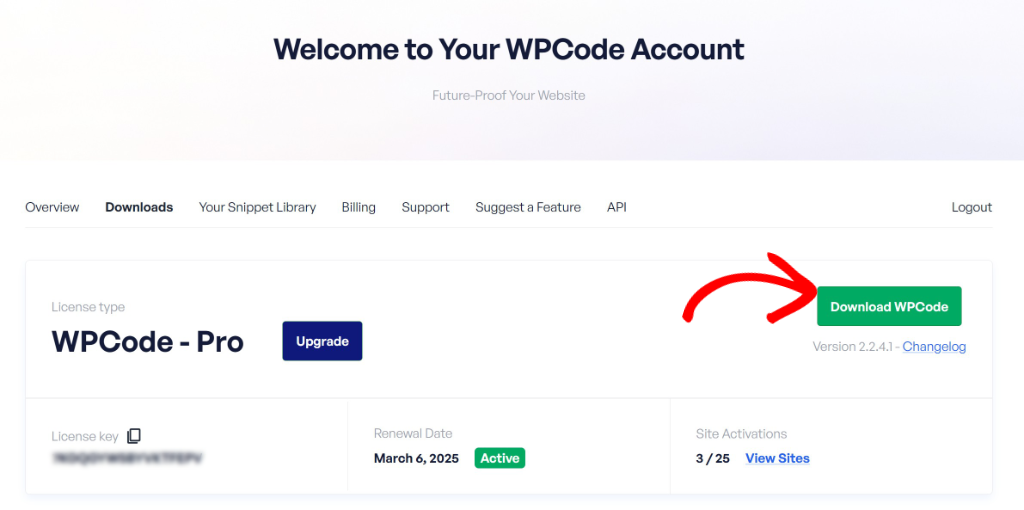
Once you’ve signed up, log in to your account and head to the ‘Downloads’ tab. From here, click the ‘Download WPCode’ button and save the plugin file somewhere easy to find on your computer.
After that, you’ll need to install and activate the plugin on your WordPress site. If you’ve never done this before, just follow our guide on how to install a WordPress plugin.
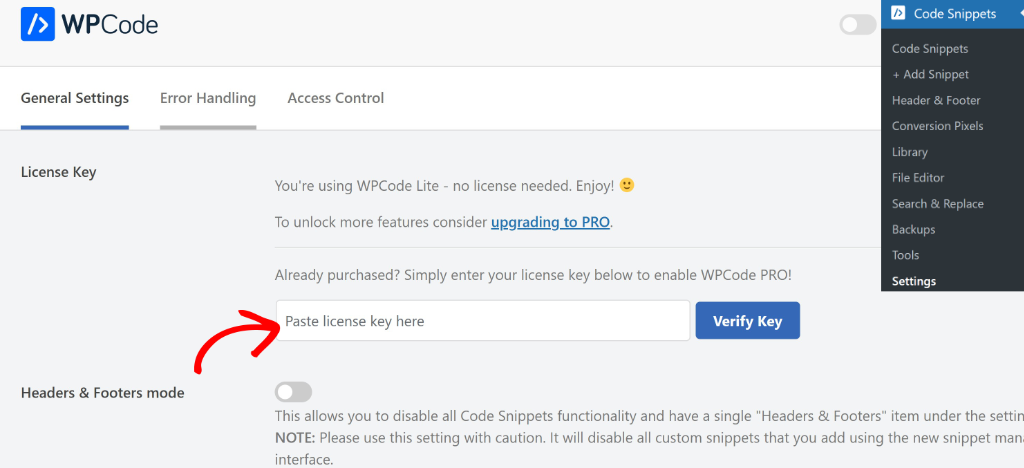
Once the plugin is active, go to Code Snippets » Settings from your WordPress dashboard. You’ll see a field where you can paste your license key, which you’ll find in your WPCode account area. Go ahead and enter it there and save your settings.
Step 2: Add a New Snippet in WPCode
Now that WPCode Pro is installed, it’s time to create a new code snippet. Head over to Code Snippets » + Add Snippet from your WordPress dashboard.
This will take you to the WPCode snippet library, where you’ll see a bunch of ready-made snippets you can use. You can create a custom snippet from scratch by clicking the ‘Add Your Custom Snippet (New Snippet)’ option. Or you can simply select one from the library.
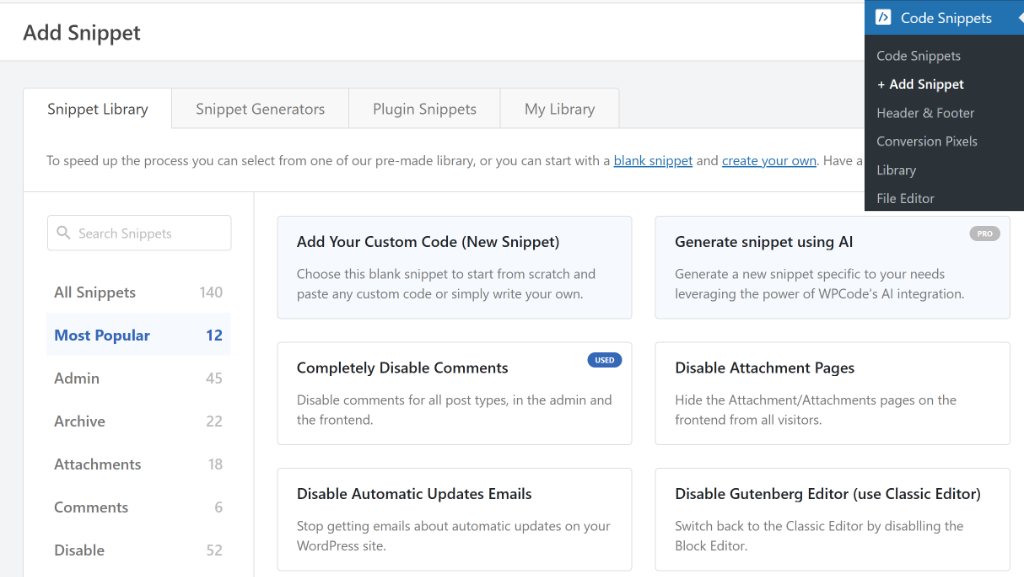
If you are creating a snippet from scratch, then you’ll be asked to choose a code type.
On the other hand, if you choose a snippet from the library, then it will be preloaded in the code editor. For example, here’s how the code snippet for a simple countdown timer will appear when selected from the library.
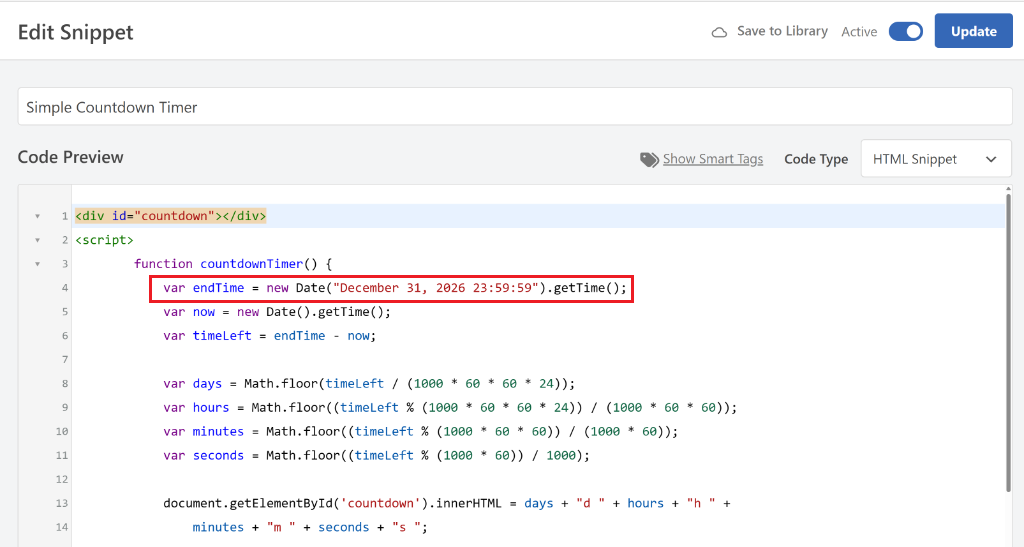
In the code editor, you can make changes to your code. In this instance, you can choose the date and time for your counter.
Step 3: Select the Insertion Location for the Snippet
Next, you can scroll down to the ‘Insertion’ section, where you’ll see options to place your snippet anywhere on your site.
From here, make sure to switch to the Auto Insert option and then click the Location dropdown menu.
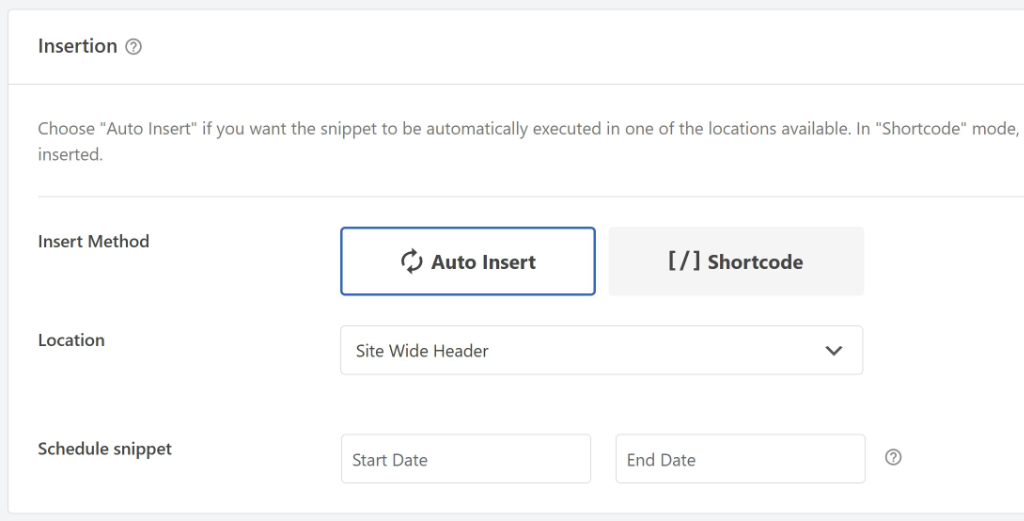
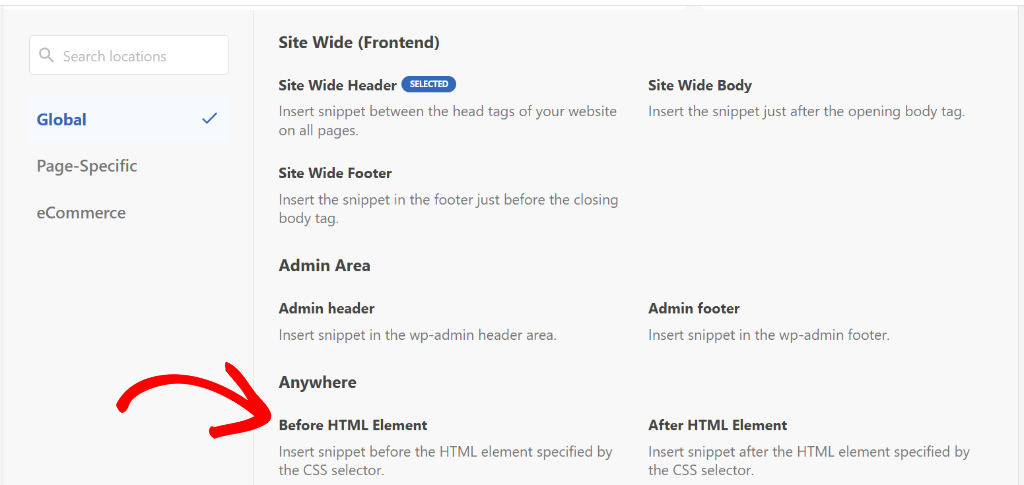
You should now see different options to place your code snippet.
Go ahead and select the Before HTML Element option.
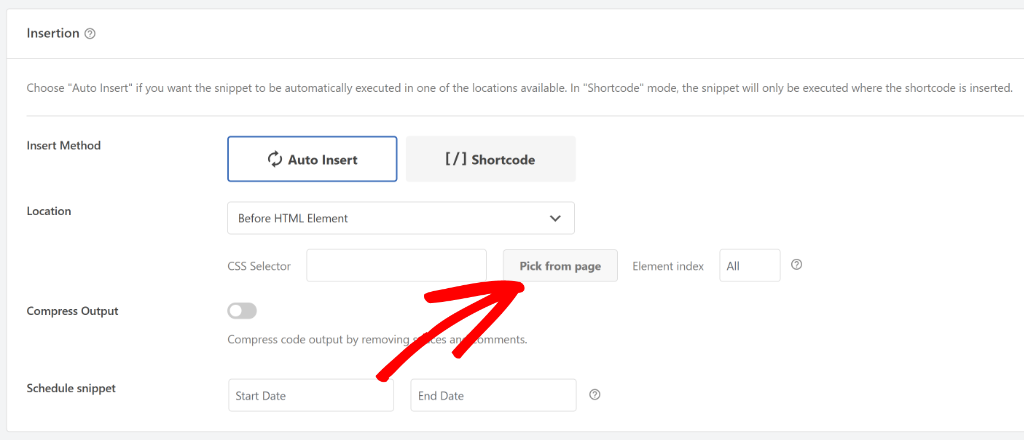
Next, you will see a new CSS Selector field and next to it a Pick from Page button.
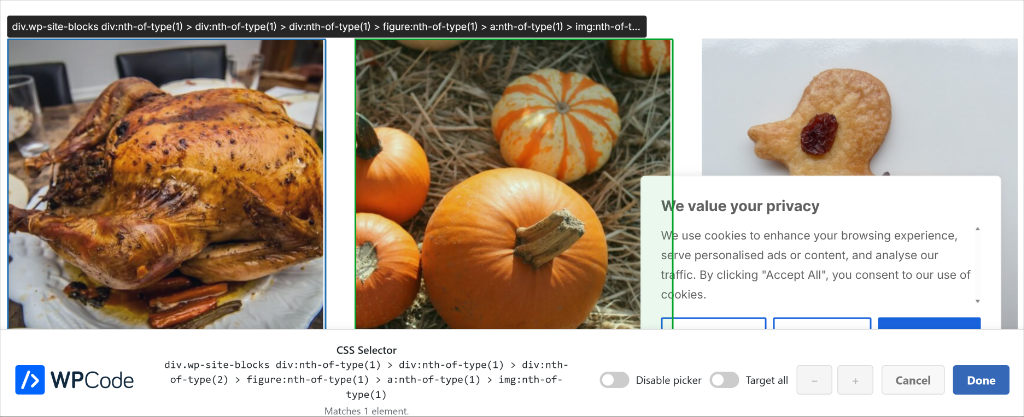
When you click this button, your live site loads up as an interactive canvas in a new tab where you can quickly pick an HTML element to insert your code snippet.
All you have to do is click on the element you want to target. WPCode automatically captures the correct CSS selector for you.
When you’re finished, go ahead and click the Done button.
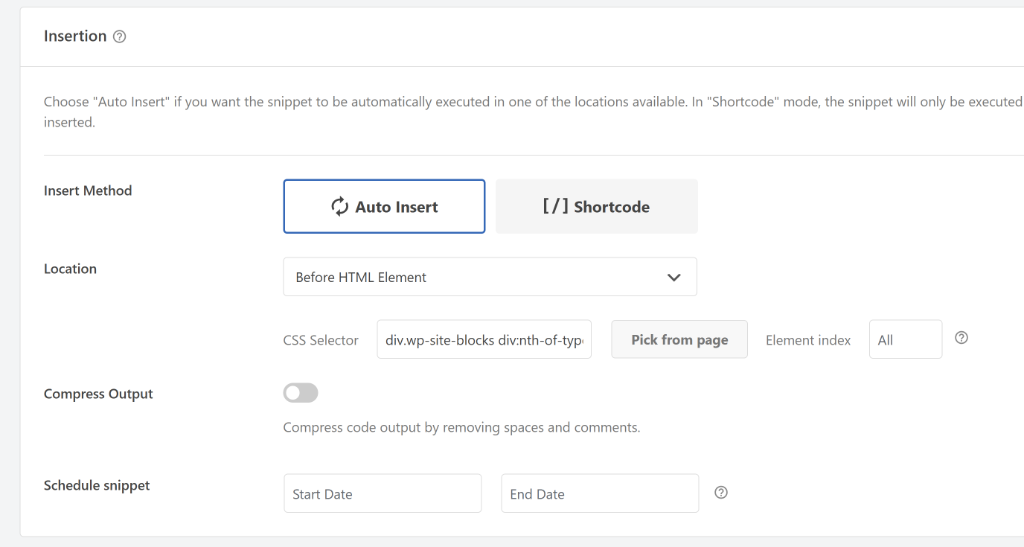
You will be taken back to the code editor screen in WPCode.
Here, you can view the CSS selector already inserted in the CSS Selector field.
When you’re done, simply scroll to the top of the page, click the toggle to make your snippet Active, and then click the Update button.
That’s it! WPCode will now save your snippet and start injecting it before the HTML element you specified.
Bonus Tips for Loading Snippets Before HTML Element
Here are some additional tips to make the most of your code snippets.
1. Use Conditional Logic to Control Where Your Snippet Loads
One of my favorite WPCode Pro features is conditional logic. Instead of showing your snippet on every page of your site, you can control exactly which pages it appears on.
For example, you might want your promotional banner to appear only on your homepage or shop page. To do this, scroll down to the ‘Smart Conditional Logic’ section on the snippet editor page and click the ‘Add New Group’ button. From here, you can set conditions based on page type, user role, and much more.
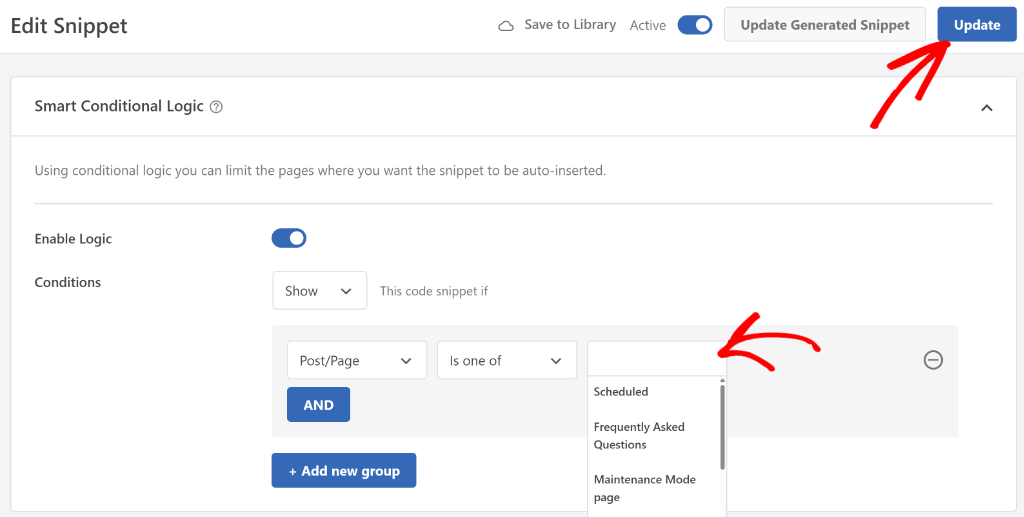
This is especially useful if you’re running a time-sensitive promotion and only want the banner to appear on specific pages.
2. Disable a Snippet Without Deleting It
Sometimes you might want to temporarily turn off a snippet without losing it completely. With WPCode, you don’t have to delete a snippet to stop it from running.
Simply head over to Code Snippets from your WordPress dashboard and find the snippet you want to disable. Click the toggle switch next to it to switch it from ‘Active’ to ‘Inactive’.
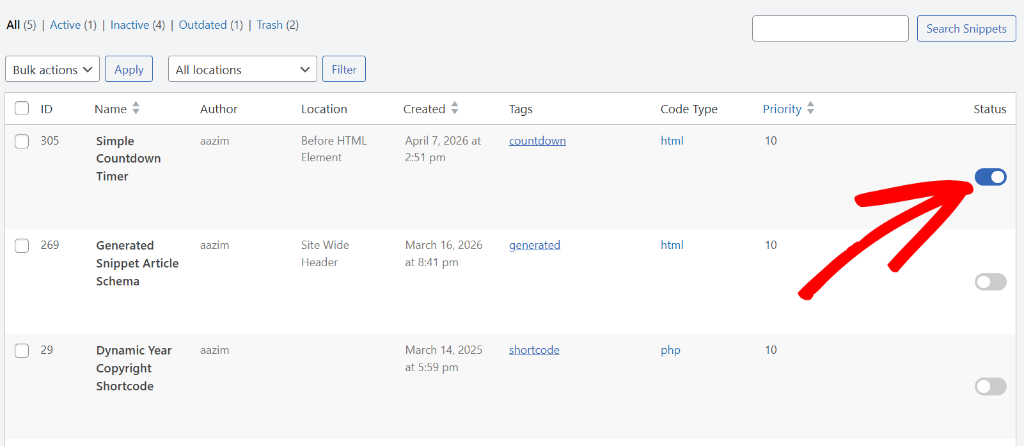
Your snippet will stop running immediately, but will still be saved in your dashboard, ready to be turned back on whenever you need it.
FAQs for Adding Code Snippets Before HTML Elements
1. What does “before HTML elements” actually mean in WordPress?
When a browser loads a webpage, it reads the page’s HTML code from top to bottom. “Before HTML elements” simply means that your code snippet will be inserted right before a specific HTML tag on the page.
2. What are CSS selectors?
CSS selectors are like addresses for HTML elements on your page. They help you point to a specific element on your page so you can target it. In WPCode, you use CSS selectors to tell the plugin exactly which HTML element you want your snippet to appear before.
3. What happens if I add a broken code snippet? Will it crash my site?
This is one of the biggest fears people have about adding custom code to WordPress. With WPCode Pro, you have a built-in safety net. If your snippet contains errors, WPCode will detect them before they cause any damage to your site.
4. Can I add code before HTML elements on specific pages only?
Yes, absolutely! This is where WPCode Pro’s conditional logic feature comes in handy. You can set conditions to control exactly which pages your snippet appears on. For example, you can show a snippet only on your homepage, your shop page, or even for specific user roles.
5. What’s the difference between adding code in the header vs. before HTML elements?
Adding code in the header means your snippet loads in the <head> section of every page on your site. On the other hand, adding code before a specific HTML element gives you much more precise control. You can target any element on any specific page and insert your code right before it. It’s a much more surgical approach compared to the broad brush of header injection.
I hope this tutorial helped you learn how to add code snippets before HTML elements in WordPress. You may also want to see our guides on how to load code snippets as files in WordPress and how to restore deleted images in WordPress.
If you need help, then feel free to leave a comment below. And don’t forget to follow us on X (formerly known as Twitter) and subscribe to our newsletter for all the latest updates.