Your Facebook pixel is either working or it isn’t. Right now, you find out from Facebook’s own dashboard, hours later, with no clear way to see what actually happened.
Today we’re shipping WPCode 2.3.8.
The headline feature is Event Logs for Conversion Pixels. We also gave the Live CSS Preview editor a resizable layout, since we were already in there making things easier to see.
Event Logs is available through the Conversion Pixels addon, which you can install or update separately from WPCode core in your WordPress dashboard. It’s available on the Plus plan and up.
The resizable Live CSS Preview editor is available to everyone using the free WPCode plugin.
What Is Event Logs?
Event Logs shows you every server-side pixel event the moment WPCode sends it. Type, time, provider, the actual event, and status. No refreshing an ad platform dashboard and hoping it caught up.
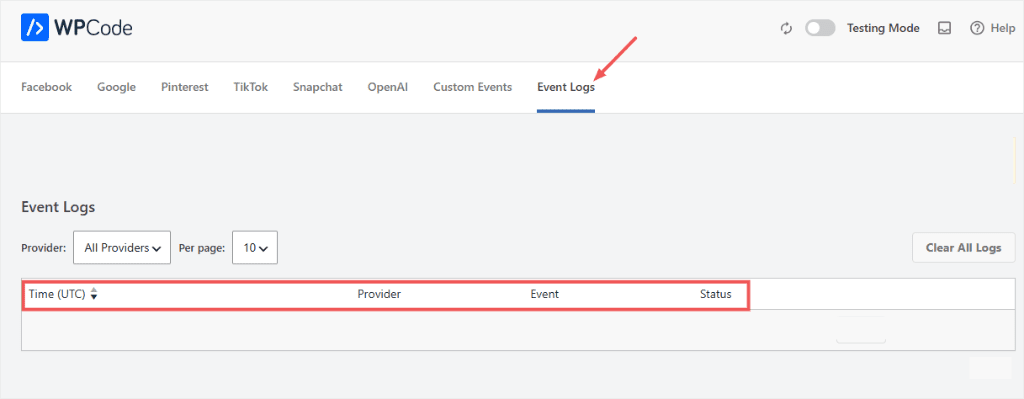
Here’s what it does:
See the Event the Second It Fires
You’ve tested a pixel before.
You click through your own checkout, then check Facebook’s Events Manager, and nothing’s there yet.
Ad platforms delay what they show you. They show you even less when something fails.
Event Logs sits inside WPCode instead.
Every server-side event fires, and a line appears with the event type, the time, and the pixel it went to.
On a fresh install, the tab opens to “No log files found. Enable logging below and trigger conversion pixel events to populate the logs.”
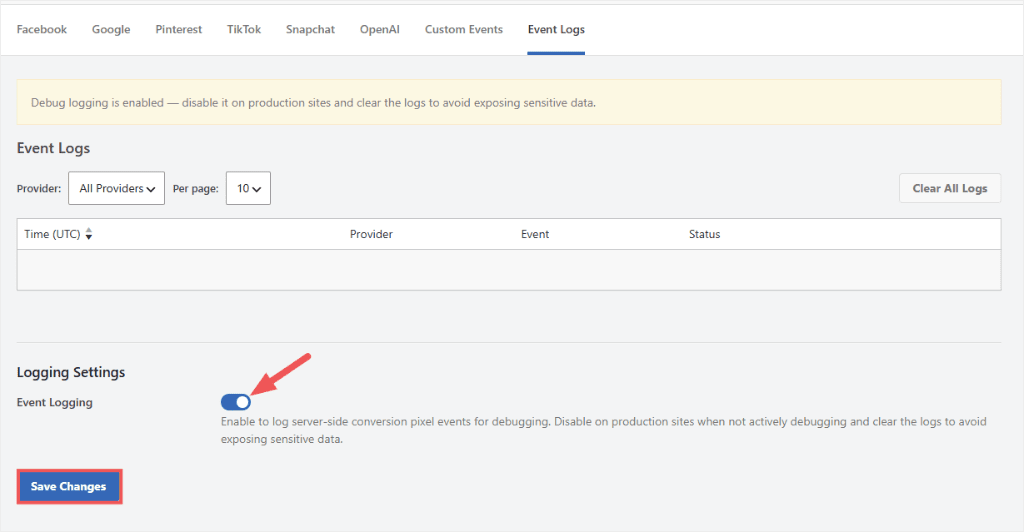
Update the addon, turn logging on, and trigger a pixel. Then, come back and the entry should be logged.
Know Success From Failure Without Guessing
As mentioned, most ad platforms’ dashboard tells you an event fired. It doesn’t reliably tell you when one didn’t, or why.
Event Logs marks each entry’s success or error.
Expand any entry, and you get the full request WPCode sent and the response the platform sent back. That’s the difference between “it’s probably fine” and knowing.
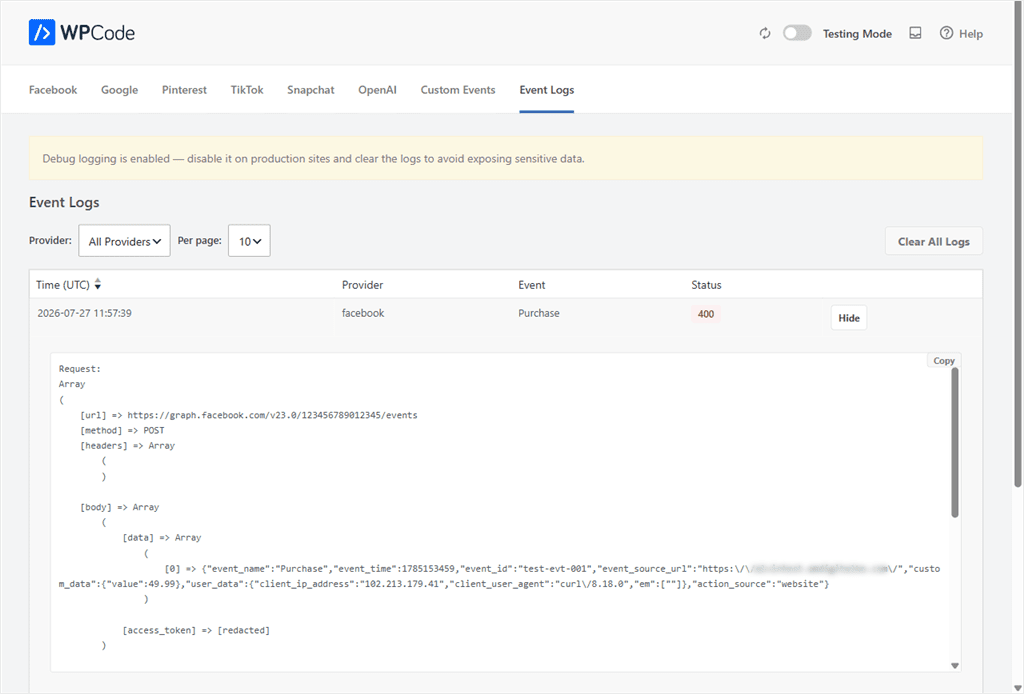
From the screenshot above, you can see that we ran a test Purchase event that came back as a 400, since the test token wasn’t real.
Expanding it shows the exact request WPCode sent to Facebook.
The access token field is there, but marked [redacted] instead of showing the real value, so the token itself never appears in the log.
Filter to the Platform You’re Debugging
Event Logs covers Facebook, Google, Pinterest, TikTok, Snapchat, OpenAI, and Custom Events, the same seven tabs Conversion Pixels already tracks.
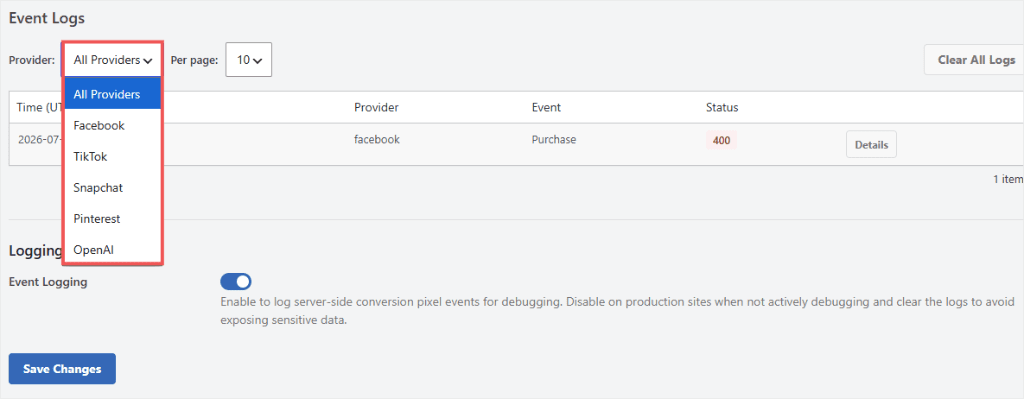
When you’re chasing one broken pixel, you don’t want six platforms’ worth of noise in between.
A provider filter narrows the log to just the one you’re testing.
Off By Default, and We Mean It
Event Logging is opt-in. It ships off.
Turning it on drops a standing reminder right on the page: disable it on production sites when you’re not actively debugging, and clear the logs when you’re done.
API tokens are stripped out of what gets logged. This is a debugging tool, not a place to leave sensitive request data sitting around.
Turn it off once you’ve found what you were looking for.
Seeing Your Code More Clearly Too
Event Logs isn’t the only thing in WPCode 2.3.8 about helping you see things more clearly. The Live CSS Preview editor can now be resized.
Drag the Divider, Keep the Room You Need
Live CSS Preview splits your screen between the code editor and a live preview. Until now, that split was fixed. Longer stylesheets meant scrolling sideways to read a single line.
Drag the divider between the editor and the preview, and the editor takes more of the screen. The preview takes the rest. Each side keeps a minimum width, so neither one disappears.
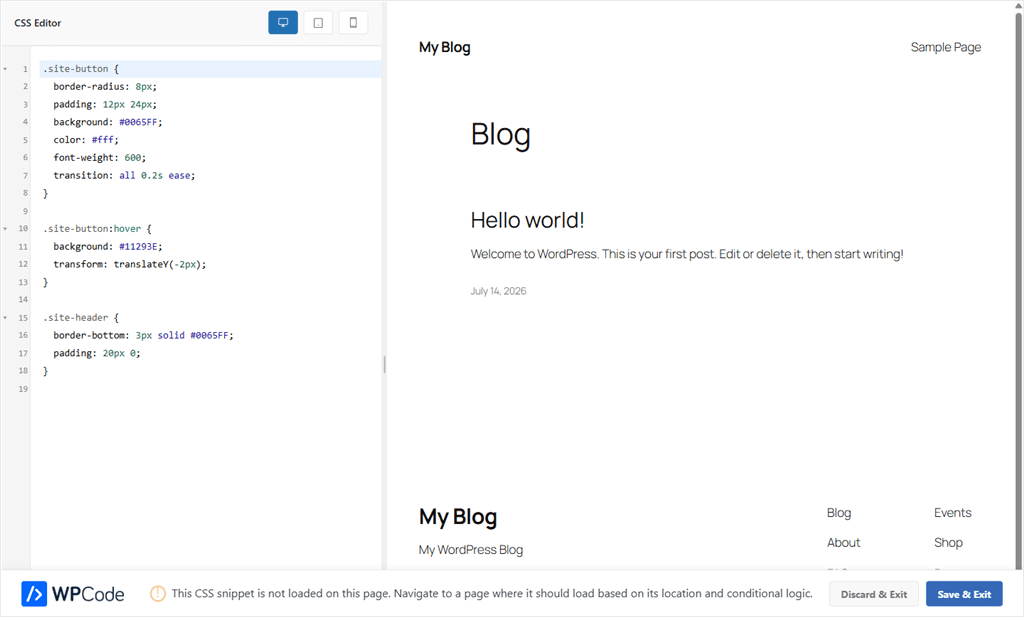
WPCode’s editor remembers the size you pick, so you’re not resetting it every time you open a snippet.
On smaller screens, where the editor stacks above the preview instead of beside it, the same handle adjusts height instead of width.
One resize, and the editor finally fits how you actually work.
Event Logs vs. Checking the Ad Platform
Here’s how Event Logs stacks up against checking the ad platform yourself.
| Feature | Event Logs (WPCode) | Checking the Ad Platform |
|---|---|---|
| When you see the event | The moment it fires | Delayed, sometimes hours |
| Failed events | Marked as errors, with the response | Often invisible |
| Where you look | One screen, inside WPCode | Switch between platforms |
| Filtering | By provider, in one list | Per-platform dashboard only |
| Sensitive data | Tokens stripped from logs | N/A |
Getting Started
Already running Conversion Pixels? Here’s how to see your first event:
- ✅ Update the Conversion Pixels addon, separate from the WPCode core plugin
- ✅ Go to Code Snippets → Conversion Pixels → Event Logs
- ✅ Turn on Event Logging and save
- ✅ Trigger the event on your site, a page view or a checkout
- ✅ Come back to Event Logs and expand the entry
Editing a CSS or SCSS snippet? The resizable editor is already there:
- ✅ Open a CSS or SCSS snippet
- ✅ Click Live Preview
- ✅ Drag the handle between the editor and the preview
- ✅ Keep working. It remembers the size next time.
What’s Coming Next
Event Logs is just getting started.
We’ll keep building on it, and your feedback will help shape what comes next. If there’s a platform or a detail you’d like to see, let us know.
Stop waiting for an ad platform dashboard to tell you what happened. See every event the moment WPCode sends it.
Ready to see your pixel events in real time?
One quick recap before you go: Event Logs needs Plus or higher, since it lives inside the Conversion Pixels addon. The resizable CSS preview? Already yours on any plan, free included.
New to WPCode? Download WPCode Lite →
Need Conversion Pixels? Upgrade to WPCode Plus →
Already using Conversion Pixels?
Update the Conversion Pixels add-on to start using Event Logs today →