Slow images are one of the most common reasons WordPress sites underperform.
Every site owner knows it. Most have Googled it and tried to fix it.
The standard answer is a cloud-based image optimizer.
Don’t get me wrong, they work. They compress your images, generate WebP versions, and improve your PageSpeed score.
But they charge per image.
A new site with a small library? Fine. A growing site where new images go up every week? The bill grows with it. Two sites? You’re paying twice. Five sites…
The math stops making sense fast. You hit your monthly limit mid-month, and you’re either paying for more credits or waiting.
These tools solve the technical problem and create a financial one.
Image optimization shouldn’t be something you ration. Every image on every site should be compressed. Not just the ones you remembered to run before hitting the limit.
So we built Image Optimizer by WPCode: Server-side, no cloud service, no per-image fees, and added it to the Bundle plan.
We added it to the Bundle specifically because Bundle users are already using WPCode to improve site performance. Code snippets instead of more plugins: Search & Replace Everything to keep migrations clean.
Image Optimizer by WPCode covers the media side of that same job.
Your WPCode Bundle license already covers all your sites. Now your image optimization does too.
What this means for you:
- Already on the Bundle? Log in to library.wpcode.com. Nothing to buy. Just download it from your dashboard and turn it on.
- On a paid plan but not Bundle? This is one more reason the Bundle pays for itself. Upgrade to access Image Optimizer by WPCode.
- On the free plan? This is what the paid side of WPCode looks like.
What Is Image Optimizer by WPCode?
Image Optimizer compresses every image on your WordPress site automatically, on your own server, with no files sent anywhere.
No cloud service. No API key from a third party. No per-image credits.
You install it, turn it on, and it handles the rest. Your images get smaller while your site gets faster. The bill stays exactly the same.
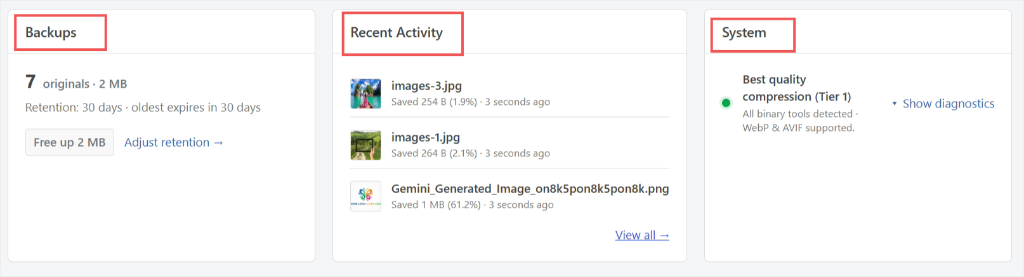
Here’s what makes it different:
How It Compares
| Feature | Image Optimizer by WPCode | Typical Cloud Optimizer |
|---|---|---|
| Cost per image | None. Included in your Bundle. | ~$0.009 to $0.05 per image |
| Monthly image limit | None | 100 to 10,000 per month |
| Sites covered | All sites on your license | Usually 1 per plan |
| Files sent off-server | No. Runs locally. | Yes. Sent to external service. |
| Original backup | Automatic, 1-click restore | Varies by tool |
| Setup required | Install and activate | API key + external account |
Already on the Bundle? Log into library.wpcode.com, find Image Optimizer in your dashboard, and download it. Nothing to buy. It’s already included in your plan.
Want to access Image Optimizer? Purchase WPCode Bundle here.
Serve Smaller Images: No API Credits, No Extra Tools
Most WordPress sites still serve JPEG and PNG to every visitor even when their browser supports a better format.
Not because site owners don’t want modern formats. Because generating and serving them is genuinely tricky to set up.
Image Optimizer takes care of this automatically. In your settings, you’ll find two toggles: Generate WebP and Generate AVIF.
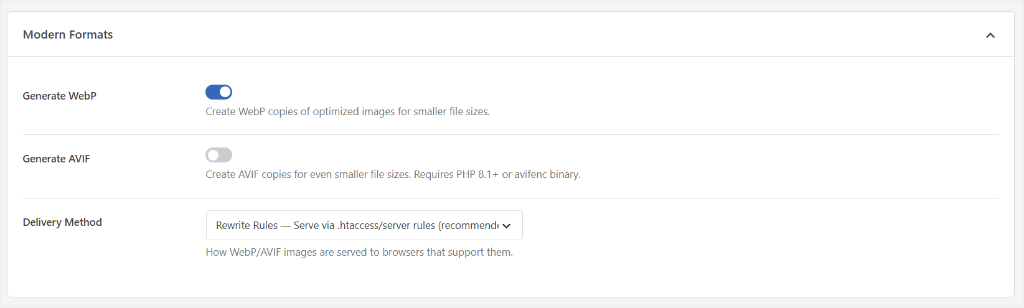
Turn them on, and visitors whose browsers support the modern format get the smaller file. Everyone else gets the original. Nothing breaks.
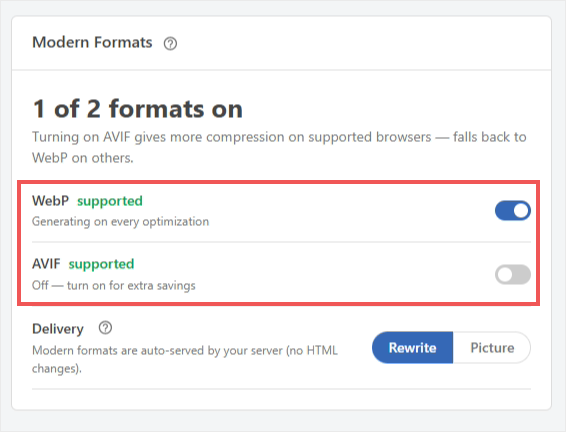
There are two delivery methods, so it works on most hosting setups:
- A rewrite-rule method for Apache hosting environments
- A fallback method that works even if your hosting doesn’t support .htaccess changes
One thing worth knowing about AVIF: it needs certain server capabilities to run. The dashboard tells you clearly whether your server supports it. No guessing or digging through logs.
If you want to go further with format management, see our guide on how to replace image file extensions in WordPress.
Every New Upload Gets Optimized Automatically
The problem with most optimization tools isn’t the first run. It’s remembering to use them every time.
You install the plugin with every intention of compressing every upload going forward. Then you’re uploading product images at midnight, and it’s the last thing on your mind.
Image Optimizer has an auto-optimize toggle in settings. Turn it on once.
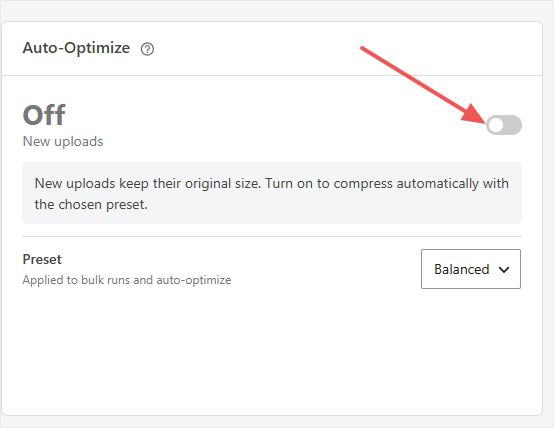
Every image you upload from that point gets compressed automatically in the background after the upload completes, so the upload itself is never slower.
You set the compression level to lossless, balanced, or maximum, and it handles the rest every time.
See It in Detail: For a full feature breakdown, pricing, and how Image Optimizer stacks up against cloud optimizers, visit the Image Optimizer page.
Bulk-Optimize Your Entire Library: No Usage Meter Running
New uploads are easy. The real question is what happens to everything already in your media library.
Most sites have hundreds of images that have never been optimized. That’s where the biggest gains are.
If you’ve been putting off cleaning up your media library, this is a good time to start. See our guide on how to delete unused images from WordPress media library.
All you have to do is go to Tools → Image Optimizer in your WordPress dashboard. You’ll see your full library listed with each image’s size, type, and current status.
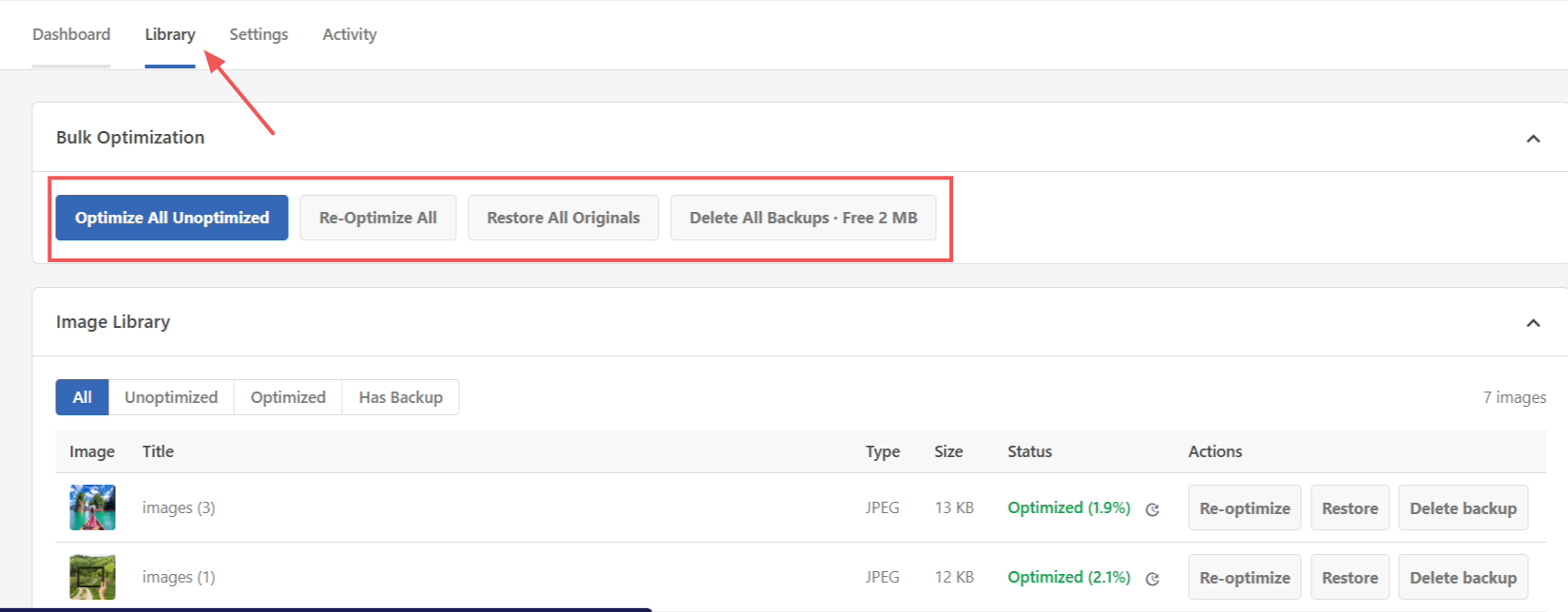
Click “Optimize All Unoptimized.” That’s it.
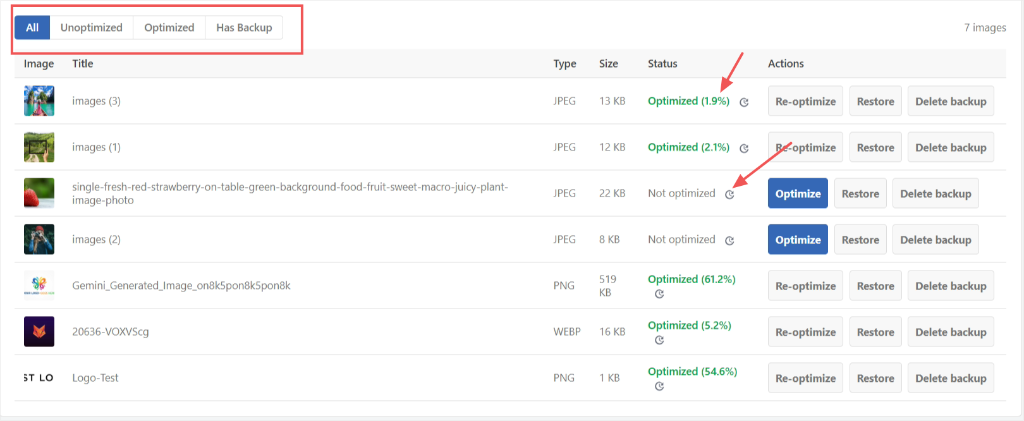
You don’t have to watch it. The process runs in the background. You can close the tab, switch to something else, and come back later.
The dashboard shows you exactly what was processed, how much space was saved, and anything that was skipped, including the reason why it was skipped.
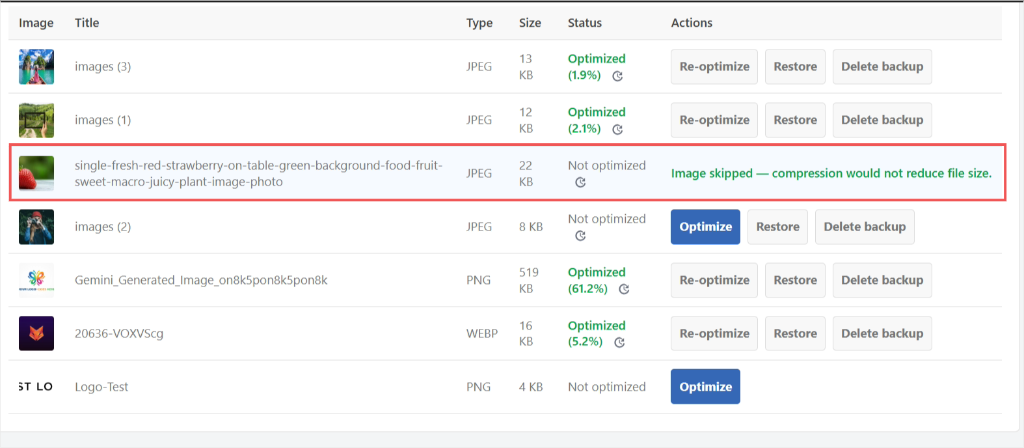
For a small library, it moves fast. For a large one, it keeps going quietly until it’s done.
On a test site with a handful of images, the manual optimization run finished in about a second.
⚠️ One thing worth noting: bulk optimization uses your server’s resources while it runs, so it’s best to avoid starting it during peak traffic hours.
What that looks like in practice:
I wanted to test this on a real site. My test site was already well-optimised, so if Image Optimizer improved performance here, it would work anywhere.
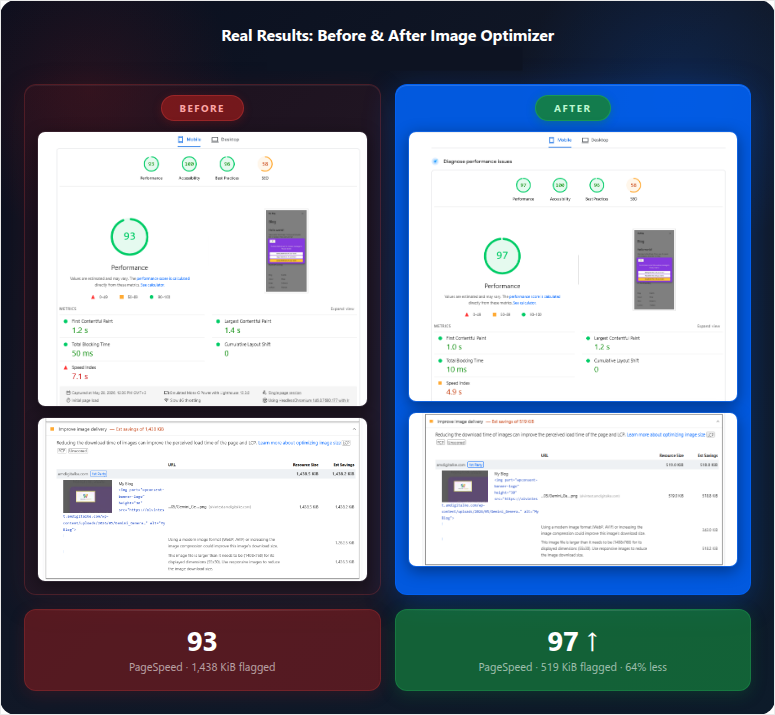
I ran PageSpeed Insights before and after. Google’s “Improve image delivery” flag shows how many kilobytes of unnecessary image weight your visitors are downloading.
Before: 1,438 KiB flagged. After one optimization run: 519 KiB. That’s a 64% reduction from a single file.
The PageSpeed mobile score went from 93 to 97, and LCP dropped from 1.4s to 1.2s. On a site that was already fast.
Already on the Bundle? Log into library.wpcode.com, find Image Optimizer in your dashboard, and download it. Nothing to buy. It’s already included in your plan.
Want to access Image Optimizer? Purchase WPCode Bundle here.
Every Original Is Saved: One Click to Undo
The reason most site owners hesitate to run image optimization is a reasonable one: compression is one-way. Once you compress a file, the original is gone.
Image Optimizer saves the original automatically before touching anything.
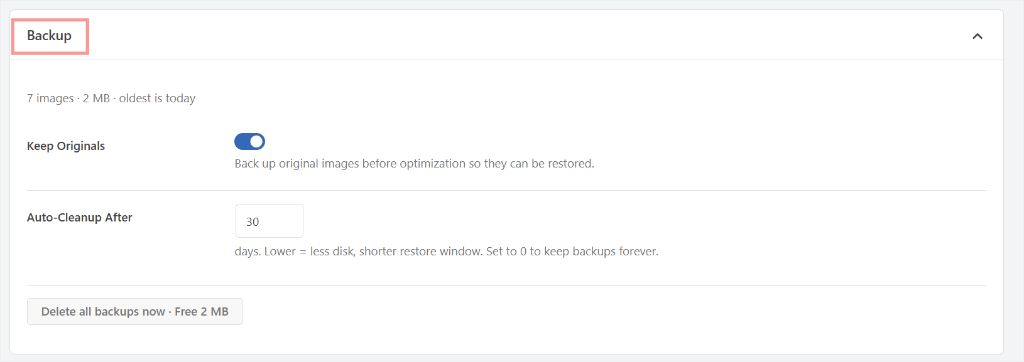
You can restore any individual image or your entire library with one click. Plus, the backup settings let you control how long originals are kept.
This way, you set a window and the plugin cleans up old ones automatically, or set it to zero to keep backups forever.
These backups are specifically for compressed originals. For full site backups, we recommend Duplicator.
And if you ever need to recover images that weren’t covered by Image Optimizer’s backup, see our guide on how to restore deleted images in WordPress.
Works With Whatever Your Hosting Already Has
Image optimization plugins have a reputation for failing silently at setup.
Many require server-level changes that most WordPress users can’t make, or just don’t work without telling you why.
Image Optimizer detects what your server has and adapts automatically. It works on whatever your server already has.
There’s no setup or server changes. It detects what’s available and uses the best option.
If your host supports command-line tools, it uses those. If not, it falls back to Imagick. If neither, it uses GD Library, which virtually every PHP environment includes.
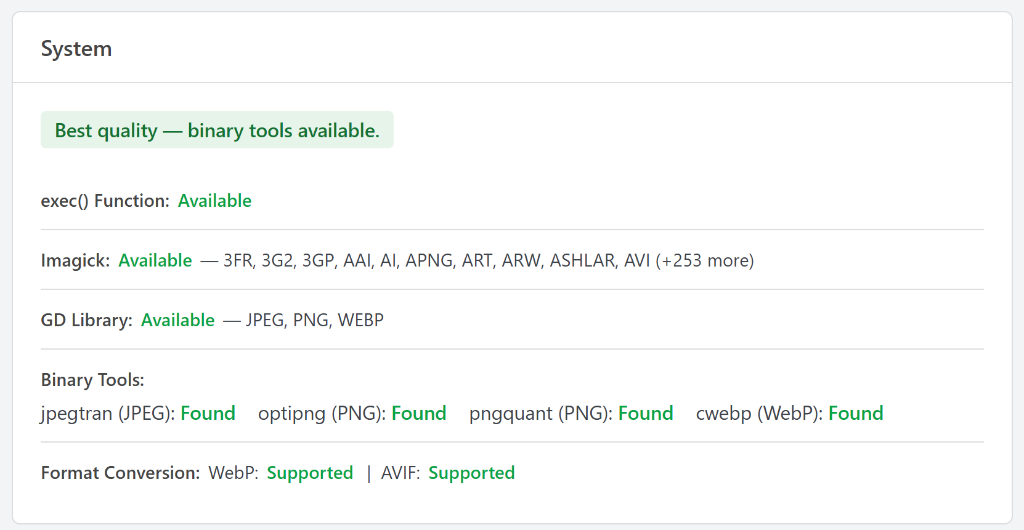
To make sure you understand what is happening, your dashboard shows exactly which one is running the moment you activate the plugin.
Full Visibility With the Activity Log
Under the Activity tab, you get a full log of everything Image Optimizer has done, such as compressions, restores, backups, and deletions.
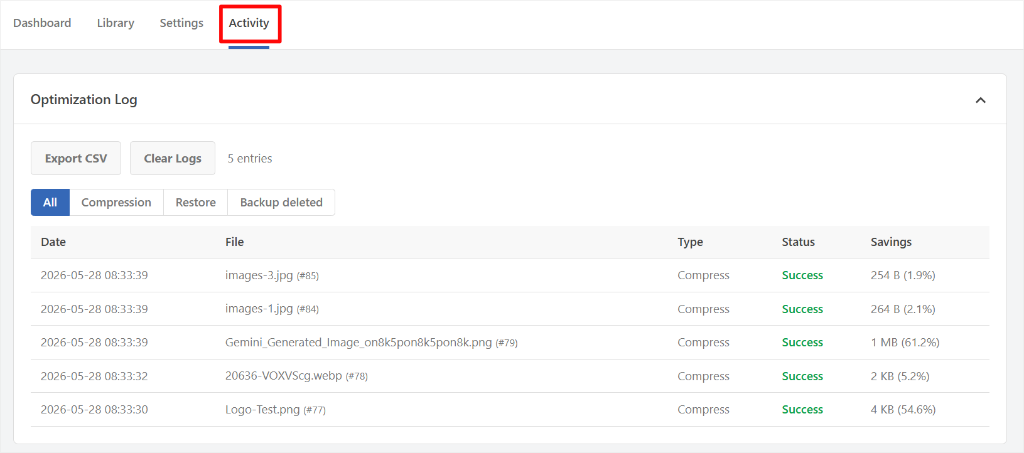
You can filter by type, export to CSV, or clear the log entirely. This is useful when you’re running Image Optimizer across a large library and want to audit what happened.
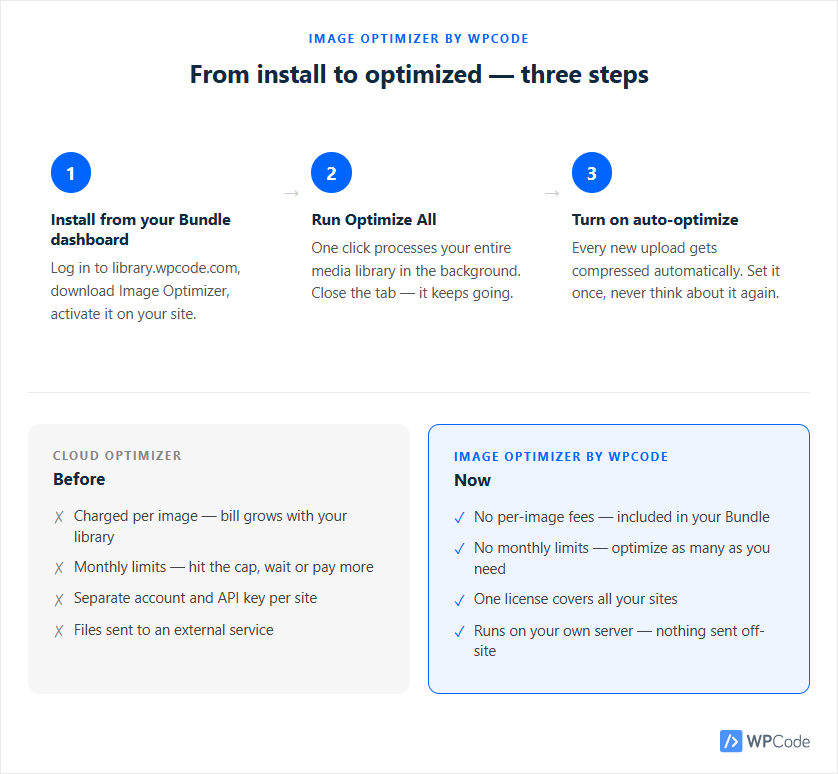
Want the full picture first? The Image Optimizer page walks through every feature, tier, and setting before you decide.
Here’s How to Get Started
Already on the Bundle plan:
- ✅ Log in to your WPCode account at library.wpcode.com
- ✅ Download Image Optimizer from your dashboard
- ✅ Install and activate it on your WordPress site
- ✅ Go to Tools → Image Optimizer
- ✅ Run Optimize All, or turn on auto-optimize and let it handle new uploads
Not on the Bundle yet:
The Bundle is built around one idea: everything your WordPress sites need, under one license.
Image Optimizer is one of several tools now included alongside Conversion Pixels, Search & Replace Everything, and more.
A library of 50 images costs the same as a library of 50,000.
You’re not buying an image optimizer. You’re replacing a stack of recurring tool costs with one license that covers all your sites. See what’s in the Bundle →
On the free plan:
Image Optimizer is a Bundle-only feature, no standalone version, and no lite plan access.
Here’s what that difference looks like in practice.
On the free plan, optimizing your images means finding a tool, creating an account, watching a credit counter, and paying when you hit the limit. Bundle users don’t do any of that.
Image Optimizer runs on their server, compresses every upload automatically, and never sends them a bill for it.
If you’ve been doing this manually, that gap is worth thinking about. Compare plans →
What’s Coming Next
This is just the beginning.
We’re continuing to build out Image Optimizer. More format options, better controls, and deeper integration across the Bundle.
If there’s something you need that isn’t there yet, let us know. The best features come from people who actually use the plugin and tell us what’s missing.
If you’re already on the Bundle, Image Optimizer is waiting in your account. Download it, run Optimize All, and see what it finds.
If you’re not on the Bundle yet, this is a good time to take a look at everything that’s now included. See the Bundle →
If you are a Bludle user, check out your dashboard to access Image Optimizer now.