
Documentation, Reference Materials, and Tutorials for WPCode
Would you like to make sure the code snippets on your site can only change through deploys that you approve with a passkey?
In this guide, we’ll show you how to turn on remote-only mode in WPCode and deploy snippet changes to your site from the WPCode Library.
Requirements: Remote-only mode is available in the paid versions of WPCode, version 2.4.1 or later. Your site must be connected to the WPCode Library with deploys approved by a passkey.
Before you get started, make sure WPCode is installed and activated on your WordPress site.
Code snippets can run any code on your site. Normally, anyone who signs in as an administrator can change them. Remote-only mode removes that option. Every snippet on your site becomes read-only in the WordPress admin, for every user.
Your snippets keep running as usual. To change them, you deploy from your WPCode Library account. Each deploy has to be approved with a passkey on your device. Someone who gets into your WordPress admin still can’t change your snippets.
The mode is switched on in {WPCONFIG} rather than in the WPCode settings. That way, nobody can turn it off from the admin.
To get started, we’ll get your site’s library connection ready for remote-only mode.
Remote-only mode only accepts deploys approved with a passkey. Before you turn it on, set up your connection:
Our guide on enabling deploys from the library walks through both steps. If your site was connected before you added a passkey, reconnect it so the passkey can approve deploys there.
Note: Set up the connection first. Once remote-only mode is on, WPCode won’t let anyone reconnect or disconnect the site from the library in the admin.
Remote-only mode is set in your site’s wp-config.php file. If you haven’t edited this file before, see How to Edit wp-config.php File in WordPress.
To turn it on, add this line above the line that says /* That's all, stop editing! */:
define( 'WPCODE_REMOTE_ONLY', true );
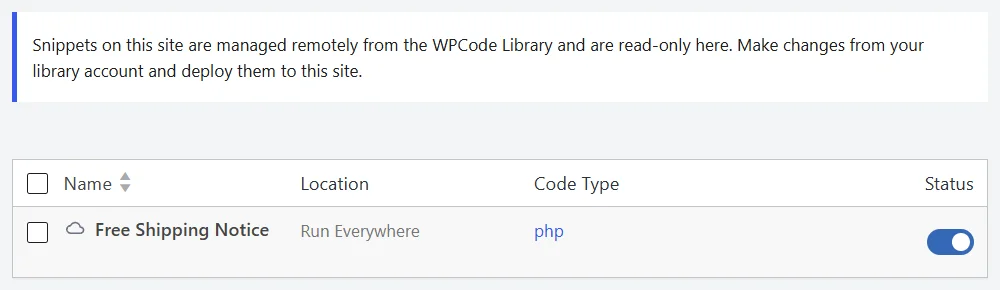
Once you’ve added the line, save the file. To check that the mode is on, go to Code Snippets » Code Snippets in your WordPress admin sidebar. A notice at the top says your snippets are managed remotely from the WPCode Library.
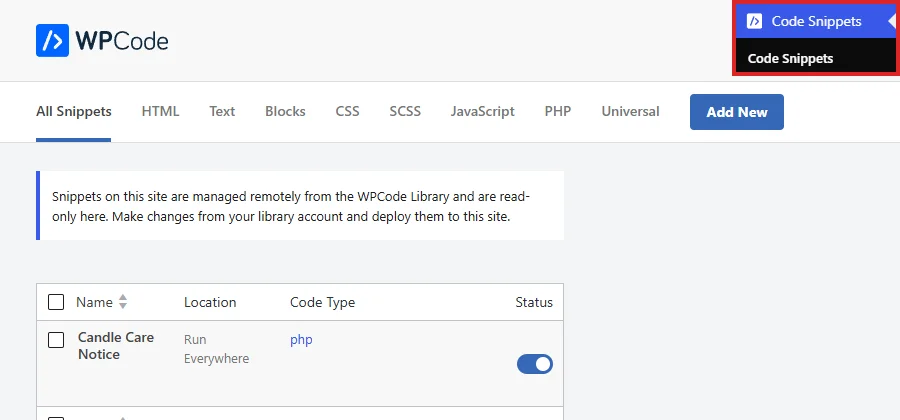
You can still open any snippet to see its code and settings. Saving changes isn’t possible, though. The Update button stays disabled. The same notice appears at the top of the editor.
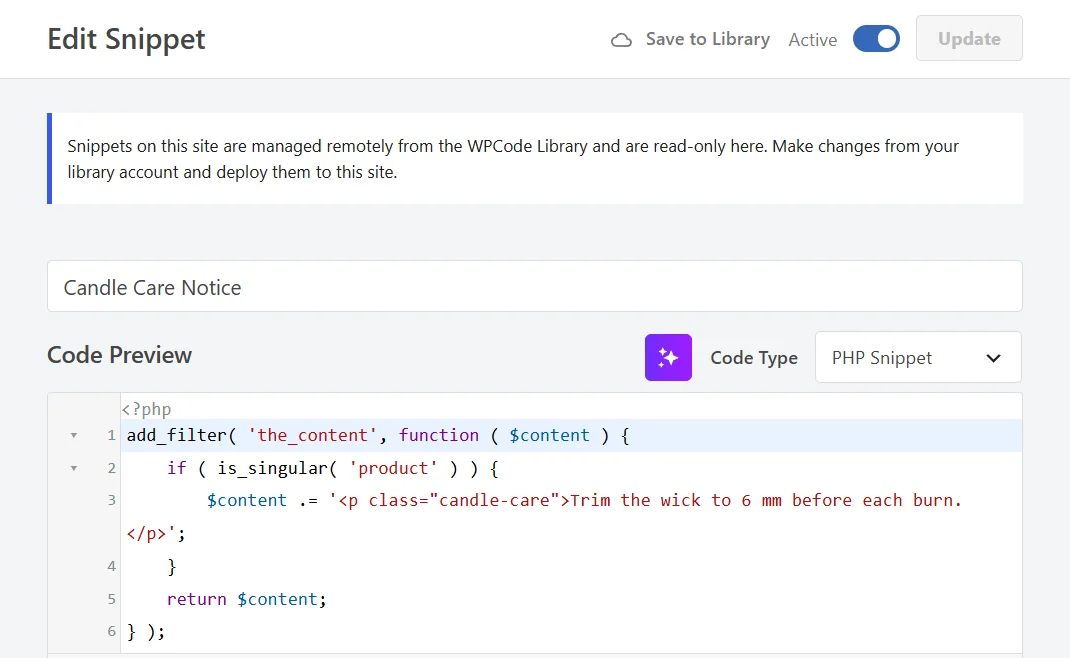
Adding, activating, deactivating, and deleting snippets are all refused in the admin too. The Testing Mode toggle is hidden because Testing Mode changes snippet code locally.
To change a snippet, edit it in your WPCode Library account and deploy it to your site.
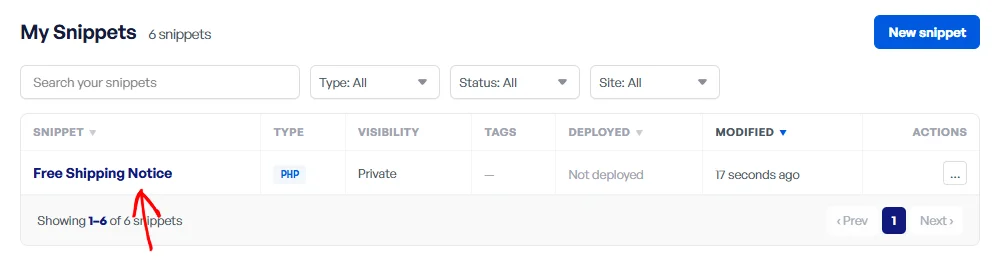
First, sign in to the WPCode Library and go to My Snippets. Next, click the title of the snippet you want to deploy.
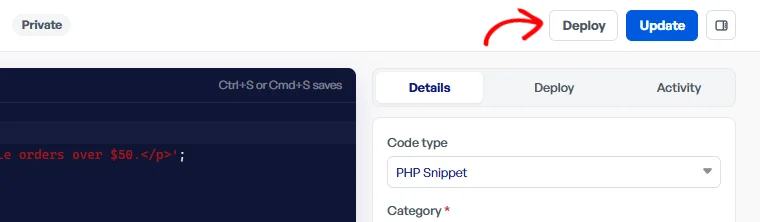
The snippet opens in the library editor. At the top of the editor, click Deploy.
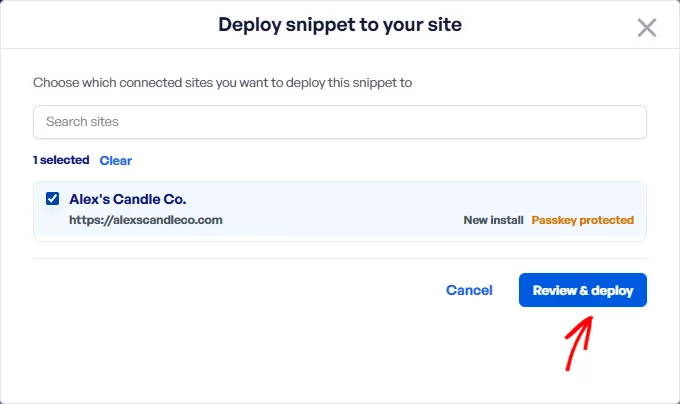
In the Deploy snippet to your site window, check the box next to your site. Your site shows as Passkey protected. When you’re ready, click Review & deploy.
The review step shows the snippet and each site you picked. The Active switch beside each site decides whether the snippet runs there after the deploy. It’s on by default:
Turn the switch off when you want the new code on your site without running it yet. If you’re not sure, leave it on.
When you’ve checked the details, click Authorize with your passkey. Your browser or device then asks you to confirm with your passkey.
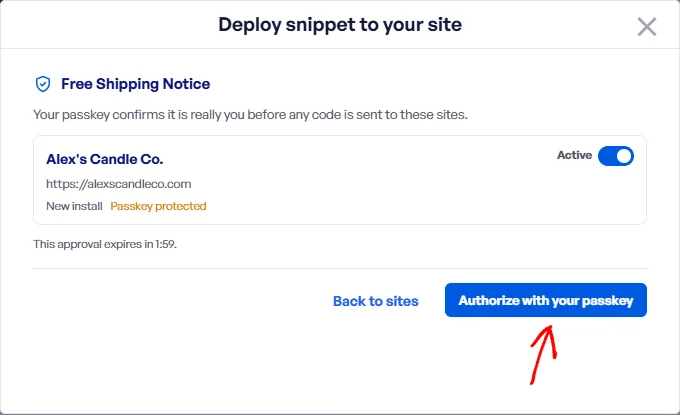
Note: The approval expires after two minutes. If it runs out before you confirm, nothing is deployed. The window then lets you try again with a new approval.
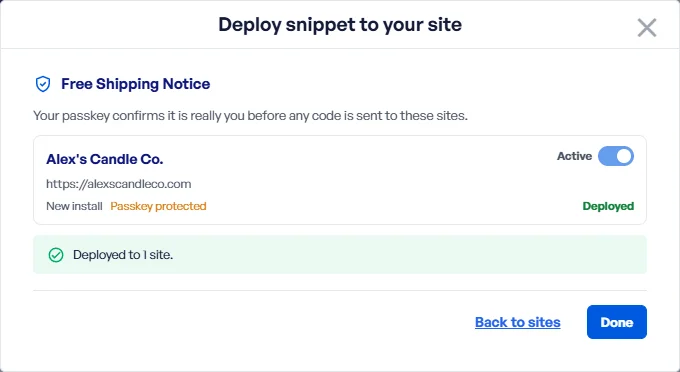
Once your site has accepted the code, the window shows Deployed beside it and confirms how many sites were updated.
On your site, the snippet appears in your Code Snippets list with the status you chose.
Before activating a deployed PHP or Universal snippet, your site runs its code once to check it. If that check fails, the code is still saved on your site. The snippet stays inactive so the error can’t affect your visitors.
The deploy window shows Deployed, not activated beside that site, along with the reason.
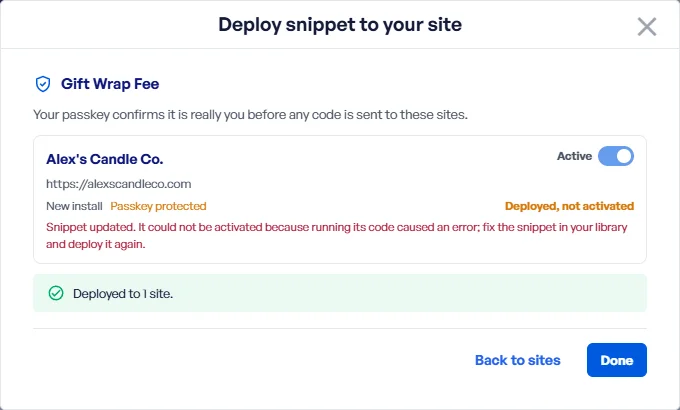
To activate it, fix the snippet in your library and deploy it again with the Active switch on. Once its code runs without an error, your site activates the snippet.
To manage snippets in the admin again, remove the WPCODE_REMOTE_ONLY line from {WPCONFIG}. The change takes effect on the next page load. Your snippets stay as they are.
You’ll also need to remove the line before you reconnect or disconnect your site from the WPCode Library. You can add it back afterward.
That’s it! You now know how to lock your site’s snippets so they only change through passkey-approved deploys. Next, take a look at our guide on enabling deploys from the library to add more passkeys or connect more sites.
Below, we’ve answered some of the most common questions about remote-only mode.
Deploys to that site are refused while remote-only mode is on. Older connections don’t use a passkey to approve deploys. The notice on your Code Snippets list asks you to reconnect.
To fix this, remove the WPCODE_REMOTE_ONLY line. Next, reconnect the site with deploys enabled while you’re signed in to your library account. Then add the line back.
Yes. Every WPCode page stays open, and every snippet keeps showing in your Code Snippets list. You can review any snippet’s code and settings. Saving changes to snippets is what’s blocked.
Files mode takes priority. If both WPCODE_REMOTE_ONLY and WPCODE_SNIPPETS_FROM_FILES are set, your snippets are managed from files. A notice in your Code Snippets list says remote-only mode is off.
See our guide on managing snippets from files for details.
Future-proof your website with WPCode Snippets and improve the way you manage code across all your websites.
Copyright © 2026 WPCode. WPCode® is a registered trademark of WPCode, LLC


The WordPress® trademark is the intellectual property of the WordPress Foundation. Uses of the WordPress®, names in this website are for identification purposes only and do not imply an endorsement by WordPress Foundation. WPCode is not endorsed or owned by, or affiliated with, the WordPress Foundation.