
Documentation, Reference Materials, and Tutorials for WPCode
Would you like to tidy up your WordPress admin, slim down your pages, or tighten your site’s security without hunting down snippets one by one?
In this guide, we’ll walk you through installing a WPCode Snippet Pack and managing the snippets it adds to your site.
All you need is WPCode and a connected WPCode Library account.
Before you get started, make sure WPCode is installed and activated on your WordPress site.
A snippet pack is a ready-made bundle of library snippets that work toward one goal, such as a calmer dashboard or a faster site. Installing a pack adds all of its snippets in one step, instead of finding and adding each one yourself.
To get started, we’ll open the list of available packs.
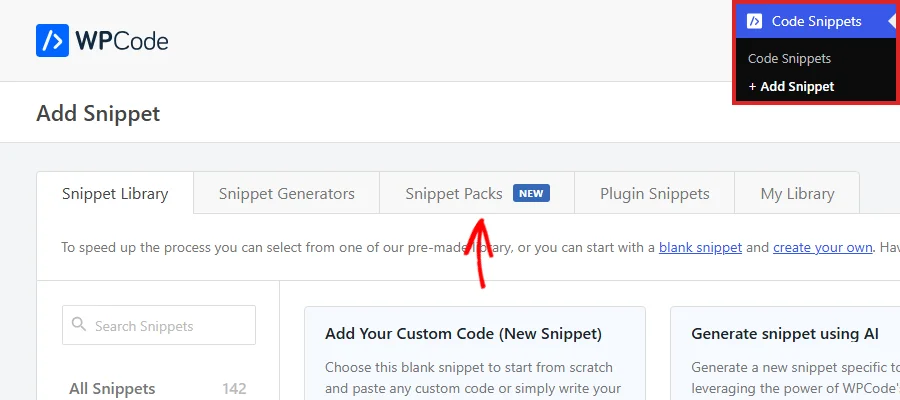
From your WordPress admin sidebar, go to Code Snippets » + Add Snippet. Then click the Snippet Packs tab.
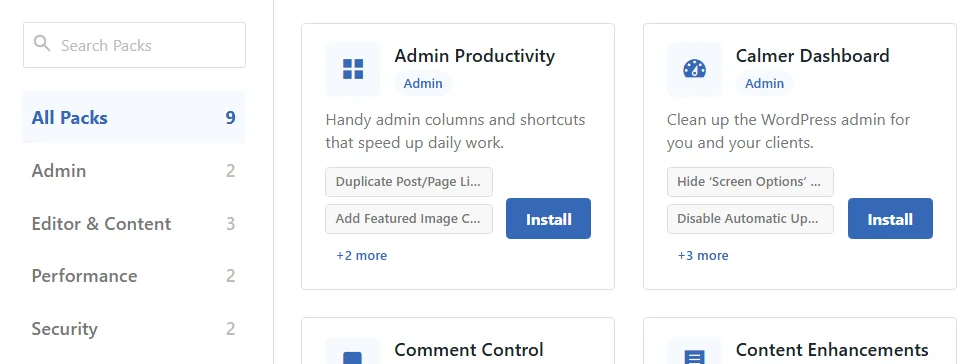
Each card shows the pack’s name, its category, a short description, and the first few snippets it contains. The “+2 more” style line tells you how many other snippets are in the pack.
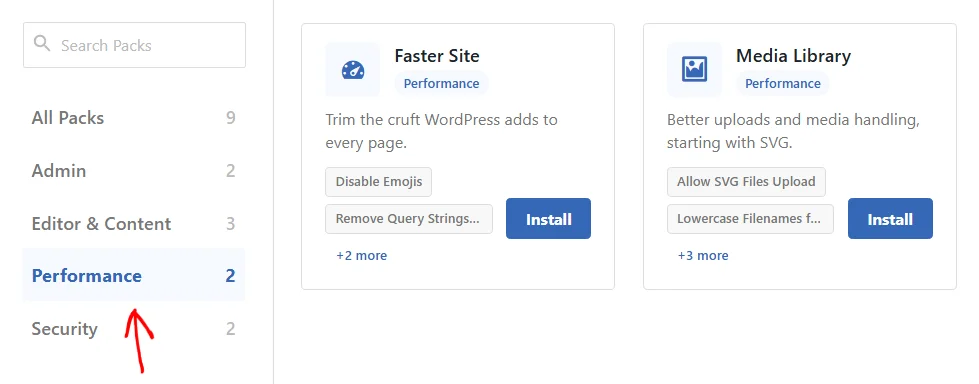
To narrow the list, click a category on the left, such as Performance. In our example, this shows the packs that slim down what WordPress loads.
You can also type at least 3 letters into the Search Packs box to find a pack by name.
When you’ve picked a pack, you’re ready to install it.
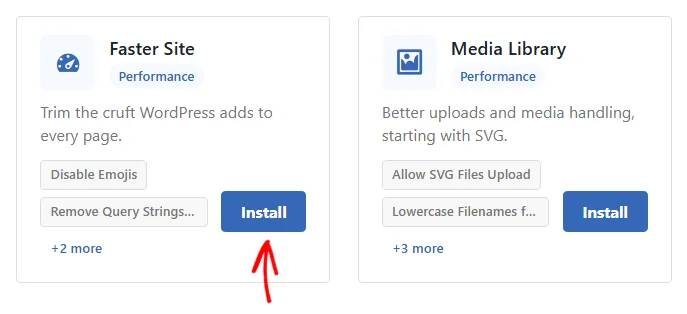
Once you’ve found the pack you want, click Install on its card. We’ll use the Faster Site pack as our example.
Note: Packs come from the WPCode Library. Until your library account is connected, the card reads Connect to Library instead of Install.
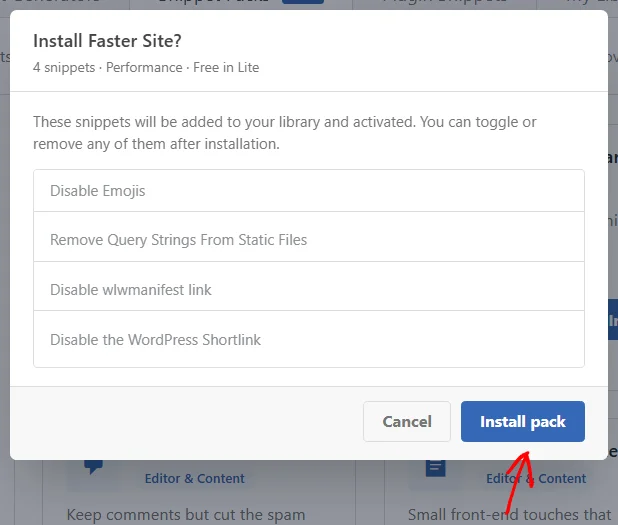
A window opens with the full list of snippets in the pack. Read it over first, because WPCode adds every snippet on the list and switches each one on. When you’re ready, click Install pack.
WPCode adds the snippets and confirms how many it activated. It checks each PHP snippet before switching it on, and leaves any snippet that fails that check switched off.
To see your new snippets, click Open pack dashboard.
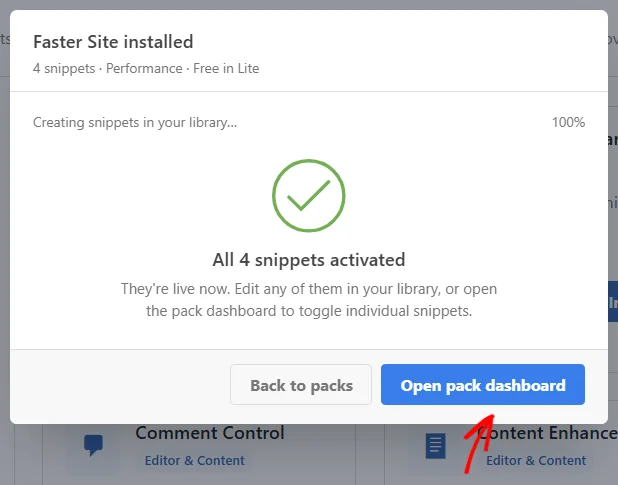
The pack’s snippets are now running on your site. Next, we’ll look at how to manage them from the pack dashboard.
The pack dashboard lists every snippet in the pack, with its own toggle and an Edit snippet button. The count in the corner shows how many of them are switched on.
If you don’t want one of the snippets, switch off its toggle. The rest of the pack keeps running.
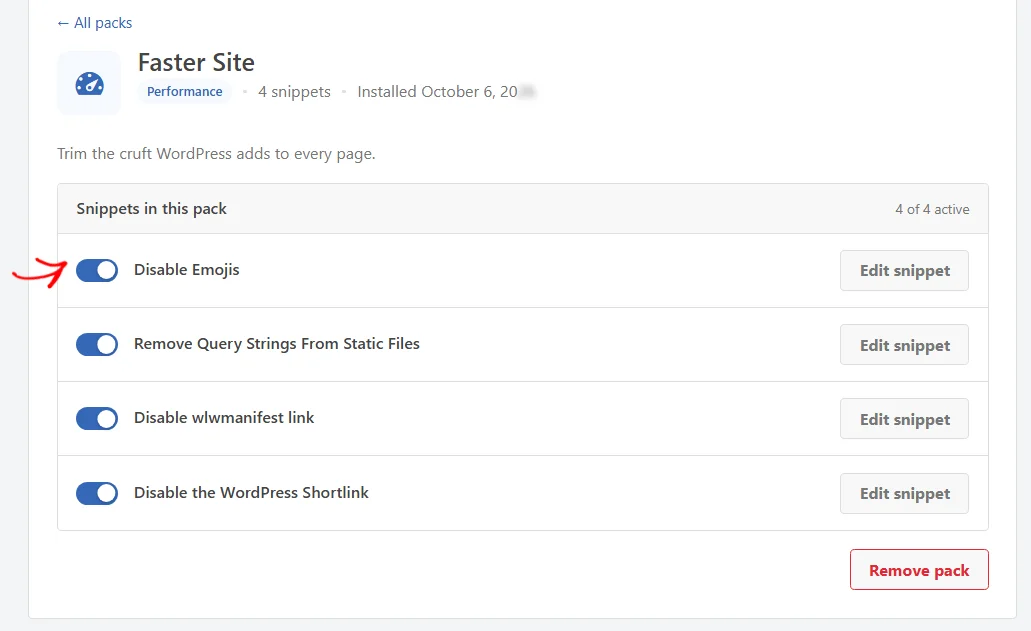
Each snippet’s Edit snippet button opens it in the regular snippet editor, the same as any other snippet. Some snippets also show a reminder to edit them, because they need your own values before they fit your site.
The pack’s snippets also appear in your Code Snippets list, under the same names you see here.
To come back to the dashboard later, return to the Snippet Packs tab and select the Installed category, which lists the packs you’ve installed. Then click Manage on the pack’s card.
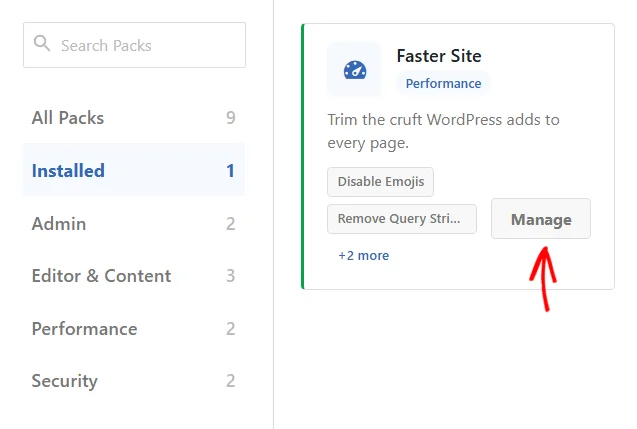
From there, you can switch any of the pack’s snippets on or off whenever you need to.
If you no longer need a pack, you can remove it and all of the snippets it added. At the bottom of the pack dashboard, click Remove pack.
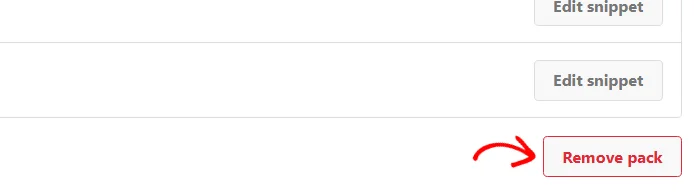
WPCode asks you to confirm before it deletes the pack’s snippets. To go ahead, click Remove pack in the confirmation window.
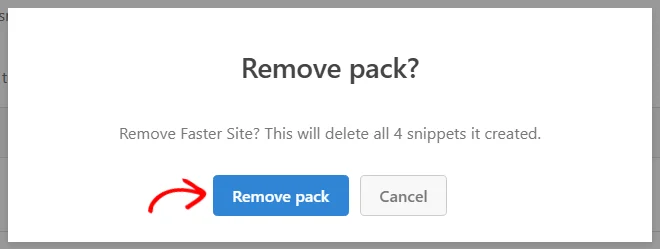
WPCode deletes the snippets the pack created, including any changes you made to them. If you’d like to keep an edited snippet, switch off the snippets you don’t need from the dashboard instead.
That’s it! You now know how to install a snippet pack and manage the snippets it adds. Next, take a look at our guide on creating your first snippet to add code of your own.
Below, we’ve answered some of the most common questions about WPCode Snippet Packs.
No. Snippet packs don’t need a license. You only need to connect your WPCode Library account.
Each snippet has its own toggle on the pack dashboard, so you choose exactly which ones run. To take the whole pack away, use Remove pack.
WPCode keeps your existing copy and skips that snippet when it installs the pack. It leaves your copy exactly as it was, including whether it’s switched on.
No. If another installed pack includes the same snippet, WPCode keeps it and hands it over to that pack.
They’re listed in Code Snippets with the rest of your snippets, under their library names. You can edit them there or from the pack dashboard.
Future-proof your website with WPCode Snippets and improve the way you manage code across all your websites.
Copyright © 2026 WPCode. WPCode® is a registered trademark of WPCode, LLC


The WordPress® trademark is the intellectual property of the WordPress Foundation. Uses of the WordPress®, names in this website are for identification purposes only and do not imply an endorsement by WordPress Foundation. WPCode is not endorsed or owned by, or affiliated with, the WordPress Foundation.