
Documentation, Reference Materials, and Tutorials for WPCode
Would you like to move your code snippets to another WordPress site, or bring them over from a different code snippets plugin?
In this guide, we’ll show you how to export your WPCode snippets to a file, import that file on another site, and import from another plugin.
Before you get started, make sure WPCode is installed and activated on each WordPress site you’re working with.
To get started, we’ll export your snippets to a file you can import on any site that runs WPCode.
From your WordPress admin sidebar, go to Code Snippets » Tools. Then click the Export tab.
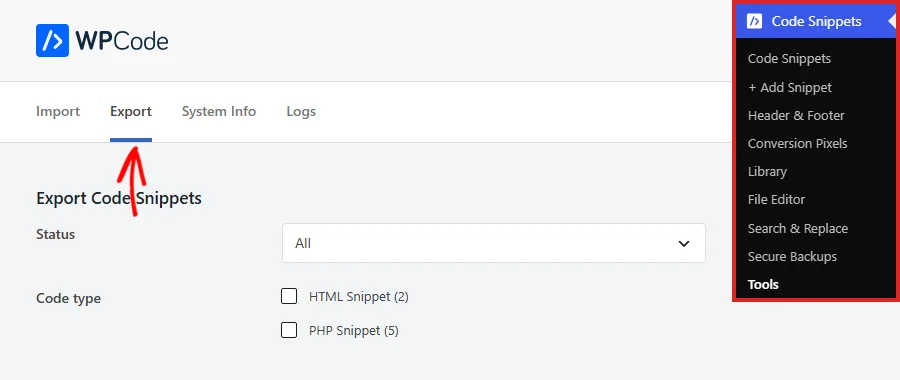
The Export Code Snippets panel lets you choose which snippets go into the file. You can filter by status, code type, and tag, or leave everything as it is to export all of your snippets.
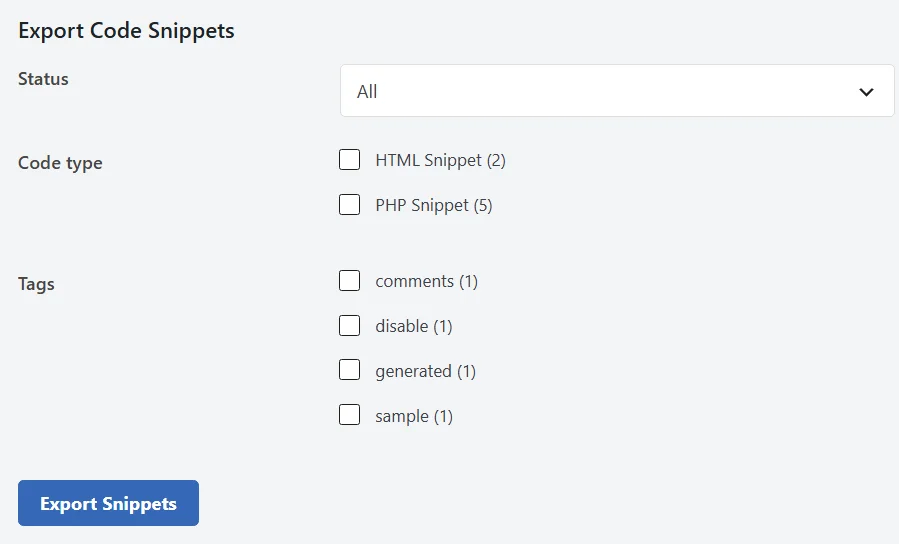
The Status dropdown decides which snippets the file includes. Snippets in the trash are never exported.
Below the Status dropdown, tick a code type or tag to export only the snippets that use it.
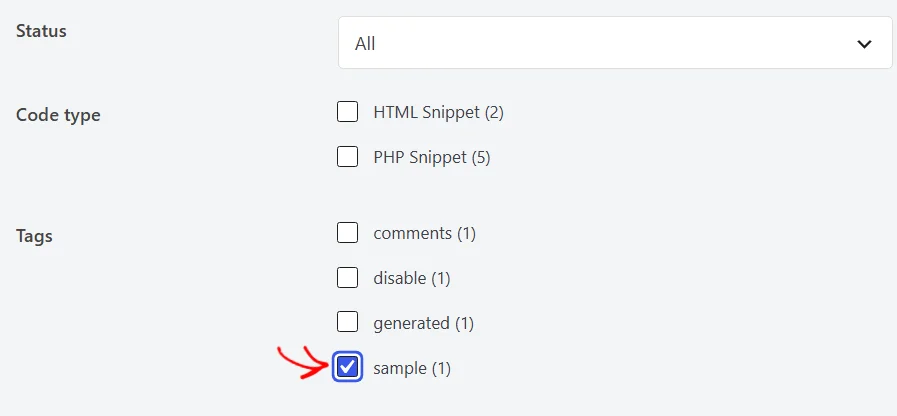
In our example, we’ve ticked a single tag so the file holds just the snippets with that tag. Ticking several boxes in the same group exports snippets that match any of them. When you tick both a code type and a tag, a snippet needs to match both to be exported.
When you’re happy with your selection, click Export Snippets.
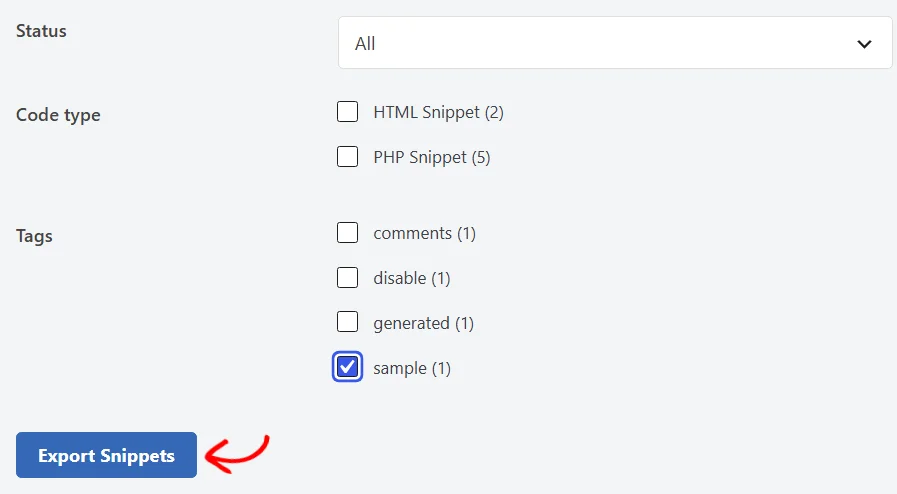
Your browser downloads a file named wpcode-snippets-export followed by today’s date. It holds each snippet’s code, location, conditional logic, and tags, ready to import elsewhere.
Once you have an export file, the Import tab adds its snippets to any site that runs WPCode.
On the site where you want the snippets, go to Code Snippets » Tools. Then click the Import tab.
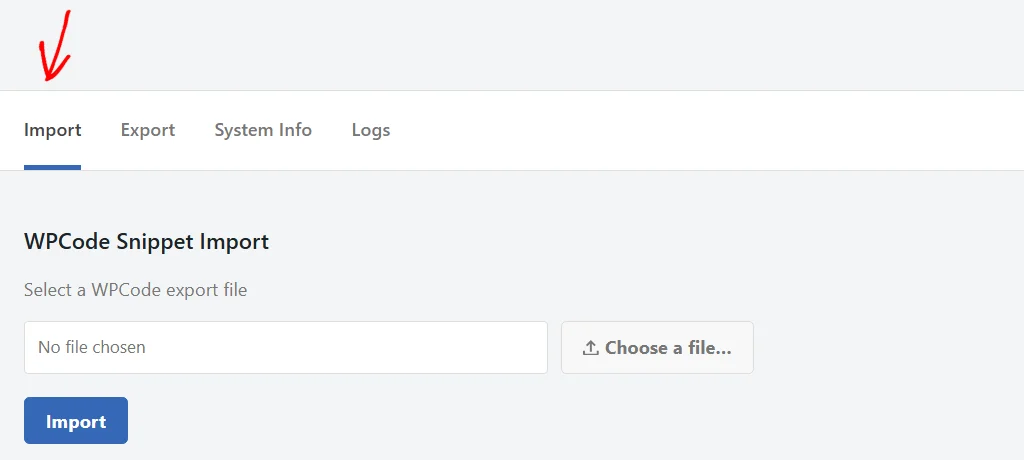
Under WPCode Snippet Import, click Choose a file… and select the export file you downloaded. Its name appears in the field.
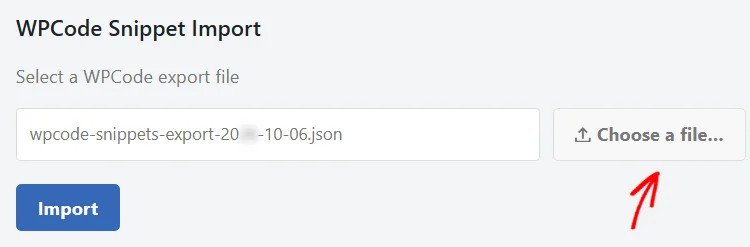
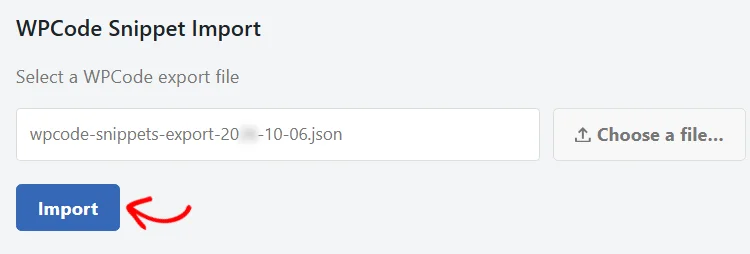
Next, click Import.
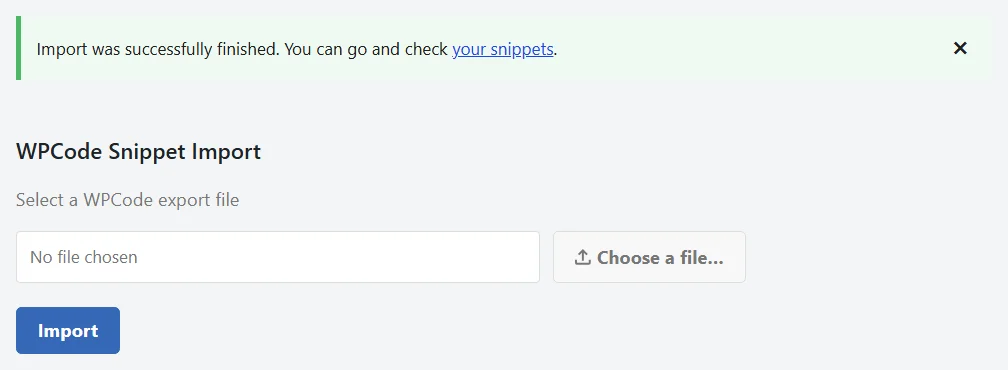
WPCode adds each snippet in the file as a new snippet and shows a confirmation message. The message links to your snippets list, so you can check them right away.
Note: Imported snippets start out inactive, so nothing runs until you’re ready. Switch each one on from the Code Snippets list once you’ve checked it.
If your snippets live in another code snippets plugin, WPCode can copy them across for you. Keep the other plugin active while you import, because WPCode reads the snippets straight from it.
In Code Snippets » Tools, stay on the Import tab and scroll down to Import from Other Code Plugins. Then pick your plugin from the Select previous Code plugin dropdown. In our example, we’re importing from Code Snippets.
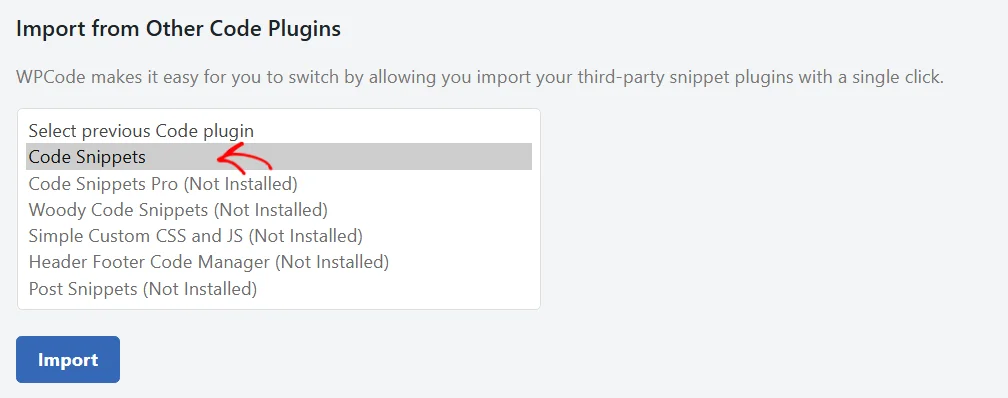
WPCode supports Code Snippets, Code Snippets Pro, Woody Code Snippets, Simple Custom CSS and JS, Header Footer Code Manager, and Post Snippets. Any plugin that isn’t installed and active on your site is greyed out in the list.
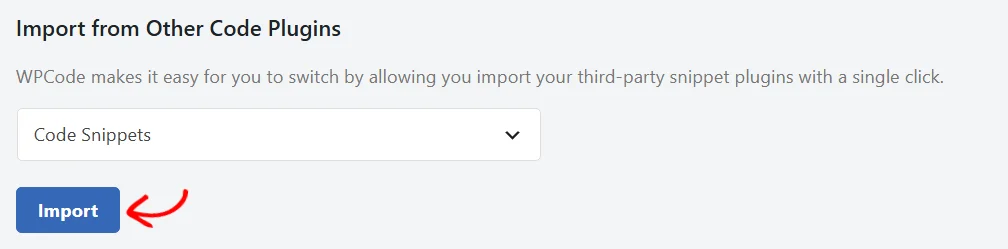
With your plugin selected, click Import.
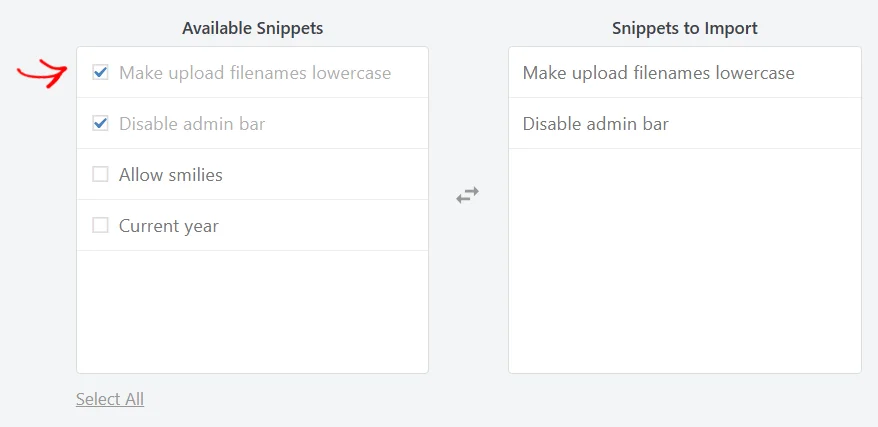
The Snippets import screen lists every snippet WPCode found in that plugin. Next, tick each snippet you want to bring over, or click Select All. Your choices appear in the Snippets to Import column.
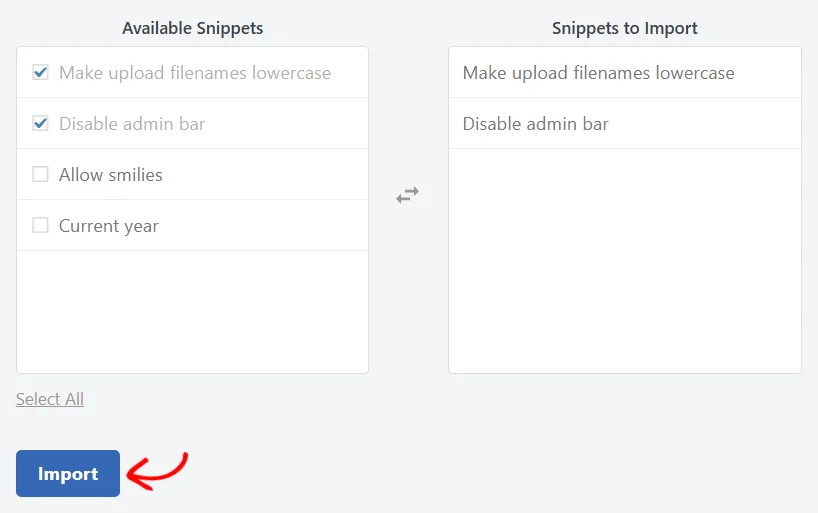
When your list is ready, click Import below the columns.
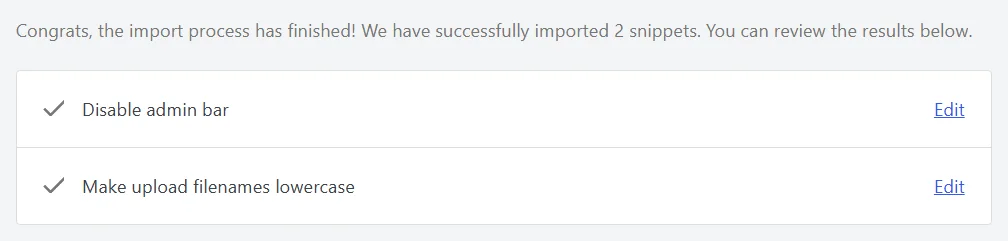
WPCode imports the snippets one at a time and then lists each one with an Edit link. Like a file import, they arrive inactive. Your original plugin’s snippets stay exactly as they were.
That’s it! You now know how to move your snippets between sites and bring them over from another plugin. Next, take a look at our guide on smart conditional logic to control where your imported snippets run.
Below, we’ve answered some of the most common questions about importing and exporting snippets in WPCode.
No. WPCode always adds imported snippets as new ones and never changes the snippets already on your site. If you import the same file twice, you’ll have 2 copies of each snippet. The same goes for running a plugin import more than once.
The export file doesn’t record whether each snippet was active. WPCode saves every imported snippet as inactive, so you can review each one before it runs on the new site.
Yes. A snippet’s schedule, device type, and Load as file settings aren’t saved in the file, so set them again after you import. Your Header & Footer scripts and WPCode settings aren’t part of the export either.
WPCode tags each one with the name of the plugin it came from, such as imported-code-snippets. That makes them easy to spot in your Code Snippets list.
The Tools screen is available to users with the Edit PHP Snippets permission. You can change who has that permission in WPCode’s access control settings.
Future-proof your website with WPCode Snippets and improve the way you manage code across all your websites.
Copyright © 2026 WPCode. WPCode® is a registered trademark of WPCode, LLC


The WordPress® trademark is the intellectual property of the WordPress Foundation. Uses of the WordPress®, names in this website are for identification purposes only and do not imply an endorsement by WordPress Foundation. WPCode is not endorsed or owned by, or affiliated with, the WordPress Foundation.