Asking an AI assistant to fix your WordPress site is fast, even without much code knowledge.
With WPCode snippets, though, it only does half the job. It can list your snippets, check your error logs, and find the one causing errors. Then it hands you the fix, and you paste it into wp-admin yourself.
Letting it make the change itself would save that step. But one bad line of PHP can break your site.
WPCode 2.4.2 closes that gap with AI & Automation Access.
Your AI or automation tool can now create and fix snippets for you, and WPCode checks the PHP before a snippet goes live.
Turn on one setting in WPCode, connect your AI or automation tool, and ask it for the change you need.

AI & Automation Access is free in WPCode Lite and on every paid plan. It needs WordPress 6.9 or later.
It’s off by default, so updating WPCode doesn’t let connected tools make changes. Until you turn it on, and whenever you turn it off again, they can only see your snippet list, error logs, and settings.
Every paid plan also gets Snippets From Files, so developers can keep their snippets in Git. It stays off until you add one line to wp-config.php.
What Is AI & Automation Access?
AI & Automation Access lets the AI assistants and automation tools you’ve connected to your site change your snippets and your site-wide header and footer code, not just look at them.
AI & Automation Access doesn’t include an AI tool. You bring your own.
WPCode adds its actions to the WordPress Abilities API, built into WordPress 6.9.
Many AI assistants connect to sites like yours through MCP, a standard way for AI tools to use other apps. On WordPress, a free plugin such as WPVibe or WordPress MCP Adapter makes those actions available.
What Your AI Tool Can Do Now
Before this update, a connected tool could list your snippets, see which ones WPCode had flagged with errors, read your error logs and settings, and search the WPCode Library. With AI & Automation Access on, it can also:
- Read a snippet’s code, and your header and footer code
- Create a new snippet
- Update an existing one
- Turn a snippet on or off
- Install a snippet from the WPCode Library
- Add to, or replace, your site-wide header, body and footer code
When your tool adds header, body or footer code, WPCode puts it on a new line after your existing code. It only replaces that code if the tool asks it to.
New Snippets Arrive Switched Off
Snippets your tool creates arrive switched off, unless it asks to turn them on. Snippets it installs from the WPCode Library arrive switched off too. You’ll find both in your snippet list next to everything else.
On our test site, we had our AI tool create a CSS snippet and install “Disable Comment Form Website URL” from the Library. Both showed up in the snippet list switched off.
The PHP snippet between them is on because we asked the tool to switch it on, and it passed WPCode’s check first.
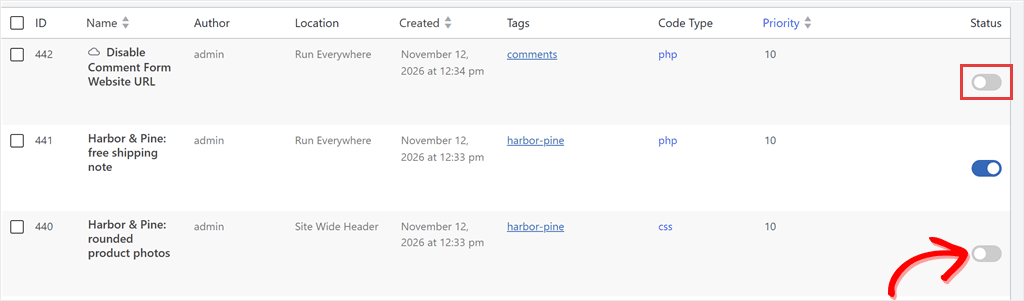
So unless the tool switches a snippet on, you can look it over before it runs.
Header, body and footer code works differently. It goes live as soon as your tool changes it, so be sure of the change before you ask for it.
PHP Is Checked Before It Goes Live
When a tool turns on a PHP snippet, or changes the code of one that’s already running, WPCode checks it first.
It checks the code for syntax errors without running it, looks for functions or classes your site already has, and then test-runs a copy.
If any check fails, WPCode refuses the change, and the tool gets the reason back. For syntax errors and code that fails when it runs, that reason includes the line number, so the tool can fix it and try again.
A failed check never touches what’s already saved.
On our test site, our tool sent the free shipping snippet an update with a missing semicolon. WPCode refused it, and the snippet kept its original code.
If the tool asks to switch a new snippet on straight away and it fails the check, the snippet isn’t saved at all. A new snippet left switched off is saved as it is, and checked when it’s turned on.
⚠️ One thing worth knowing
These checks catch syntax errors and code that fails when it runs, in PHP and Universal snippets only. They don’t cover your header, body and footer code. They also can’t tell whether the code does what you wanted, so review what your tool writes before you rely on it.
Your Permissions and Your Site’s Rules Still Apply
Your tool acts as the WordPress user it’s connected with, so it can only do what that user could do in wp-admin. On our test site, a user with the Editor role couldn’t even list the snippets.
So connect your tool as an administrator.
If you use any of the paid plans’ safeguards, they hold too:
- With Testing Mode on, tools can’t change snippets until you publish or discard your test changes.
- If PHP snippets are disabled on your site (an option on the Pro plan and up), tools can’t create, change or turn on PHP or Universal snippets.
- In remote-only mode, tools can’t change snippets or your header and footer code.
One more limit: tools can’t write SCSS code, since SCSS is compiled in the snippet editor. They can still change an SCSS snippet’s other settings and turn it on or off.
AI tools aren’t the only new way to manage your snippets. If you keep your code in Git, this update lets you manage snippets as files too.
Keep Snippets in Git With Snippets From Files (Paid Plans)
Until now, WPCode snippets were managed in your site’s database, away from the Git repo where the rest of your code lives.
Paid plans could already load snippets as files for speed, but WPCode wrote those files from the database, so you couldn’t edit them or keep them in Git.
With Snippets From Files, files become the source of truth. Add one line to wp-config.php:
define( 'WPCODE_SNIPPETS_FROM_FILES', true );
WPCode then writes your PHP, HTML, Universal, CSS, JS, and SCSS snippets out as files in wp-content/wpcode/snippets/.
You don’t need to export the snippets you already have. WPCode writes them out on the next request to your site, so each snippet of those types starts as a file.
If wp-config.php sets DISALLOW_FILE_MODS, run wp wpcode snippets export instead.
Each file starts with a short header that WPCode reads. Here’s the start of the one from a CSS snippet:
/*
 * Snippet Name: Harbor & Pine: bigger Add to Cart button
 * Key: pgr3ozf4hbjn
 * Status: inactive
 */
PHP files also start with <?php and a one-line ABSPATH guard.
The Status line controls whether a snippet runs: leave it out, and WPCode treats it as active.
Edit a file or add a new one, and it syncs on the next request. Commit the folder, and your snippets sit in Git with the rest of your code.
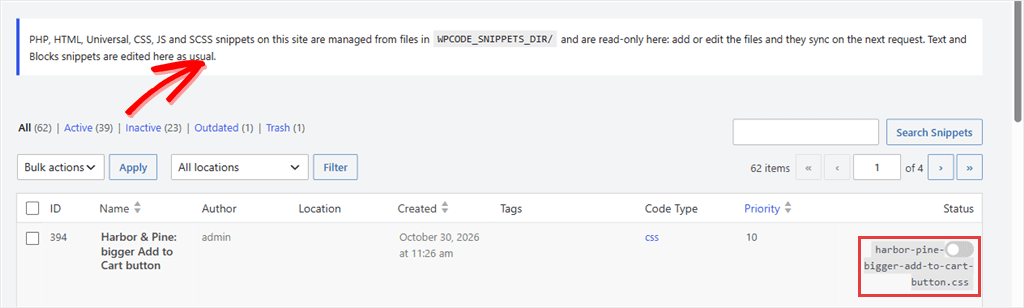
Those snippets then become read-only in wp-admin, and AI tools can’t change them either: you edit the files instead. Text and Blocks snippets still edit in wp-admin as usual.
wp wpcode snippets export is one of two new WP-CLI commands. The other, wp wpcode snippets sync, picks up changed files, with --dry-run to preview them.
If any file is bad, it finishes with an error, so your deploy can stop too.
Getting Started
Connect Your AI Tool
- ✅ Update WPCode to 2.4.2 (this feature needs WordPress 6.9 or later)
- ✅ Install an MCP plugin such as the free MCP Adapter, if your AI tool connects through MCP
- ✅ Go to Code Snippets → Settings → General and turn on AI & Automation Access
- ✅ Connect your AI or automation tool to your site. The steps depend on the tool
- ✅ Ask it for a small snippet, find it in your snippet list switched off, and switch it on once you’re happy with it
No Settings page under Code Snippets? Your site runs WPCode in Header & Footer mode:
- ✅ Turn on AI & Automation Access under Settings → Header & Footer. Tools can change your header, body and footer code there, not snippets
Manage Snippets in Git (Paid Plans)
- ✅ Update WPCode to 2.4.2
- ✅ Add
define( 'WPCODE_SNIPPETS_FROM_FILES', true );to wp-config.php - ✅ Load any page of your site (or run
wp wpcode snippets export) so your snippets are written towp-content/wpcode/snippets/ - ✅ Commit the folder, and edit those snippets as files from now on
What would you like your AI tool to do with WPCode next?
Tell us through our contact page.
Using WPCode Lite?
Update to WPCode 2.4.2 →
Want Snippets From Files and Testing Mode?
Upgrade to a paid WPCode plan →