At some point, you’ve probably shared your WPCode Library login. A freelancer needed it for one fix, or a teammate set up a client site.
That login can push a snippet to every site you’ve connected, and a snippet can run on every page load.
Changing the password helps, as long as you remember who had it.
WPCode 2.4.1 adds passkey-approved deploys. Once you reconnect a site, every deploy to it waits for your fingerprint, face, or device PIN.
Passkey-approved deploys are available on every paid WPCode plan.
So is a new remote-only mode, which locks snippets in your WordPress dashboard so anyone logged in can only change them through a passkey-approved deploy.
Update WPCode Pro to 2.4.1 to get both. The Library side is already live.
Updating doesn’t switch your sites over. Each site keeps its current connection, without passkey approval, until you reconnect it.
Remote-only mode stays off until you add one line to wp-config.php. We show you how below.
This release includes 3 more changes:
- A redesigned snippet editor and deploy flow in the WPCode Library. The editor now checks your PHP before you deploy.
- Two-factor authentication (2FA) for your WPCode Library account.
- Conversion Pixels 1.2.6 (Plus plan and up), with a Pinterest consent change and a MemberPress signup fix. It’s a separate addon plugin, so updating WPCode doesn’t update it.
What Are Passkey-Approved Deploys?
The passkey used in WPCode is the same kind you may already use to sign in to Google, Apple, or GitHub.
In this case, it approves deploys instead of signing you in, and you confirm it with your device instead of a password.
Once a site is reconnected, the WPCode Library asks for your passkey before any code is sent to it.
Then your site checks that approval itself before it saves anything.
Approve Every Deploy With Your Fingerprint, Face or PIN
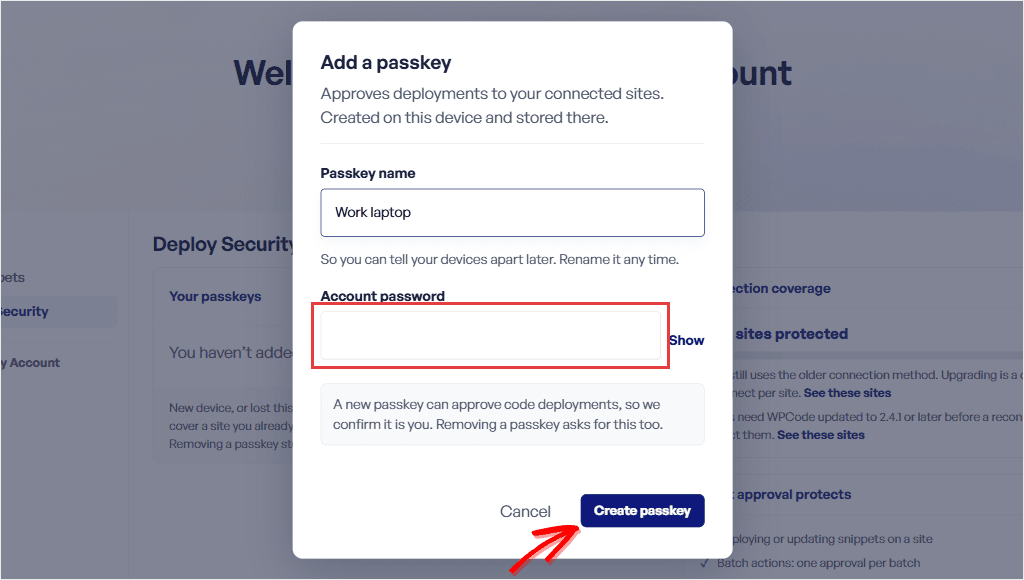
You add a passkey under Deploy Security, in the “Snippet Manager” sidebar of the WPCode Library.
The Library asks for a name and your account password, and then your device takes over.
If you’ve turned on 2FA, it asks for a code from your authenticator app instead of your password.
You don’t need special hardware.
If your laptop unlocks with a fingerprint, face, or PIN, that will do. So will your phone or a security key.
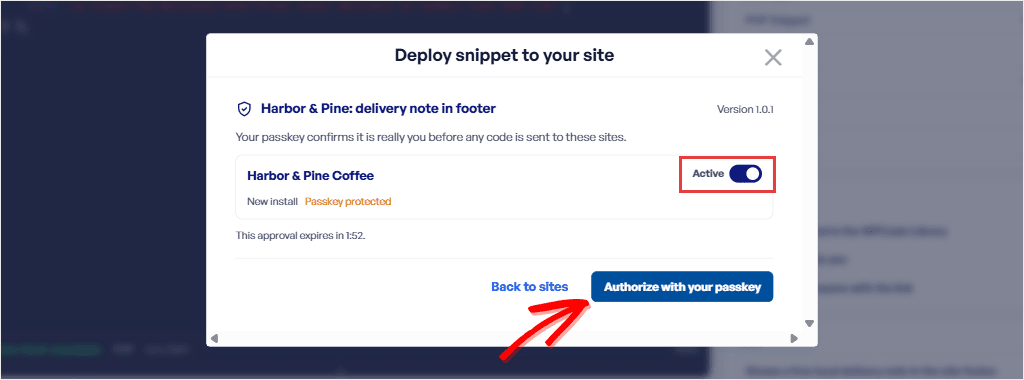
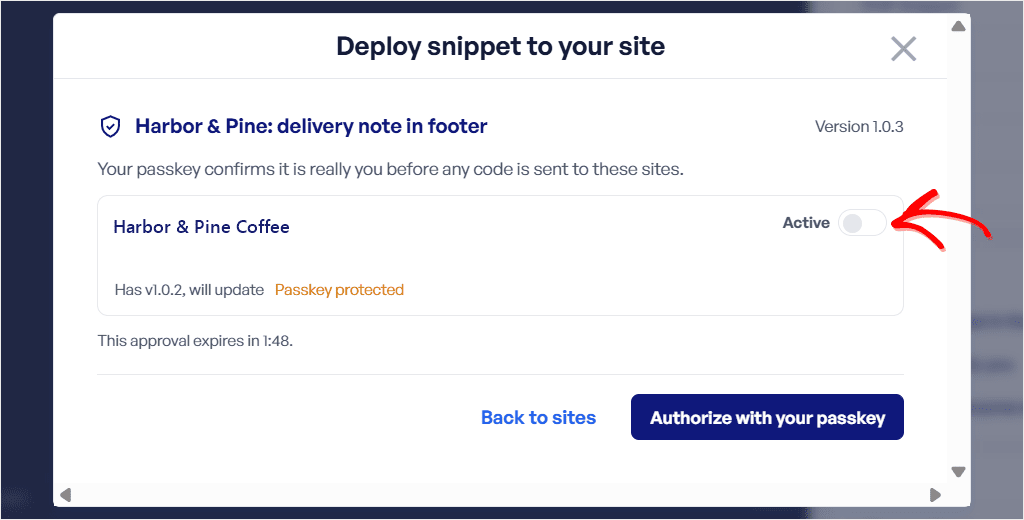
When you deploy, you pick your sites and get a review step. It shows the snippet’s version, an Active switch for each site, and a two-minute timer.
Then you click Authorize with your passkey.
When you deploy to several sites at once, the Library asks for one approval for the whole batch.
Viewing what’s already on a site doesn’t need approval.
Your Site Checks the Approval Before It Saves Anything
The approval covers the exact code you reviewed and the Active setting for each site. If either doesn’t match what arrives, your site cancels the deploy.
If the approval expires before the deploy runs, nothing is deployed.
Click Try again to approve the same sites with a fresh one.

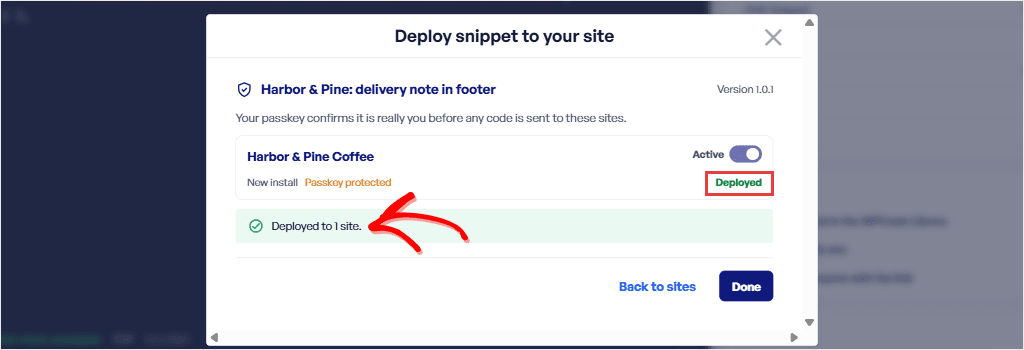
When a deploy goes through, the results screen lists each site and confirms how many it reached.
A Stolen Password Alone Can’t Push Code to Your Sites
A deploy needs your passkey, and the site checks that approval itself.
So once you’ve reconnected a site, someone holding only your Library password can’t push code to it.
The Library keeps only the public half of your passkey, which can check an approval but can’t create one.
Your passkey also only works on the real library.wpcode.com, so a fake copy of the Library can’t use it.
For one more layer, turn on 2FA for your Library account. Open Deploy Security and click Set up 2FA.
Once it’s on, signing in and adding a passkey both ask for a code from your authenticator app.
So someone with only your password can’t add a passkey of their own.
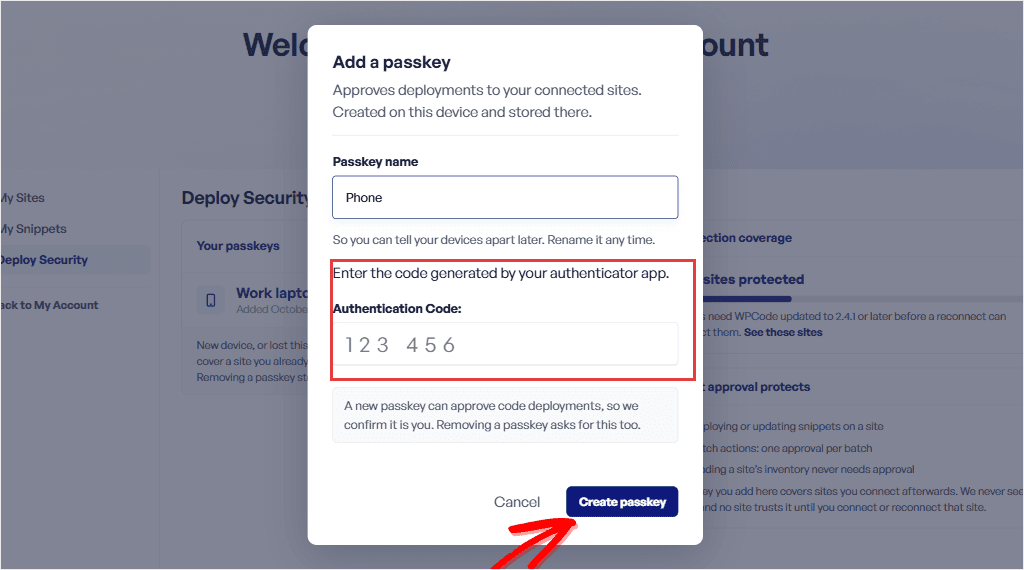
Turn on recovery codes too, so losing your phone doesn’t lock you out.
A site trusts the passkeys on your account at the moment you connect it.
So before you connect a site, change your password if you think it has leaked or someone you no longer trust knows it.
Then open Deploy Security and remove any passkey you don’t recognize.
Lost a Device? Remove Its Passkey
You can add a passkey for each device. Keep a second one, such as your phone, so losing a device doesn’t stop your deploys.
If you do lose one, remove its passkey under Deploy Security. Your sites then stop accepting deploys signed with it.
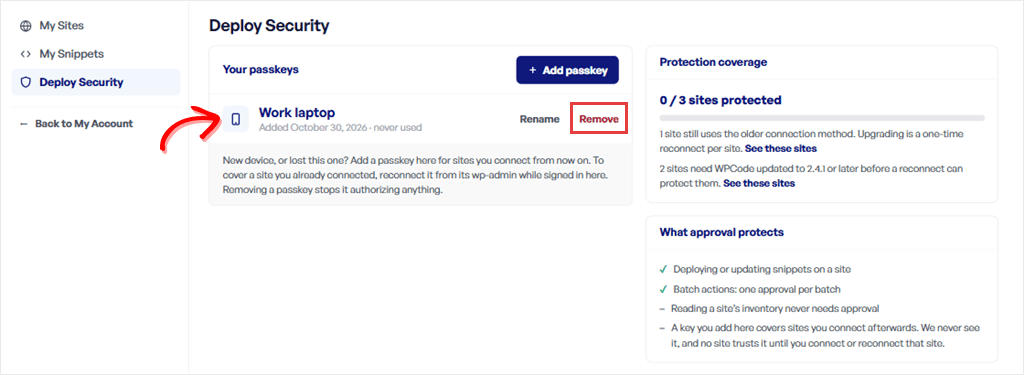
A passkey you add later only works on a site after you connect it again.
Anyone who can log in to your WordPress dashboard as an admin can still edit snippets there. Remote-only mode stops that.
Lock Snippets in Your WordPress Dashboard With Remote-Only Mode
Once a site is connected with a passkey, add this line to its wp-config.php, above the line that says “That’s all, stop editing!”:
define( 'WPCODE_REMOTE_ONLY', true );
The snippet list and editor then turn read-only, with a notice that snippets are managed from the WPCode Library.
You can’t switch a snippet on or off from the dashboard either.
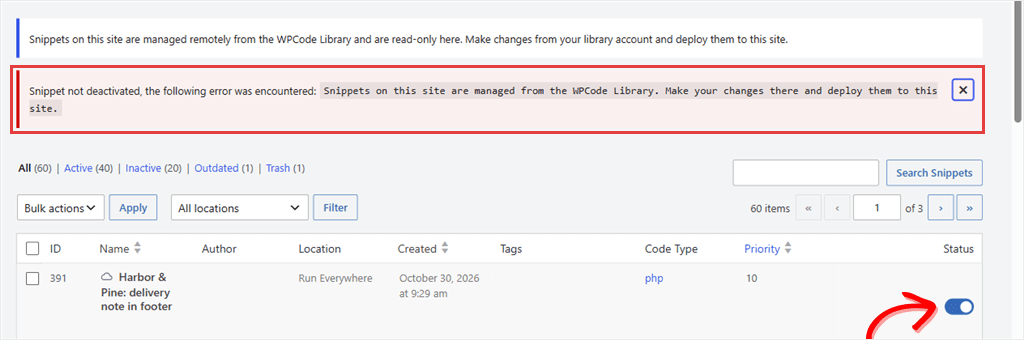
Your snippets keep running, so visitors see no change.
The site’s Library connection is locked as well, so nobody can swap it for another account from the dashboard.
You can still switch snippets on and off from the Library.
Turn off a site’s Active switch in the deploy review, and the snippet goes off on that site, even though the dashboard won’t let you change it.
⚠️ One thing worth knowing
Remote-only mode looks after your WPCode snippets. To delete a snippet or connect the site again, for example after adding a passkey, take the line out first and put it back afterwards. Anyone with access to your site’s files could also take it out, and WP-CLI still works, so keep file and server access tight too.
A New Editor and Deploy Flow in the Library
The WPCode Library itself is redesigned. The snippet editor now puts your code first, with Details, Deploy and Activity tabs beside it.
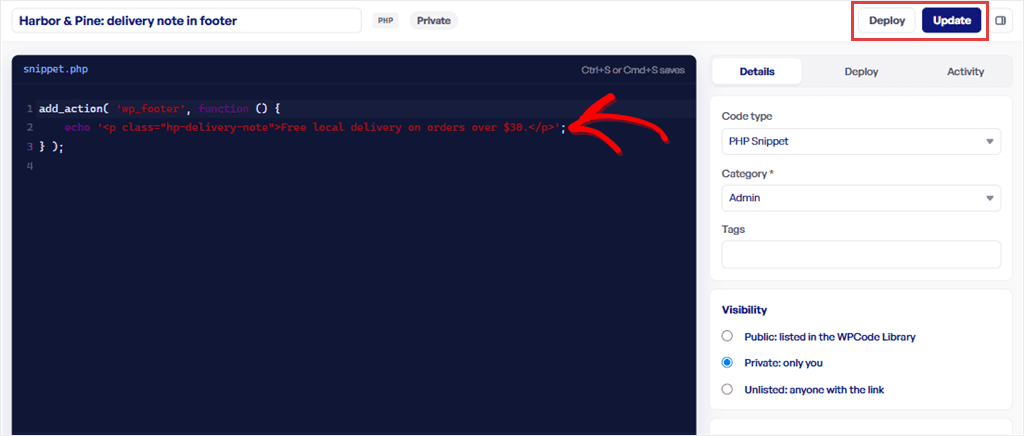
The editor saves a draft as you work, but only a saved version is ever deployed.
The editor also checks your PHP as you type.
If it finds a syntax error, it shows the line and greys out Deploy until you fix it.
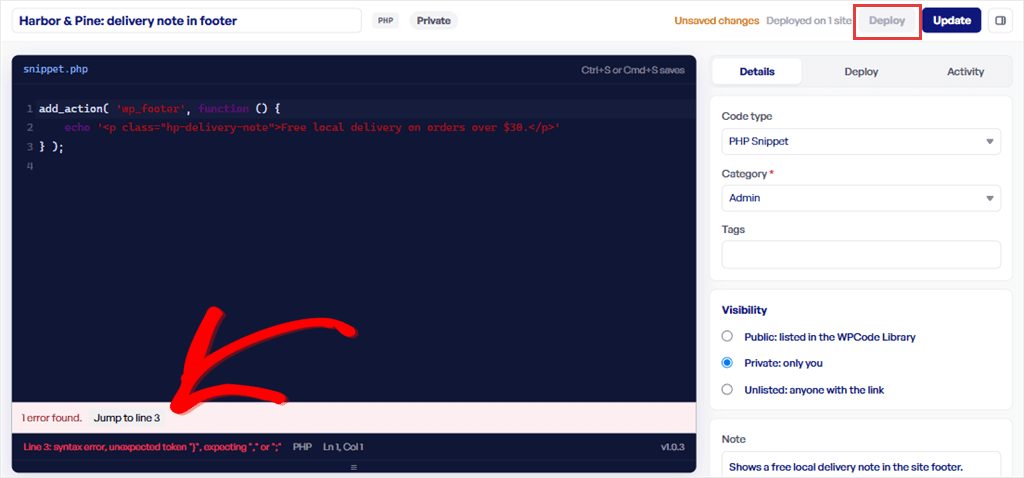
You can still save your work. A snippet with a syntax error just can’t go out to your sites.
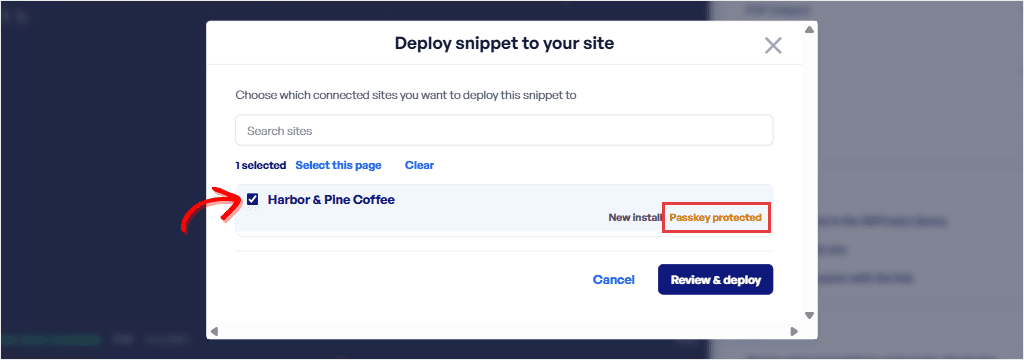
The deploy window lists your connected sites with a search box and marks which ones are passkey protected.
Sites that still need a reconnect are flagged as “Needs reconnect”.
Also in This Release
Conversion Pixels 1.2.6
If your site uses a consent plugin that works with the WP Consent API, such as WPConsent, Pinterest’s click ID is now only stored or sent for visitors who accepted marketing cookies.
On sites that track MemberPress purchases at signup (the wpcode_pixel_memberpress_track_all_signups filter), ad platforms couldn’t link those purchases to the ad click.
Conversion Pixels 1.2.6 fixes this, so the purchase event now carries the ad click IDs.
Conversion Pixels is its own plugin, so update it to 1.2.6 separately from WPCode.
Getting Started
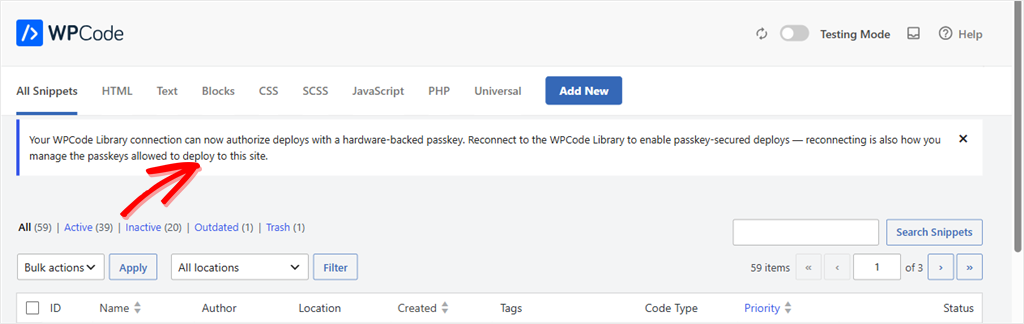
After you update, each site with Library deploys turned on shows this notice in the dashboard:
On a paid plan? Here’s how to approve your first deploy with a passkey:
- ✅ Update WPCode Pro to 2.4.1 on each site
- ✅ In the WPCode Library, open Deploy Security and click Set up 2FA
- ✅ Then remove any passkey you don’t recognize, and add yours
- ✅ On each site, go to Code Snippets → Settings → General, disconnect from the WPCode Library, then connect again
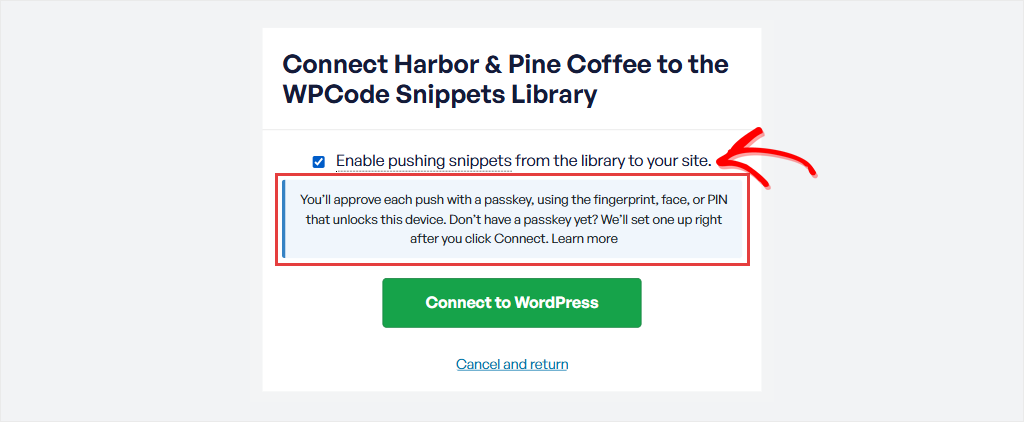
- ✅ In the Library window that opens, tick “Enable pushing snippets from the library to your site” and approve with your passkey
- ✅ Deploy a snippet and authorize it with your passkey
Your snippets stay on the site and keep running while you reconnect. Connect with the same Library account so they stay linked to it.
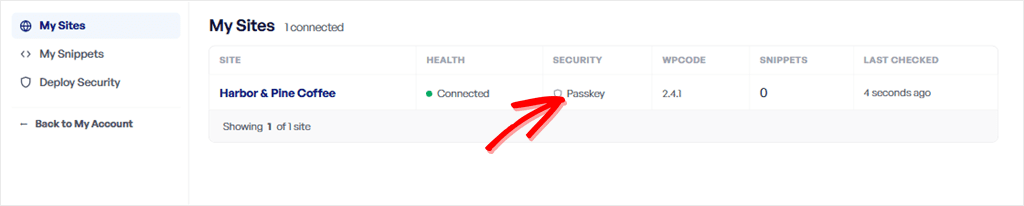
Not sure which sites are done? My Sites shows “Passkey” in the Security column for every site you’ve reconnected with pushing turned on.
Want to lock snippets in the dashboard too?
- ✅ Reconnect the site with a passkey first
- ✅ Add
define( 'WPCODE_REMOTE_ONLY', true );to its wp-config.php
Using Conversion Pixels?
- ✅ Update the Conversion Pixels addon to 1.2.6, separately from WPCode
Have feedback on passkey-approved deploys? Tell us through our contact page.
Already on a paid plan?
Update WPCode Pro to 2.4.1 and reconnect your sites →
On WPCode Lite and want passkey-approved deploys?
Upgrade to a paid WPCode plan →