
Documentation, Reference Materials, and Tutorials for WPCode
Would you like to keep your code snippets in Git and deploy them alongside the rest of your site’s code?
In this guide, we’ll show you how to manage WPCode snippets as files, write a snippet file, and keep your site in sync with them.
Requirements: Managing snippets from files is available in the paid versions of WPCode. You’ll need access to your site’s files to edit {WPCONFIG}.
Before you get started, make sure WPCode is installed and activated on your WordPress site.
In files mode, each PHP, HTML, Universal, CSS, JavaScript, and SCSS snippet lives in its own file in your site’s wp-content/wpcode/snippets/ folder. You can commit that folder to Git and deploy changes with a git pull, like any other code.
The files are the source of truth. WPCode reads them and keeps a copy of each snippet in your database. That way, the admin, error tracking, and code revisions keep working.
Your site runs the code from that copy, which WPCode updates and checks each time a file changes.
Text and Blocks snippets aren’t stored as files. You keep editing those in the WPCode admin as usual.
To get started, we’ll turn on files mode for your site.
Files mode is turned on in your wp-config.php file, not in the WPCode settings. Add this line above the line that says /* That's all, stop editing! */:
define( 'WPCODE_SNIPPETS_FROM_FILES', true );
If you haven’t edited this file before, see How to Edit wp-config.php File in WordPress for a step-by-step guide.
The next time your site loads, WPCode writes each of your existing PHP, HTML, Universal, CSS, JavaScript, and SCSS snippets to the snippets folder.
It also adds 2 helper files. The .gitignore file keeps WPCode’s generated index.php file out of Git. On Apache servers, the .htaccess file blocks direct visits to the folder.
Note: To keep your snippets in a different folder, define WPCODE_SNIPPETS_DIR in wp-config.php with the full path to that folder.
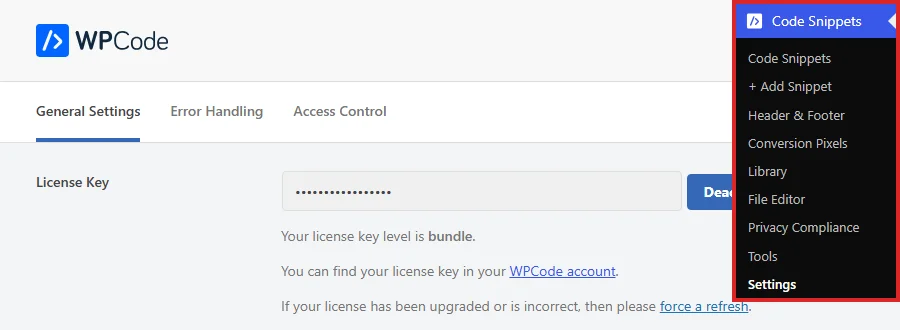
To check that files mode is on, go to Code Snippets » Settings in your WordPress admin sidebar.
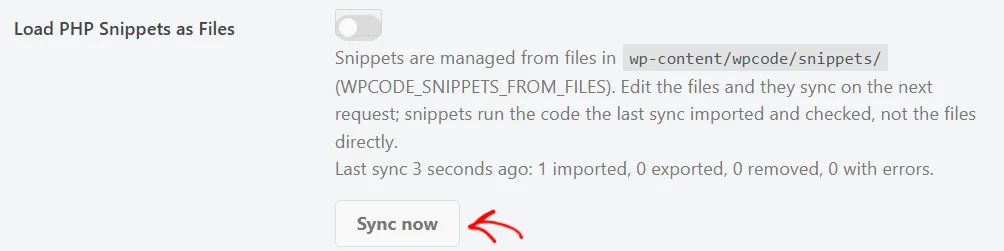
The Load PHP Snippets as Files setting is now locked. Below it, you’ll see the folder your snippets are managed from and a summary of the last sync. That’s how you know files mode is on.
With files mode on, you’re ready to write your own snippet files.
Each snippet file starts with a comment block of settings, one per line, followed by your code. Here’s a PHP snippet saved as candle-care-notice.php:
<?php
/**
* Snippet Name: Candle Care Notice
* Type: php
* Status: active
* Location: everywhere
* Note: Managed in Git
*/
defined( 'ABSPATH' ) || exit;
add_filter( 'the_content', function ( $content ) {
if ( is_singular( 'product' ) ) {
$content .= '<p class="candle-care">Trim the wick to 6 mm before each burn.</p>';
}
return $content;
} );
A few rules apply to every file:
.php file. Their code must start with the defined( 'ABSPATH' ) || exit; line, so visiting the file directly doesn’t run it.?> on the line after that guard, then continue with their markup./* */ comment block for the settings. An SCSS file also needs its compiled CSS saved next to it as <name>.compiled.css.active or inactive. If you leave it out, the snippet is active.Other settings, such as Priority, Device, Tags, and Conditional Logic, have their own lines in the comment block too. The easiest way to see them all is to open one of the files WPCode exported when you turned on files mode.
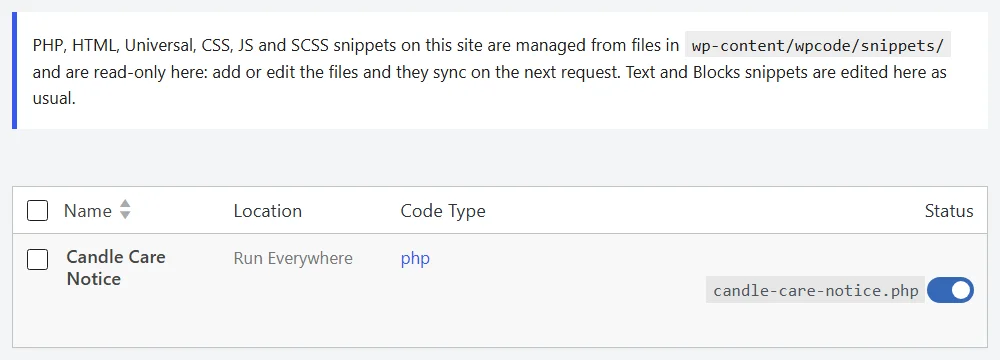
Once a file is synced, it shows up in your Code Snippets list. A notice at the top confirms that files mode is on, and each file-managed snippet shows its file name beside its status.
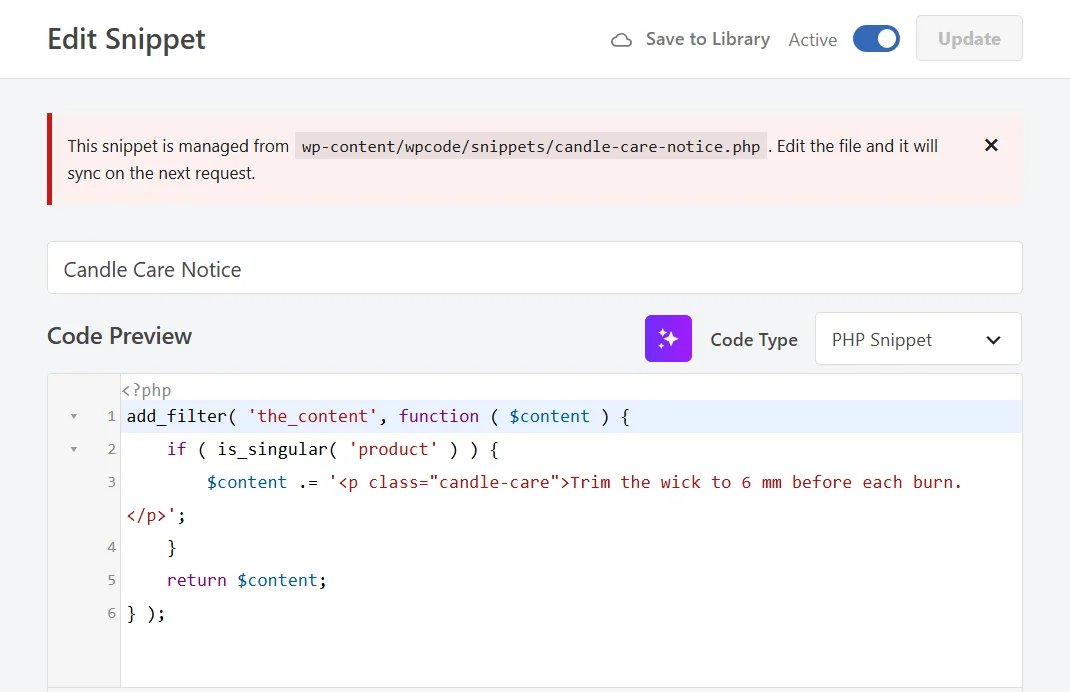
File-managed snippets are read-only in the admin. When you open one, a notice tells you which file it comes from, and the Update button stays disabled. To change the snippet, edit its file instead.
Next, we’ll look at how WPCode picks up the changes you make to your files.
You don’t need to do anything to sync. After you add or change a file, the next request to your site imports it.
WPCode test-runs PHP code as it imports, just like it does when you save in the editor. It also saves a code revision for each change.
To sync straight away, go to Code Snippets » Settings. Then click Sync now below the Load PHP Snippets as Files setting.
If you deploy with a script, you can sync from WP-CLI as part of it:
wp wpcode snippets sync imports every changed file.wp wpcode snippets sync --dry-run lists what would change without importing anything.wp wpcode snippets sync --force re-imports every file, changed or not.wp wpcode snippets export writes any snippet that doesn’t have a file yet to the folder. If your site sets DISALLOW_FILE_MODS, WPCode only writes snippet files from this command.The sync command exits with code 1 when a file fails to import. That lets your deploy script stop and show you the problem.
If a file’s settings have a mistake, such as an unknown location or status, WPCode skips that file. If the snippet imported correctly before, your site keeps running that earlier version. Your other snippets aren’t affected.
If the PHP code itself causes an error when WPCode test-runs it, WPCode saves the change but turns the snippet off. This is the same thing that happens when you save a snippet with an error in the editor.
A notice at the top of your WPCode pages names the file and explains what’s wrong. In this example, the file asks for a location that doesn’t exist for PHP snippets.
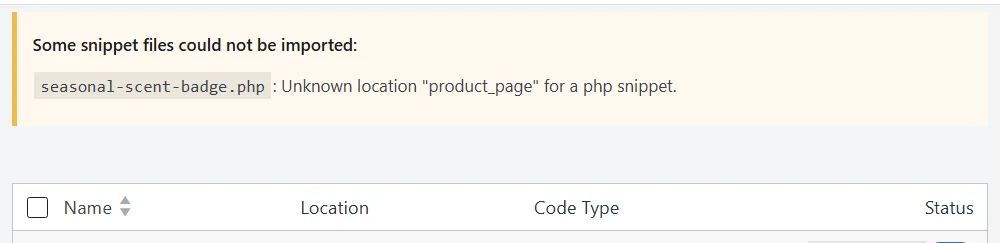
Once you’ve fixed and saved the file, WPCode imports it on the next request. You can also use the Sync now button in Code Snippets » Settings to import it straight away.
When you delete a snippet’s file, WPCode deactivates that snippet instead of deleting it. In your Code Snippets list, its status toggle is switched off and marked File removed.
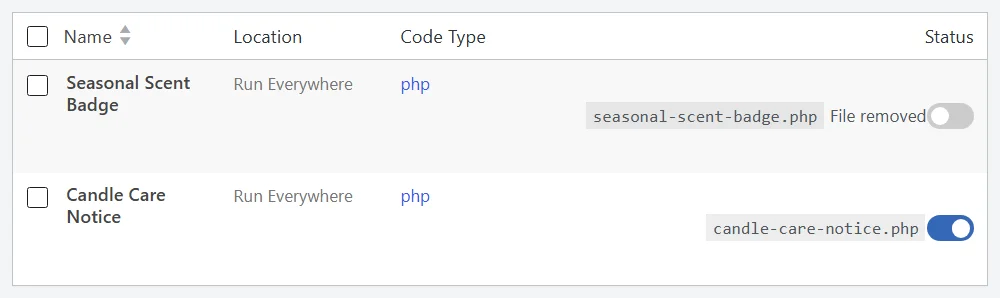
To bring the snippet back, restore its file. To get rid of the snippet completely, trash it from the Code Snippets list.
To go back to managing snippets in the admin, remove the WPCODE_SNIPPETS_FROM_FILES line from {WPCONFIG}. Your snippets stay on your site as they were at the last sync, and you can edit them in the snippet editor again.
That’s it! You now know how to manage your WPCode snippets as files, keep them in Git, and sync them with your site. Next, take a look at our guide on using code revisions to see every change your file syncs make.
Below, we’ve answered some of the most common questions about managing snippets from files.
No. Your site runs the copy WPCode imported and checked at the last sync, not the files themselves. A change to a file only reaches your site once WPCode imports it.
Yes. Files mode only covers PHP, HTML, Universal, CSS, JavaScript, and SCSS snippets. Text and Blocks snippets are edited in the admin as usual.
Files mode takes priority. If both WPCODE_SNIPPETS_FROM_FILES and WPCODE_REMOTE_ONLY are set, your snippets are managed from files. A notice in your Code Snippets list says remote-only mode is off.
Future-proof your website with WPCode Snippets and improve the way you manage code across all your websites.
Copyright © 2026 WPCode. WPCode® is a registered trademark of WPCode, LLC


The WordPress® trademark is the intellectual property of the WordPress Foundation. Uses of the WordPress®, names in this website are for identification purposes only and do not imply an endorsement by WordPress Foundation. WPCode is not endorsed or owned by, or affiliated with, the WordPress Foundation.