
Documentation, Reference Materials, and Tutorials for WPCode
Would you like an AI assistant or automation tool to add and update code snippets on your site for you?
In this guide, we’ll show you how to turn on AI & Automation Access in WPCode and explain what connected tools can and can’t change.
Requirements: AI & Automation Access needs WordPress 6.9 or later.
Before you get started, make sure WPCode is installed and activated on your WordPress site.
WordPress 6.9 added the Abilities API. It gives AI assistants and automation tools a standard list of actions they can run on your site, called abilities. WPCode adds its own abilities to that list.
A tool connects to your site as one of your WordPress users, for example with an application password. It can only do what that user is allowed to do.
Some WPCode abilities only read information, such as listing your snippets or checking them for errors. Those are always available. The abilities that create or change code stay off until you turn on AI & Automation Access.
To get started, we’ll switch on the setting that lets connected tools create and change code. If you only want AI tools to read your snippets and error logs, you can leave this setting off.
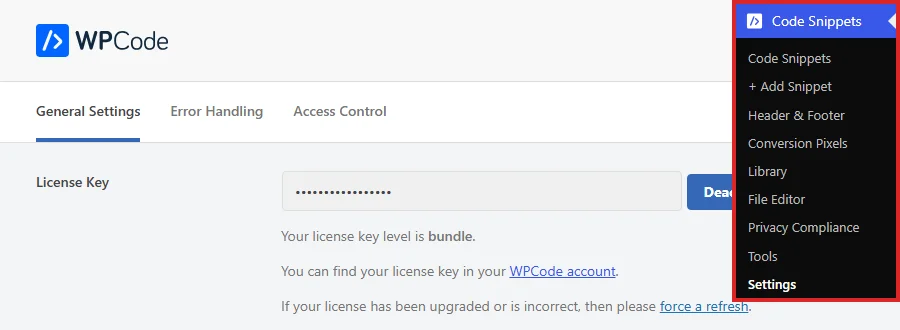
From your WordPress admin sidebar, go to Code Snippets » Settings. The General Settings tab opens first.
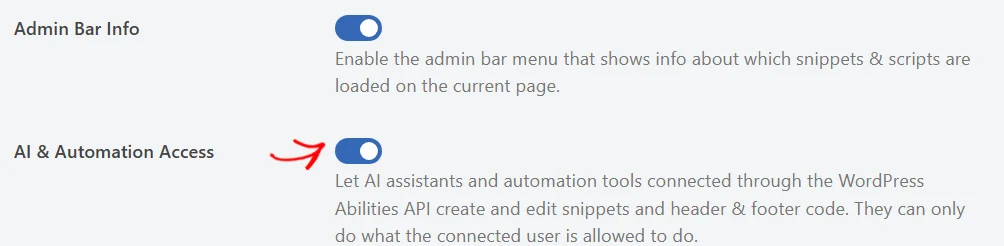
Next, scroll down to the AI & Automation Access setting, just below Admin Bar Info, and turn its toggle on.
Below the last setting on the tab, click Save Changes.
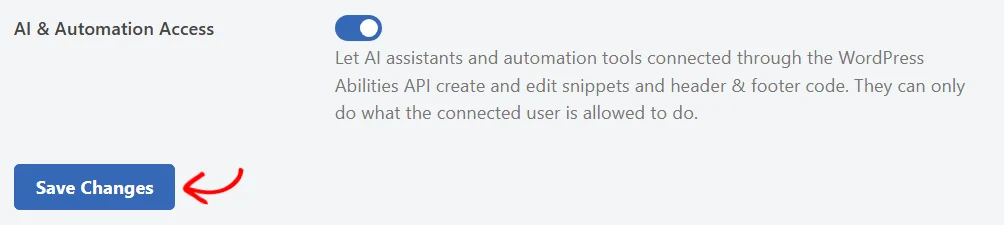
Once you save, connected tools can use the abilities that create or change code.
Note: If you use WPCode in Headers & Footers mode, this toggle is on the Settings » Header & Footer page instead, below the Footer box. In that mode, the abilities that create or change code only cover your header, body, and footer code.
These read-only abilities are always available to a connected tool:
Once AI & Automation Access is on, connected tools can also use these abilities:
These abilities follow the same rules as the WPCode admin:
To limit what a tool can do, connect it as a user with fewer WPCode permissions. Our Access Control guide shows how to choose which users can edit each type of snippet.
Snippets that AI tools create appear in your Code Snippets list alongside your own. The Author column shows the user the tool connected as.

In this example, the snippet arrived inactive. It doesn’t run on your site until you switch it on. That gives you a chance to review its code first.
In the paid versions of WPCode, every change a tool saves is also kept in the snippet’s code revisions. You can compare it with earlier versions and restore one if you need to.
That’s it! You now know how to let AI assistants and automation tools manage your snippets, and what they can change. Next, take a look at our guide on using Testing Mode to try snippet changes privately before your visitors see them.
Below, we’ve answered some of the most common questions about AI & Automation Access in WPCode.
No. Deleting and trashing snippets stays with you in the WPCode admin. A connected tool can deactivate a snippet. You can switch it back on from your Code Snippets list.
The abilities that create or change code are removed straight away. Connected tools can no longer use them. The read-only abilities stay available. Snippets a tool already created stay on your site.
Only if they connect as your admin account. A tool has exactly the WPCode permissions of the user it connects as. If that user can’t edit PHP snippets, the tool can’t either.
Future-proof your website with WPCode Snippets and improve the way you manage code across all your websites.
Copyright © 2026 WPCode. WPCode® is a registered trademark of WPCode, LLC


The WordPress® trademark is the intellectual property of the WordPress Foundation. Uses of the WordPress®, names in this website are for identification purposes only and do not imply an endorsement by WordPress Foundation. WPCode is not endorsed or owned by, or affiliated with, the WordPress Foundation.