
Documentation, Reference Materials, and Tutorials for WPCode
Would you like to undo a change to a code snippet, or see exactly what changed since it last worked?
In this guide, we’ll show you how to compare a snippet’s revisions, restore an earlier version, and choose how many revisions WPCode keeps.
Requirements: Code Revisions is available in the paid versions of WPCode.
Before you get started, make sure WPCode is installed and activated on your WordPress site.
To get started, we’ll find the list of saved versions for one of your snippets.
Each time you save a change to a snippet, WPCode keeps a copy of it as a revision. That copy includes the code and the snippet’s settings.
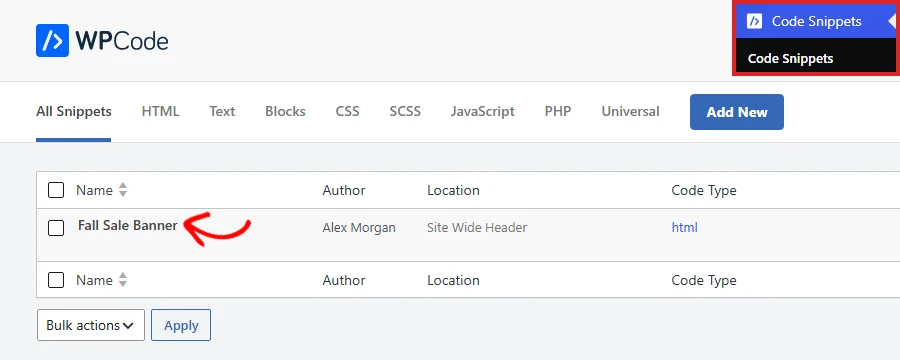
From your WordPress admin sidebar, go to Code Snippets » Code Snippets. In the list, click the title of the snippet you want to check.
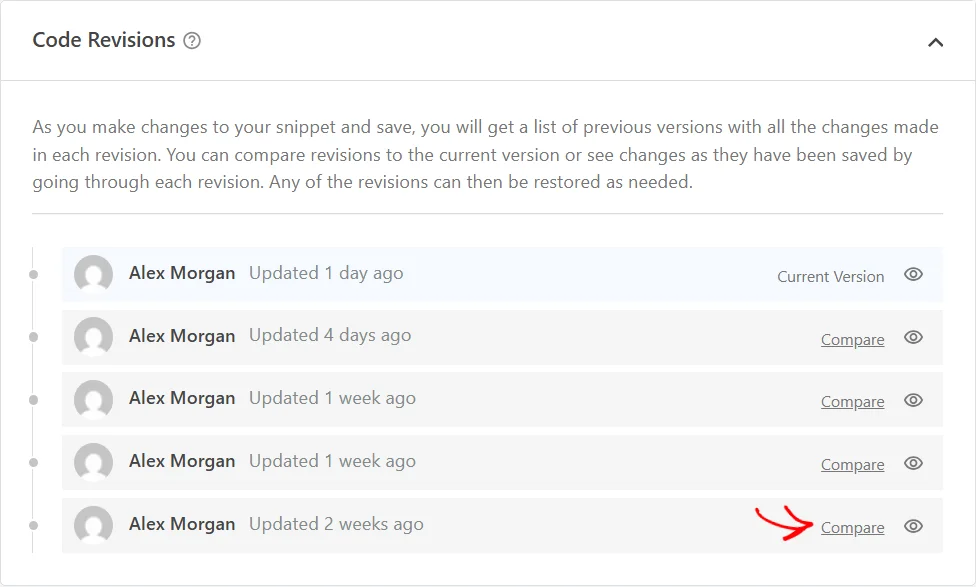
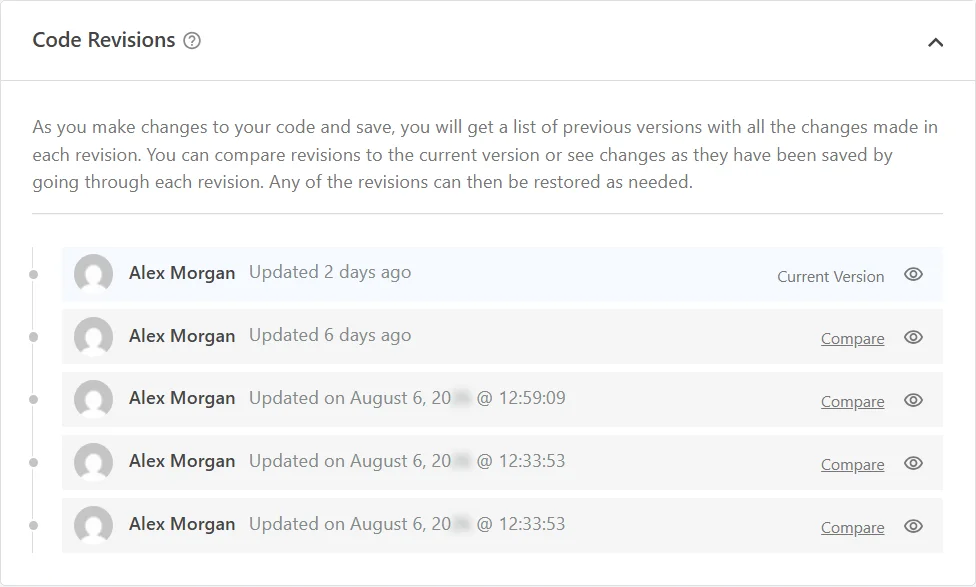
Near the bottom of the snippet editor, the Code Revisions box lists every saved version, newest first. The top entry is marked Current Version. Beside an older entry, click Compare to open the revisions page with that version selected.
Next, we’ll look at what the revisions page shows you about each version.
The revisions page compares each revision with your live snippet. Nothing changes on your site while you look around here.
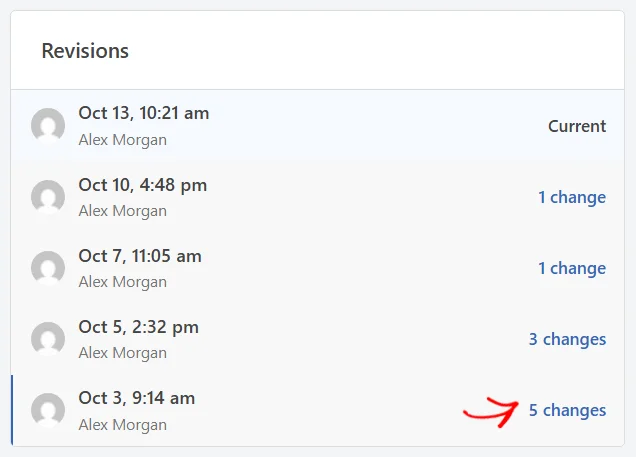
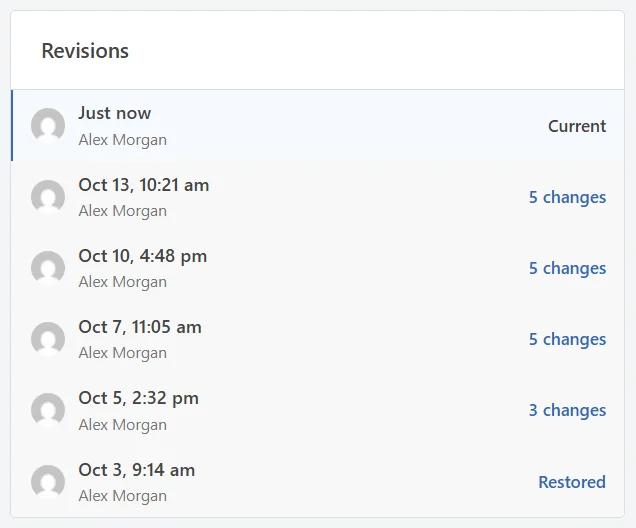
On the left, the Revisions list shows when each version was saved and who saved it. A badge on each row tells you how far that version is from what’s live:
To see the details for a version, click it in the list.
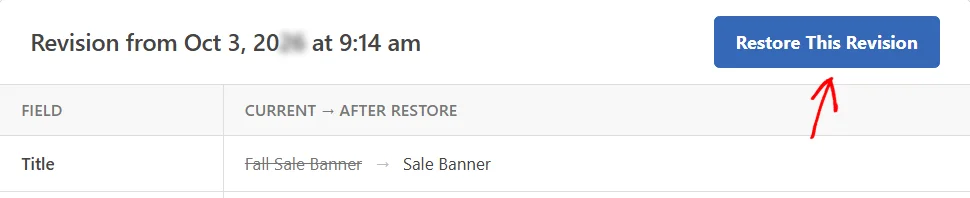
On the right, a table headed Current → After restore lists only the settings that change if you restore. Your live value comes first, crossed out. The restored value follows the arrow.
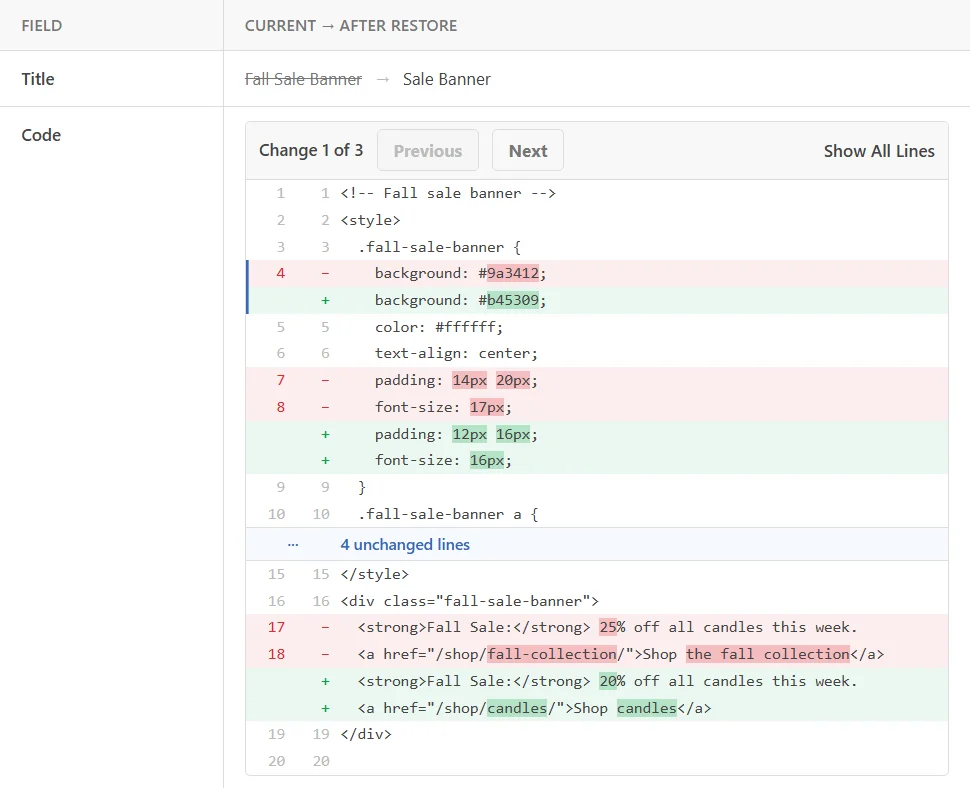
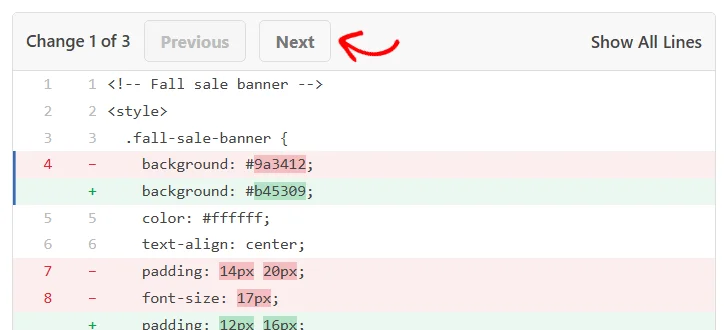
In the Code row, removed lines are red and added lines are green. The words that changed within a line are highlighted. Unchanged code is folded away, apart from two lines around each change. That keeps the edits easy to spot.
When the code has more than one change, the counter shows where you are, such as Change 1 of 3. To jump to the following change, click Next. To read the whole file instead, click Show All Lines.
Further down, the table lists any other settings that change, such as the priority, device type, or note. These rows are worth checking before you restore. An older version can bring back settings you’ve since changed on purpose, not just old code.

Once you’ve checked every row in the table, you’re ready to restore that version.
When you’ve found the version you want, click Restore This Revision at the top right of its details.
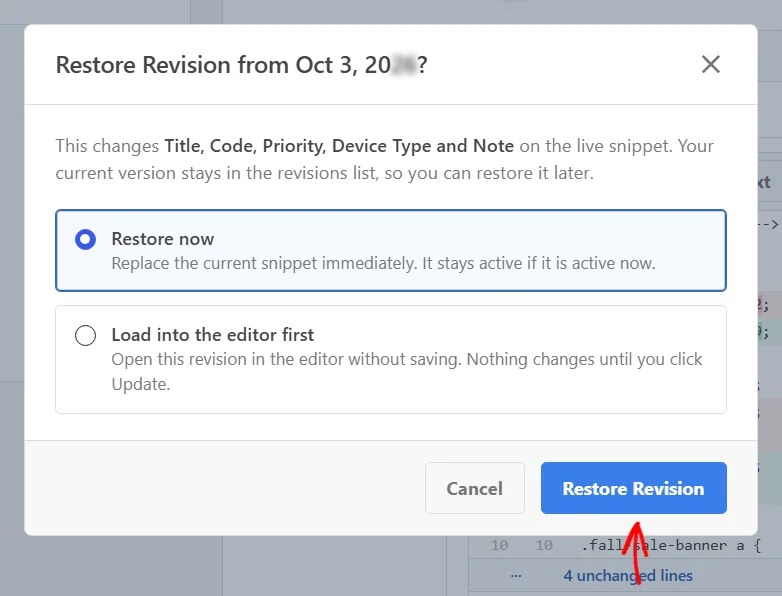
An overlay names the settings the restore will change. It also asks how you’d like to restore the revision:
With Restore now selected, click Restore Revision.
WPCode saves the restored version as your new current revision and keeps you on the revisions page. The row you restored from is now marked Restored.
The version you replaced stays in the list. You can restore it again if you change your mind.
If you’d rather check an older version before it goes live, load it into the editor instead.
To try an older version before saving it, open the same overlay and select Load into the editor first. The button changes to Open in Editor. When you’re ready to continue, click it.
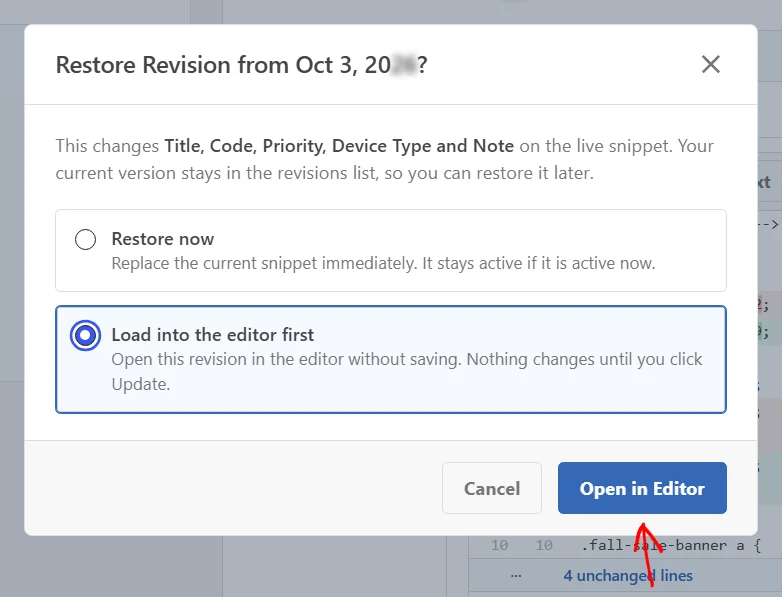
The snippet editor opens with the older version filled in. A notice reminds you that nothing is saved yet. Your live snippet stays as it was until you save.
Make any edits you need. When the snippet looks right, click Update to save it.
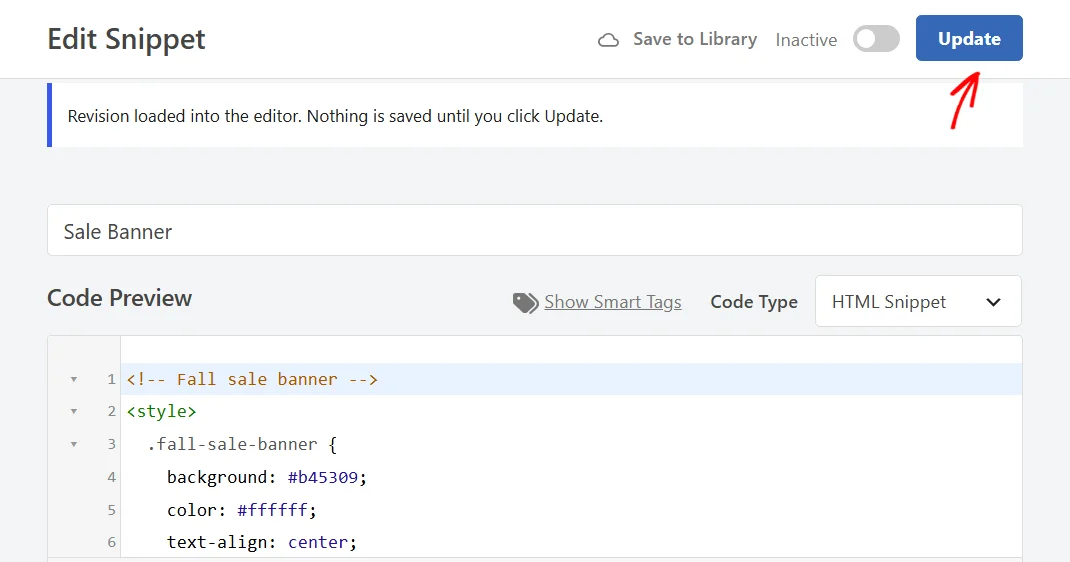
If you leave the editor without clicking Update, nothing changes on your site.
WPCode keeps revisions of your global header and footer code too.
From your WordPress admin sidebar, go to Code Snippets » Header & Footer.
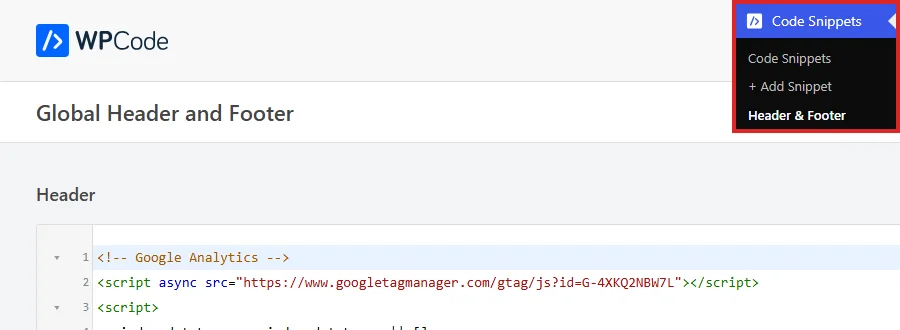
Below the Footer box, the Code Revisions box lists each saved version. Its Compare links open the same revisions page you used for snippets.
Restoring works the same way as for snippets, with one difference. For header and footer code, the Restore Revision button in the overlay replaces your live code straight away.
WPCode keeps every revision unless you set a limit. That way, you can always go back to any version you’ve saved. A limit is useful on sites where snippets change often and the list grows long.
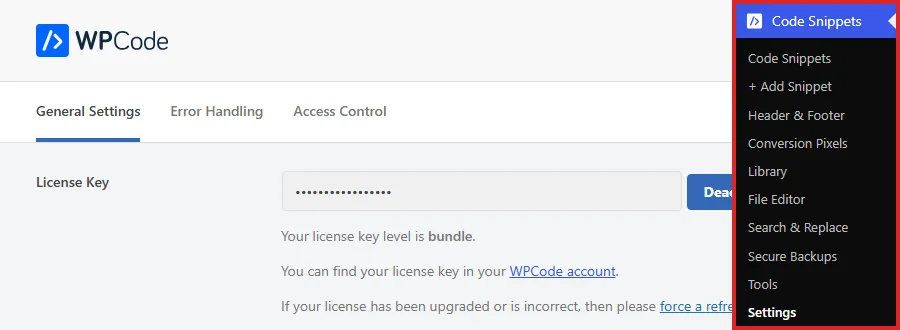
From your WordPress admin sidebar, go to Code Snippets » Settings. The General Settings tab opens by default.
Further down the tab, turn on the Remove Revisions toggle. A Revisions to Keep field appears below it.
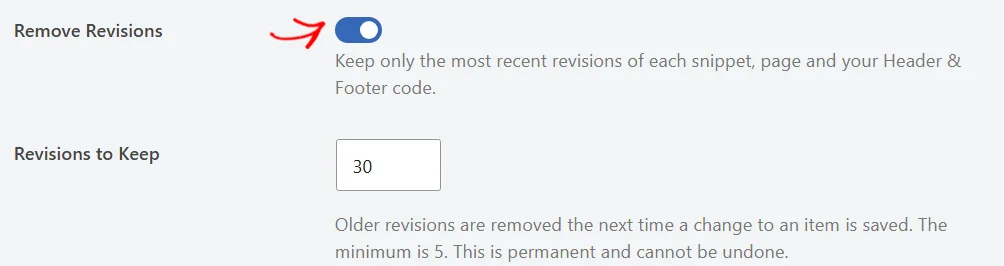
Revisions to Keep sets how many revisions WPCode keeps for each snippet, each page with page scripts, and your header and footer code.
It starts at 30. The lowest number it accepts is five. If you’re not sure what to choose, keep the starting value.
The limit counts revisions, not their age. An old revision stays as long as it’s within the number you set.
WPCode removes revisions past the limit the next time a change to that item is saved. Removed revisions are gone for good. Choose a number that leaves you enough history to go back to.
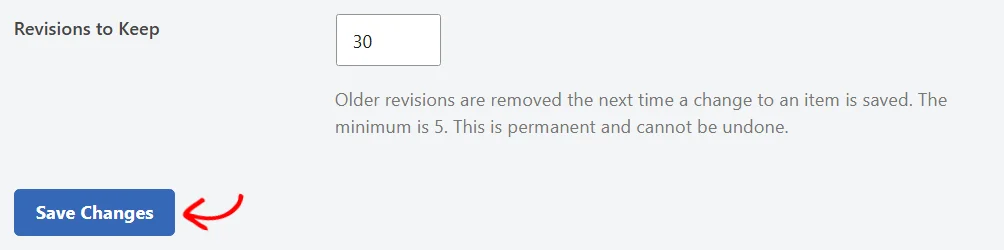
When you’ve set the number, click Save Changes at the bottom of the tab.
That’s it! You now know how to compare snippet revisions, restore an earlier version, and keep the revisions list to a size that suits your site. Next, take a look at our guide on using Testing Mode. It lets you try snippet changes privately before your visitors see them.
Below, we’ve answered some of the most common questions about code revisions in WPCode.
Only saves that change something do. WPCode compares the snippet’s code and settings with the previous version. If nothing changed, no new revision is added.
Yes. The version you replaced stays in the revisions list. You can restore it the same way. If you’ve turned on the revision limit, newer saves can eventually push it out of the list.
No. When you use Restore now on an active snippet, it stays active.
Yes. Page scripts keep revisions on the Revisions tab of the WPCode Page Scripts box, on that post or page’s edit screen. Like header and footer revisions, they restore straight away.
No. WPCode removes revisions past the limit the next time a change to that item is saved. Removal happens as part of that save, rather than at a set time.
Future-proof your website with WPCode Snippets and improve the way you manage code across all your websites.
Copyright © 2026 WPCode. WPCode® is a registered trademark of WPCode, LLC


The WordPress® trademark is the intellectual property of the WordPress Foundation. Uses of the WordPress®, names in this website are for identification purposes only and do not imply an endorsement by WordPress Foundation. WPCode is not endorsed or owned by, or affiliated with, the WordPress Foundation.