You changed a snippet last week, and now something on your site looks wrong. You want to restore the earlier version, but you’ve changed more than just the code since then.
Before you click Restore, you need to know which settings will change along with it.
Today we’re releasing WPCode 2.4.0 with a redesigned Code Revisions page. You can now see which settings and lines of code a restore would change before saving anything.
The update also adds an optional limit on how many revisions WPCode keeps for each snippet, page, and your Header & Footer code.
Both are available on every paid WPCode plan. Update WPCode Pro to 2.4.0 to get them.
Updating changes nothing on its own. The revision limit stays off until you turn it on.
This release includes two more changes:
- WPCode 2.4.0 changes who can turn on safe mode, in both the free WPCode Lite and WPCode Pro.
- Conversion Pixels 1.2.5 fixes purchase tracking for MemberPress subscriptions. It’s a separate addon plugin, so updating WPCode doesn’t update it. Update the addon on its own.
What’s New in Code Revisions?
Code Revisions saves a copy of your snippet each time you save a change.
In WPCode 2.4.0, each revision is compared with the live version, so you can see what restoring it would change.
The redesigned page works with snippets, global Header & Footer code, and scripts added to individual pages.
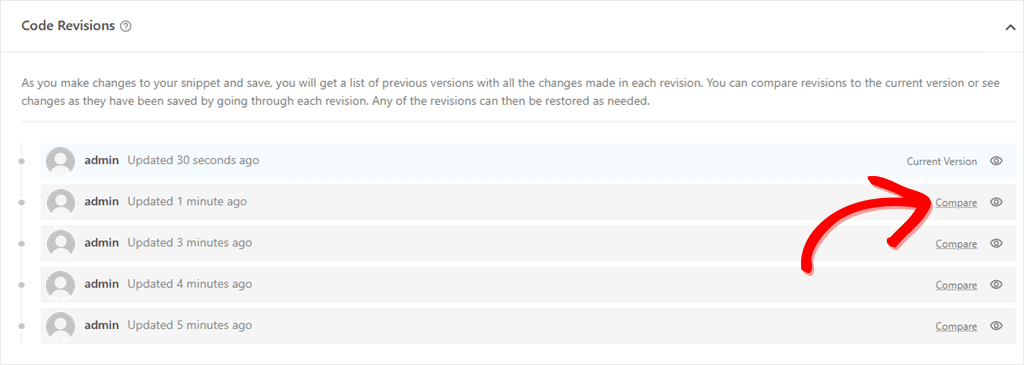
For your Header & Footer code, the same box sits under Code Snippets → Header & Footer. For page scripts, it’s in the WPCode box on that post or page’s edit screen.
See Which Settings a Restore Will Change
Restoring a snippet brings back its code and settings, including its title, location, priority, device targeting, schedule, and conditional logic.
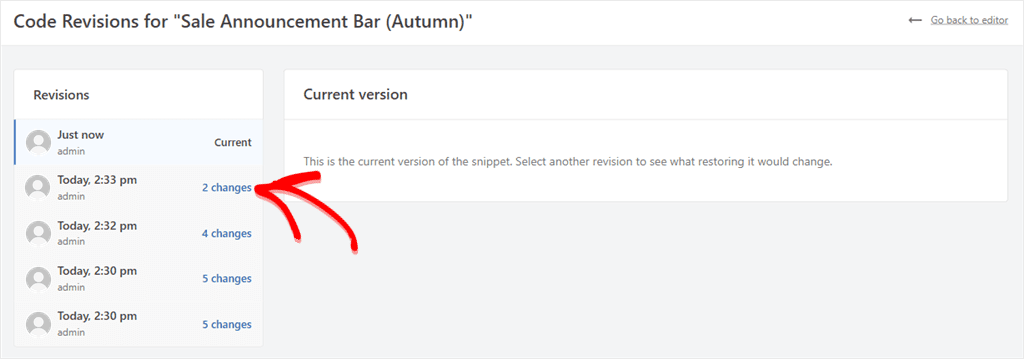
The revisions sidebar shows how many settings would change if you restored each version. Badges such as “2 changes” and “5 changes” show the count, while the version matching your live snippet is marked “Current”.
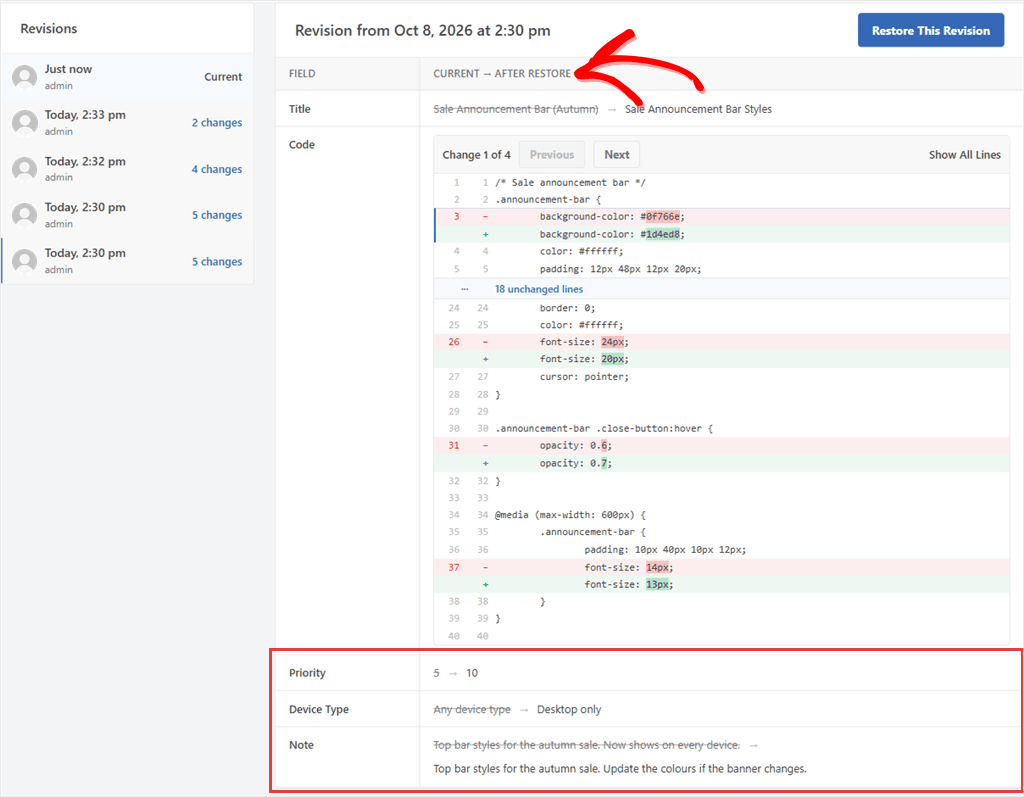
Click a revision, and you get a table headed “Current → After restore”.
It lists only the settings that would actually change, with your live value first and the restored value after it.
In our test, restoring the oldest version would change five things: Title, Code, Priority, Device Type, and Note.
For example, Priority would revert from 5 to 10, and Device Type from “Any device type” to “Desktop only”.
If an older version matches what’s live, its badge reads “Same as current” and there’s nothing to restore.
Step Through Code Changes One at a Time
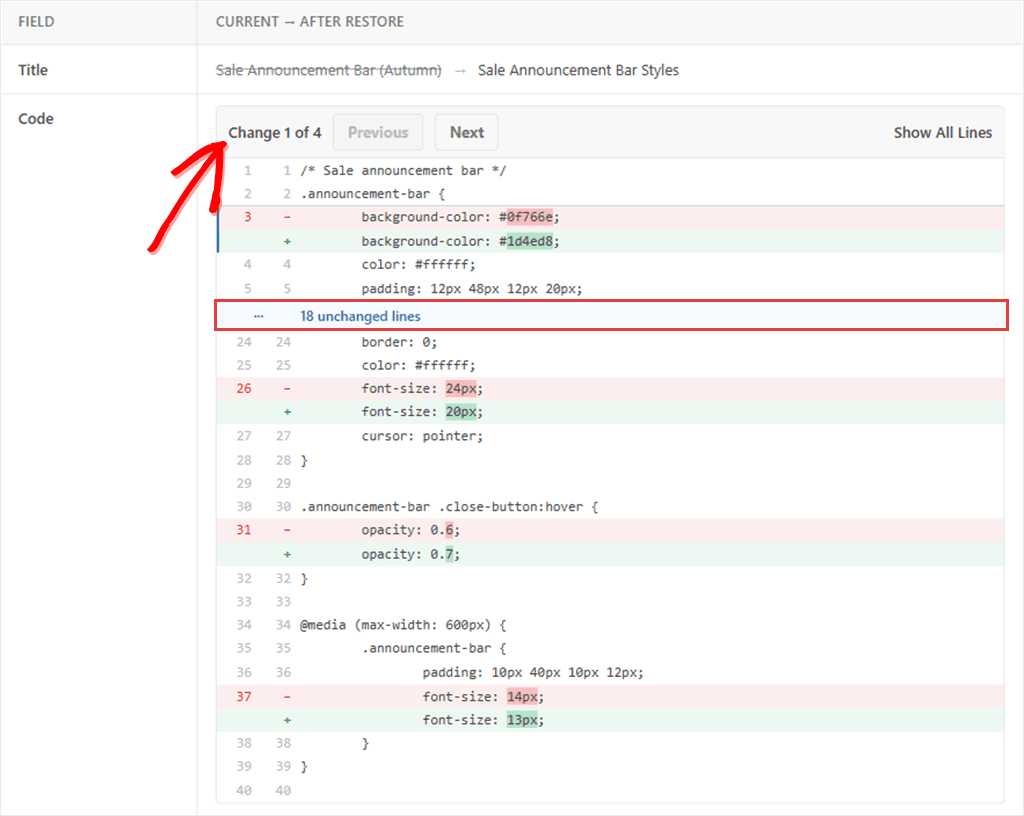
Removed lines appear in red, added lines in green, and smaller edits have their changed words highlighted.
Unchanged code is collapsed, leaving two lines around each change so you can see the surrounding code.
The counter shows your position, such as “Change 1 of 4”. Use Previous and Next to move between changes, or click Show All Lines to view the full file.
Try a Revision in the Editor Before You Save It
Sometimes you want to try the old version first, or keep most of it and change one line.
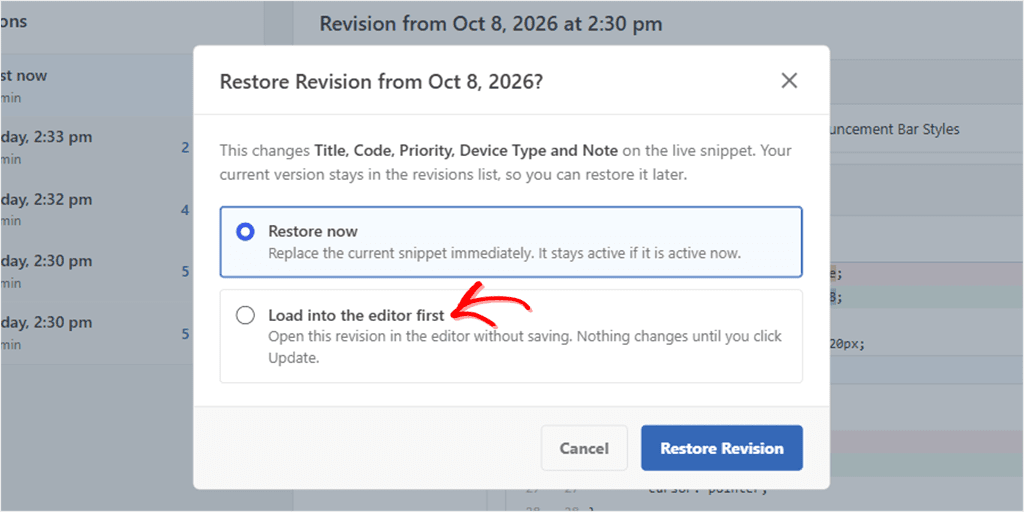
Click Restore This Revision and a dialog opens. It names what will change (“This changes Title, Code, Priority, Device Type and Note on the live snippet”) and asks how you want to restore it:
- Restore now replaces the live snippet straight away. The dialog adds: “It stays active if it is active now.”
- Load into the editor first opens that version in the snippet editor without saving anything.
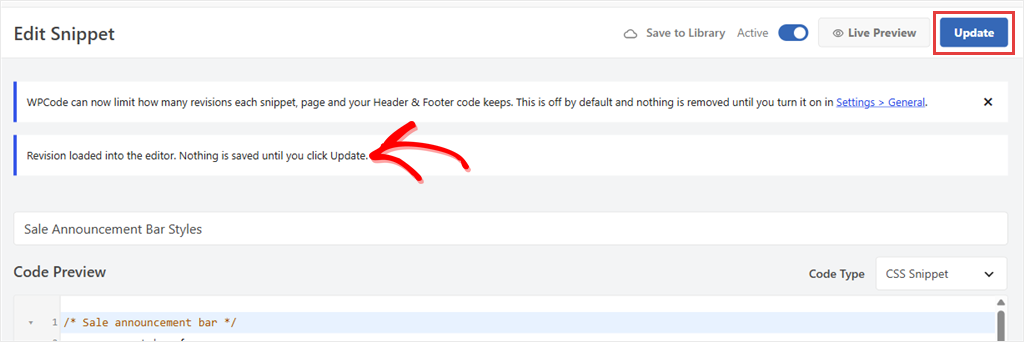
A notice reminds you to click Update when you’re ready to save the changes.
Until you click Update, the live snippet remains unchanged.
⚠️ One thing worth knowing
Load into the editor first is for snippets. Header & Footer code and page scripts restore straight away.
Your Current Version Stays One Click Away
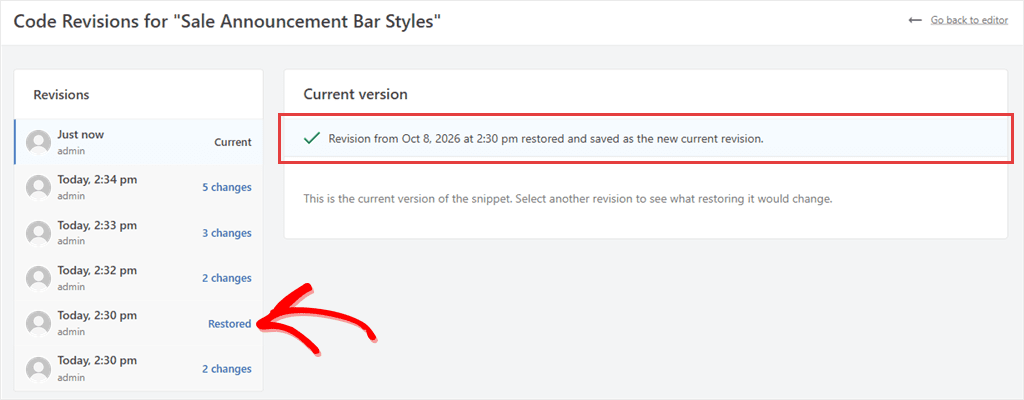
After restoring a revision, you stay on the revisions page. WPCode saves it as the new current version and marks the row you restored from “Restored”.
You can restore the version you replaced, too, as long as it’s still in the list. With the revision limit on, newer saves can push it out.
Choose How Many Revisions WPCode Keeps
Every save or restore adds a revision. WPCode 2.4.0 lets you cap how many it keeps.
The limit is off by default. Turning it on doesn’t delete existing revisions by itself.
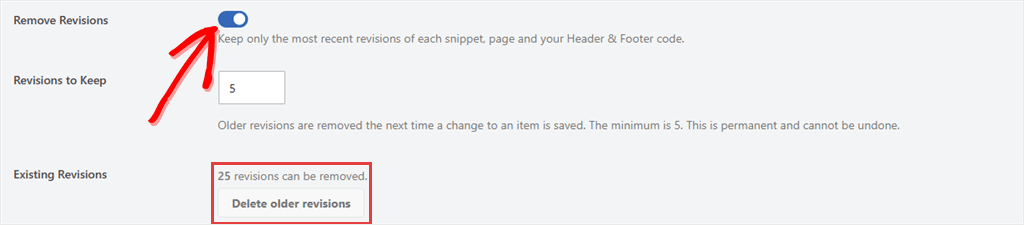
Turn it on with the Remove Revisions toggle under Code Snippets → Settings → General, then set Revisions to Keep.
The default is 30 per item. The minimum is 5.
The limit is based on the number of revisions, not their age. A two-year-old revision can stay as long as it falls within the limit.
WPCode applies the limit when you save a change or restore a revision. It doesn’t run on a schedule.
You See the Number Before Anything Is Deleted
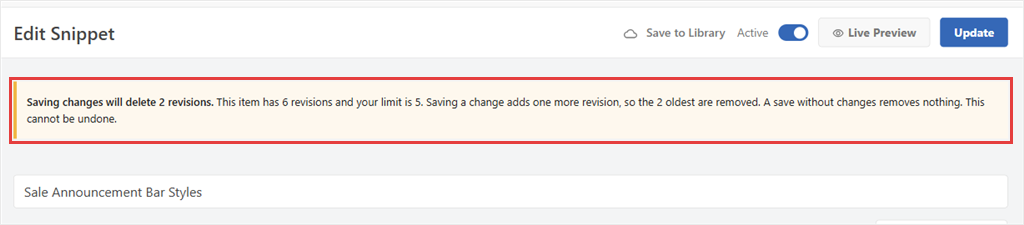
Before a save removes older revisions, the edit screen shows how many will be deleted.
For example, if a snippet has 6 revisions and the limit is 5, saving a new revision would put the total at 7. WPCode warns you that 2 revisions will be deleted to bring the total back to 5.
Tidy Up the Revisions You Already Have
To clean up existing revisions, turn the limit on and save.
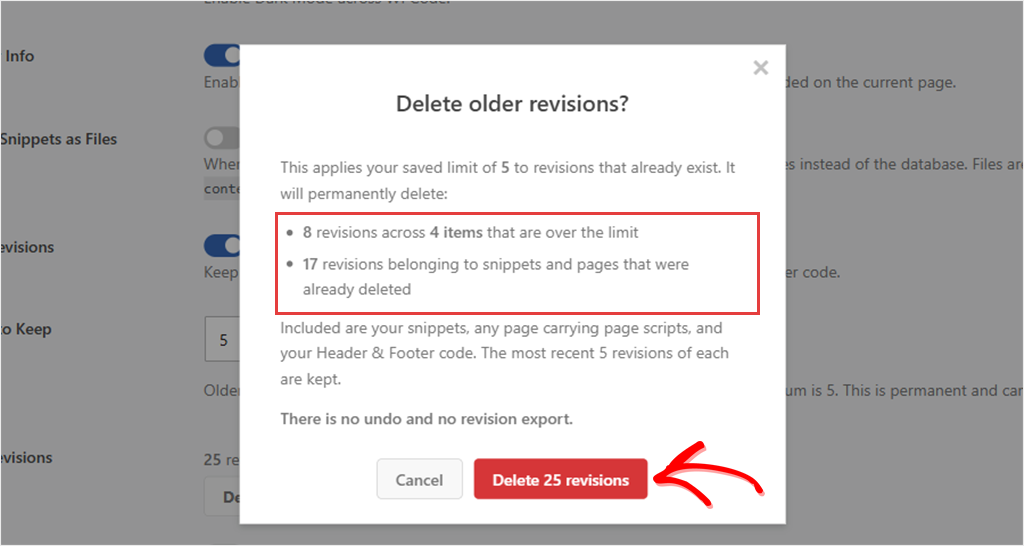
The Existing Revisions row then shows how many can go, with a Delete older revisions button. WPCode shows the count and asks you to confirm before deleting anything.
The cleanup also clears revisions left behind by deleted snippets.
⚠️ One thing worth knowing
Removed revisions are gone for good. The cleanup dialog says it plainly: “There is no undo and no revision export.”
Permanently deleting a snippet, post, or page also deletes its revisions, even when the limit is off. Moving it to the trash preserves its revision history.
Only users who can manage WPCode settings, administrators by default, can change the limit or run the cleanup.
Also in This Release
Safe Mode Now Needs a Logged-In User (Lite and Pro)
Safe mode pauses your snippets to help you recover when one causes an error. In WPCode 2.4.0, the wpcode-safe-mode URL parameter works only for logged-in users who can manage snippets.
If you’re locked out of your site, use the WPCODE_SAFE_MODE constant in your wp-config.php file instead. See our safe mode guide for instructions.
Conversion Pixels 1.2.5 and MemberPress
On MemberPress 1.14 and newer, the thank-you page could fail after a paid subscription purchase. When it did, Conversion Pixels didn’t send that purchase event.
Conversion Pixels 1.2.5 fixes this. Subscription and trial purchases now report their first-period amount.
Conversion Pixels is its own plugin, so updating WPCode won’t update it. If you track MemberPress purchases with it, update the addon to 1.2.5.
Smaller Changes to Revisions
- Revision dates now follow your site’s timezone.
- Only users who can edit Header & Footer code can view its revisions.
- If a snippet restore fails, WPCode now shows an error message.
Getting Started
On a paid plan? Here’s how to check your first restore:
- ✅ Update WPCode Pro to 2.4.0
- ✅ Open a snippet and go to Code Revisions
- ✅ Click Compare beside an older version
- ✅ Review the settings table and code changes
- ✅ Click Restore This Revision and choose how to proceed
Want to cap your revision history?
- ✅ Go to Code Snippets → Settings → General
- ✅ Turn on Remove Revisions and set Revisions to Keep (30 by default, 5 at minimum)
- ✅ Save, then use Delete older revisions to tidy what’s already there
Using Conversion Pixels with MemberPress?
- ✅ Update the Conversion Pixels addon to 1.2.5, separately from WPCode
On WPCode Lite?
- ✅ Update to WPCode Lite 2.4.0 for the safe mode change
Have feedback on the new Code Revisions page? Tell us through our contact page.
Already on a paid plan?
Update WPCode Pro to 2.4.0 →
On WPCode Lite and want Code Revisions?
Upgrade to a paid WPCode plan →