
Documentation, Reference Materials, and Tutorials for WPCode
Would you like to add a custom post type or a scheduled task to your site without writing any PHP? WPCode’s snippet generators build working code for you from a form. All you need is WPCode installed on your site.
In this guide, we’ll walk you through using a snippet generator to build code and save it as a snippet.
Before you get started, make sure WPCode is installed and activated on your WordPress site.
A generator is a form that writes code for you. You choose what you want to build and fill in the fields that describe it. WPCode then produces the finished PHP.
Nothing runs on your site while you’re using a generator. It builds the code and shows it to you. The code only becomes active once you save it as a snippet and activate that snippet.
You can also reopen a generator later to adjust what you built. Changing a detail doesn’t mean editing code by hand.
To get started, we’ll pick the generator that builds what you need.
From your WordPress admin sidebar, go to Code Snippets » + Add Snippet. Then select the Snippet Generators tab.
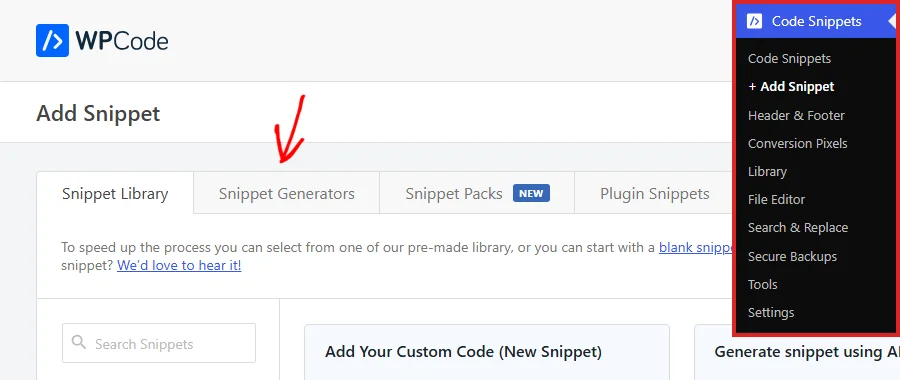
The tab lists every generator WPCode offers, each with a short description of what it builds.
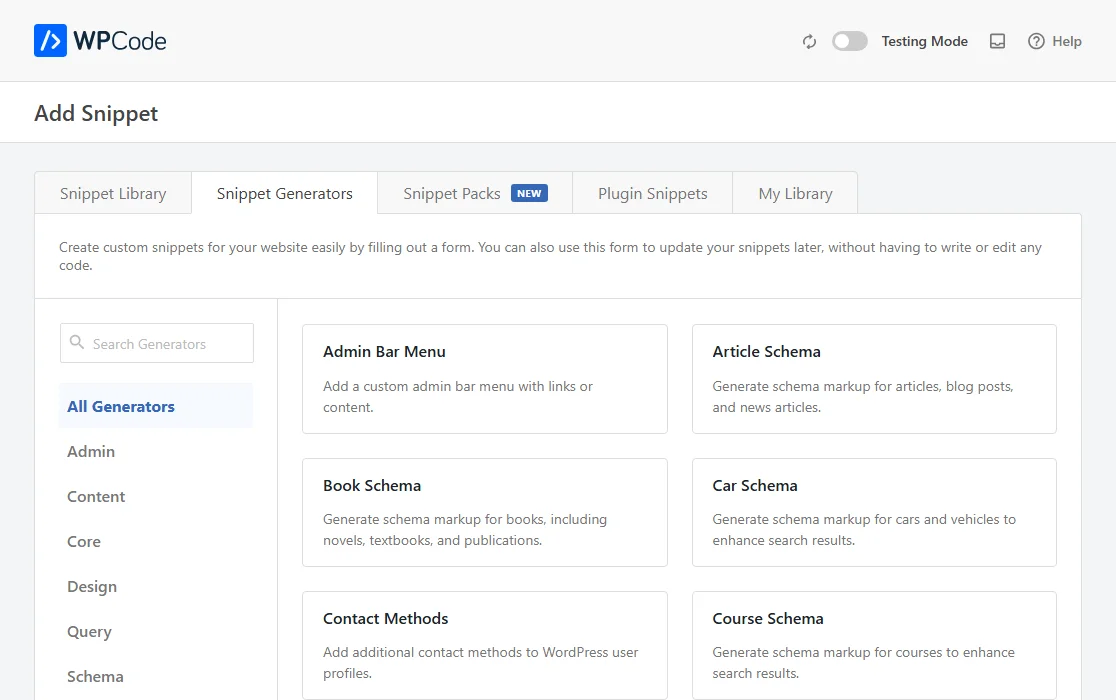
Two things help you find what you need. The category list down the left side filters the generators into groups such as Admin, Content, Core, Design, Query, and Schema. Above it, the Search Generators box narrows the list as you type.
Once you’ve found the one you want, click Generate on its card.

We’re using the Post Type generator, which builds a custom post type, as our example. Every generator follows the same pattern from here, so the steps below apply whichever one you pick.
The generator opens on its own screen, named after what it builds. The menu down the left splits the settings into sections. The fields for each section appear beside it.
The first section, Info, holds no fields. It describes what the generator builds and gives examples of what people use it for. That makes it worth reading if you’re trying a generator for the first time. In the left menu, select General to start on the basics.
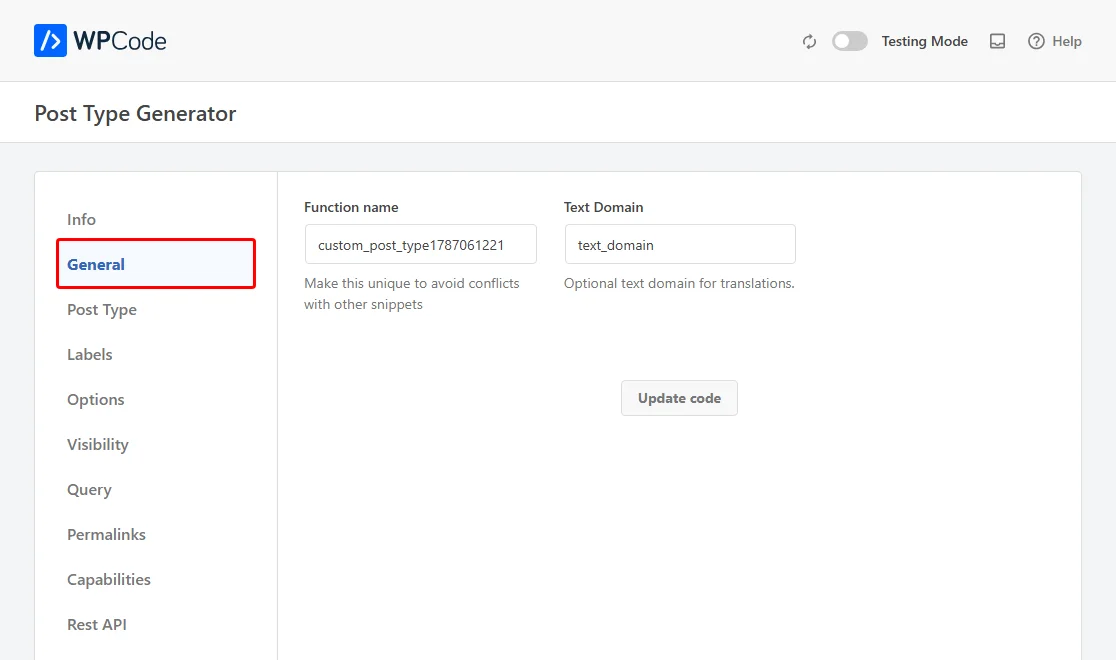
For the Post Type generator, General holds two fields. Function name names the function WPCode writes, and the field’s own guidance asks you to keep it unique so it doesn’t clash with other snippets. It arrives with a unique value already in it, so you can leave it alone or replace it with something that describes what you’re building.
Text Domain is optional. WPCode writes it into every label in the generated code. If you run a translated site, entering your theme or plugin’s text domain here means those labels get picked up by your translation files. On a single-language site, you can leave it alone.
The remaining sections in the left menu cover the rest of the detail. Which ones appear depends on the generator you chose. The Post Type generator offers Post Type, Labels, Options, Visibility, Query, Permalinks, Capabilities, and Rest API.
You don’t have to visit them all. Every field arrives with a default already filled in, so the sections you skip still produce working code.
When you’ve filled in what you need, click Update code to rebuild the code from your answers.
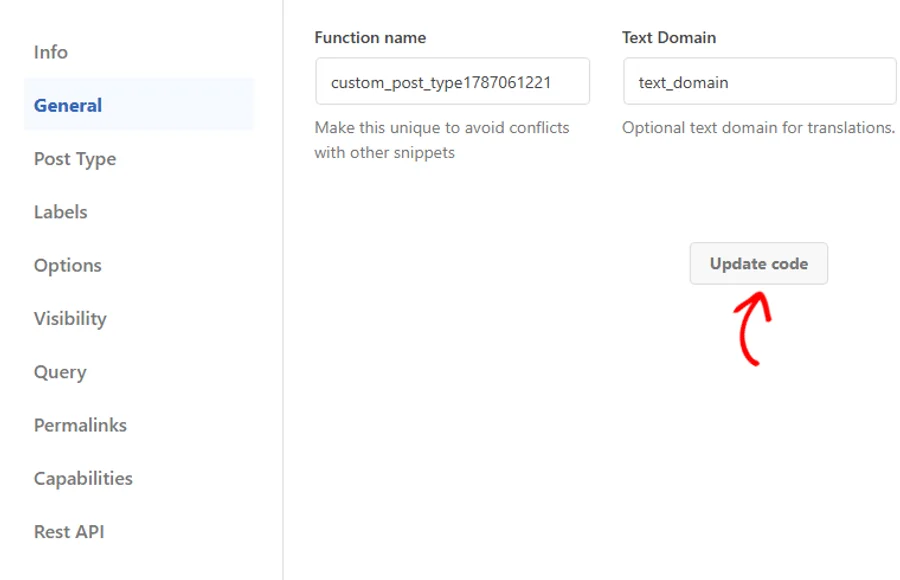
Your answers are now written into the code, and it’s ready to review.
Underneath the form, the Code Preview shows exactly what the generator has written. Reading it lets you check the result before you save anything.
To turn that code into a snippet you can run, click Use Snippet.
If you’d rather place the code yourself, click Copy Code to put it on your clipboard instead.

WPCode creates a new snippet containing the generated code and opens it on its own edit screen. The title it gives the snippet is Generated Snippet followed by the name of the generator you used. That name makes it easy to spot later in your snippets list.
Here’s the snippet the Post Type generator built, open and waiting for you:
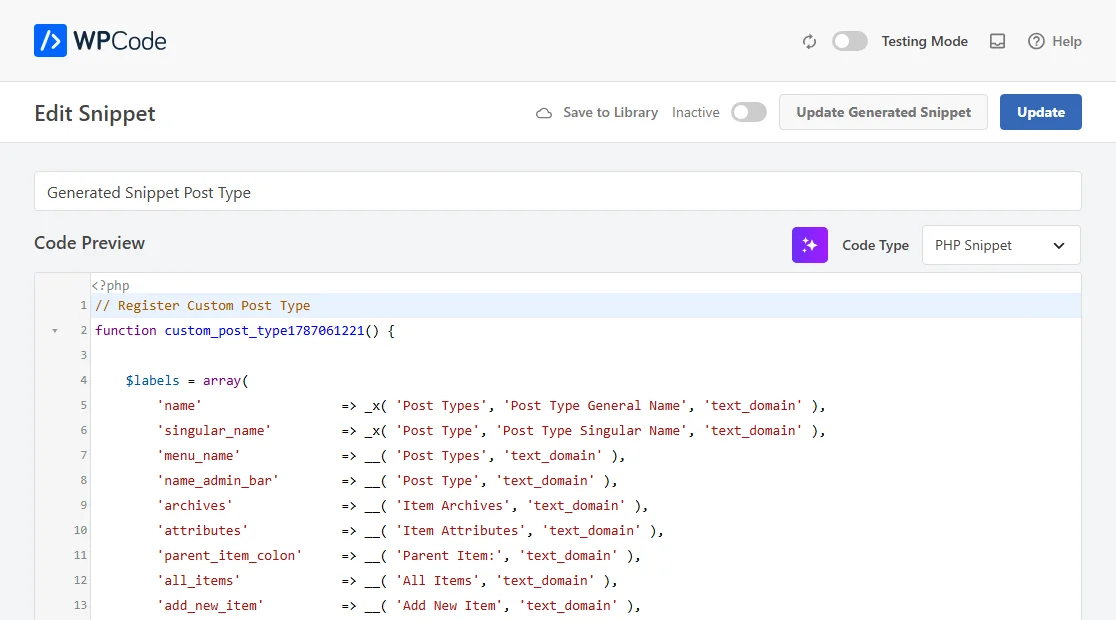
The snippet arrives inactive, which is why the code isn’t running yet. Saving and activating it works the same as with any other snippet. Once it’s active, your new post type starts working. For background on what custom post types are and how to display them on your site, see WPBeginner’s guide to custom post types in WordPress.
That’s it! You’ve turned a filled-in form into working PHP without writing a line of it yourself. The same flow works for every other generator in the list. Next, take a look at our guide on creating your first snippet to get comfortable with saving, activating, and placing the snippets you generate.
Below, we’ve answered some of the most common questions about WPCode’s snippet generators.
No. You describe what you want in the form, and the generator writes the code. Reading the Code Preview is useful, but you don’t have to write or edit anything.
Not in the preview itself, which is read-only. To change the code, adjust your answers in the form and click Update code. If you want to hand-edit the result, save it with Use Snippet first. Then edit it in the snippet’s own code editor.
No. A generator only produces code and shows it to you. It starts working once you save the snippet and activate it.
Yes. A snippet built this way keeps a link back to the generator that made it, so its edit screen carries an Update Generated Snippet button. That button reopens the generator with all of your original answers still in place. The action button reads Update Snippet rather than Use Snippet. Your changes go back into the snippet you already have instead of creating a second one. Updating rewrites the snippet’s code, so the snippet comes back inactive on its edit screen, the same as a freshly generated one. Activating it again puts your changes live.
They’re grouped into categories including Admin, Content, Core, Design, Query, and Schema. Alongside things like custom post types, taxonomies, and scheduled tasks, a large group generates schema markup for content such as articles, recipes, events, and products.
No. Every field already carries a default, so you only need to visit the sections that matter for what you’re building. Even Function name arrives pre-filled with a unique value. Nothing is left blank if you go straight from opening the generator to saving the snippet.
Future-proof your website with WPCode Snippets and improve the way you manage code across all your websites.
Copyright © 2026 WPCode. WPCode® is a registered trademark of WPCode, LLC


The WordPress® trademark is the intellectual property of the WordPress Foundation. Uses of the WordPress®, names in this website are for identification purposes only and do not imply an endorsement by WordPress Foundation. WPCode is not endorsed or owned by, or affiliated with, the WordPress Foundation.